Worked example
- Detail 1
- 10-minute 1080p H.264 export
- Detail 2
- Intel Core i7-12700K (CPU-only)
- Preset
- Medium
- Export time
- ~11 minutes (slightly slower than real time)

FREE VIDEO EXPORT TIME CALCULATOR
Quickly estimate how long your next video export or render will take based on your project's duration, output resolution, codec, and hardware. Whether you're a content creator on a tight schedule or a post-production specialist optimizing your workflow, this tool provides fast, reliable timing predictions to help you plan ahead.
Enter export details, then calculate
The video export time calculator predicts how long it will take to render or export a video file on your specific hardware setup. It factors in the length of your video project, the chosen output resolution (like 1080p, 4K, or 8K), the codec and preset (such as H.264, H.265/HEVC, ProRes), and whether you’re using hardware (GPU) or software (CPU) encoding.
This tool is built for editors, YouTubers, video professionals, and hobbyists who need a precise, evidence-based estimate rather than a vague guess. By entering a few key parameters, you get a realistic expectation of the export duration - helping you plan your workflow, avoid missed deadlines, and optimize hardware choices for future upgrades.
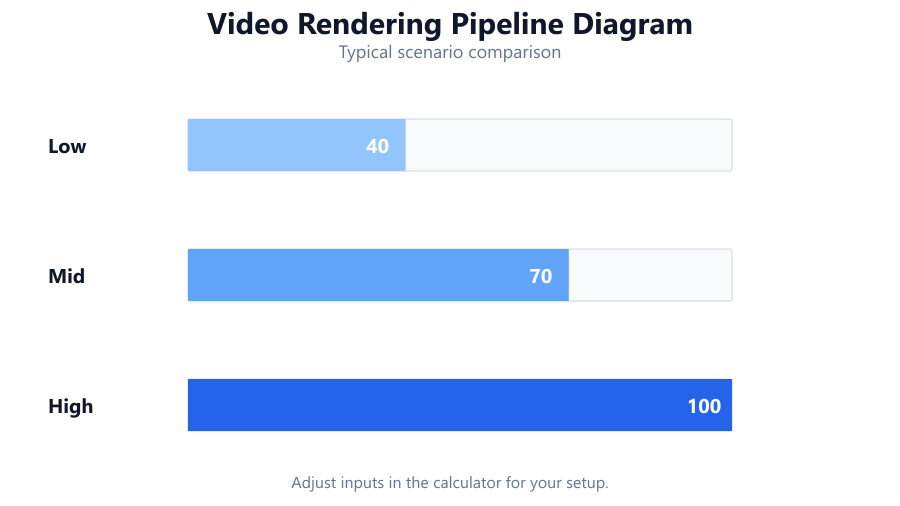
Start by inputting the total duration of your timeline or video project in minutes and seconds. Next, select your desired export resolution (e.g., 1920x1080, 3840x2160, etc.). Choose the codec you plan to use for encoding - common choices include H.264, H.265/HEVC, AV1, or ProRes - and select the encoding preset or quality level if prompted (e.g., 'Fast', 'Medium', 'Slow').
Then, specify your hardware: select your CPU and/or GPU models from the lists, or manually enter their theoretical or real-world encoding speeds if known. Some tools also allow you to select whether the render is CPU-only (software) or GPU-accelerated (hardware encoding).
Once all fields are complete, click "Calculate." The tool will instantly provide an estimated export/render time, often broken down by total project duration, per-minute export time, and a summary of the key factors affecting performance.
The video export time calculator works by modeling the primary factors that influence rendering duration. These include:
Calculation Formula:
Estimated Export Time (minutes) = (Video Duration in minutes) × (Resolution Multiplier) × (Codec Complexity Factor) × (Preset Factor) / (Hardware Encoding Speed Multiplier)
Where:
The calculator uses reference encoding speeds from real-world benchmarks and published hardware specs. Actual results may vary due to timeline effects, color grading, and software version.
Your calculated export time is an estimate based on typical hardware and software performance. It reflects the total time required for your system to process the video from the first frame to the final output file, assuming no background tasks or system bottlenecks.
If your result seems unexpectedly high or low, review each input: longer durations, higher resolutions, complex codecs, and slower presets all increase export time. Using hardware acceleration (supported GPU encoding) can reduce export times by 3x to 8x versus CPU-only encoders for many common codecs.
Keep in mind that effects-heavy timelines (e.g., heavy color grading, noise reduction, multiple video layers) can raise export times further - these are not always fully modeled by the calculator. It assumes a typical edit with light transitions and color adjustments, not VFX-heavy productions or raw video pipelines.
Let’s look at several realistic scenarios to illustrate how export times can vary:
These examples use hardware and codecs selected for their popularity and benchmarked encoding speeds. Your mileage may vary based on exact timeline complexity, but these numbers reflect realistic, real-world scenarios.
Content Creators: YouTubers, streamers, and freelance editors often have tight upload schedules. A precise export time estimate helps avoid last-minute delays and missed deadlines.
Video Professionals: Editors at agencies or studios use these calculations to plan render farms, set client expectations, and allocate overnight batch renders efficiently.
Hobbyists & Students: Knowing how long a project will take on a modest PC helps avoid frustration and plan around homework, part-time jobs, or shared computer access.
Hardware Buyers: Use the calculator to see how much time a faster GPU or CPU might save before committing to an upgrade.
Remote Collaboration: Teams working across different hardware can compare export times to distribute work more evenly.
A reliable video export time calculator is essential for anyone working with digital video. By accurately modeling the impact of video length, resolution, codec, and hardware, you can make informed decisions, avoid workflow bottlenecks, and set realistic expectations for yourself and your clients.
While this tool provides strong estimates for common editing scenarios, remember that complex effects, outdated hardware, or unusual workflows can push actual render times higher. Use the calculator as a planning baseline - and don’t forget to benchmark your own system for the most accurate results over time.
The calculator provides a realistic estimate for typical video projects based on real-world hardware benchmarks and codec complexity. Accuracy is generally within 10 - 20% for standard exports, assuming no unusual timeline effects or major system bottlenecks. Heavy use of plugins, VFX, or background tasks can increase actual export times beyond the estimate.
For most modern codecs and export scenarios, using a dedicated GPU encoder (like NVIDIA NVENC, AMD VCE, or Intel Quick Sync) can speed up exports by 3 - 8x compared to CPU-only encoding. However, for some professional codecs (like ProRes) or highly effects-driven timelines, CPU performance and system RAM may still be limiting factors.
Higher resolutions increase the number of pixels the encoder must process. Exporting 4K video (3840x2160) requires around 4 times the processing of 1080p (1920x1080). This means export times can be 3 - 5 times longer for the same duration, depending on codec and hardware.
Complex codecs like H.265/HEVC and AV1 require more compute power than H.264, leading to longer export times at similar quality levels. AV1 in particular is notably slow on CPU-only systems but can be very fast on newer GPUs with hardware AV1 encoders (like NVIDIA RTX 40-series or Intel Arc).
The calculator assumes a typical timeline with light color correction and transitions. If your project includes heavy effects, noise reduction, stabilization, or multiple video layers, actual export times can be significantly higher than the estimate.
Yes. Select your Apple Silicon chip (M1, M2, etc.) and match the closest codec and preset. Note that Apple’s hardware encoders are highly optimized, so export times are often much faster than older Intel Mac systems - especially for H.264, H.265, and ProRes.
Presets control how much time the encoder spends compressing each frame. 'Fast' presets export quickly but may yield larger files. 'Slow' presets optimize for compression efficiency and quality, significantly increasing export times - sometimes by 2 - 3x compared to 'Fast.'
If your export is taking much longer, check for heavy timeline effects, background software consuming CPU/GPU resources, or thermal throttling. SSD speed and available RAM also play a role. The calculator’s estimate is for typical edits on a healthy, non-throttling system.
Modern multi-core CPUs (like Ryzen 9 7950X, Intel Core i9-13900K) excel at software encoding, especially for complex codecs and high resolutions. Older or entry-level CPUs may struggle, especially with slower presets or effects-heavy timelines, resulting in much longer export times.
For most users, upgrading to a modern GPU with hardware encoding support brings the biggest reduction in export times, especially for H.264, H.265, and AV1. For workflows that rely on CPU (like ProRes or heavy effects), a faster CPU and more RAM are most beneficial.
While the main export bottleneck is typically CPU or GPU encoding, slow HDDs can cause additional delays, especially with high-bitrate 4K/8K projects or when reading/writing multiple streams. Using SSDs for source and destination files is recommended for consistent export times.
Yes, but calculate each file individually, then sum the results for total export time. For batch exports, ensure your system has sufficient RAM and storage space, as simultaneous renders can consume more resources than single-file exports.
Look up benchmark results for your hardware model and export scenario (codec, resolution, preset). Many video editing forums and review sites (like PugetBench, Tom’s Hardware, or AnandTech) publish real-world encoding speeds for common CPUs and GPUs.
No. Different editors (Premiere Pro, DaVinci Resolve, Final Cut Pro, etc.) have varying degrees of hardware optimization, encoder quality, and plugin performance. Export times can differ by 20 - 40% between applications, even with identical hardware and settings.
The calculator assumes a fixed frame rate for simplicity (usually 24, 30, or 60 fps). If your timeline includes variable frame rates, actual export times may differ slightly, especially if your editing software performs additional frame conversion or resampling.
It assumes typical edit complexity, uses median hardware encoding speeds, and does not fully model effects-heavy or VFX-laden timelines. It also assumes a healthy system with no thermal throttling or multitasking. For edge cases, always benchmark your own system for the most accurate results.
Use hardware-accelerated encoding if possible, choose faster presets, minimize timeline effects, and keep your editing software and drivers up to date. Upgrading to a recent GPU or CPU, and using SSDs for all files, can also yield substantial improvements in export speed.
Yes, for planning and estimation. However, in professional settings with complex color grading, compositing, or raw workflows, actual export times may be longer than the calculator suggests. Use it as a baseline and supplement with project-specific benchmarks as needed.
Free tools to analyze, compare, and optimize your PC gaming performance
Check if your PC meets the requirements for these popular games
Benchmark data from PassMark and publisher specs. Calculators run locally in your browser — we never upload your hardware info.