
Guide
How to Choose the Right Hardware
Choosing the right hardware is essential for smooth video editing and reliable storage. This guide explains what you need to know before buying your next PC or storage solution.
Updated 2026-07-05
Understanding Your Video Hardware Needs
Selecting the right hardware starts with knowing your project requirements. Different video workflows, such as 4K editing, live streaming, or simple archiving, demand specific hardware capabilities. The wrong choice can lead to lag, dropped frames, or even data loss.
For video projects, storage size is critical. High-resolution footage, longer runtimes, and advanced codecs all impact how much space you will need. Before purchasing, estimate your storage needs using a tool like the Video Storage Calculator. This gives you a clear idea of the minimum hardware specs required for your workflow.
Your next step is to consider the rest of your system: CPU, RAM, GPU, and connectivity options. Each component plays a role in processing, storing, and transferring large video files efficiently. By understanding how these pieces work together, you can avoid bottlenecks and ensure your investment lasts for years.
Key Hardware Components for Video Storage and Editing
Storage drives are the backbone of any video workflow. SSDs offer fast read and write speeds, which are vital for editing high-bitrate footage. HDDs provide more capacity at a lower price but may struggle with large or multiple video streams. NVMe SSDs are even faster and should be considered for professional work.
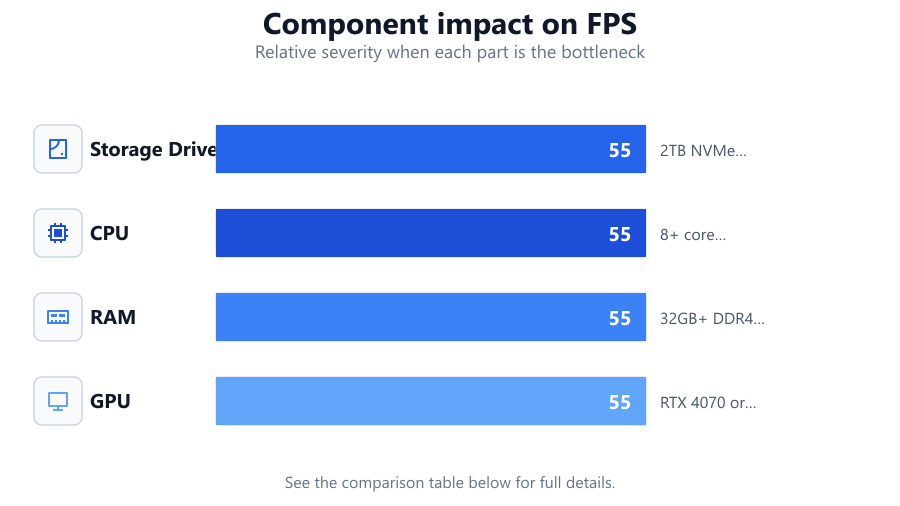
CPU performance is another crucial factor. Video encoding, effects, and timeline scrubbing all rely on a strong processor. Multi-core CPUs are preferred for editing and rendering tasks. RAM is equally important: for HD editing, 16GB is a practical minimum, while 32GB or more is recommended for 4K and above. A dedicated GPU accelerates effects and playback, especially in applications like DaVinci Resolve or Adobe Premiere Pro.
Connectivity matters too. USB 3.2, Thunderbolt, and 10Gb Ethernet can eliminate transfer bottlenecks when moving large files. And do not overlook power supply reliability, cooling, and backup solutions to protect your projects. Regularly check your actual storage usage with the Video Storage Calculator so you can plan upgrades before space runs out.
Step-by-step
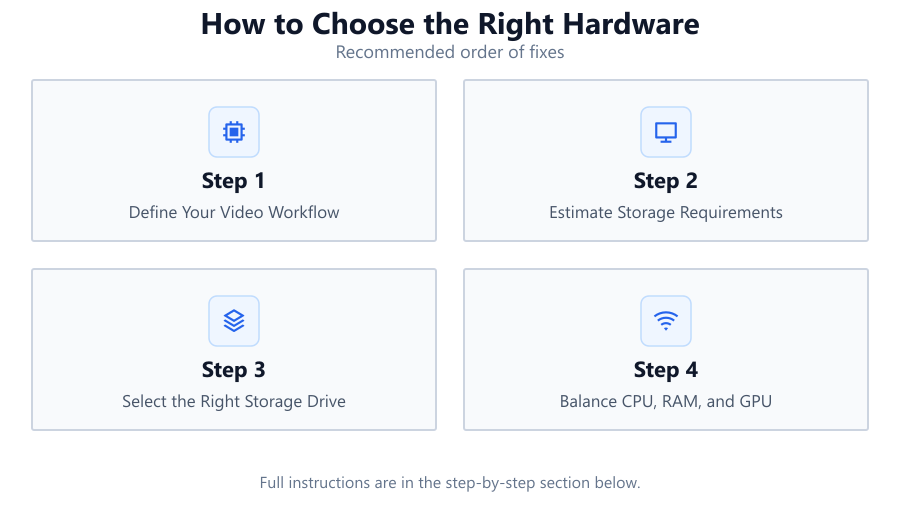
Define Your Video Workflow
Identify the type of projects you will handle: 1080p, 4K, or higher resolutions. Will you edit, stream, or just archive? This determines your hardware baseline.
Estimate Storage Requirements
Use the Video Storage Calculator to estimate how much space your footage will consume. Input your resolution, bitrate, codec, and duration for accurate results.
Select the Right Storage Drive
Choose SSDs for speed, HDDs for capacity, or NVMe SSDs for top performance. Consider RAID setups for redundancy and faster throughput.
Balance CPU, RAM, and GPU
Pick a multi-core CPU for editing, at least 16GB RAM for HD, and a dedicated GPU for accelerated rendering. Upgrade to 32GB RAM or more for 4K workflows.
Plan for Expansion and Backup
Ensure your system allows for adding more drives, RAM, or external interfaces. Use reliable backup solutions to protect your footage from data loss.
Comparison
| Component | Budget Option | Professional Option |
|---|---|---|
| Storage Drive | 1TB SATA SSD | 2TB NVMe SSD or 8TB RAID HDD |
| CPU | Quad-core (i5/Ryzen 5) | 8+ core (i9/Ryzen 9/Threadripper) |
| RAM | 16GB DDR4 | 32GB+ DDR4 or DDR5 |
| GPU | GTX 1650 or RX 6500 | RTX 4070 or Radeon Pro W6800 |
Common mistakes
Mistake
Underestimating storage needs
Fix: Always use a tool like the Video Storage Calculator to predict space requirements before you buy.
Mistake
Ignoring CPU and RAM requirements
Fix: Check your editing software's recommended specs and plan for extra headroom, especially for 4K or multi-cam projects.
Mistake
Choosing slow drives for editing
Fix: Use SSDs or NVMe drives for active projects. Reserve HDDs for backup or archive storage only.
Troubleshooting
Slow video playback during editing
Likely cause: Drive speed or insufficient RAM
What to do: Upgrade to a faster SSD or add more RAM to your system.
Dropped frames when recording or exporting
Likely cause: CPU or storage bottleneck
What to do: Select a faster CPU and ensure your storage drive meets the required write speeds for your video format.
Running out of storage mid-project
Likely cause: Incorrect space estimation
What to do: Use the Video Storage Calculator before recording and always keep spare storage available.
Recommendations
- Always estimate your storage needs ahead of time with the Video Storage Calculator.
- Invest in SSDs or NVMe drives for active editing and use HDDs for archiving.
- Aim for at least a quad-core CPU and 16GB RAM for basic editing, or higher for 4K projects.
- Keep your system expandable with extra drive bays, RAM slots, and multiple connectivity options.
- Regularly back up your footage to external drives or cloud storage.
Frequently asked questions
How do I know how much storage I need for my video project?
Use the Video Storage Calculator to accurately estimate the space required based on your video's resolution, bitrate, codec, and length.
Is SSD or HDD better for video editing?
SSDs are better for active editing due to their speed, while HDDs are cost-effective for storing completed projects or backups.
How much RAM do I really need for video editing?
16GB is the minimum for HD editing. For 4K or larger projects, 32GB or more is recommended for smooth performance.
What happens if I run out of storage during a shoot?
You risk losing footage or interrupting your workflow. Always check your storage needs in advance using the Video Storage Calculator and keep extra space available.