
Guide
Optimization Guide
Unlock the full potential of your video projects with this optimization guide. Learn how to minimize storage requirements and maximize quality with practical, step-by-step strategies.
Updated 2026-07-05
Understanding Video Storage Optimization
Efficient video storage is crucial for professionals and hobbyists who regularly handle large media files. With rapid advancements in camera technology, 4K and even 8K video have become more accessible, but these higher resolutions can quickly consume available storage. An effective optimization guide helps you strike a balance between video quality and file size, ultimately saving you time, money, and frustration.
Video storage optimization involves understanding the core factors that influence file size: resolution, frame rate, bitrate, codec, and duration. By making informed decisions about each of these elements, you can tailor your workflow to your specific needs. Whether you are archiving raw footage, preparing files for editing, or delivering final content, applying optimization techniques ensures you never run out of space unexpectedly.
Using tools like the Video Storage Calculator, you can instantly estimate your storage needs before starting a project. This knowledge empowers you to plan ahead, allocate resources efficiently, and avoid common pitfalls like incomplete recordings or data loss due to insufficient disk space.
Key Strategies for Optimizing Video Storage
To optimize your video storage, start by evaluating your project's requirements. Ask yourself: What is the final delivery format? Is maximum image quality necessary, or can you compromise slightly to save space? Are you archiving, editing, or streaming your footage? Each scenario may require a different approach to optimization.
Bitrate plays a significant role in determining both video quality and file size. Lowering the bitrate reduces storage needs but can introduce compression artifacts if pushed too far. Experiment with different settings using short test clips and compare them to find the ideal balance. The codec you choose also impacts efficiency. Modern codecs like H.265 (HEVC) offer superior compression compared to older formats like H.264, delivering similar quality at lower bitrates.
Resolution and frame rate are additional levers you can pull. If your content will only be viewed on mobile devices, consider recording at 1080p instead of 4K, or using 30fps instead of 60fps when appropriate. Lastly, always keep an eye on your project's total duration. Even small optimizations in settings can add up to significant storage savings over hours of footage. The Video Storage Calculator is invaluable for modeling these changes in real-time, allowing you to see the exact impact before you commit to a recording setup.
Step-by-step
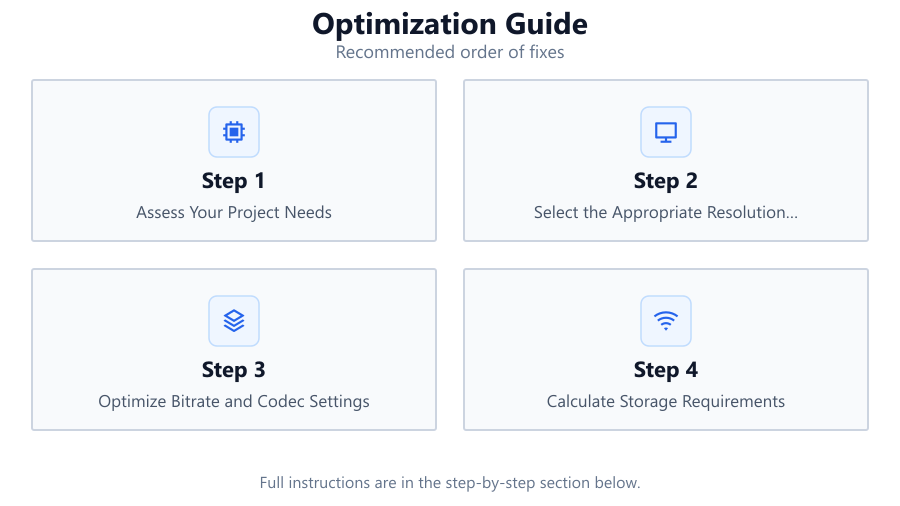
Assess Your Project Needs
Define the purpose of your video project. Consider the target platform, required quality, and delivery specifications. This will guide your optimization decisions moving forward.
Select the Appropriate Resolution and Frame Rate
Choose the lowest acceptable resolution and frame rate for your intended use. Lowering these settings can dramatically reduce file sizes without significantly impacting perceived quality in many cases.
Optimize Bitrate and Codec Settings
Experiment with bitrate values and codec options. Use modern codecs like H.265 for better compression, and find the lowest bitrate that still delivers acceptable quality for your needs.
Calculate Storage Requirements
Use the Video Storage Calculator to input your chosen settings and accurately estimate the required storage before you start recording. This prevents surprises and ensures you have enough space.
Implement a Consistent Archiving Workflow
Organize your files with clear naming conventions and folder structures. Regularly back up your data and review archived footage to remove unnecessary files, maintaining an efficient storage system.
Comparison
| Setting | Impact on File Size | Recommended Use |
|---|---|---|
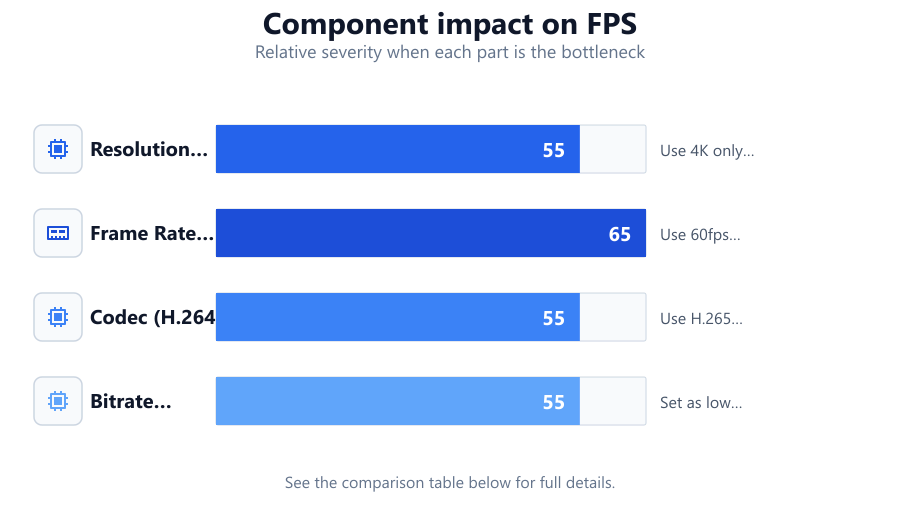
| Resolution (4K vs 1080p) | 4K files are 4x larger than 1080p | Use 4K only for high-end delivery |
| Frame Rate (60fps vs 30fps) | 60fps doubles file size over 30fps | Use 60fps for slow motion or smooth motion needs |
| Codec (H.264 vs H.265) | H.265 saves up to 50% space vs H.264 | Use H.265 for efficient storage, if supported |
| Bitrate (High vs Low) | Higher bitrate increases file size | Set as low as possible without quality loss |
Common mistakes
Mistake
Recording at unnecessarily high resolution or frame rate
Fix: Match your recording settings to your project's actual needs to reduce file size.
Mistake
Ignoring codec advancements and using outdated formats
Fix: Switch to modern codecs like H.265 to benefit from improved compression.
Mistake
Not calculating storage needs before recording
Fix: Always use the Video Storage Calculator to estimate storage and prevent running out of space mid-project.
Troubleshooting
Storage device fills up during recording
Likely cause: Underestimated the required storage space
What to do: Recalculate your needs using the Video Storage Calculator and adjust your recording settings or use a larger storage device.
Final video quality is poor despite large file size
Likely cause: Inefficient codec or excessive bitrate without quality gain
What to do: Switch to a modern codec and lower the bitrate to an optimal level for your content.
Playback stutters on target devices
Likely cause: Resolution or bitrate is too high for device capabilities
What to do: Reduce resolution and bitrate to ensure smooth playback on the intended platform.
Recommendations
- Always plan your project settings in advance and use the Video Storage Calculator to avoid surprises.
- Periodically review your camera and editing software updates for improved codec support.
- Regularly back up your video files to multiple locations to prevent data loss.
- Consider cloud storage solutions for large projects, but factor in upload speeds and ongoing costs.
Frequently asked questions
How do I calculate how much storage my video project will need?
Input your video's resolution, bitrate, codec, and duration into the Video Storage Calculator. It will provide an accurate estimate of the required storage space.
What codec should I use for the best balance of quality and storage?
H.265 (HEVC) is currently one of the most efficient codecs available, delivering similar quality to H.264 at significantly smaller file sizes.
Does lowering bitrate always reduce quality?
Lowering bitrate reduces file size, but if set too low, it can introduce visible compression artifacts. Test different values to find the lowest acceptable bitrate for your content.
Can I use the Video Storage Calculator for audio-only projects?
While designed for video, you can use the calculator by entering audio bitrates and durations to estimate storage for audio files as well.