
Guide
Common Buying Mistakes
Avoid the most common buying mistakes when choosing PC hardware. Learn what to watch out for and how to make smarter, future-proof decisions using expert advice.
Updated 2026-07-05
Understanding Common Buying Mistakes in PC Hardware
Selecting the right hardware for gaming, content creation, or AI tasks is more complex than ever. With rapid advancements in technology and shifting requirements for software, buyers often find themselves overwhelmed by choices and marketing claims. Many end up purchasing components that do not fit their real needs, wasting money or sacrificing performance.
The most common buying mistakes stem from misinformation, overestimating or underestimating performance needs, and failing to account for future requirements. For example, it's easy to be tempted by the highest VRAM available, but without knowing your actual workload, you might overspend or buy outdated tech. Similarly, focusing only on flashy specs like clock speed or core count can distract from more meaningful factors such as VRAM bandwidth, power consumption, and compatibility with the rest of your system.
The VRAM Calculator was created to cut through the noise. By analyzing your specific use case, whether it's high-fidelity gaming, 4K video editing, or deep learning, the tool provides tailored VRAM recommendations. This can help avoid many common pitfalls, ensuring your investment delivers the performance you expect now and in the future.
In-Depth: Mistakes to Avoid and How to Choose Wisely
One of the biggest mistakes buyers make is focusing solely on VRAM size without understanding how different workloads utilize memory. For instance, a GPU with 16GB VRAM might sound impressive, but if you mainly play esports titles at 1080p, most of that memory will go unused. Conversely, professional applications like video editing or AI training can overwhelm lower VRAM cards, leading to crashes or severe slowdowns.
Another frequent error is neglecting the balance between GPU, CPU, and system RAM. Bottlenecks can occur if one component is significantly weaker than the others. For example, pairing an ultra-powerful GPU with an entry-level CPU will limit your system's capabilities, regardless of VRAM. It's also common to overlook power supply requirements, cooling solutions, and physical compatibility within your case.
Many buyers forget to future-proof their purchases. Software requirements grow quickly, and a card that handles today's games or workloads may struggle in a year or two. The VRAM Calculator helps you anticipate future needs by factoring in higher resolutions, upcoming software features, and evolving AI models. Using this tool, you can match your budget to both current and projected use cases, minimizing the risk of premature upgrades or wasted money.
Step-by-step
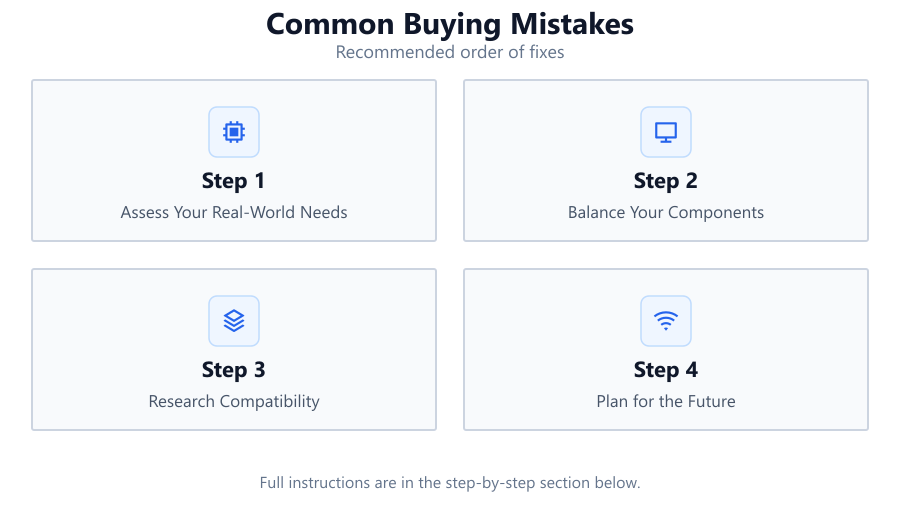
Assess Your Real-World Needs
Start by listing the main tasks you want your PC to handle: gaming, video editing, 3D rendering, or AI workloads. Consider the resolution and frame rates you expect. Use resources like the VRAM Calculator to get tailored recommendations for your specific use case.
Balance Your Components
Avoid bottlenecks by ensuring your GPU, CPU, and RAM are well-matched. An overpowered GPU paired with a weak CPU will not deliver the performance you expect. Check power supply and cooling requirements as well.
Research Compatibility
Double-check that your chosen GPU fits your case and is compatible with your motherboard, power supply, and monitor. Look for clearance issues and make sure ports match your display needs.
Plan for the Future
Consider how your needs may evolve over the next two to three years. Opt for hardware that exceeds current minimum requirements, especially if you plan on gaming at higher resolutions or adopting new software.
Verify Performance Benchmarks
Read multiple reviews and user benchmarks for your chosen hardware. Compare real-world performance in your target applications. Use the VRAM Calculator to cross-check if your planned VRAM allocation meets or exceeds recommended levels.
Comparison
| Mistake | Consequence | Better Approach |
|---|---|---|
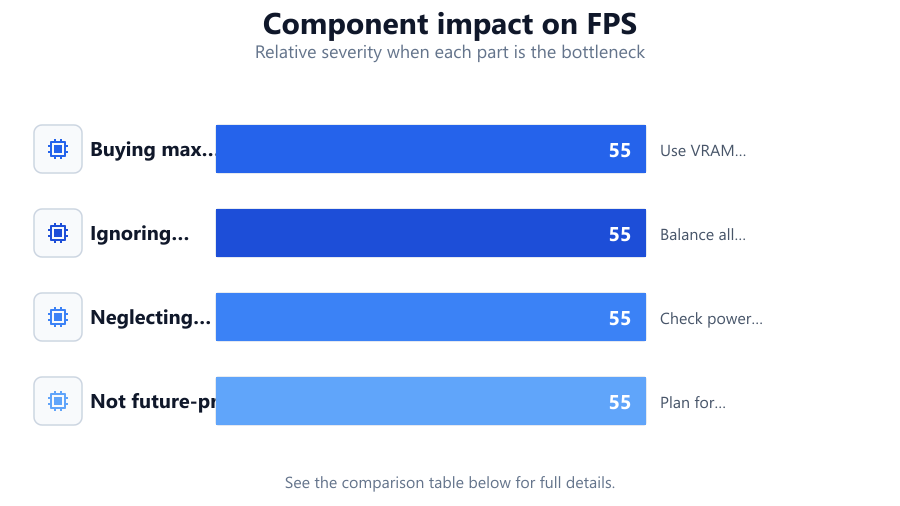
| Buying max VRAM without need | Overspending, wasted resources | Use VRAM Calculator to match workload |
| Ignoring CPU/GPU balance | System bottleneck, poor performance | Balance all components |
| Neglecting PSU/cooling | Instability, crashes, hardware damage | Check power and thermal needs |
| Not future-proofing | Premature obsolescence | Plan for evolving software demands |
Common mistakes
Mistake
Focusing only on VRAM size
Fix: Assess your actual workload with the VRAM Calculator, considering both current and future needs.
Mistake
Ignoring system bottlenecks
Fix: Ensure your CPU, RAM, and storage can keep up with your GPU, and check for any compatibility issues.
Mistake
Overlooking power and cooling requirements
Fix: Research your GPU's power consumption and thermal output, and upgrade your PSU or cooling system if needed.
Troubleshooting
Games stutter or crash frequently
Likely cause: Insufficient VRAM or poor system balance
What to do: Check VRAM usage with monitoring tools, reduce graphics settings, or upgrade based on VRAM Calculator recommendations.
System fails to boot after GPU upgrade
Likely cause: Power supply is inadequate or cables are not connected properly
What to do: Verify PSU wattage, ensure all power connectors are firmly attached, and upgrade PSU if necessary.
GPU fans run at full speed constantly
Likely cause: Insufficient cooling or poor airflow in the case
What to do: Clean dust filters, improve case airflow, or consider aftermarket cooling solutions.
Recommendations
- Use the VRAM Calculator to identify the optimal VRAM for your needs.
- Balance your GPU with a capable CPU and sufficient RAM for best overall performance.
- Choose hardware from reputable brands with good warranty and support.
- Plan for future software and resolution requirements, not just current needs.
- Double-check compatibility and power requirements before purchasing.
Frequently asked questions
How much VRAM do I need for gaming in 2026?
For 1080p gaming, 8GB VRAM is generally sufficient. For 1440p and 4K, 12GB or more is recommended. Use the VRAM Calculator to get a precise estimate for your specific titles and settings.
Is more VRAM always better?
Not necessarily. More VRAM helps with higher resolutions and demanding workloads, but unused VRAM offers no benefit. Match VRAM to your actual needs with the VRAM Calculator.
What happens if my GPU runs out of VRAM?
You may experience stuttering, crashes, or severe frame drops. Applications may close unexpectedly or switch to slower system memory, reducing performance.
Can I upgrade VRAM on my GPU?
No, VRAM is soldered onto the GPU and cannot be upgraded. You must replace the GPU to increase VRAM capacity.