
Guide
Optimization Guide
Ready to maximize your system's performance? This optimization guide shows you how to use the VRAM Calculator to pinpoint the exact video memory needed for gaming, content creation, and AI tasks.
Updated 2026-07-05
Understanding VRAM Optimization
Optimizing your PC for peak performance starts with understanding VRAM, or Video Random Access Memory. VRAM directly impacts how smoothly your system handles graphics-intensive tasks, from modern gaming to video editing and AI workloads. Many users either overestimate or underestimate their VRAM needs, leading to wasted money or frustrating slowdowns.
The VRAM Calculator is designed to remove guesswork, helping you assess how much video memory your unique workflow demands. By entering your use case, resolution, and graphics settings, you get a personalized recommendation based on current hardware standards. This insight is crucial: excessive VRAM does not always translate to better performance, while too little can bottleneck even high-end GPUs.
Whether you want to hit 144 FPS at 1440p in the latest AAA titles or train deep learning models, this optimization guide details exactly how to interpret VRAM Calculator results and adjust your hardware or settings for the best balance of cost and performance.
Deep Dive: Applying VRAM Insights
Once you have your VRAM estimate from the VRAM Calculator, the next step is actionable optimization. For gaming, matching your VRAM to your target resolution and in-game graphics settings avoids stuttering and texture pop-in. For professional tasks like 4K video editing or 3D rendering, ensuring ample VRAM prevents crashes and keeps workflows smooth.
Advanced users can fine-tune their system by monitoring VRAM usage in real time with tools like MSI Afterburner. If you notice VRAM maxing out, consider lowering texture quality or resolution, or upgrading your GPU based on the VRAM Calculator’s guidance. Remember, not all applications use VRAM equally; some games and creative suites are much more demanding than others.
This guide also covers troubleshooting common VRAM bottlenecks, understanding the diminishing returns of excessive VRAM, and balancing VRAM with other system components like CPU and RAM. By leveraging the VRAM Calculator and following this guide, you can ensure your system is tuned for your specific needs, maximizing both performance and value.
Step-by-step
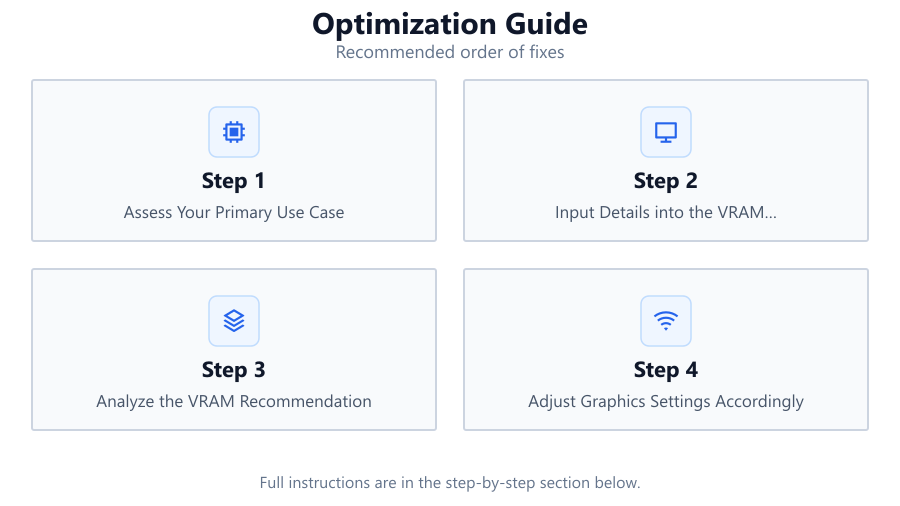
Assess Your Primary Use Case
Identify whether your main workload is gaming, content creation, or AI. This determines your VRAM requirements and guides all optimization steps.
Input Details into the VRAM Calculator
Enter your typical resolution, target frame rate, and graphics settings into the VRAM Calculator. The tool will generate a tailored VRAM estimate for your needs.
Analyze the VRAM Recommendation
Review the suggested VRAM amount. Compare it with your current GPU’s specifications to see if an upgrade or setting adjustment is needed.
Adjust Graphics Settings Accordingly
If your current VRAM is below the recommendation, reduce texture and resolution settings in your applications. This prevents stutters and crashes.
Monitor and Fine-Tune
Use software like MSI Afterburner to watch live VRAM usage. Adjust settings or consider hardware upgrades if you consistently max out your VRAM.
Comparison
| Use Case | Recommended VRAM | Optimization Tip |
|---|---|---|
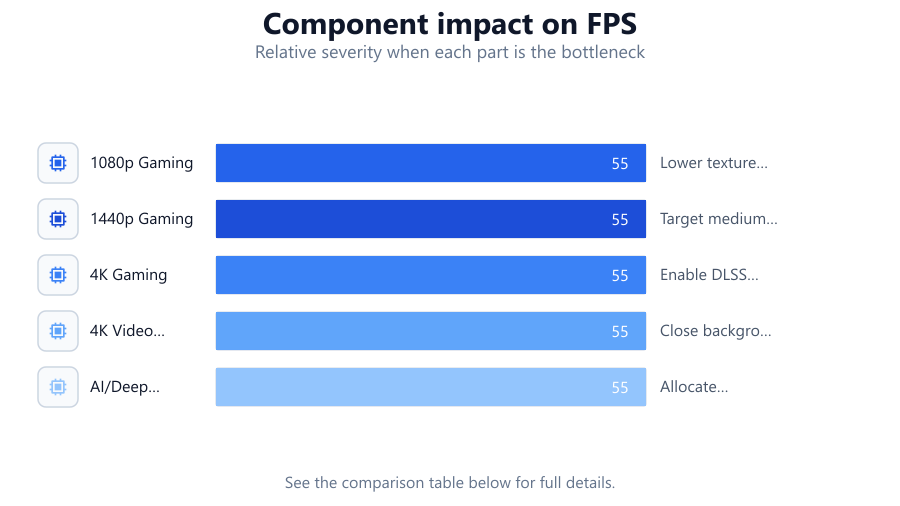
| 1080p Gaming | 4-6GB | Lower texture quality for older GPUs |
| 1440p Gaming | 6-8GB | Target medium to high settings |
| 4K Gaming | 10-12GB+ | Enable DLSS or FSR for smoother gameplay |
| 4K Video Editing | 8-12GB | Close background applications to free VRAM |
| AI/Deep Learning | 12GB+ | Allocate batch sizes to fit within available VRAM |
Common mistakes
Mistake
Assuming more VRAM always means better performance
Fix: Match VRAM to your actual workload using the VRAM Calculator. Excess VRAM offers no benefit if your tasks do not use it.
Mistake
Ignoring real-time VRAM usage metrics
Fix: Monitor VRAM usage with tools like MSI Afterburner to ensure you are not exceeding your GPU’s capabilities.
Mistake
Overlooking software VRAM requirements
Fix: Check the VRAM demands of specific games or applications, as some may require more than others even at the same resolution.
Mistake
Upgrading VRAM without considering CPU or RAM bottlenecks
Fix: Balance upgrades across your system. VRAM alone will not fix performance if your CPU or RAM is also limiting.
Troubleshooting
Games stutter or crash during high-load scenes
Likely cause: Insufficient VRAM for selected graphics settings
What to do: Lower texture or resolution settings or upgrade your GPU to meet VRAM Calculator recommendations.
Video editing software freezes when exporting large projects
Likely cause: VRAM exhausted by high-resolution assets
What to do: Reduce timeline resolution or close other GPU-heavy apps to free up VRAM.
AI model fails to train or runs extremely slow
Likely cause: Model size or batch size exceeds available VRAM
What to do: Lower batch size or use a GPU with more VRAM as suggested by the VRAM Calculator.
System feels sluggish even after upgrading GPU
Likely cause: Other bottlenecks such as CPU or insufficient system RAM
What to do: Check overall system specs and upgrade CPU or RAM if needed for balanced performance.
Recommendations
- Always use the VRAM Calculator before making GPU upgrade decisions.
- Monitor VRAM usage in real time to spot potential bottlenecks early.
- Adjust in-game or app-specific settings to stay within recommended VRAM limits.
- Balance VRAM upgrades with other system components for optimal efficiency.
- Keep graphics drivers up to date for improved VRAM management and compatibility.
Frequently asked questions
How much VRAM do I really need for modern gaming?
Most modern games run well with 6-8GB of VRAM at 1440p. Use the VRAM Calculator to get an exact recommendation based on your preferred settings and target resolution.
Does having more VRAM improve FPS?
Only if your current VRAM is limiting performance. Excess VRAM does not boost FPS if your games or apps do not use it.
What happens if I exceed my available VRAM?
Your system will offload graphics data to slower system RAM, causing stuttering, crashes, or long load times. Prevent this by following VRAM Calculator guidance.
Can I optimize VRAM usage without upgrading my GPU?
Yes. Lowering texture quality, resolution, or closing other GPU-heavy apps can help you stay within your available VRAM budget.