
Guide
Complete Beginner's Guide
Curious why your Wi-Fi speed is slower than expected? This complete beginners guide explains how to estimate your real wireless speeds and improve your home network in minutes.
Updated 2026-07-05
Understanding Wi-Fi Speeds: The Basics
Wi-Fi speed is one of the most common frustrations for home and office users. You might pay for fast internet, but your actual wireless speeds can be much lower. This complete beginners guide breaks down why that happens and how you can get accurate, real-world numbers with the Wi-Fi Speed Estimator.
Wi-Fi speed is influenced by five major factors: your router’s standard (like Wi-Fi 5 or Wi-Fi 6), signal strength, frequency band (2.4GHz or 5GHz), distance from the router, and interference from walls or other electronics. Even the device you use can affect your speed. Understanding these basics will help you troubleshoot slow connections and confidently use tools like the Wi-Fi Speed Estimator to get evidence-based results.
Imagine your Wi-Fi as a highway. The router’s standard sets the speed limit, but heavy traffic (interference), long distances, or sharp turns (walls) can all slow you down. Knowing which factor limits your speed is the first step to fixing it. The Wi-Fi Speed Estimator lets you see the real impact of each variable instantly, so you know what to upgrade or adjust.
How Wi-Fi Speed Estimation Works (and Why It Matters)
Estimating your actual Wi-Fi speed is more than just running a speed test. Speed tests measure your connection at a specific moment, but Wi-Fi speed estimation helps you understand the underlying limits and potential of your setup. This is crucial for streaming, gaming, large downloads, or smart home devices that rely on consistent connections.
The Wi-Fi Speed Estimator considers your router’s capabilities, how far you are from it, the frequency band in use, and the level of interference present. For example, a Wi-Fi 6 router can deliver gigabit speeds, but if you are two rooms away and surrounded by thick walls, your real speed will be much lower. By inputting these variables, the estimator calculates a realistic speed you can expect under those conditions, helping you troubleshoot or plan upgrades.
With this knowledge, you can make smarter decisions: Should you move your router, switch to the 5GHz band, or invest in a mesh network? The Wi-Fi Speed Estimator gives you actionable answers, not just vague numbers. Whether you are a student, remote worker, or casual streamer, understanding and applying Wi-Fi speed estimation will improve your daily experience.
Step-by-step
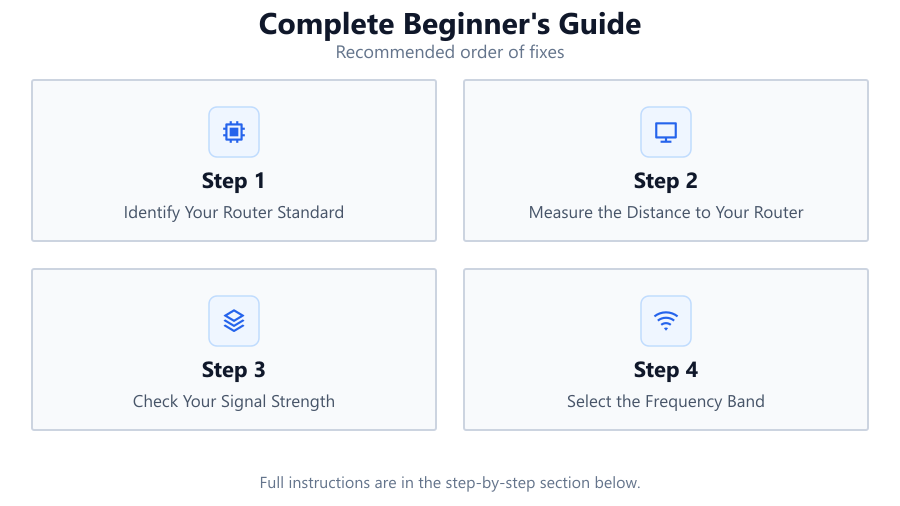
Identify Your Router Standard
Check your router’s label or settings to find out if it uses Wi-Fi 4 (802.11n), Wi-Fi 5 (802.11ac), or Wi-Fi 6 (802.11ax). Newer standards support faster speeds and better performance.
Measure the Distance to Your Router
Use a tape measure or pacing to estimate how far your device is from the router. Physical distance directly affects signal strength and speed.
Check Your Signal Strength
Look at your device’s Wi-Fi indicator or use a Wi-Fi analyzer app. More bars mean a stronger signal, which usually equals faster speeds.
Select the Frequency Band
Determine if you are connected to the 2.4GHz or 5GHz band. The 2.4GHz band has longer range but slower speeds, while 5GHz is faster but doesn’t travel as far.
Estimate Interference and Obstacles
Note any thick walls, floors, or electronic devices between your router and device. Interference from microwaves, cordless phones, or Bluetooth can cause slowdowns.
Use the Wi-Fi Speed Estimator
Input your router standard, distance, signal strength, frequency band, and interference level into the Wi-Fi Speed Estimator tool. Review the calculated speed and recommended changes.
Comparison
| Wi-Fi Standard | Max Theoretical Speed | Realistic Range |
|---|---|---|
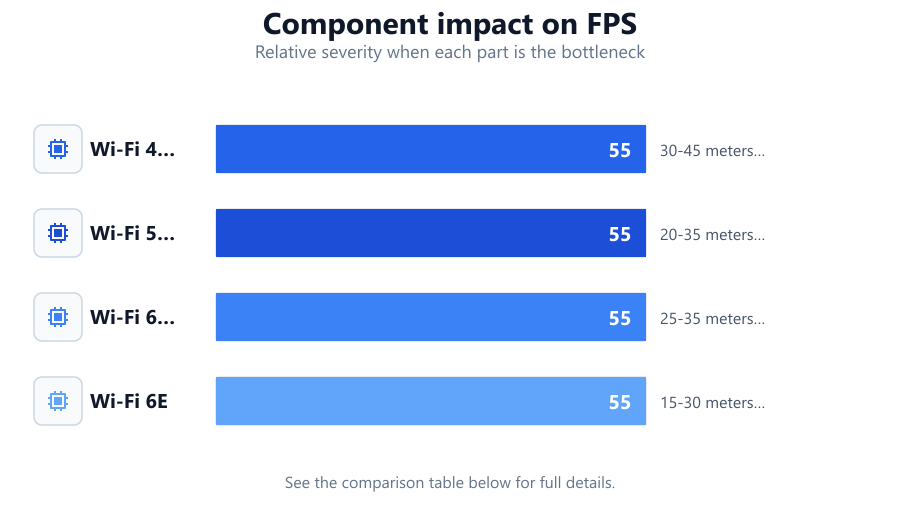
| Wi-Fi 4 (802.11n) | Up to 600 Mbps | 30-45 meters (indoors) |
| Wi-Fi 5 (802.11ac) | Up to 3.5 Gbps | 20-35 meters (indoors) |
| Wi-Fi 6 (802.11ax) | Up to 9.6 Gbps | 25-35 meters (indoors) |
| Wi-Fi 6E | Up to 9.6 Gbps | 15-30 meters (indoors) |
Common mistakes
Mistake
Assuming advertised router speeds are what you get everywhere in your home.
Fix: Always factor in distance, obstacles, and device compatibility. Use the Wi-Fi Speed Estimator for a real-world estimate.
Mistake
Ignoring the impact of frequency bands when connecting devices.
Fix: Choose 5GHz for speed and 2.4GHz for range. Match your device’s needs to the right band.
Mistake
Placing the router in a corner or behind thick walls.
Fix: Position your router centrally and away from obstructions to maximize coverage and speed.
Mistake
Not updating router firmware or using outdated hardware.
Fix: Regularly check for firmware updates and consider upgrading to a modern router if yours is several years old.
Troubleshooting
Wi-Fi is fast in one room but slow in others.
Likely cause: Distance from the router or interference from walls and appliances.
What to do: Reposition the router for better coverage or use a mesh system. Use the Wi-Fi Speed Estimator to identify weak spots.
Devices keep disconnecting from the Wi-Fi.
Likely cause: Weak signal or overcrowded Wi-Fi channels.
What to do: Switch to a less crowded channel in your router settings or move closer to the router.
Speed tests show much lower speeds than your internet plan.
Likely cause: Router standard limitations, interference, or outdated devices.
What to do: Check your router’s capabilities and upgrade if needed. Remove sources of interference. Use the Wi-Fi Speed Estimator to find bottlenecks.
Streaming or gaming is laggy even with strong signal.
Likely cause: Network congestion or limited bandwidth from other devices.
What to do: Limit background devices. Prioritize traffic for gaming or streaming in your router’s QoS settings.
Recommendations
- Upgrade to at least a Wi-Fi 5 (802.11ac) router for modern speeds.
- Place your router in a central, elevated location for best coverage.
- Use 5GHz for fast devices nearby, but switch to 2.4GHz for distant rooms.
- Regularly update your router’s firmware to enhance performance and security.
- Use the Wi-Fi Speed Estimator to diagnose and optimize your network before buying new hardware.
Frequently asked questions
Why is my Wi-Fi speed slower than my internet plan?
Wi-Fi speed is affected by router standard, signal strength, interference, and distance. Your plan shows maximum potential, but real speeds depend on your setup. Use the Wi-Fi Speed Estimator to see your actual limits.
Will upgrading my router always improve my Wi-Fi speed?
Upgrading helps if your current router is outdated or not matching your devices’ capabilities. However, placement and interference also matter. Use the estimator to identify if a new router would help.
Should I use 2.4GHz or 5GHz for my devices?
Use 5GHz for high-speed devices close to the router. Use 2.4GHz for devices farther away or in rooms with many walls.
How can I check if my Wi-Fi is congested?
Crowded channels or too many devices can cause congestion. A Wi-Fi analyzer app or the Wi-Fi Speed Estimator can help identify congestion and recommend solutions.