
Guide
Optimization Guide
Discover how to optimize your Wi-Fi speed and reliability with proven strategies. This optimization guide helps you unlock the fastest, most stable wireless network possible.
Updated 2026-07-05
Understanding Wi-Fi Speed Optimization
Wi-Fi performance can make or break your online experience. Slow speeds, dead zones, and random dropouts are often caused by a mix of hardware limitations, signal interference, and poor placement. This optimization guide will break down the essential factors that affect your wireless performance, so you can make informed decisions and see measurable improvements.
Modern Wi-Fi standards like Wi-Fi 5 (802.11ac) and Wi-Fi 6 (802.11ax) offer significantly better speeds and efficiency, but real-world results depend on more than just your router's label. Factors like signal strength, physical obstacles, frequency band selection, and network congestion all play a part. The Wi-Fi Speed Estimator tool gives you a quick, evidence-based estimate of your actual speeds by analyzing these parameters, helping you pinpoint areas for improvement.
Optimizing your setup involves more than just upgrading hardware. Strategic placement, intelligent frequency use, and proactive interference management can often yield impressive gains without spending extra money. This guide provides actionable steps you can follow, whether you are a home user or managing a small office network.
Factors Impacting Wi-Fi Speed and How to Optimize Them
Signal strength is one of the most critical determinants of Wi-Fi speed. The further you are from your router or the more walls and obstacles in the way, the weaker your signal. Using the Wi-Fi Speed Estimator, you can visualize how distance and barriers affect your real-world throughput and see where repositioning your router could make the biggest difference.
Frequency band selection is another powerful lever. The 2.4 GHz band offers better range but is prone to congestion and interference from other devices like microwaves and cordless phones. The 5 GHz band delivers much higher speeds and is less crowded, but its range is more limited. A dual-band or tri-band router can intelligently balance devices across available frequencies for optimal results.
Interference from neighboring networks, Bluetooth devices, and even household appliances can degrade performance. Tools like the Wi-Fi Speed Estimator help you identify when interference is the root cause, guiding you to change channels or relocate devices for a cleaner signal. Upgrading to a newer Wi-Fi standard can also help, especially if your current hardware is more than a few years old. However, before investing in new gear, follow the step-by-step recommendations in this guide to maximize your current setup.
Step-by-step
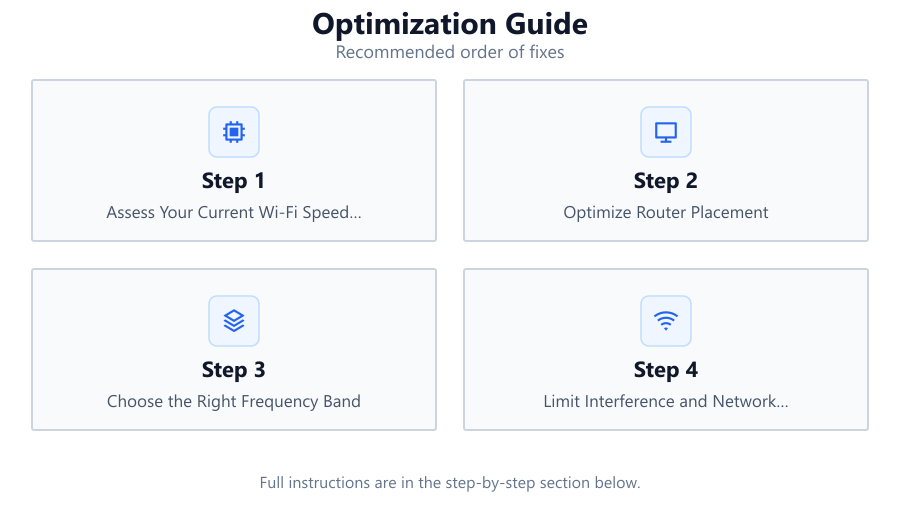
Assess Your Current Wi-Fi Speed and Coverage
Start by testing your Wi-Fi speeds in different rooms and at various distances from your router. Use the Wi-Fi Speed Estimator to get an evidence-based estimate of your actual speeds and spot areas with weak coverage or high interference.
Optimize Router Placement
Position your router in a central, elevated location free from large metal objects, thick walls, or electronic interference. Avoid placing it near microwaves, baby monitors, or cordless phones. The goal is to minimize obstructions and maximize coverage in the areas where you need Wi-Fi most.
Choose the Right Frequency Band
If your devices and router support it, connect to the 5 GHz band for higher speeds and less interference. Reserve the 2.4 GHz band for devices farther away or those that require better range. Configure your router to broadcast both bands and let devices choose the optimal one.
Limit Interference and Network Congestion
Change your router’s channel if you detect heavy interference from nearby networks. Many routers offer automatic channel selection, but manually picking a less congested channel can yield better results. Disconnect or relocate devices that cause signal interference.
Update Firmware and Secure Your Network
Ensure your router's firmware is up to date to benefit from performance improvements and security patches. Use strong WPA3 or WPA2 passwords to prevent unauthorized access, which can slow down your network and introduce vulnerabilities.
Upgrade Hardware Only When Necessary
If you consistently experience poor speeds after optimization, consider upgrading to a modern router supporting Wi-Fi 6 or mesh networking. However, many issues can be resolved without new hardware by following the previous steps.
Comparison
| Wi-Fi Standard | Max Speed (Theoretical) | Real-World Speed (Typical) |
|---|---|---|
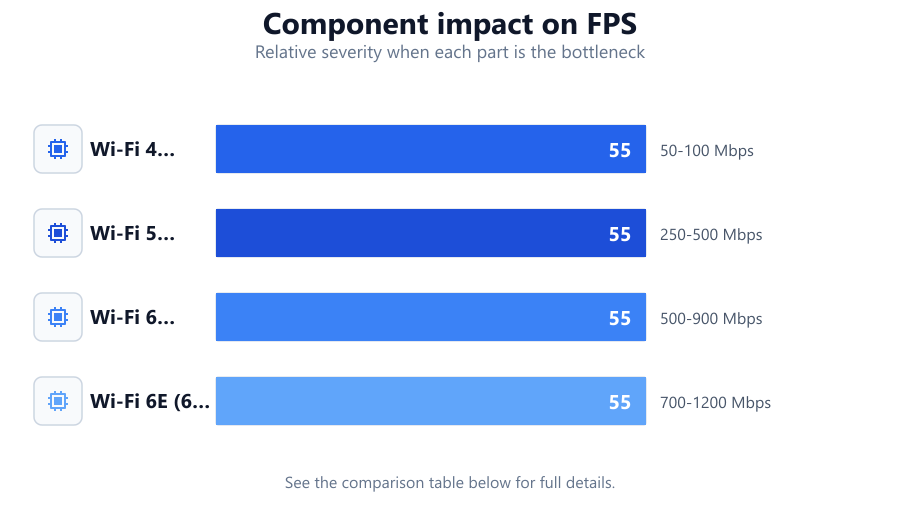
| Wi-Fi 4 (802.11n) | 600 Mbps | 50-100 Mbps |
| Wi-Fi 5 (802.11ac) | 1300 Mbps | 250-500 Mbps |
| Wi-Fi 6 (802.11ax) | 2400 Mbps | 500-900 Mbps |
| Wi-Fi 6E (6 GHz) | 3600 Mbps | 700-1200 Mbps |
Common mistakes
Mistake
Placing the router in a corner or behind furniture
Fix: Move the router to a central, open location to improve signal coverage throughout your space.
Mistake
Using only the 2.4 GHz band for all devices
Fix: Enable and use both 2.4 GHz and 5 GHz bands to optimize speed and reduce congestion.
Mistake
Ignoring firmware updates
Fix: Regularly check for and install firmware updates to benefit from performance and security improvements.
Mistake
Not securing the Wi-Fi network
Fix: Use strong encryption and complex passwords to prevent unauthorized access and bandwidth theft.
Troubleshooting
Wi-Fi speed drops during peak hours
Likely cause: Network congestion from many devices or neighboring networks
What to do: Switch to the 5 GHz band, change the router channel, or schedule high-bandwidth tasks during off-peak times.
Dead zones in certain rooms
Likely cause: Physical obstructions or distance from the router
What to do: Reposition the router, add a Wi-Fi extender, or consider a mesh system for better coverage.
Intermittent connection drops
Likely cause: Interference from appliances or outdated firmware
What to do: Keep the router away from interference sources and update firmware to the latest version.
Slow speeds on some devices only
Likely cause: Device limitations or connecting to the wrong Wi-Fi band
What to do: Ensure devices support modern Wi-Fi standards and connect them to the optimal frequency band.
Recommendations
- Test your Wi-Fi speeds and coverage regularly using the Wi-Fi Speed Estimator.
- Place your router in a central, elevated spot with minimal obstructions.
- Use both 2.4 GHz and 5 GHz bands for optimal performance across devices.
- Keep your network secure and your hardware updated to maintain peak speeds.
- Upgrade to Wi-Fi 6 or mesh networking only if coverage and speed issues persist.
Frequently asked questions
How can I tell if my Wi-Fi speed is being limited by my router or my ISP?
Test your speed with a wired connection to your modem. If speeds are higher than over Wi-Fi, your router or wireless environment may be the bottleneck.
Does upgrading to Wi-Fi 6 always improve speed?
Not always. Upgrading helps only if both your router and devices support Wi-Fi 6 and your ISP plan offers higher speeds. Optimizing your environment is often more cost-effective.
What is the best way to reduce Wi-Fi interference?
Use the 5 GHz band whenever possible, keep your router away from appliances, and manually select the least congested channel based on your environment.
How often should I use the Wi-Fi Speed Estimator tool?
Use the Wi-Fi Speed Estimator whenever you change your router placement, add new devices, or notice speed drops to quickly identify optimization opportunities.