
Guide
Complete Beginner's Guide
Ready to upgrade to Windows 11 but not sure if your PC is compatible? This complete beginners guide explains how to check your computer and what to do next.
Updated 2026-07-05
What Is Windows 11 Compatibility and Why Does It Matter?
Upgrading to Windows 11 offers new features, enhanced security, and improved performance. However, not every computer meets the strict hardware requirements set by Microsoft. Many users are surprised to discover their PC may not be compatible, even if it runs Windows 10 smoothly.
Understanding compatibility is the first step to a successful upgrade. Windows 11 requires specific hardware features like TPM 2.0, Secure Boot, a supported processor, and enough memory and storage. If any of these are missing or not enabled, you will not be able to install Windows 11.
The Windows 11 Compatibility Checker is a free online tool that scans your system for these requirements. It provides a clear pass or fail result, along with detailed information on what your PC is missing. This quick check can save hours of frustration and help you plan your upgrade confidently.
Whether you are a casual user or new to PC upgrades, this complete beginners guide will walk you through every step, from running the compatibility check to understanding your options if your system does not meet the requirements.
How the Compatibility Checker Works and What to Do Next
The Windows 11 Compatibility Checker analyzes your PC’s hardware and firmware against Microsoft’s official requirements. It checks for essential features like TPM 2.0, Secure Boot, processor generation, RAM, and available storage space. Each of these factors can determine whether your PC can run Windows 11.
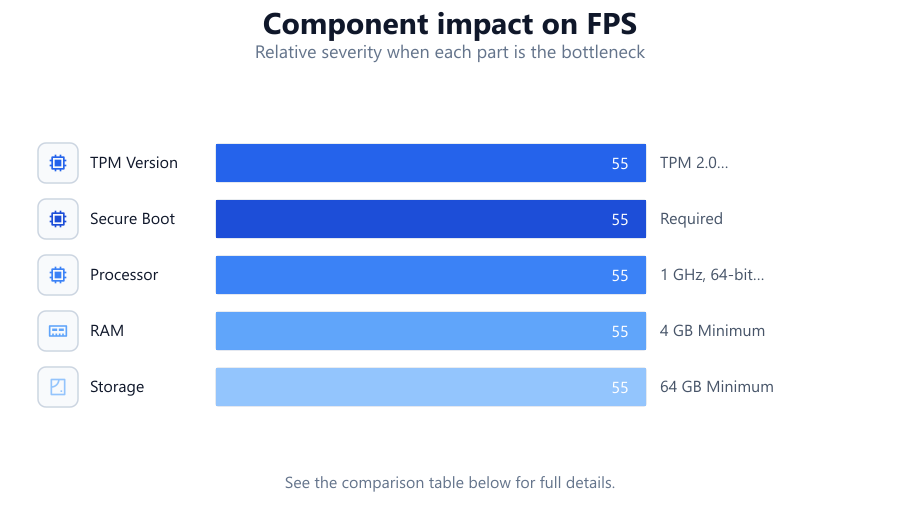
If your system passes all checks, you are ready to upgrade. The tool will confirm your compatibility and offer guidance for a smooth installation. If your PC fails any requirement, the checker provides specific details. For example, it may indicate that TPM 2.0 is not enabled or that your processor is unsupported. Understanding these results is crucial so you can take action, such as updating your BIOS or replacing hardware.
After running the tool, review the results carefully. If you pass, back up your data and prepare for the upgrade. If you fail, use the detailed guidance provided to address the issues. This may involve enabling features in your BIOS, upgrading components, or considering a new PC if upgrades are not possible.
The Windows 11 Compatibility Checker is designed for users of all experience levels. Follow its step-by-step instructions, and refer to this guide for in-depth troubleshooting and upgrade advice.
Step-by-step
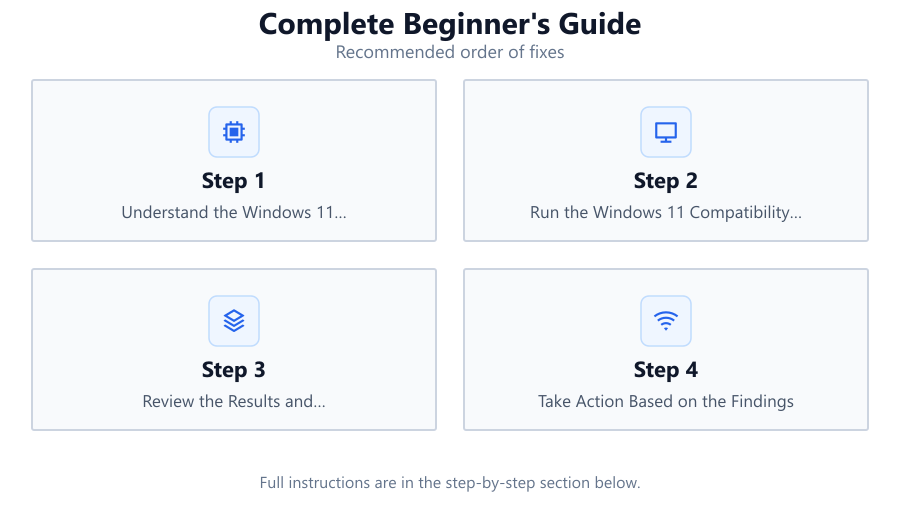
Understand the Windows 11 Requirements
Start by learning about the minimum hardware requirements for Windows 11. These include TPM 2.0, Secure Boot, a supported processor, at least 4 GB RAM, and 64 GB storage. Knowing these requirements helps you interpret the compatibility check results.
Run the Windows 11 Compatibility Checker
Visit the Windows 11 Compatibility Checker tool. Let it scan your PC for all essential requirements. The scan only takes a few seconds and provides a clear pass or fail summary.
Review the Results and Recommendations
Carefully read the results provided by the tool. If there is a failure, look for specific details such as disabled Secure Boot or insufficient RAM. The tool will also offer actionable suggestions for each issue.
Take Action Based on the Findings
If your PC is compatible, you can proceed to back up your files and plan the upgrade. If not, follow the tool’s recommendations. This may involve enabling TPM or Secure Boot in the BIOS, adding memory, or replacing unsupported hardware.
Plan Your Upgrade or Explore Alternatives
If you pass all requirements, proceed with the Windows 11 installation. If not, consider whether hardware upgrades are feasible or if purchasing a new PC is a better investment. Use the tool’s guidance to make an informed decision.
Comparison
| Requirement | Windows 10 | Windows 11 |
|---|---|---|
| TPM Version | Not Required | TPM 2.0 Required |
| Secure Boot | Optional | Required |
| Processor | 1 GHz, 32/64-bit | 1 GHz, 64-bit, Supported List |
| RAM | 1 GB (32-bit), 2 GB (64-bit) | 4 GB Minimum |
| Storage | 16-20 GB | 64 GB Minimum |
| Graphics | DirectX 9 | DirectX 12 with WDDM 2.0 |
| Display | 800x600 | 720p, 9 inch or larger |
Common mistakes
Mistake
Assuming all Windows 10 PCs can run Windows 11
Fix: Always check your system with the Windows 11 Compatibility Checker to confirm support before planning your upgrade.
Mistake
Not enabling TPM 2.0 or Secure Boot in BIOS
Fix: Enter your system BIOS and enable these features if your hardware supports them. Refer to your motherboard manual for guidance.
Mistake
Ignoring the need to back up files before upgrading
Fix: Back up all important data before starting any operating system upgrade to prevent data loss.
Mistake
Overlooking firmware and driver updates
Fix: Update your system BIOS and device drivers before upgrading to improve compatibility and stability.
Troubleshooting
Compatibility Checker says TPM 2.0 is missing
Likely cause: TPM is disabled in BIOS or not present on the motherboard
What to do: Check your BIOS settings to enable TPM. If the option is missing, your motherboard may not support it.
Secure Boot requirement not met
Likely cause: Secure Boot is disabled in BIOS or unsupported by system firmware
What to do: Enable Secure Boot in your BIOS. If unavailable, check for BIOS updates or consult your manufacturer.
Processor not supported error
Likely cause: CPU is not on Microsoft’s list of supported processors
What to do: Check the official Windows 11 supported processor list. If unsupported, upgrading your CPU or PC may be necessary.
Insufficient RAM or storage
Likely cause: System has less than 4 GB RAM or 64 GB storage
What to do: Upgrade your memory or storage to meet the minimum requirements. Consult your PC manual for upgrade instructions.
Recommendations
- Always use the Windows 11 Compatibility Checker before planning an upgrade.
- Back up your data and settings before making any changes.
- Keep your BIOS and drivers updated for best compatibility.
- If your PC is not compatible, weigh the cost of upgrades versus purchasing a new computer.
- Read all guidance provided by the compatibility tool and follow its step-by-step instructions.
Frequently asked questions
What is the Windows 11 Compatibility Checker?
The Windows 11 Compatibility Checker is a free online tool that analyzes your PC for all required hardware and firmware features needed for Windows 11. It provides a clear result and detailed guidance for next steps.
Do I need TPM 2.0 and Secure Boot for Windows 11?
Yes, both TPM 2.0 and Secure Boot are mandatory requirements for Windows 11. These features improve security and system integrity.
Can I upgrade my PC if it fails the compatibility check?
In many cases, you can enable missing features in BIOS or upgrade hardware components like RAM or storage. If your processor is unsupported, a full system upgrade may be required.
Will the Compatibility Checker harm my computer?
No, the Windows 11 Compatibility Checker only reads system information. It does not change any settings or files.
What if I have more questions after running the tool?
Refer to this complete beginners guide for detailed troubleshooting. You can also consult your PC manufacturer’s support or Microsoft’s official documentation.