
FREE APM TEST
APM Test: Actions Per Minute Speed Challenge
Want to see how fast and accurately you can react? This browser-based APM Test measures your actions per minute, click accuracy, and speed using interactive target-based challenges. Get detailed feedback on your performance in timed sessions and compare your results across difficulty levels.
What Does This Tool Do?
The APM Test measures your ability to react quickly and accurately by challenging you to click highlighted cells in a grid. It tracks your Actions Per Minute (APM), hit accuracy, combo streaks, and missed clicks. You can choose from three difficulty levels: easy, medium, or hard, each varying the grid size and density of targets. Sessions last either 30 or 60 seconds, giving you a timed window to score as many points as possible.
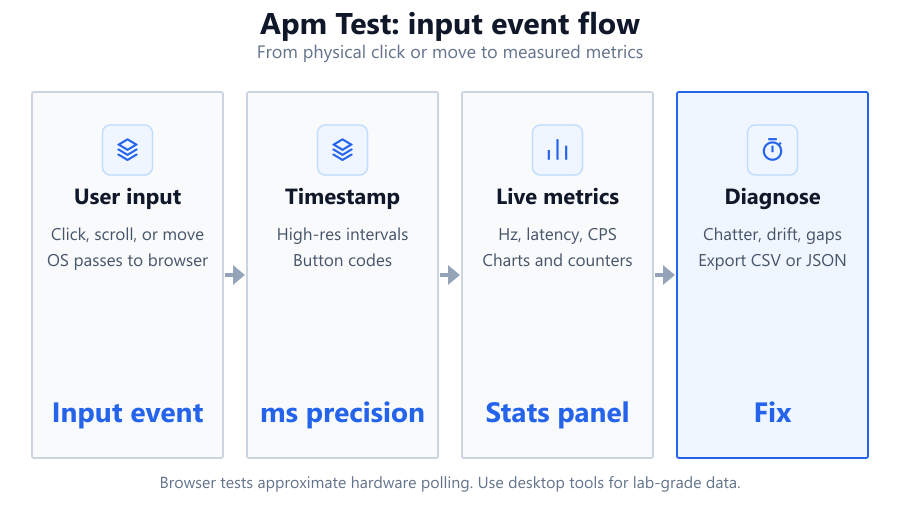
Metrics like APM and accuracy are calculated in real time as you play. The tool uses browser-based event polling, which is fast but not as precise as dedicated desktop software with low-level hardware access. It is ideal for gamers, esports enthusiasts, or anyone wanting to benchmark their mouse control and reaction speed without installing extra software. The tool displays clear results at the end of each session so you can track your progress or compare with friends.
How to Use This Tool
Start by selecting your preferred grid difficulty: easy, medium, or hard. Easy mode has fewer cells, making targets easier to track, while hard mode increases grid size and target density for a tougher challenge. Choose your session length: 30 or 60 seconds. When you are ready, click Start.
A cell in the grid will be highlighted as your target. Click it as quickly as possible. Each successful click will instantly highlight a new target elsewhere on the grid. Try to maintain accuracy and speed to build up your combo multiplier, which boosts your score for consecutive hits. Hits, misses, and your running APM are displayed in real time.
After the timer ends, your final stats appear: total actions, APM, hits, misses, combo streak, and accuracy percentage. You can restart with different settings to practice or compare results.
Understanding Your Results
At the end of each session, you will see several key metrics. Actions Per Minute (APM) shows how many effective actions you performed in one minute, normalizing your session if you played for only 30 seconds. Accuracy is the ratio of successful clicks to total attempts, given as a percentage. Higher accuracy indicates better hand-eye coordination and mouse control.
The combo multiplier rewards you for consistent performance. Maintaining a streak of successful clicks will multiply your score, while misses reset your combo. The tool tracks both hits and misses for a clear picture of your consistency under pressure. These metrics help identify your strengths and weaknesses, whether you excel at speed, accuracy, or sustaining high performance over time.
Keep in mind that browser-based tools have some input lag and polling limitations. Factors like your mouse polling rate, browser frame rate, and monitor refresh rate (for example, 60Hz vs 144Hz on a Dell S2721DGF) can influence scores. Use results to track improvement, but do not treat them as lab-precision benchmarks.
Common Problems This Helps Diagnose
The APM Test is useful for highlighting several common issues with PC gaming setups. If your reaction speed or accuracy is lower than expected, it may indicate problems such as mouse lag, poor sensor tracking, or suboptimal mouse settings. For example, a Logitech G Pro mouse on a glass surface might underperform compared to a Corsair K70 on a mouse pad.
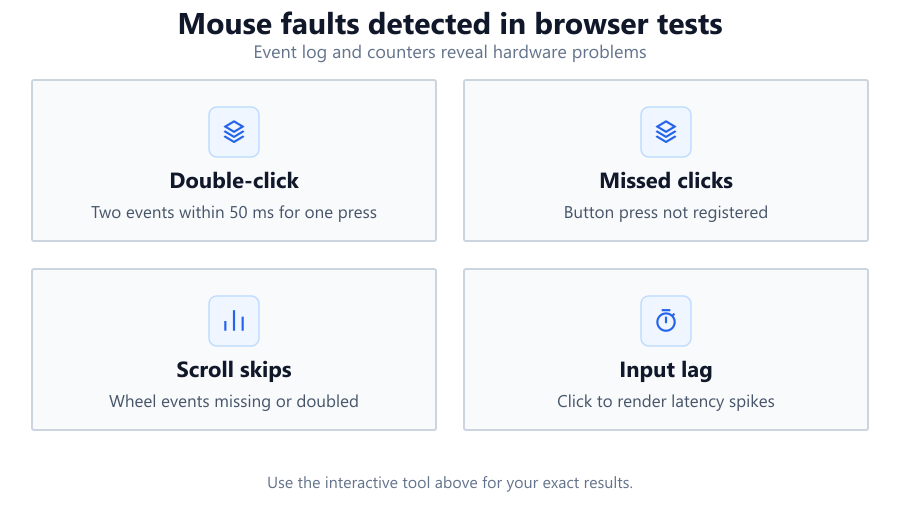
Frequent misses can point to issues with mouse sensitivity (DPI), inconsistent cursor movement, or even display lag. If you notice a delay between your click and the response, try checking your browser, graphics drivers, and monitor refresh rate. The test can also reveal if your hand-eye coordination or focus needs improvement, which is common after switching to a new mouse or adjusting in-game sensitivity. While the test does not diagnose hardware failures directly, consistently low scores across multiple browsers or PCs can signal deeper hardware or OS configuration issues.
Examples and Scenarios
Scenario 1: Competitive FPS Gamer You use a Razer DeathAdder V3 wired mouse on a Corsair MM300 mouse pad, paired with a 144Hz Dell S2721DGF monitor. On hard difficulty, 60 seconds, your APM is 165 with 92% accuracy. This suggests excellent reflexes and tracking, on par with mid-tier esports players.
Scenario 2: Office User Testing a New Setup Switching from a generic office mouse to a Logitech G Pro, you run the test on easy difficulty for 30 seconds. Your APM jumps from 60 to 95, and accuracy improves from 75% to 89%. The upgrade and a quality mouse pad immediately boost your control.
Scenario 3: Diagnosing Input Lag Using a wireless Corsair Harpoon mouse on an older laptop with a 60Hz Dell monitor, you notice your APM is stuck below 80 and accuracy dips below 70%. After switching to a wired connection and updating drivers, scores rise significantly. The test helps confirm real-world impact of hardware changes.
Scenario 4: Practice for Esports Tryouts You practice daily with the tool on medium and hard modes, tracking your progress over weeks. Your APM increases by 30% and accuracy steadies above 90%. Consistent use helps sharpen your muscle memory and reaction time ahead of tournaments.
Scenario 5: Checking Browser Performance Running the test in both Chrome and Firefox, you find your APM and accuracy are higher in Chrome. This points to better browser optimization or lower latency, signaling which browser to use for online gaming or web-based tools.
Scenario 6: Adapting to a New Monitor After upgrading from a 60Hz to a 165Hz Asus VG259QM monitor, you repeat the test and see smoother tracking, higher APM, and fewer misses. The tool visualizes the benefit of high refresh rate displays for fast-paced input tasks.
Tips for Accurate Testing
For best results, use a high-quality mouse like the Logitech G Pro or Razer Viper on a clean, consistent mouse pad. Ensure your browser is up to date, and close background applications that might affect performance. Test on a monitor with a high refresh rate (120Hz or above, such as the Dell S2721DGF) for smoother cursor movement.
Set your mouse DPI to a comfortable value that allows quick, precise movements without overshooting. Avoid wireless mice in noisy RF environments, as interference can add input lag. Consider disabling pointer acceleration in your OS settings for more predictable cursor movement. Consistency is key: use the same hardware and settings for repeated tests to track genuine improvement.
Be aware that browser-based tools rely on polling events like mousemove and click. While modern browsers are fast, there can be small timing inaccuracies compared to native software. For critical testing, repeat the test several times to average out anomalies.
Browser vs Desktop Software
Browser-based APM tests are convenient and require no installation. They are ideal for quick checks, casual benchmarking, or comparing results with friends online. However, they rely on browser event polling and are bounded by the browser's frame rate and the OS's input stack. This can introduce minor delays or inaccuracies, especially on older systems or with background processes running.
Desktop software, such as Aim Lab or KovaaK’s FPS Aim Trainer, accesses hardware at a lower level for more precise timing and input tracking. These tools can leverage high polling rates (such as 1000Hz on a Logitech G Pro X Superlight) and integrate with advanced features like raw input. For professional or clinical-grade testing, desktop solutions are superior.
Use the browser-based APM Test for everyday practice, quick diagnostics, or when you cannot install third-party software. Switch to dedicated desktop tools if you need absolute precision, deeper analytics, or integration with custom hardware.
Summary
The APM Test offers a fast, accessible way to measure your reaction speed, accuracy, and consistency right in your browser. It is perfect for gamers, aspiring esports players, or anyone interested in their mouse performance. The tool delivers real-time feedback on APM, hits, misses, and combo streaks using interactive grid-based challenges that adapt to your chosen difficulty and session length.
While not as precise as dedicated desktop benchmarking tools, this browser-based test is more than accurate enough for personal tracking and casual comparisons. Use it to spot performance bottlenecks, test new hardware, or sharpen your reflexes before a big match. For the most accurate results, pair it with quality gear and optimize your settings. If you need lab-grade data, consider complementing your browser results with desktop aim trainers or input lag testers.
Frequently Asked Questions
How accurate is the APM Test in a browser compared to desktop apps?
Browser-based APM tests are reasonably accurate for most users, but there are limitations. The tool relies on browser event polling, which is subject to the browser's frame rate, mouse polling rate, and OS-level input processing. Small delays can occur, especially on slower systems or with many background tasks running. Desktop applications like Aim Lab or KovaaK's provide more precise timing by interacting directly with hardware. For most practical purposes, the test is accurate enough to track performance trends and compare setups, but it is not lab-grade.
Why did my score drop after upgrading my mouse or monitor?
A sudden drop in score after upgrading hardware often means your system or OS settings need adjustment. For example, a high-DPI mouse like the Logitech G Pro may be too sensitive if OS pointer acceleration is enabled. New monitors, especially high refresh rate models, may default to lower rates until drivers or settings are updated. Always check your mouse DPI, disable pointer acceleration, and confirm your monitor is running at its rated refresh rate in Windows or your GPU control panel.
What is a good APM score for gamers?
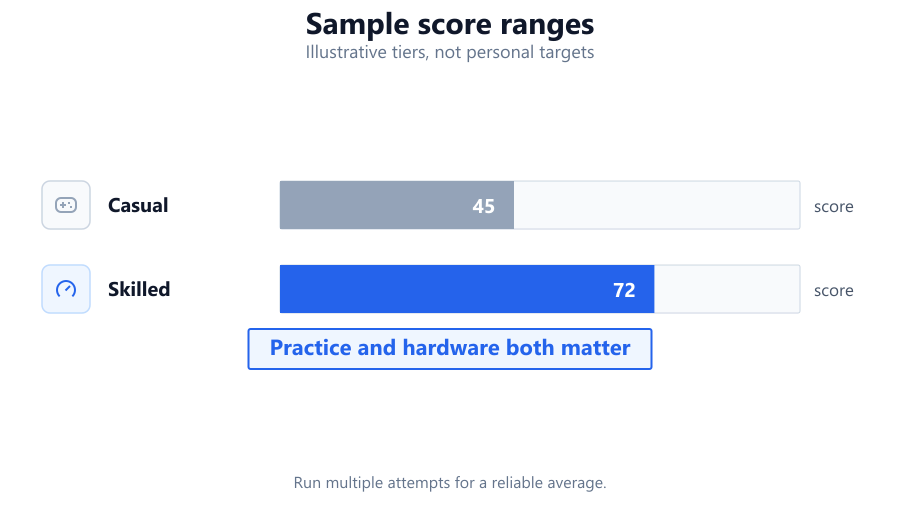
APM scores vary by game and skill level. Casual gamers typically score between 60 and 100 APM, while competitive players often reach 120-180 APM. Professional esports athletes in fast-paced games like StarCraft II or Valorant may exceed 200 APM during intense play. However, accuracy is equally important. High APM with low accuracy indicates poor control, so aim for a balance of speed and precision.
Does monitor refresh rate affect APM Test results?
Yes, monitor refresh rate can influence your results. High refresh rate monitors (120Hz, 144Hz, or higher) offer smoother cursor movement, which helps with precise targeting and faster reactions. On a 60Hz monitor, you may experience more motion blur and input lag, potentially reducing both APM and accuracy. If accuracy improves after upgrading to a model like the Dell S2721DGF, your hardware is helping you perform better.
Can I use this tool to compare different mice or mouse pads?
Absolutely. The APM Test is a practical way to benchmark different mice or mouse pads. Run several sessions with each device under the same conditions and compare APM, accuracy, and combo streaks. For example, you might find your Corsair K70 performs better on a textured pad than a slick desk surface. Consistent differences across tests can reveal real performance gains from hardware upgrades.
Why does the tool show lower scores in some browsers?
Different browsers handle input events and rendering uniquely. Chrome, Firefox, and Edge may process mouse clicks and movements at slightly different rates, depending on their engine optimizations and extensions. If your APM or accuracy is consistently lower in one browser, it may have higher input latency or background processes interfering. Try disabling unnecessary extensions, updating your browser, or switching to a different one for testing.
Is the APM Test useful for diagnosing hardware issues?
While not a diagnostic tool in the strictest sense, the APM Test can highlight hardware problems such as faulty mouse sensors, laggy wireless connections, or failing USB ports. If your scores are abnormally low or inconsistent despite good technique, repeat the test with different hardware or on another system. Persistent issues across devices may indicate a hardware fault or OS-level input problem.
How can I improve my APM and accuracy?
Practice is key. Regularly using the tool helps build muscle memory and reaction speed. Adjust your mouse DPI to a level that matches your play style; most pros use 400-1600 DPI. Use a quality pad for consistent tracking, disable OS pointer acceleration, and ensure your monitor runs at its maximum refresh rate. Focus on steady, controlled movements rather than frantic clicking. Over time, your stats will improve.
What settings should I use for the most challenging APM Test?
Set the grid to 'hard' difficulty and choose a 60-second session for the toughest challenge. This increases the number of targets and reduces the time window to react. Only attempt this if you are confident in your reaction speed and tracking accuracy. It is a good way to stress-test your skills and hardware under pressure.
Does using a wireless mouse impact the results?
Wireless mice have improved significantly, but some models still introduce minor input lag, especially in environments with heavy wireless interference. If using a wireless mouse like the Logitech G305 or Corsair Harpoon, ensure it is fully charged and close to the receiver. For the lowest latency, a wired mouse is still preferred, particularly for competitive play or benchmarking.
Can I use this test on a touchscreen or with a trackpad?
The APM Test works on touchscreens and trackpads, but results are not directly comparable to mouse-based tests. Touch and trackpad input generally have higher latency and less precision, which affects APM and accuracy. Use the tool primarily with a mouse for best results, or treat touchscreen scores as a separate benchmark.
Why does my APM fluctuate between sessions?
Normal fluctuations are expected due to focus, fatigue, and random chance. However, large swings might indicate inconsistent hardware performance, background processes interfering with input, or changes in mouse settings. Try to test in a distraction-free environment, keep hardware and software consistent, and average results over several sessions for a more reliable benchmark.
Is there a difference between APM and CPS (Clicks Per Second)?
Yes. APM measures all effective actions (clicks, target changes) per minute, giving a broader sense of your activity in timed challenges. CPS is a narrower metric that only counts how many times you can click in one second, without considering accuracy or target tracking. APM is more useful for assessing game-like performance, while CPS is best for raw clicking speed.
Can my operating system affect the APM Test results?
Your OS can influence input processing and latency. Windows, macOS, and Linux handle mouse polling and acceleration differently. Windows users should check for pointer acceleration in mouse settings, while macOS users may need third-party tools to disable acceleration. Background updates or resource-heavy applications can also cause input lag or stuttering during tests. Keep your OS and drivers up to date for best results.
Should I use the APM Test before competitive gaming sessions?
Yes, the APM Test is a great warm-up tool. It helps activate your reflexes, fine-tune your hand-eye coordination, and get you accustomed to your mouse and monitor. Many players use similar tools to get their aim and reaction speed up before diving into ranked matches or tournaments. Even a few minutes of practice can make a noticeable difference in performance.
How do I interpret combo multiplier and streaks in the results?
The combo multiplier rewards you for consecutive successful hits. Maintaining a long streak without a miss increases your score more rapidly, reflecting consistent accuracy under time pressure. A high combo streak means you are both fast and accurate. If your streaks are short, focus on accuracy before speed. Over time, building up longer combos is a sign of improving skill.
Related Tools
Free tools to analyze, compare, and optimize your PC gaming performance
CPS Test
Measure your clicks per second with customizable test durations, live tracking and detailed statistics.
Use Tool →Keyboard Clicker
Count keyboard presses, measure key clicks per second and track typing speed with live statistics.
Use Tool →Reaction Time Test
Test your reaction time with our free online reaction speed test. Track response time, improve reflexes and compare your
Use Tool →Mouse Spin Test
Measure your mouse spinning speed in RPM, average rotations and spin direction using our free online tool.
Use Tool →Popular Game System Requirements
Check if your PC meets the requirements for these popular games
Benchmark data from PassMark and publisher specs. Calculators run locally in your browser — we never upload your hardware info.