
FREE KEYBOARD TEST
Keyboard Clicker: Keystrokes Per Second Counter
Need to know how fast you can press keys or check if your keyboard is missing inputs? This tool counts keyboard presses, measures your keystrokes per second, and tracks your typing speed with live statistics right in your browser. Get real-time KPS, view your peak speed, and compare results with a visual breakdown.
What Does This Tool Do?
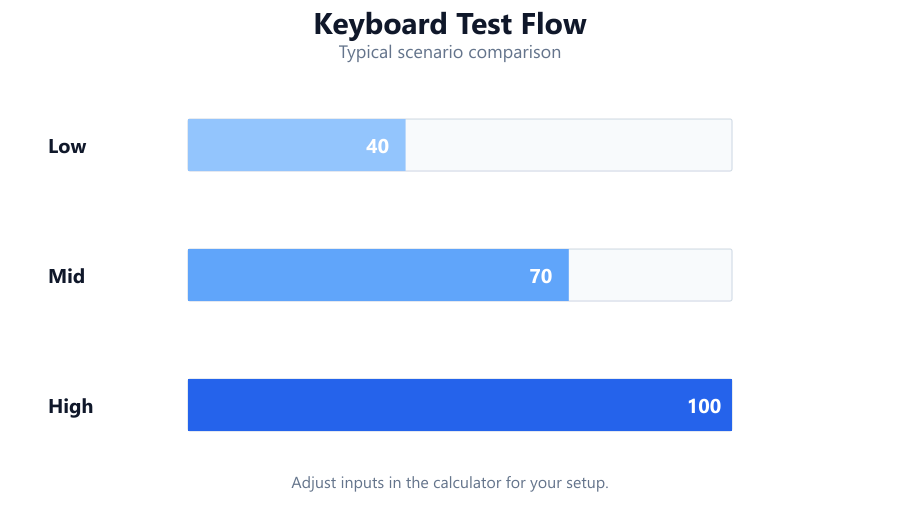
Keyboard Clicker is a browser-based utility that measures your keystrokes per second (KPS) by tracking every key press you make. It works with any keyboard, from mechanical models like the Corsair K70 and Logitech G Pro to membrane and wireless options. The tool provides instant feedback with a live keypress counter, a full keyboard visualization that lights up each key you hit, and a per-second bar chart that illustrates your typing or clicking rhythm. You can choose different test durations, 1, 5, 10, or 30 seconds, to match your needs, whether you want a quick check or a longer stress test. Your personal bests are saved locally in your browser so you can track progress over time. This tool is designed for quick diagnostics, practice, and speed checks, all without needing to install software.
How to Use This Tool
Start by opening the Keyboard Clicker tool in your browser on any desktop or laptop. Select your preferred test duration: 1, 5, 10, or 30 seconds. Once you're ready, click the start button or simply press any key to begin. The timer will count down, and each key press will be recorded in real time. The on-screen keyboard visualization will highlight every key you press, making it easy to see if any keys fail to register. Watch the per-second bar chart as you go for a visual representation of your speed and consistency. When time runs out, your results will be displayed, including total keystrokes, average KPS, and your peak KPS. Your highest scores are saved in your browser, so you can compare current and previous attempts without needing to log in or create an account.
Understanding Your Results
After each test, you'll see several key statistics: total key presses, average keystrokes per second, and your highest KPS during the run. The per-second bar chart lets you spot bursts of speed or lulls in your typing. The full keyboard visualization shows if any keys failed to register, important for diagnosing hardware issues like ghosting or key chatter. Your personal best is stored using local storage in your browser. This means your top results are saved on your device but won't follow you to other PCs or browsers. It's important to note that the tool's precision depends on your browser's polling rate and system performance. For most users, it's accurate enough for everyday troubleshooting and practice, but it's not a substitute for lab-grade testing equipment.
Common Problems This Helps Diagnose
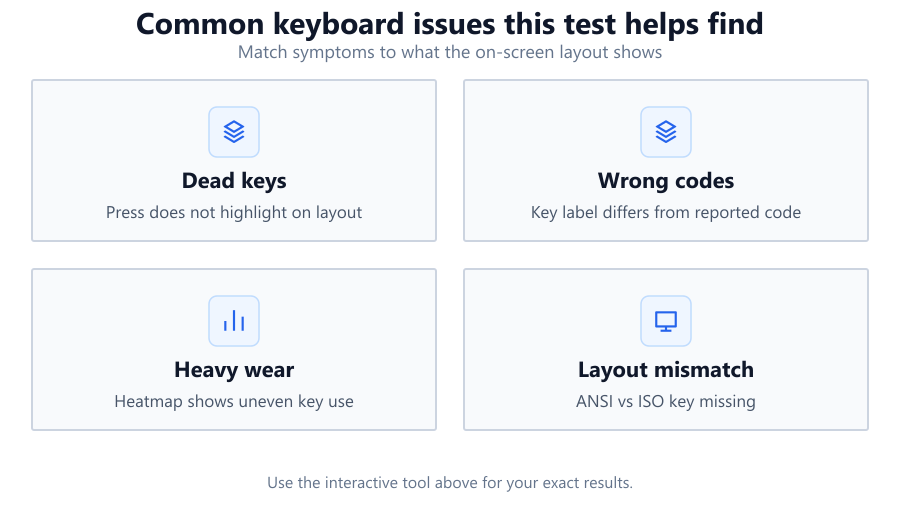
Keyboard Clicker can help identify several issues common with keyboards. If you're a gamer using a Logitech G Pro or Razer Huntsman, you might want to see if your keyboard can handle rapid inputs without missing key presses. The tool is ideal for spotting key ghosting, where certain key combinations don't register, or key chatter, where a single press is registered multiple times. It can also highlight physical problems like stuck keys or dead zones, which become obvious when the on-screen keyboard fails to light up during a test. If you're using a wireless keyboard, you may notice lower KPS due to input lag or missed presses, especially on older Bluetooth models. This tool is also helpful for checking if your operating system or software is interfering with input, such as Windows filter keys or Mac accessibility settings.
Examples and Scenarios
Scenario 1: Diagnosing Ghosting on a Mechanical Keyboard
You own a Corsair K70 and notice that some key combinations in games don't work. You run a 10-second test, pressing multiple keys together. The visualization shows certain combinations fail to light up, confirming ghosting issues. You try the same test on a friend's mechanical keyboard and see all presses register, indicating your board's limitation.
Scenario 2: Checking Key Chatter on an Old Laptop
Your Dell Inspiron laptop sometimes enters double characters when typing. During a 5-second test, you slowly press each key and see the on-screen visualization occasionally flashes twice for a single press. The total key count is higher than your presses, pointing to key chatter or a worn switch.
Scenario 3: Measuring Typing Speed Improvement
You practice typing on a Logitech MX Keys and want to track progress. Over several sessions, you use the 30-second mode. Your average and peak KPS gradually increase, and your personal best is saved in your browser, motivating you to keep improving.
Scenario 4: Testing Wireless Keyboard Responsiveness
A colleague's Microsoft Surface keyboard seems unresponsive. You run the 1-second test and notice that not all rapid presses are captured, especially compared to a wired model. The per-second bar chart shows inconsistent results, highlighting possible wireless lag or interference.
Scenario 5: Confirming OS or Software Interference
After updating Windows, you notice input lag. You run repeated tests and see your KPS drop compared to before. Disabling filter keys in Windows settings returns your KPS to normal, showing the impact of software-level changes.
Scenario 6: Comparing Different Keyboards
You have a budget membrane keyboard and a high-end Razer BlackWidow. Running the Keyboard Clicker side by side, you see the mechanical board consistently registers higher KPS and fewer missed presses, helping justify the upgrade.
Tips for Accurate Testing
Close other tabs and background processes to minimize browser lag, especially on older machines. Use a wired keyboard for the most reliable results, as wireless models can suffer from input delay or interference. Make sure your browser is up to date, since outdated versions may poll input less frequently. Disable OS features like Sticky Keys or Filter Keys in Windows and check for accessibility settings on Mac, as these can block or slow rapid key inputs. Run multiple tests to account for natural variation in your performance. For the most precise results, compare your browser-based scores with those from desktop software on the same machine. Remember, browser tools are limited by system polling rates and may not match the timing accuracy of professional input analyzers.
Browser vs Desktop Software
Keyboard Clicker runs entirely in your web browser, making it easy to use on any device without installation. This is great for quick checks and basic diagnostics. However, browser testing is subject to several limitations. The tool's accuracy depends on how fast your browser can detect key presses, which is influenced by your system's polling rate, browser FPS, and background load. For most users, this is good enough for practical use, but it's not lab-grade. Dedicated desktop software like AquaKeyTest or Switch Hitter can offer more precise timing, better support for advanced features like NKRO (n-key rollover), and more detailed diagnostics. Use browser tools for convenience and simple checks, but switch to desktop solutions if you need the highest accuracy or want to test advanced keyboard features.
Summary
Keyboard Clicker is a fast, no-install way to check your keyboard's responsiveness, test for key ghosting, and measure your typing speed. The tool provides real-time statistics, visual feedback, and stores your personal bests locally. While browser-based testing is convenient and accurate enough for most users, it's limited by system and browser performance. For in-depth diagnostics or professional needs, dedicated desktop software remains the gold standard. Use this tool to troubleshoot problems, compare keyboards, or simply push your speed limits, all in your browser, with no downloads required.
Frequently Asked Questions
How accurate is the Keyboard Clicker tool compared to desktop software?
The Keyboard Clicker tool provides a good approximation of keystrokes per second and typing speed for everyday use, but it's not as precise as dedicated desktop applications. Its accuracy depends on your browser's polling rate and your system's performance. Fast browsers like Chrome or Edge usually capture most key presses, but there can be slight delays or missed inputs, especially at very high speeds. For most users, the margin of error is small, but for professional or competitive testing, desktop software like Switch Hitter or AquaKeyTest will offer more reliable, lab-grade results.
Can I use this tool to test for keyboard ghosting?
Yes, Keyboard Clicker is useful for spotting ghosting. Ghosting occurs when certain key combinations fail to register, which is common on budget or membrane keyboards. During a test, press multiple keys simultaneously and watch the on-screen visualization. If some keys don't light up or the total key count is lower than expected, ghosting is likely present. For full NKRO (n-key rollover) testing, desktop software can provide more advanced diagnostics, but this tool covers most basic ghosting checks.
Does this tool work with wireless keyboards?
Yes, it works with all types of keyboards, including wireless and Bluetooth models. However, wireless keyboards may show lower KPS or miss rapid inputs due to wireless lag or interference, especially on older Bluetooth connections. For the most accurate results, use a wired keyboard or test multiple times to rule out temporary wireless issues. If you consistently see missed presses with a wireless board, try changing the batteries, moving closer to the receiver, or switching to a wired connection.
Why are my key presses not being counted?
If some key presses aren't registering, first check your browser and OS settings. Features like Sticky Keys or Filter Keys in Windows, or accessibility options on Mac, can block or slow rapid inputs. Also, make sure your browser window is active and focused. If you're using a wireless keyboard, low battery or signal interference could cause missed inputs. On some low-end or older keyboards, hardware limitations like ghosting or worn switches may be to blame. Try another keyboard or browser to help isolate the issue.
Is this tool safe to use? Does it record or send my keystrokes anywhere?
Keyboard Clicker is safe to use. It runs entirely in your browser and does not transmit or store keystrokes on any server. All counting and visualization happen locally on your device. Your personal best scores are saved using browser local storage, which means they stay private and are only accessible from your device and browser. Always make sure you're on the official SystemRequirements.net website to avoid lookalike or malicious copies.
Can this tool help improve my typing speed?
Absolutely. Keyboard Clicker provides instant feedback on your keystrokes per second and tracks your personal bests. By practicing in different time intervals, you can monitor your speed and consistency. Use the per-second bar chart to identify bursts or slow patches. While the tool isn't a full typing tutor, it's a helpful way to measure progress and set personal goals for improvement.
What browsers are best for using this tool?
Modern browsers like Google Chrome, Microsoft Edge, and Mozilla Firefox offer the best experience with Keyboard Clicker. They provide high polling rates and reliable input detection. Safari is also supported but may have slightly different timing characteristics. Always keep your browser updated for the most accurate results. Outdated or niche browsers may not register key presses as reliably, which can affect your scores.
Can I use Keyboard Clicker on a tablet or phone?
The tool is designed for desktop and laptop keyboards. While it may function on some tablets with physical keyboards or Bluetooth accessories, the on-screen keyboard visualization and timing are optimized for full hardware keyboards. Mobile browsers may introduce additional lag or not support all features. For best results, use a desktop or laptop with a standard keyboard.
Does Keyboard Clicker support all keyboard layouts?
The tool supports most standard layouts, including ANSI and ISO, and works with QWERTY, AZERTY, and similar arrangements. The visualization displays a typical keyboard, so some region-specific or custom keys may not show up exactly as on your hardware. However, all key presses are counted regardless of layout. If you use a highly specialized or compact keyboard, some keys may not light up in the visualization but your KPS totals will still be accurate.
Will Keyboard Clicker detect hardware faults like stuck or dead keys?
It can help spot stuck or dead keys during testing. If you press a key and it fails to light up or count, that may indicate a dead key. If a key keeps counting presses without being touched, that could mean a stuck or faulty switch. This makes the tool useful for quick hardware checks. For deeper diagnostics, specialized desktop tools or manufacturer utilities may offer more detailed reporting.
How do personal bests work in Keyboard Clicker?
Your highest KPS and total keystrokes for each test duration are saved using your browser's local storage. This means the scores are only available on the device and browser you used when setting them. Clearing your browser cache or switching to another computer will reset your personal bests. No account or login is required, and your data stays private to your machine.
Why do my results vary between tests?
Variations are normal and can be caused by several factors. Human performance naturally fluctuates, especially over short tests. Browser and system background activity can also affect how quickly key presses are detected, particularly on older hardware or when many tabs are open. Wireless keyboards and Bluetooth connections may introduce further delay or missed inputs. For a fair comparison, close other applications, use a wired keyboard, and run several tests to find your baseline.
Can I test multiple keys at once (n-key rollover) with this tool?
You can press multiple keys simultaneously to check if your keyboard supports n-key rollover (NKRO), but browser limitations may affect detection at very high speeds or with many keys at once. The visualization will highlight keys as they are pressed, and the total should match your actual input. For deeper NKRO analysis, desktop software designed for hardware-level input detection is recommended.
Does Keyboard Clicker work on all operating systems?
Yes, as a browser tool, it works on Windows, macOS, Linux, and ChromeOS as long as you use a modern browser. Some OS-level accessibility or input settings may affect performance, so check your operating system's keyboard options if you notice missing or delayed inputs. The tool itself is cross-platform and requires no installation.
Is there a way to export my results or share them?
Currently, Keyboard Clicker saves your personal bests locally but does not have built-in export or sharing functions. You can manually record your results or take screenshots for reference. For more advanced tracking or sharing, consider using desktop software that offers export features or logging to a file.
What should I do if my KPS is much lower than expected?
If your KPS is consistently lower than you believe it should be, check for common issues: close unused browser tabs, ensure your keyboard is functioning properly, and disable OS-level input filters. Try switching browsers or computers to see if the problem persists. If you're using a wireless keyboard, check the battery and connection quality. Hardware limitations or aging keyboards can also lower your max KPS. Comparing results across different devices and setups can help pinpoint the cause.
Related Tools
Free tools to analyze, compare, and optimize your PC gaming performance
Spacebar Clicker
Test your spacebar clicking speed, responsiveness and consistency with customizable test durations.
Use Tool →CPS Test
Measure your clicks per second with customizable test durations, live tracking and detailed statistics.
Use Tool →APM Test
Measure your actions per minute, accuracy and speed using interactive target-based challenges.
Use Tool →Keyboard Tester
Test every key on your keyboard and verify key responsiveness directly in your browser. Live layout, heatmap, and progre
Use Tool →Popular Game System Requirements
Check if your PC meets the requirements for these popular games
Benchmark data from PassMark and publisher specs. Calculators run locally in your browser — we never upload your hardware info.