
FREE KEYBOARD TEST
Spacebar Clicker: Spacebar Speed Test
Need to check how fast or consistently you can tap your spacebar? This browser-based tool measures your spacebar clicking speed, showing live CPS, skill tier, and a breakdown of your performance. Use it to spot fatigue, compare attempts, and export results for tracking improvements.
Achievements
What Does This Tool Do?
The Spacebar Clicker is a targeted browser tool for testing your spacebar clicking speed, responsiveness, and consistency. It captures every spacebar press during a timed session, calculates your average clicks per second (CPS), and shows a live speedometer gauge as you click. Unlike generic keyboard testers, this tool focuses only on the spacebar, measuring performance over customizable durations like 5, 10, 30, or 60 seconds, or any custom length you set.
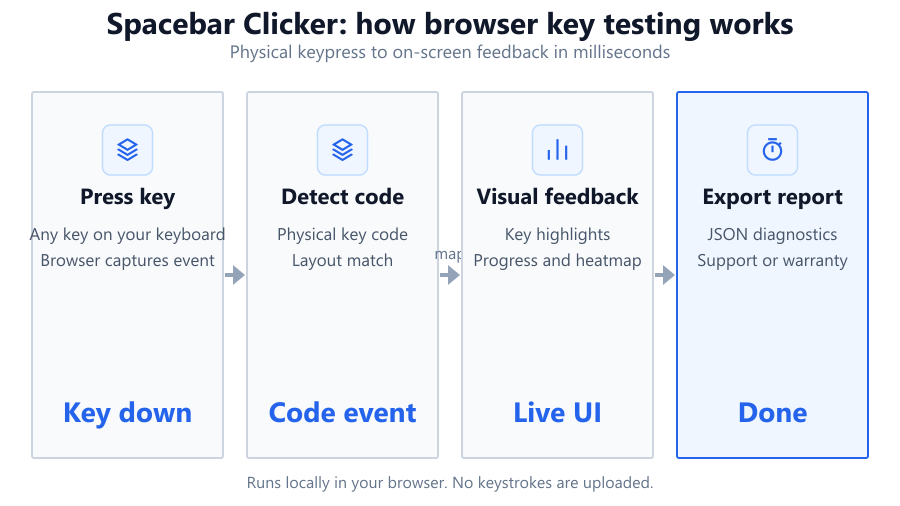
While it cannot replicate lab-grade timing equipment, it is accurate enough for real-world comparisons between keyboards, users, or settings. The tool also assigns a skill tier, from Beginner to Elite, based on your CPS. Achievements unlock as you reach new milestones. Fatigue analysis compares your pace in the first and second halves of the test, highlighting stamina or drop-off. Per-second charts provide a detailed timeline of your clicking pattern. Every attempt can be saved locally, so you can track progress over time or export your complete history for analysis.
How to Use This Tool
Start by choosing a test duration from the preset options (5, 10, 30, or 60 seconds) or set a custom time if you want to challenge yourself. Place your cursor in the tool window, but you do not need to click with the mouse. Simply press the spacebar as rapidly as you can once the timer starts. The live CPS counter and speedometer will respond instantly to your input.
You can pause between attempts or restart as needed. Each test run records your total clicks, average CPS, skill tier, and a breakdown of your speed over time. Results are logged automatically, so you can compare multiple sessions or export your history in a standard format. Achievements pop up as you hit new personal bests or reach higher tiers. Use the per-second chart and fatigue analysis to spot patterns or areas to improve.
Understanding Your Results
After each test, the tool summarizes your performance. The live CPS is your average speed in clicks per second, updated as you play. The speedometer gauge gives a quick visual of your current pace relative to your best. Skill tiers range from Beginner (under 3 CPS) to Elite (typically above 8 CPS), with milestones in between.
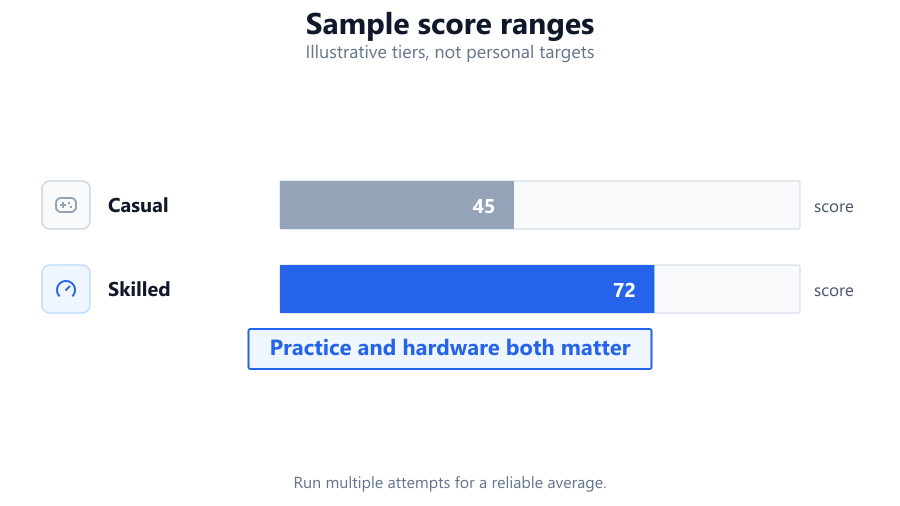
The per-second chart reveals consistency, showing if you start strong and fade or maintain a steady rhythm. Fatigue analysis compares your first and second half speeds, helping you identify if you tire out or get faster as you go. Achievements reward both speed and consistency. Your full attempt history, including all metrics, can be exported for offline review or comparison. While browser-based, timing is precise enough for personal benchmarking, though not for scientific measurement. Minor variation may occur based on your browser or system performance.
Common Problems This Helps Diagnose
The Spacebar Clicker is useful for more than just speed bragging. It can help diagnose keyboard ghosting or debounce issues, especially in gaming keyboards like the Logitech G Pro or Corsair K70. If your CPS is lower than expected or irregular, your keyboard may be missing presses. Consistent lags or dropped inputs can also point to software conflicts, sticky keys, or hardware wear.
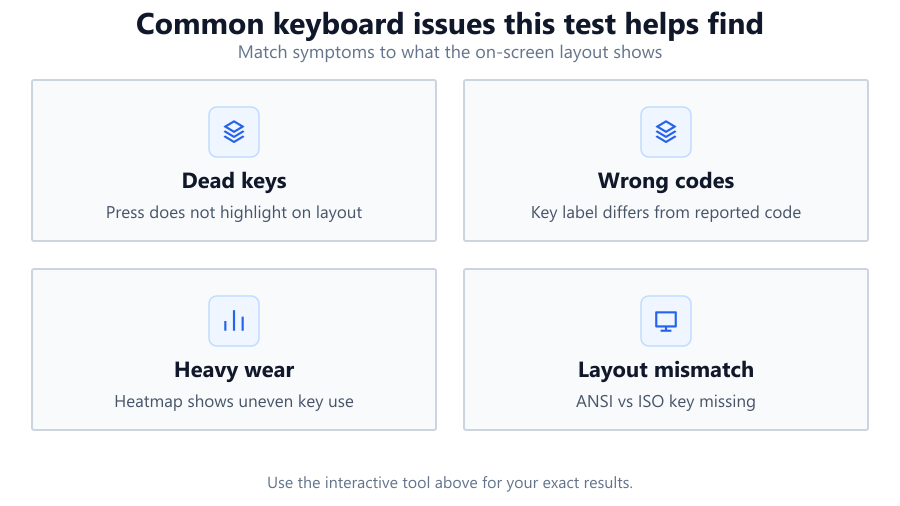
The fatigue analysis can reveal ergonomic issues if your speed drops sharply in the second half. If you notice erratic results, it might be a sign of inconsistent key registration, which can happen with older laptop keyboards or certain membrane models. Testing across different browsers or operating systems can highlight compatibility quirks or input lag, especially if you see different results using Chrome on Windows compared to Safari on Mac. The export feature lets you track performance changes after hardware upgrades, cleaning, or driver updates.
Examples and Scenarios
Scenario 1: Gaming Keyboard Comparison You use a Corsair K70 at home and a basic Dell office keyboard at work. Running a 10-second test on both, you average 7.2 CPS on the K70 and just 5.5 CPS on the Dell. The per-second chart on the Dell shows occasional dips, hinting at missed presses due to key rollover limits. This helps justify your preference for the mechanical keyboard when gaming.
Scenario 2: Diagnosing Ghosting Issues A friend complains about missed jumps in platformers. On their older HP laptop, you run a 30-second test and see erratic CPS with several flat lines on the per-second chart. Swapping to a Logitech G Pro, their CPS stabilizes, confirming a hardware limitation on the laptop keyboard.
Scenario 3: Tracking Recovery After Injury After a wrist injury, you use the Spacebar Clicker weekly to monitor your stamina. Early attempts show a CPS drop of 30% in the second half (fatigue analysis). Over several weeks, you see the gap narrow as your endurance improves, providing objective feedback on your rehab progress.
Scenario 4: Browser vs OS Tuning You notice your CPS is higher in Firefox than in Chrome. After disabling sticky keys in Windows Accessibility settings and updating keyboard drivers, your results even out. The tool helps confirm that OS settings and browser choice can impact real-world input speed.
Scenario 5: Tracking Training Progress Practicing daily, you export your session history each week. Reviewing the data, you see a steady climb from Beginner to Advanced tier over two months. Achievements earned along the way keep you motivated, and the exported CSV helps you visualize improvement trends in Excel or Google Sheets.
Tips for Accurate Testing
For consistent and reliable results, use the same keyboard and browser for each session. Mechanical keyboards like the SteelSeries Apex Pro or Razer Huntsman often register presses more rapidly and accurately than membrane models. Disable OS-level features like Sticky Keys or Filter Keys, as these can block rapid input in Windows. Close background applications to minimize input lag, especially on lower-end systems.
Sit comfortably, keep your hand relaxed, and avoid tensing up as fatigue sets in. Run multiple attempts and average your results to minimize outlier effects. If testing on a laptop, plug in an external keyboard for better accuracy. For professional or scientific needs, consider desktop software with higher polling rates, but for most users, the browser tool is more than sufficient. Always check the per-second chart for signs of input drops or irregular timing, which can signal hardware or software issues.
Browser vs Desktop Software
Browser-based tests like this are convenient and require no installation. They use standard JavaScript event listeners to detect keypresses, which are generally accurate but depend on browser timing and system load. Precision is usually within a few milliseconds, but factors like browser FPS, background processes, or OS settings can introduce slight variance. For most gaming and personal benchmarking, this level of accuracy is enough.
Dedicated desktop software, such as PassMark KeyboardTest or AquaKeyTest, can tap into lower-level system APIs for higher timing precision and key scan rate analysis. These tools may provide more granular data, but are overkill for most users. If you suspect severe hardware issues, such as chronic ghosting or debounce faults, a desktop tool can complement your browser results. For the vast majority, the Spacebar Clicker offers a fast, reliable way to compare keyboards, diagnose problems, and track performance trends. Always interpret small differences in CPS with caution, as browser-based timing is approximate.
Summary
The Spacebar Clicker is a focused, browser-based test for measuring your spacebar speed, consistency, and fatigue. It provides live CPS, skill tiers, achievements, and detailed breakdowns, including per-second charts and fatigue analysis. While not a lab-grade instrument, it is accurate enough for comparing keyboards, user skills, and troubleshooting hardware or software issues.
With exportable histories and customizable durations, it is ideal for gamers, typists, and anyone curious about their input speed. For most users, it is a quick, effective way to benchmark, train, or diagnose without installing extra software. Keep in mind browser and OS limitations, and use dedicated tools only if you need ultra-precise timing. For day-to-day use, this tool delivers clear, actionable insights into your spacebar performance.
Frequently Asked Questions
How accurate is the Spacebar Clicker for measuring CPS?
The Spacebar Clicker uses browser-based JavaScript timing, which is accurate for most practical purposes but not at the level of lab-grade testing. Timing precision can be affected by browser FPS, background processes, or system load, resulting in small variations (typically a few milliseconds). For comparing keyboards, tracking personal progress, or diagnosing obvious input issues, the tool is more than sufficient. However, if you require sub-millisecond accuracy for scientific research, consider using a dedicated desktop utility instead.
Why does my CPS vary between browsers like Chrome, Firefox, or Edge?
Different browsers handle keyboard events and timing slightly differently. Chrome, Firefox, and Edge use their own input processing and JavaScript engines, which can result in small variations in CPS results. Browser extensions, background tabs, or system resource usage can also impact timing by introducing lag. For the most consistent results, use the same browser and keep it up to date. If you see major discrepancies, check for OS-level keyboard settings or try running the test after a fresh browser restart.
What is a good CPS score for gaming or speed tests?
CPS (Clicks Per Second) varies by individual and keyboard. Most users average between 4 and 7 CPS. Beginner tier is typically under 3 CPS, while Elite tier starts around 8 CPS and higher. Gamers or speed typists often reach 7-10 CPS on mechanical keyboards like the Logitech G Pro or Corsair K70. Achieving and maintaining high CPS over longer durations (30-60 seconds) is more challenging and shows good stamina. Consistency and accuracy are as important as raw speed, especially for gaming.
Can this tool detect keyboard ghosting or debounce problems?
Yes, the Spacebar Clicker can highlight symptoms of ghosting or debounce issues. If your CPS is lower than expected or the per-second chart shows irregular drops, your keyboard may be missing presses or registering double inputs. Mechanical keyboards with anti-ghosting features (like the SteelSeries Apex Pro) usually perform better. If you see consistent problems, try another keyboard or check for firmware updates. For in-depth diagnosis, a desktop tool may provide more detailed scan rate data.
How do I export my attempt history and why is it useful?
After each test, your results are saved locally in the tool. You can export your complete attempt history as a CSV or compatible file for offline analysis. This allows you to track progress over time, compare sessions before and after hardware or settings changes, or visualize trends in Excel or Google Sheets. Exporting data is especially helpful for documenting training progress, recovery from injury, or sharing results with others for coaching or troubleshooting.
Why does my speed drop in the second half of the test?
A decrease in speed during the second half of a test is common and usually indicates fatigue or muscle strain. The Spacebar Clicker’s fatigue analysis compares your first and second half performance, making it easy to spot. Factors like hand position, tension, or lack of practice can contribute. If the drop is sharp, consider adjusting your typing posture or taking breaks. Over time, regular practice can help improve endurance and reduce fatigue.
How does the per-second chart help analyze my performance?
The per-second chart visualizes your clicking rate over each second of the test, allowing you to see patterns, spikes, or drops in speed. Consistent, flat lines indicate steady performance, while dips or spikes may point to fatigue, distraction, or missed key registrations. Reviewing this chart helps identify when you start to tire or if your rhythm is uneven. It is useful for both training and diagnosing hardware or ergonomic issues.
Is the tool compatible with all operating systems and browsers?
The Spacebar Clicker works on any modern browser, including Chrome, Firefox, Edge, and Safari, across Windows, macOS, and Linux. Touchscreen devices are not supported, as the tool is designed for physical keyboards. Some browser extensions or OS-level accessibility features (like Sticky Keys) may interfere with timing or key registration. For best results, use a recent version of your browser and disable conflicting features during testing.
What are the skill tiers and how are they determined?
Skill tiers are based on your average CPS during the test. The tool assigns ratings such as Beginner, Intermediate, Advanced, and Elite, with each tier reflecting a range of clicking speeds. For example, under 3 CPS is Beginner, 4-6 is Intermediate, 7-8 is Advanced, and 9+ is Elite. Achievements unlock as you reach new tiers, providing motivation and benchmarks for improvement. Tiers are set using community-based averages from competitive gaming and speed typing.
How do OS-level settings affect my results?
Operating system features like Sticky Keys, Filter Keys (Windows), or key repeat delay can block or slow rapid keypresses. These settings can cause lower CPS, missed inputs, or inconsistent timing. To ensure accurate results, disable these features before testing. You can find them in the Accessibility or Ease of Access section of your OS settings. Keyboard drivers or third-party software can also impact input speed, so keep drivers updated and close unnecessary background apps.
Should I use a mechanical or membrane keyboard for testing?
Mechanical keyboards, such as the Razer BlackWidow or Logitech G Pro, typically register fast, precise inputs, making them ideal for speed tests. Membrane keyboards can be less responsive and may suffer from ghosting or missed presses at high speeds. For the most accurate and satisfying results, use a mechanical keyboard if possible. However, the tool works with any physical keyboard, so you can still compare performance between different models or types.
What can I do if my results seem inconsistent or too low?
If your CPS is much lower or less consistent than expected, check for interfering OS settings like Sticky Keys, try a different browser, and make sure no background apps are consuming resources. Test with another keyboard if possible. Sometimes, browser extensions or security software can slow down key event processing. Running the test on a different PC or operating system can help identify if the issue is hardware, software, or environment-related.
Do results from this tool matter for gaming performance?
Spacebar speed is relevant for some games, particularly those with rhythm or quick action mechanics, like Minecraft parkour or Jump King. However, most games depend on a combination of speed, accuracy, and timing across multiple keys. While a high CPS is a good indicator of finger agility, overall gaming performance also relies on reaction time, strategy, and hardware quality. Use this tool as one part of your training or diagnostics, not the sole measure of gaming skill.
Can I use this tool to train or improve my clicking speed?
Yes, the Spacebar Clicker is useful for training finger stamina and speed. Regular practice with different durations can help improve both raw CPS and consistency. Use the fatigue analysis and per-second chart to spot weaknesses, and track your improvement over time via exported history. Achievements and skill tiers provide motivation. Remember to rest your hands between sessions to avoid strain or repetitive stress injuries.
Are there any security or privacy concerns using this tool?
The Spacebar Clicker runs entirely in your browser and does not collect or transmit personal data. All results and history are stored locally on your device, and export is manual. There is no requirement to sign up or provide any information. As with any web-based tool, always use a trusted browser and avoid running tests on suspicious or modified versions of the site.
When should I use desktop software instead of this browser tool?
If you require ultra-precise timing, need to test multiple keys at once, or want to analyze hardware scan rates, dedicated desktop software like PassMark KeyboardTest may be better. These programs can access lower-level input events and provide more detailed diagnostics. For most users, though, the browser tool is accurate and convenient enough for everyday benchmarking, training, and troubleshooting.
Related Tools
Free tools to analyze, compare, and optimize your PC gaming performance
Keyboard Clicker
Count keyboard presses, measure key clicks per second and track typing speed with live statistics.
Use Tool →CPS Test
Measure your clicks per second with customizable test durations, live tracking and detailed statistics.
Use Tool →APM Test
Measure your actions per minute, accuracy and speed using interactive target-based challenges.
Use Tool →Keyboard Tester
Test every key on your keyboard and verify key responsiveness directly in your browser. Live layout, heatmap, and progre
Use Tool →Popular Game System Requirements
Check if your PC meets the requirements for these popular games
Benchmark data from PassMark and publisher specs. Calculators run locally in your browser — we never upload your hardware info.