
Guide
How to Test Correctly
Learn how to test correctly for backlight bleed and IPS glow using simple tools and proven steps. Get optimal results and protect your monitor investment.
Updated 2026-07-05
Understanding Backlight Bleed and Why Testing Matters
Backlight bleed and IPS glow are common issues affecting LCD monitors, especially in dark scenes or gaming. These problems can compromise image quality, making blacks appear washed out or causing distracting light patches that spoil immersion. Testing for these issues is essential before your monitor's return window closes, or if you want to calibrate for the best experience.
Backlight bleed happens when light escapes around the edges of the display or through uneven panel areas. IPS glow, on the other hand, is a natural characteristic of IPS panels that causes a soft, colored glow when viewed from an angle or in dark environments. Both can be distracting, but distinguishing between them is key for troubleshooting and warranty claims.
Modern browser-based tools like Backlight Bleed Test make it easy to spot these issues. By displaying fullscreen black and dark gray patterns, you can quickly identify uneven lighting, edge bleed, or uniformity problems across your display. This approach is safer and more effective than using random images or videos, ensuring consistent testing conditions for every monitor.
Proper testing helps you make informed decisions about your hardware. It also allows you to communicate clearly with manufacturers or resellers if you need to request a replacement. By following the right steps, you avoid false positives and ensure your monitor meets your expectations.
How to Test Correctly: Environment, Tools, and Procedure
To get reliable results, you must create the right testing environment and use the correct tools. Ambient light, incorrect patterns, or improper monitor settings can lead to inaccurate conclusions. Here are the critical factors for a precise backlight bleed and IPS glow test.
First, choose a dark room with minimal ambient light. Any external light source can mask or exaggerate panel issues. Next, set your monitor’s brightness to your regular usage level, not maximum or minimum, to reflect real-world conditions. Allow your monitor to warm up for 15: 30 minutes before testing, as some panel issues only appear after prolonged use.
The Backlight Bleed Test tool provides standardized fullscreen patterns. It cycles through deep black, dark gray, and other shades, helping you spot both bright leaks and subtle uniformity flaws. Using browser-based tools is safer for your display, avoiding the risk of burn-in or afterimages associated with static images.
During the test, observe the screen from your normal viewing position. Note any bright patches, edge light leaks, or colored glows. Move slightly to check for IPS glow, which often changes with angle. Document the findings with photos if you might need to request service or a return. Repeat the process with different patterns and, if possible, compare with another monitor to set realistic expectations.
Testing correctly ensures you identify genuine issues, avoid unnecessary returns, and enjoy the best possible experience from your monitor.
Step-by-step
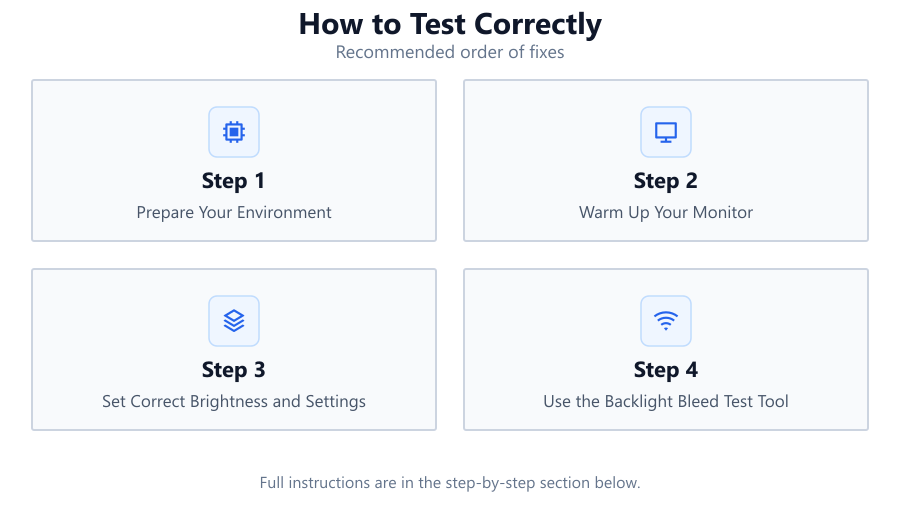
Prepare Your Environment
Turn off or dim all lights in your room. Close curtains to block sunlight. Remove any bright objects near your monitor to prevent reflections or glare.
Warm Up Your Monitor
Let your monitor run for at least 15: 30 minutes to reach normal operating temperature. Some backlight bleed only appears after the panel warms up.
Set Correct Brightness and Settings
Adjust your monitor’s brightness to your typical level. Avoid using maximum or minimum settings. Reset any color or uniformity enhancements to default if possible.
Use the Backlight Bleed Test Tool
Open the Backlight Bleed Test in your browser. Display fullscreen black and gray patterns. Cycle through each pattern, pausing to inspect for bright spots, edge leaks, or uniformity problems.
Observe and Document Results
Sit at your normal viewing distance and angle. Note any visible bleed, glow, or uneven lighting. Take photos in the dark for reference, especially if you plan to request support or a replacement.
Compare With Other Monitors (Optional)
If available, test another monitor of similar type using the same tool and steps. Compare results to understand what is typical for your panel type.
Comparison
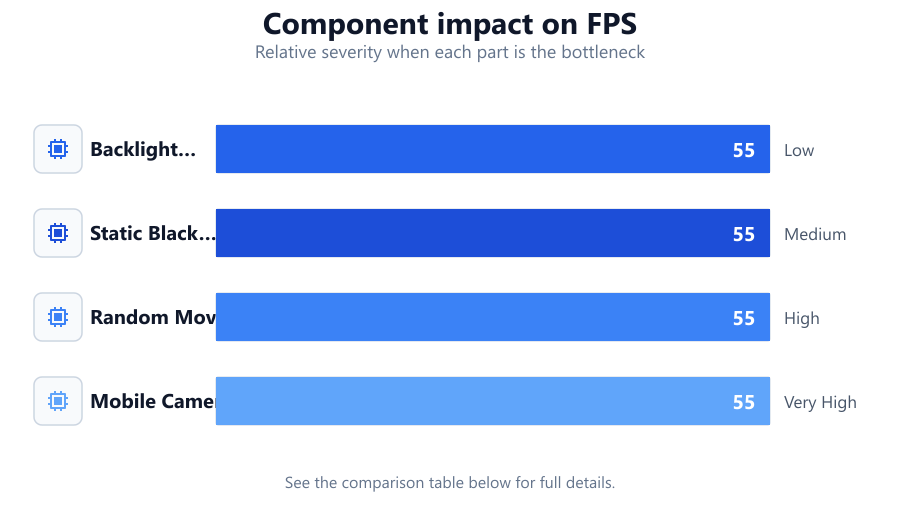
| Test Method | Accuracy | Risk of False Positives |
|---|---|---|
| Backlight Bleed Test (browser) | High | Low |
| Static Black Image | Medium | Medium |
| Random Movie/Dark Game | Low | High |
| Mobile Camera Flash Test | Low | Very High |
Common mistakes
Mistake
Testing in a brightly lit room
Fix: Always test in a dark environment to see true backlight bleed and IPS glow.
Mistake
Using maximum brightness
Fix: Test at your normal brightness settings for real-world accuracy.
Mistake
Confusing IPS glow with backlight bleed
Fix: Move your viewing angle to distinguish between the two: IPS glow shifts with angle, bleed does not.
Mistake
Relying on random images or videos
Fix: Use standardized patterns from Backlight Bleed Test for consistent results.
Troubleshooting
Bright patches at screen corners
Likely cause: Common backlight bleed, often due to panel assembly or pressure issues.
What to do: Check monitor mounting and bezel. If severe, contact manufacturer for warranty support.
Colored glow when viewed from angle
Likely cause: IPS glow, inherent to IPS panel technology.
What to do: Adjust viewing angle or brightness. This is normal and not a defect unless excessive.
Uneven lighting across the panel
Likely cause: Panel uniformity issue or manufacturing variance.
What to do: Test with Backlight Bleed Test. If uniformity is poor, consider replacement if within return window.
Bleed appears only at maximum brightness
Likely cause: Overdriven backlight exaggerates minor bleed.
What to do: Reduce brightness to normal levels. Retest to see if issue remains significant.
Recommendations
- Test your monitor as soon as possible after purchase, within the return or warranty period.
- Use the Backlight Bleed Test tool for accurate and repeatable results.
- Document findings with photos for warranty or support claims.
- Repeat the test if you change your monitor setup or environment.
- Understand that minor IPS glow is normal, but severe bleed may qualify for replacement.
Frequently asked questions
What is the difference between backlight bleed and IPS glow?
Backlight bleed refers to unwanted light escaping around the edges or corners of the screen, usually visible as bright patches on a dark background. IPS glow is a soft, colored glow caused by the panel technology itself, visible at certain viewing angles. Backlight bleed does not change with angle, while IPS glow does.
Can I fix backlight bleed myself?
In most cases, backlight bleed is due to panel assembly and cannot be fixed at home without voiding warranty. Some users have minor success loosening bezel screws, but this is risky. If the bleed is severe, contact the manufacturer or retailer for support.
Is some backlight bleed normal?
A small amount of backlight bleed is normal for most LCD monitors, especially at the corners. Only excessive bleed that distracts during normal use should be considered a defect.
Why should I use the Backlight Bleed Test tool instead of random images?
The Backlight Bleed Test tool provides standardized black and gray patterns, making it easier to spot and compare issues across different monitors. Random images or videos may hide bleed or make it seem worse than it is.
Will backlight bleed worsen over time?
Backlight bleed is usually a result of manufacturing and does not typically get worse unless the panel is physically stressed. Proper mounting and gentle handling can help maintain its condition.