
Guide
Troubleshooting Guide
Backlight bleed and IPS glow can disrupt your viewing experience. This troubleshooting guide explains how to inspect, diagnose, and minimize these display issues effectively.
Updated 2026-07-05
Understanding Backlight Bleed and IPS Glow
Backlight bleed and IPS glow are common issues that affect LCD monitors, especially those with IPS panels. Backlight bleed occurs when unwanted light leaks around the edges of the screen, often most visible in dark scenes. IPS glow, on the other hand, is a characteristic of IPS panel technology where a faint glow appears when viewing the screen at certain angles, particularly in low-light environments.
These issues can be distracting, especially for gamers, photo editors, and anyone who values high image quality. While some level of glow is normal for IPS monitors, excessive bleed or uneven lighting can indicate a defect or poor assembly. Diagnosing these problems early helps you decide whether to pursue a fix, adjust your setup, or consider a warranty claim.
The Backlight Bleed Test is a valuable browser-based tool that presents fullscreen black and gray patterns, making it easier to spot and document light leaks, glow, or uniformity issues on any monitor. Familiarity with your display's normal performance is crucial for recognizing when something is wrong. This guide walks you through actionable steps to identify and troubleshoot backlight bleed and IPS glow, offering practical solutions for most scenarios.
Diagnosing and Resolving Display Issues
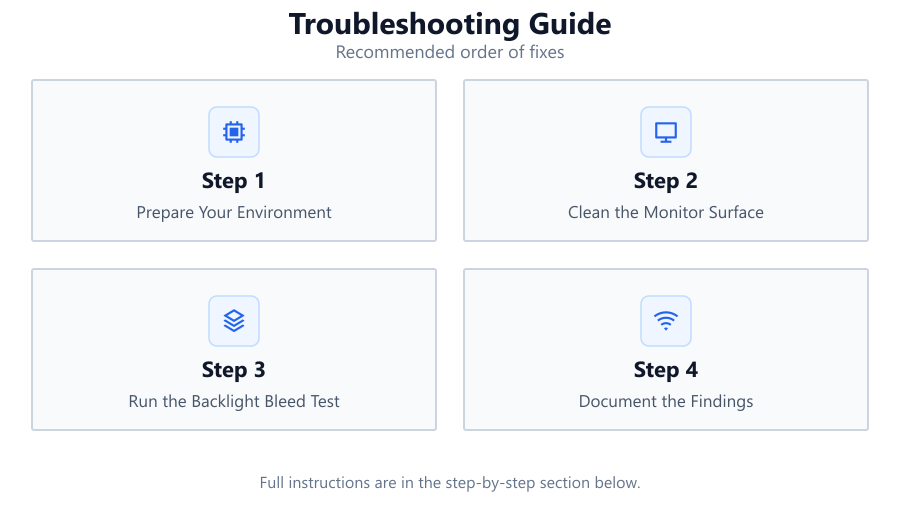
To properly address backlight bleed and IPS glow, a structured approach is required. Start by preparing your environment: dim the room, clean the monitor surface, and let the display warm up for at least 20 minutes. Use the Backlight Bleed Test to display black and dark gray screens. Examine the panel from different angles and take photos for documentation.
If you notice uneven patches of light or bright spots along the edges, you are likely dealing with backlight bleed. IPS glow appears more as a subtle haze that shifts when you move your head. Understanding this distinction will help you choose the right corrective action.
Potential causes include manufacturing tolerances, panel pressure from the frame, improper mounting, or even shipping damage. Sometimes, simple adjustments like loosening the monitor's bezel screws or repositioning the display can minimize bleed. In severe cases, professional repair or replacement may be necessary. The following steps and troubleshooting table will help you systematically address the most common issues.
Step-by-step
Prepare Your Environment
Turn off all lights in the room and close curtains or blinds. Allow your monitor to warm up for 20 minutes so the panel and backlight reach normal operating conditions.
Clean the Monitor Surface
Wipe the screen with a microfiber cloth to remove dust or smudges. This ensures that any perceived bright spots are not caused by debris.
Run the Backlight Bleed Test
Open the Backlight Bleed Test tool and select the black or dark gray pattern. Inspect the entire screen, especially the corners and edges, for light leaks or uneven brightness.
Document the Findings
Take photos of any bleed or glow with your camera at different angles. This documentation helps with warranty claims or comparisons over time.
Adjust Monitor Settings and Position
Lower the brightness and contrast to see if the bleed diminishes. Try slightly loosening the mounting screws or adjusting the tilt and height to reduce panel stress.
Test with Different Inputs and Cables
Connect the monitor to another device and use a different cable. This helps rule out signal or connection issues that might mimic display problems.
Comparison
| Issue Type | Appearance | Typical Causes |
|---|---|---|
| Backlight Bleed | Bright edges or corners on black screens | Panel assembly, frame pressure, manufacturing defect |
| IPS Glow | Hazy glow visible at angles, changes with viewing position | Inherent to IPS technology |
| Dirty Screen Effect | Patchy or streaky brightness, visible on gray screens | Panel uniformity, uneven backlight |
| Dead Pixels | Tiny black or colored dots | Pixel failure, manufacturing defect |
Common mistakes
Mistake
Testing in a brightly lit room
Fix: Always perform bleed tests in a dark environment to accurately detect issues.
Mistake
Confusing IPS glow with backlight bleed
Fix: Check if the glow changes with viewing angle. If so, it is likely IPS glow, not bleed.
Mistake
Applying excessive pressure when cleaning the screen
Fix: Use a gentle touch and a microfiber cloth. Applying pressure can worsen panel issues.
Mistake
Ignoring the warm-up period
Fix: Allow your monitor to reach normal operating temperature before testing for accurate results.
Troubleshooting
Bright patches along screen edges
Likely cause: Backlight bleed from frame pressure or loose panel
What to do: Slightly loosen bezel screws, adjust monitor position, or contact manufacturer if severe.
Glow that changes with viewing angle
Likely cause: IPS glow, inherent to IPS panel technology
What to do: Reduce brightness, adjust seating position, or use ambient lighting to minimize visibility.
Patchy, uneven brightness across the panel
Likely cause: Dirty screen effect or uneven backlight
What to do: Try running a pixel refresher if available, or contact support if under warranty.
No improvement after adjustments
Likely cause: Defective panel or severe assembly issue
What to do: Prepare documentation and photos, then contact the manufacturer for repair or replacement.
Recommendations
- Always test for backlight bleed and IPS glow in a completely dark room with the monitor fully warmed up.
- Use the Backlight Bleed Test tool regularly to monitor changes in your display over time.
- If you detect severe bleed or uniformity issues, act quickly to document and contact support while under warranty.
- Consider ambient bias lighting behind your monitor to reduce the perceived impact of IPS glow.
- Lowering brightness and contrast often lessens the visibility of both backlight bleed and IPS glow.
Frequently asked questions
What is the difference between backlight bleed and IPS glow?
Backlight bleed appears as bright spots or edges on dark screens due to light leaking from the panel's edges. IPS glow is a soft haze visible at certain angles, caused by the panel's technology.
Can backlight bleed be fixed at home?
Minor bleed can sometimes be reduced by adjusting the bezel or monitor position. Severe cases usually require professional repair or replacement.
Is backlight bleed covered under warranty?
Most manufacturers cover significant backlight bleed, but minor bleed may be considered normal. Always check your warranty policy and document the issue using tools like the Backlight Bleed Test.
How often should I test for backlight bleed?
Test when you first receive your monitor, after any impacts or drops, and periodically during ownership, especially before warranty expiration.
Does lowering brightness reduce backlight bleed?
Lowering brightness does not eliminate bleed but can make it less noticeable, helping reduce its impact during normal use.