
Guide
Complete Beginner's Guide
Curious about your CPU’s temperature and what it means for performance and lifespan? This complete beginners guide explains everything you need to know and shows how to use the CPU Temperature Estimator to stay safe.
Updated 2026-07-05
What Is CPU Temperature and Why Does It Matter?
CPU temperature refers to how hot your processor gets while running tasks. Every CPU produces heat as it works, and excessive heat can lead to performance issues, crashes, or even permanent damage. Keeping your CPU within safe temperature limits ensures your computer remains stable and lasts longer.
Most modern CPUs are designed to operate safely up to a certain temperature, usually between 80 to 100 degrees Celsius, but running close to these limits for extended periods can degrade performance or trigger thermal throttling. Thermal throttling is when your CPU slows itself down to avoid overheating, which reduces your system’s speed and responsiveness.
Understanding CPU temperature is essential whether you’re a gamer, content creator, or casual user. Using the CPU Temperature Estimator, you can quickly predict how hot your processor will get under different workloads, cooling solutions, and room temperatures. This helps you avoid risks and make informed choices about your PC setup.
Checking and managing CPU temperature is easier than ever thanks to tools like the CPU Temperature Estimator, which gives you instant feedback on your setup’s thermal performance. This guide will walk you through the basics so you can confidently monitor and control your CPU’s heat.
Key Factors That Influence CPU Temperature
Several factors affect how hot your CPU gets. The main ones include CPU workload, cooling system, case airflow, ambient temperature, and the specific model of your processor. Let’s break down each factor:
- CPU Workload: The more demanding the task, the more heat your CPU generates. Gaming, video rendering, and simulations push your processor harder than web browsing or office tasks.
- Cooling Solution: Air coolers, liquid coolers, and even passive cooling have different abilities to dissipate heat. A high-quality cooler can significantly lower CPU temperatures.
- Case Airflow: Good airflow helps remove hot air from inside your case. Poor airflow traps heat, making your CPU and other components run hotter.
- Ambient Temperature: The temperature of the room where your PC is located sets the baseline for how cool your CPU can get. Hotter rooms mean higher CPU temps.
- CPU Model and Power Draw: Some CPUs naturally run hotter due to higher power consumption or manufacturing processes.
The CPU Temperature Estimator considers these factors to help you understand what to expect. By adjusting these variables in the tool, you can see how changes in your setup impact your CPU’s temperature and plan upgrades or tweaks accordingly.
Step-by-step
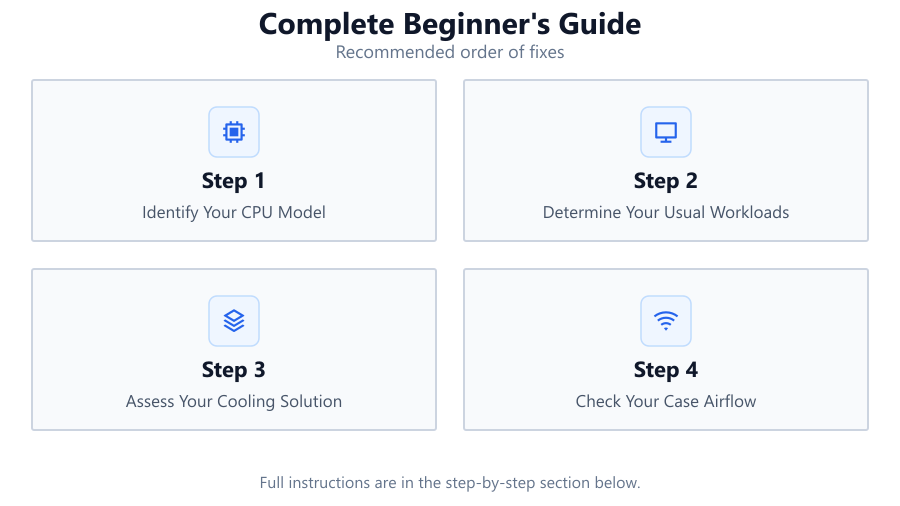
Identify Your CPU Model
Before you can estimate temperatures, you need to know which CPU you have. Check your system information or use free tools like CPU-Z to find your processor’s exact model.
Determine Your Usual Workloads
Think about what you do most: gaming, streaming, rendering, or light browsing. Your typical activities have a big impact on how much heat your CPU produces.
Assess Your Cooling Solution
Look at your current CPU cooler. Is it a stock cooler, aftermarket air cooler, or a liquid cooling system? Note the model if possible, as cooling performance varies widely.
Check Your Case Airflow
Open your case or feel for airflow. Are there intake and exhaust fans? Dust buildup? Good airflow helps your CPU cooler work more effectively and keeps overall temps down.
Use the CPU Temperature Estimator
Enter your CPU model, workload, cooling setup, and room temperature into the CPU Temperature Estimator. Review the estimated temperature and compare it to safe operating ranges (usually under 80-85°C for most CPUs under heavy load).
Comparison
| Cooling Type | Typical Idle Temp (°C) | Typical Load Temp (°C) |
|---|---|---|
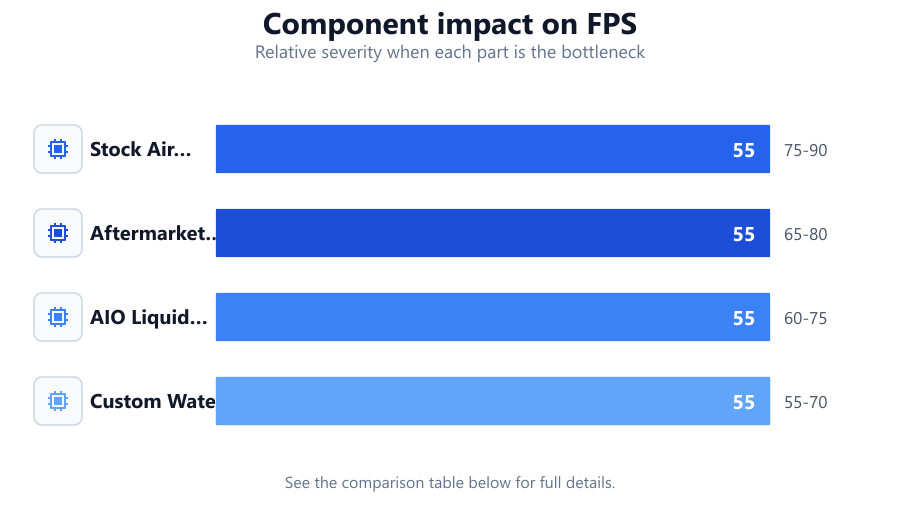
| Stock Air Cooler | 35-45 | 75-90 |
| Aftermarket Air Cooler | 30-40 | 65-80 |
| AIO Liquid Cooler | 28-38 | 60-75 |
| Custom Water Loop | 25-35 | 55-70 |
Common mistakes
Mistake
Ignoring ambient room temperature
Fix: Always consider the temperature of your environment. Hotter rooms raise CPU temps, so adjust expectations or improve cooling if needed.
Mistake
Relying only on manufacturer maximums
Fix: Do not run your CPU close to its max temperature for long periods. Aim for temps at least 10-20°C below the limit for optimal longevity.
Mistake
Forgetting to clean dust from fans and heatsinks
Fix: Regularly clean your PC to prevent dust buildup, which can block airflow and cause temperatures to rise dramatically.
Troubleshooting
CPU temperatures spike suddenly during normal use
Likely cause: Dust buildup or failing fan
What to do: Clean all fans and heatsinks, check that all fans are spinning, and replace any that are not working.
CPU temperature readings seem unusually high even at idle
Likely cause: Poor contact between CPU and cooler
What to do: Reseat the cooler and apply fresh thermal paste to ensure proper heat transfer.
System shuts down or restarts under heavy load
Likely cause: CPU overheating and triggering thermal protection
What to do: Improve cooling, lower ambient temperature, or reduce CPU load until temps are within safe limits.
Recommendations
- Use the CPU Temperature Estimator regularly to check your setup’s thermal performance, especially after hardware changes.
- Aim to keep CPU temps under 80°C during heavy use for most modern CPUs.
- Upgrade your cooling or improve case airflow if you consistently see high temperatures.
- Monitor temperatures during both idle and load to spot potential problems early.
Frequently asked questions
What is a safe temperature range for my CPU?
Most CPUs are safe up to 80-85°C under heavy load, but it is best to keep daily temps below this for long-term reliability.
How accurate is the CPU Temperature Estimator?
The CPU Temperature Estimator uses typical values and known variables, providing reliable estimates for most users. For precise readings, use hardware monitoring tools as well.
Can high CPU temps damage my processor?
Repeated overheating can reduce your CPU’s lifespan or cause system instability. Always keep temps within recommended ranges.
Does my CPU cooler affect gaming performance?
Indirectly, yes. Better cooling prevents thermal throttling, so your CPU can maintain higher speeds during gaming sessions.