
Guide
Troubleshooting Guide
Struggling with high CPU temperatures or thermal throttling? This troubleshooting guide walks you through proven steps to identify and fix CPU heat issues using the CPU Temperature Estimator.
Updated 2026-07-05
Understanding CPU Temperature Issues
High CPU temperatures can lead to reduced performance, system instability, and even permanent hardware damage. Overheating may cause your PC to throttle performance or shut down entirely to avoid harm. Identifying the root causes early is crucial for maintaining a healthy system.
The CPU Temperature Estimator helps you quickly gauge if your processor is running within safe thermal limits. By simulating different workloads and cooling scenarios, you can spot potential issues before they escalate. Whether you are gaming, rendering, or multitasking, knowing the expected temperature range for your setup is the first step in troubleshooting.
The most common culprits for high CPU temperatures include insufficient cooling, dust buildup, poor airflow, and incorrect BIOS settings. This guide will show you how to methodically diagnose and resolve each issue, ensuring your CPU runs cool and efficiently.
Advanced Troubleshooting and Prevention
Beyond basic checks, advanced troubleshooting involves monitoring software, system logs, and physical inspection. Use hardware monitoring tools alongside the CPU Temperature Estimator to compare estimated and actual readings. If actual temps are consistently higher, this signals a deeper problem.
Inspect your cooling solution: Is the thermal paste applied correctly? Are the fans spinning at their rated speeds? Check for obstructions or dust in heatsinks and ensure case airflow is unobstructed. For overclocked systems, verify voltage and frequency settings. Sometimes, a BIOS update or reset can restore optimal thermal management.
Prevention is just as important. Regularly clean your PC, update firmware, and periodically reapply thermal paste. If your workload changes, for example, you start gaming or rendering more frequently, re-run the CPU Temperature Estimator to reassess your cooling needs. This proactive approach keeps your system running safely and extends hardware lifespan.
Step-by-step
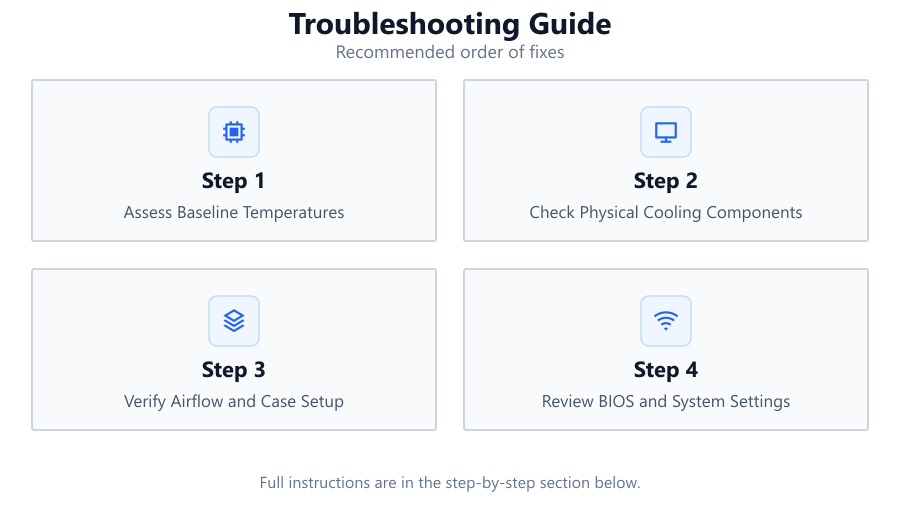
Assess Baseline Temperatures
Use the CPU Temperature Estimator to determine what temperatures are normal for your processor model and workload. Compare these with real-time readings from software like HWMonitor or CoreTemp.
Check Physical Cooling Components
Turn off your PC and inspect the CPU cooler, fans, and heatsinks. Remove any dust and ensure there is solid contact between the cooler and CPU. Replace old or ineffective thermal paste if necessary.
Verify Airflow and Case Setup
Make sure intake and exhaust fans are working and unobstructed. Organize cables to allow free airflow and consider adding additional fans if your case supports them.
Review BIOS and System Settings
Reset any manual overclocks and restore BIOS to default settings if you suspect instability. Update your BIOS or UEFI firmware to the latest version provided by your motherboard manufacturer.
Monitor After Each Change
After making adjustments, boot your PC and monitor CPU temperatures under load. Use the CPU Temperature Estimator to verify your changes have brought temperatures within a safe range.
Comparison
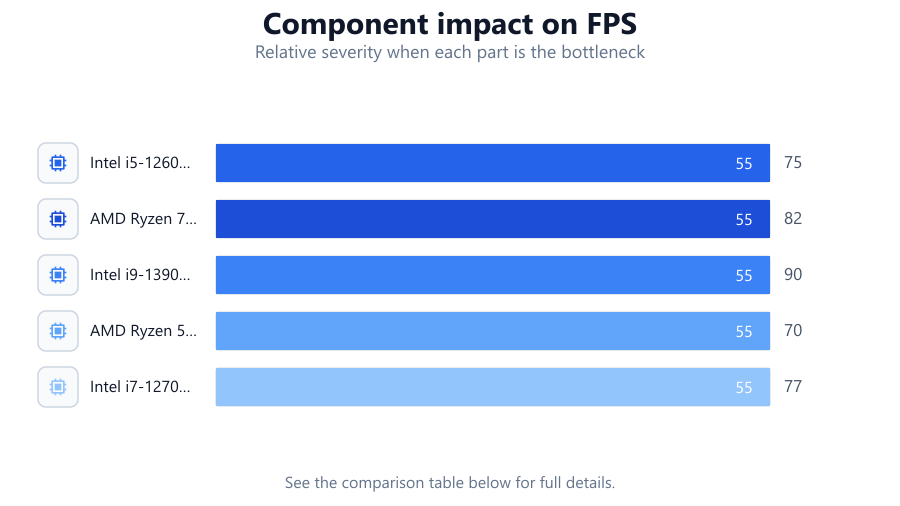
| CPU Model | Estimated Idle Temp (C) | Estimated Load Temp (C) | Cooling Type |
|---|---|---|---|
| Intel i5-12600K | 32 | 75 | Air Cooler |
| AMD Ryzen 7 5800X | 36 | 82 | Stock Cooler |
| Intel i9-13900K | 38 | 90 | AIO Liquid |
| AMD Ryzen 5 5600G | 34 | 70 | Aftermarket Air |
| Intel i7-12700F | 30 | 77 | Air Cooler |
Common mistakes
Mistake
Ignoring periodic cleaning
Fix: Set a schedule to clean dust from fans, heatsinks, and case interiors every 3-6 months.
Mistake
Using too much or too little thermal paste
Fix: Apply a small, pea-sized amount of thermal paste to the CPU center for optimal heat transfer.
Mistake
Overlooking BIOS firmware updates
Fix: Check your motherboard manufacturer's website regularly for BIOS updates, which can improve thermal management.
Mistake
Assuming all CPUs have the same safe temperature range
Fix: Always check your specific CPU's recommended temperature range using the CPU Temperature Estimator or manufacturer documentation.
Troubleshooting
CPU temperature spikes during gaming
Likely cause: Insufficient cooling or poor case airflow
What to do: Upgrade your CPU cooler or add additional case fans to improve airflow.
Frequent system shutdowns under load
Likely cause: Thermal protection is triggering due to overheating
What to do: Clean the CPU cooler, replace thermal paste, and verify fans are operational.
High idle temperatures
Likely cause: Dust buildup or failing fan
What to do: Clean the system thoroughly and replace any non-spinning fans.
CPU temps higher than CPU Temperature Estimator predictions
Likely cause: Incorrect installation of cooling solution or outdated BIOS
What to do: Reinstall the cooler properly and update BIOS to the latest version.
Recommendations
- Use the CPU Temperature Estimator regularly, especially after hardware changes or overclocking.
- Keep your PC clean and ensure unobstructed airflow.
- Monitor CPU temperatures with reliable software and compare against estimator predictions.
- Update BIOS and drivers to maintain optimal thermal performance.
- Consider aftermarket cooling if stock solutions are insufficient for your workload.
Frequently asked questions
What is a safe CPU temperature while gaming?
Most modern CPUs are safe up to 85°C under load, but it is ideal to keep gaming temperatures below 80°C for longevity. Use the CPU Temperature Estimator for your specific model.
How often should I reapply thermal paste?
Reapply thermal paste every 2-3 years or whenever you remove the CPU cooler. Higher-end pastes may last longer but check temperatures periodically for changes.
Why does my CPU temperature increase suddenly?
Sudden spikes can be caused by background processes, dust buildup, failing fans, or changes in ambient room temperature. Compare estimated and actual values to spot anomalies.
Can software alone cause high CPU temperatures?
Yes, malware, runaway processes, or inappropriate power settings can lead to excessive CPU usage and higher temperatures. Regularly monitor task manager and system health.
Is liquid cooling always better than air cooling?
Not always. High-quality air coolers can perform as well as liquid coolers for many CPUs. Use the CPU Temperature Estimator to see which cooling solution suits your needs.