
Guide
Optimization Guide
This optimization guide helps you fine-tune your PC’s thermal performance and stability. Learn how to use the CPU Temperature Estimator to ensure your processor stays cool and efficient.
Updated 2026-07-05
Understanding CPU Temperature Optimization
CPU temperature management is crucial for achieving top performance and long hardware lifespan. As workloads become more demanding, keeping your processor within safe thermal limits prevents throttling, instability, and even permanent damage. An effective optimization strategy balances performance, cooling, and noise.
Modern CPUs dynamically adjust their clock speeds based on temperature. High temperatures can trigger thermal throttling, reducing performance to protect the chip. Over time, consistently high temperatures can degrade silicon, shortening your CPU’s service life. Therefore, monitoring and optimizing your cooling setup is essential, whether you’re gaming, rendering, or just browsing the web.
The CPU Temperature Estimator enables you to quickly estimate expected processor temperatures under different workloads, cooling solutions, and ambient room conditions. By understanding these variables, you can make informed decisions about hardware upgrades, fan curves, and case airflow improvements. This optimization guide will walk you through step-by-step processes and advanced tips for maintaining safe and efficient CPU temperatures.
Step-By-Step Optimization for Safe and Efficient Temperatures
Start by identifying your CPU's thermal characteristics and manufacturer’s recommended maximum temperature (Tjmax). Most modern CPUs operate best below 80°C under full load, though this can vary by model. Use the CPU Temperature Estimator to simulate your typical workloads and test different cooling configurations virtually before making changes to your system.
Ambient temperature plays a significant role. For every degree increase in room temperature, your CPU will generally run at least one degree hotter. Make sure your case has adequate airflow, with intake and exhaust fans positioned to create a direct path for cool air and expel hot air efficiently. Clean dust filters regularly, as clogged filters can severely restrict airflow and increase temperatures.
Thermal paste quality and application matter as well. Reapply thermal paste every 2-3 years or when upgrading your cooler. Choose a reputable brand and avoid using excessive amounts. Adjust your fan curves in BIOS or with software utilities to strike a balance between cooling and noise. Higher fan speeds offer better cooling, but may generate more noise. Use the CPU Temperature Estimator to model noise versus cooling trade-offs before making changes.
Finally, if you overclock your CPU, incrementally raise clock speeds and voltages while monitoring temperatures. Stop immediately if temperatures near the manufacturer’s maximum safe limit, and revert to lower settings if instability or excessive heat occurs. The CPU Temperature Estimator can help you predict thermal outcomes of various overclocking and cooling scenarios, allowing for safer experimentation.
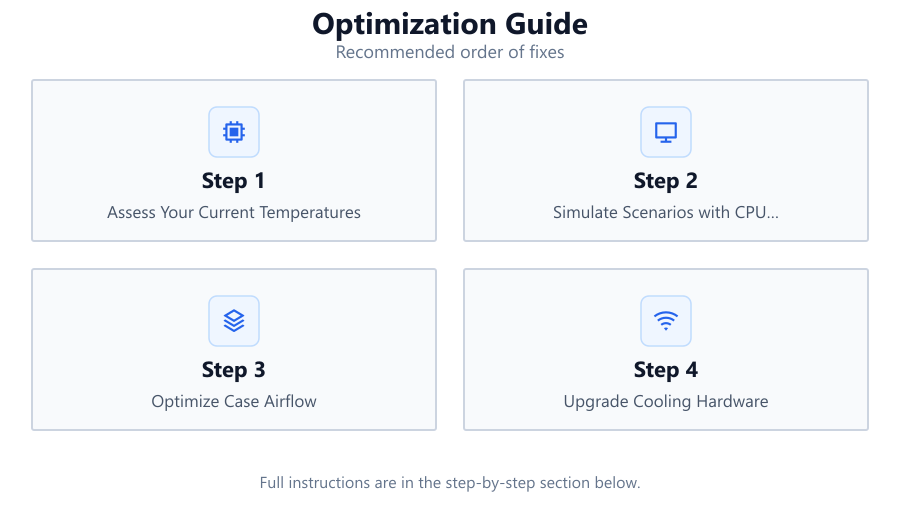
Step-by-step
Assess Your Current Temperatures
Use monitoring software to check your CPU’s idle and load temperatures. Compare these values against the manufacturer’s safe operating range. Note any spikes or temperature inconsistencies.
Simulate Scenarios with CPU Temperature Estimator
Input your CPU model, cooling solution, ambient temperature, and workload into the CPU Temperature Estimator. Review the estimated temperatures under different configurations to identify if your current setup is adequate.
Optimize Case Airflow
Rearrange case fans for efficient front-to-back airflow. Ensure intake fans draw in cool air and exhaust fans remove hot air. Remove obstructions and clean dust filters regularly.
Upgrade Cooling Hardware
If simulations and monitoring reveal high temperatures, consider upgrading your CPU cooler or adding more case fans. High-performance air coolers and AIO liquid coolers can significantly lower temperatures.
Fine-Tune Fan Curves and Thermal Paste Application
Adjust fan curves to ramp up cooling under load while maintaining acceptable noise levels. Replace old or poorly applied thermal paste with a high-quality product for better heat transfer.
Comparison
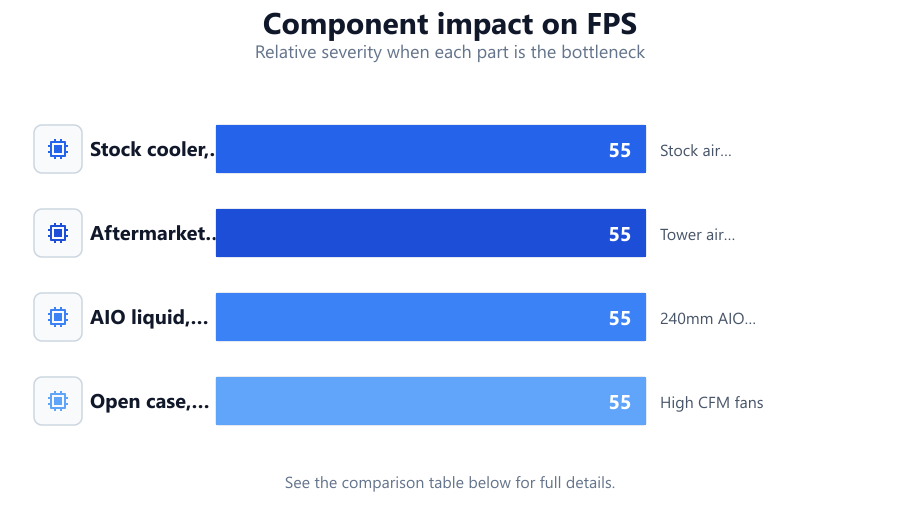
| Scenario | Estimated Load Temp | Cooling Solution |
|---|---|---|
| Stock cooler, warm room | 88°C | Stock air cooler |
| Aftermarket air cooler, standard room | 74°C | Tower air cooler |
| AIO liquid, cool room | 65°C | 240mm AIO liquid |
| Open case, high airflow | 68°C | High CFM fans |
Common mistakes
Mistake
Ignoring ambient temperature effects
Fix: Always consider room temperature in your estimations and adjust cooling solutions accordingly.
Mistake
Overlooking dust buildup in filters and heatsinks
Fix: Clean filters and heatsinks at least every two months to maintain optimal airflow and cooling performance.
Mistake
Applying too much or too little thermal paste
Fix: Apply a small, pea-sized amount of high-quality thermal paste and spread evenly for best results.
Troubleshooting
CPU frequently exceeds 90°C under load
Likely cause: Insufficient cooling or poor airflow
What to do: Upgrade your cooler, improve case airflow, and ensure thermal paste is properly applied.
Sudden temperature spikes during light workloads
Likely cause: Background processes or malware
What to do: Scan for malware and close unnecessary applications running in the background.
Fan noise is excessive even at idle
Likely cause: Aggressive fan curve or dust buildup
What to do: Adjust fan curves for quieter operation at low temps and clean all fans and filters.
Recommendations
- Use the CPU Temperature Estimator to plan upgrades and cooling improvements before investing in hardware.
- Monitor your CPU temperatures regularly, especially after making changes to hardware or overclocking settings.
- Prioritize clean, unobstructed airflow in your PC case to maximize cooling efficiency.
- Keep your BIOS and system drivers up to date for optimal fan control and thermal management.
Frequently asked questions
What is a safe temperature range for most CPUs?
Most modern CPUs are safe up to around 80°C under full load, but it is best to keep temperatures below this for longevity and stability.
How often should I replace thermal paste?
It is recommended to replace thermal paste every 2 to 3 years or whenever you change your CPU cooler.
Can the CPU Temperature Estimator help with overclocking?
Yes, the CPU Temperature Estimator allows you to simulate thermal results for various overclocking scenarios, helping you find safe and stable settings.
Does case airflow really make a big difference?
Absolutely. Proper case airflow can lower CPU temperatures by several degrees, reducing the risk of throttling and hardware degradation.