
Guide
Best Graphics Settings for More FPS
Want smoother gameplay? Learn the best graphics settings for more FPS and make every frame count, whether you are on a high-end rig or a modest PC.
Updated 2026-07-05
Why Graphics Settings Matter for FPS
Frames per second (FPS) is the heartbeat of smooth gameplay. The higher your FPS, the more responsive and immersive your experience will be. Achieving high FPS often means fine-tuning your graphics settings for your hardware, especially if you want to avoid lag, stuttering, or input delay.
Modern games offer a range of graphics options, from texture quality to shadow detail. The right combination can dramatically improve FPS without sacrificing too much visual fidelity. However, every PC is different. What works for one setup may not work for another, so understanding how each setting impacts performance is crucial.
Many players leave graphics settings on their default values, missing out on free performance gains. By learning what each option does and how it affects your GPU and CPU, you can tailor your experience for the best possible frame rate.
Key Graphics Settings That Impact FPS the Most
Let us break down the most impactful graphics settings for FPS improvement. Each setting affects your PC differently, and understanding their impact will help you find the perfect balance between visuals and performance.
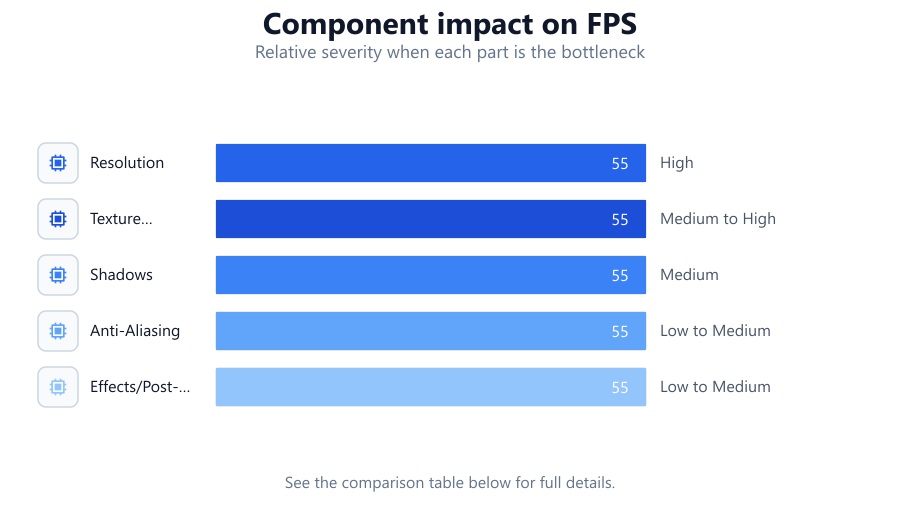
- Resolution: Lowering your resolution instantly increases FPS, but it can make your game look less sharp. Find a sweet spot where the game still looks good but runs smoother.
- Texture Quality: This setting influences how detailed surfaces look. High textures use more VRAM. If you have a GPU with limited memory, lowering this can prevent stutter and boost FPS.
- Shadows: Shadow quality is notorious for eating up performance. Setting shadows to medium or low can free up significant resources.
- Anti-Aliasing: AA smooths jagged edges but can cut FPS. Try turning it down or experimenting with less demanding options like FXAA.
- Effects and Post-Processing: Features like motion blur, depth of field, ambient occlusion, and bloom look nice but often have a steep performance cost. Disabling or reducing these can give you a noticeable FPS increase.
- Draw Distance and Level of Detail: These control how far ahead the game renders objects and how detailed they appear. Lowering these settings can help if you are struggling with FPS, especially in open-world games.
- V-Sync: While V-Sync prevents screen tearing, it can introduce input lag and cap your FPS. If you have a variable refresh rate monitor (like G-Sync or FreeSync), turn V-Sync off for better responsiveness.
- Advanced Features: Ray tracing and other modern effects can drastically reduce FPS. Unless you have a very powerful GPU, consider disabling these features.
Step-by-step
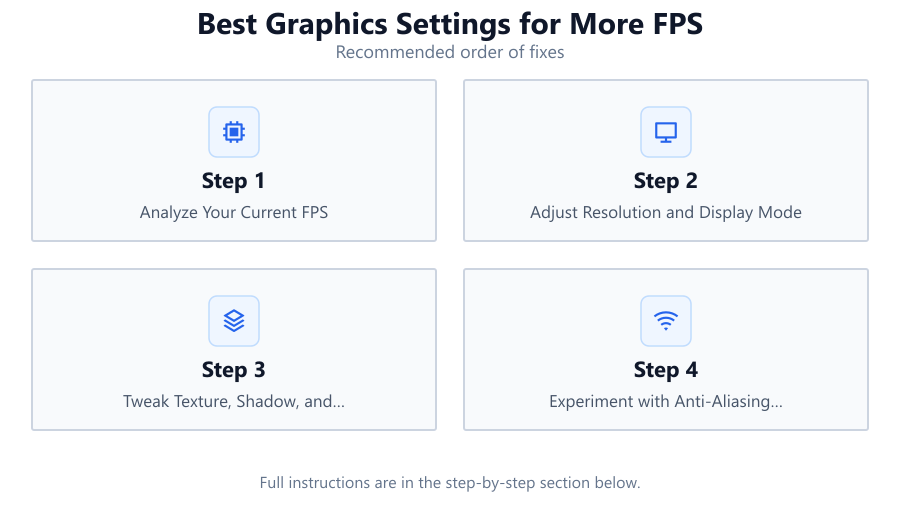
Analyze Your Current FPS
Before you begin tweaking, check your current FPS in your favorite games. Many titles have built-in FPS counters, or you can use tools like MSI Afterburner. This gives you a baseline to measure improvements.
Adjust Resolution and Display Mode
Lower your game’s resolution for an immediate FPS boost. Also, try switching from fullscreen borderless to exclusive fullscreen mode, as the latter often yields better performance.
Tweak Texture, Shadow, and Effects Settings
Set texture quality to match your GPU’s VRAM. Lower shadow and effects quality to free up resources. Disable unnecessary post-processing options like motion blur or film grain.
Experiment with Anti-Aliasing Options
Test different anti-aliasing settings. Use lighter options like FXAA or turn AA off completely for more FPS, especially on lower-end GPUs.
Use the FPS Calculator for Tailored Recommendations
Head to the FPS Calculator on SystemRequirements.net. Select your CPU, GPU, and game to get a custom frame rate estimate and see which settings matter most for your hardware. This data-driven tool helps you optimize without guesswork.
Comparison
| Setting | Performance Impact | Visual Impact |
|---|---|---|
| Resolution | Very High | High |
| Texture Quality | Medium to High | Medium to High |
| Shadows | High | Medium |
| Anti-Aliasing | Medium | Low to Medium |
| Effects/Post-Processing | High | Low to Medium |
| Draw Distance/LOD | Medium | Medium |
| V-Sync | Low to Medium | None (affects smoothness) |
| Ray Tracing | Very High | High |
Common mistakes
Mistake
Maxing out all settings without considering hardware limits
Fix: Balance settings based on your GPU, CPU, and RAM. Use medium or low for demanding options if needed.
Mistake
Ignoring VRAM usage and causing stutter
Fix: Monitor VRAM usage and lower texture quality or resolution if you notice frequent stutters.
Mistake
Leaving V-Sync enabled on a variable refresh rate monitor
Fix: Disable V-Sync if you have G-Sync or FreeSync to reduce input lag and prevent unnecessary FPS caps.
Mistake
Disabling all effects for maximum FPS but sacrificing too much visual quality
Fix: Prioritize disabling high-impact settings first. Keep some post-processing for a balanced look.
Troubleshooting
Sudden FPS drops or stuttering during gameplay
Likely cause: VRAM or RAM overload from high texture or effect settings
What to do: Lower texture quality and effects settings. Monitor system usage with tools like MSI Afterburner.
Screen tearing or visible frame splits
Likely cause: V-Sync disabled on a standard monitor
What to do: Enable V-Sync or use a variable refresh rate monitor if available.
Game looks blurry or pixelated after lowering settings
Likely cause: Resolution set too low or aggressive upscaling enabled
What to do: Increase resolution slightly or use a better upscaling method like DLSS or FSR if supported.
No FPS improvement after lowering settings
Likely cause: CPU bottleneck or background processes consuming resources
What to do: Check CPU usage and close unnecessary applications. Lower CPU-heavy settings like draw distance.
Recommendations
- Start with presets (medium or high) and tweak individual settings from there.
- Always monitor your FPS after each change to see real-world impact.
- Use the FPS Calculator to see how different settings affect your specific hardware.
- Update your GPU drivers regularly for optimal performance.
- Experiment with upscaling technologies like DLSS, FSR, or XeSS if your game and GPU support them.
- Balance visual quality with performance by prioritizing high-impact settings for reduction.
Frequently asked questions
What settings should I lower first for more FPS?
Start with shadows, effects, and resolution. These usually offer the biggest FPS gains with minimal visual loss.
Does using the FPS Calculator guarantee better performance?
The FPS Calculator provides data-driven estimates based on real benchmarks, helping you make informed decisions, but actual results may vary based on your system.
Is it better to lower resolution or texture quality?
Lowering resolution gives a bigger FPS boost but can reduce clarity. Lower texture quality if you have limited VRAM to avoid stutter.
Should I disable V-Sync for more FPS?
Disabling V-Sync can increase FPS but may cause screen tearing. If you have a G-Sync or FreeSync monitor, keep V-Sync off.
How do I know which settings impact my FPS the most?
Use the FPS Calculator to see which settings are most demanding for your hardware and game. Monitor FPS as you adjust each setting.