
Guide
How to Increase FPS Without Upgrading
Learn how to increase FPS without upgrading your hardware. Get actionable tips and in-depth advice to optimize your PC for smoother gaming and better performance.
Updated 2026-07-05
Why FPS Drops and How to Fix Them Without Upgrading
Many gamers experience low frame rates, or FPS, even on systems that should perform better. FPS drops can make your favorite games feel sluggish or unresponsive. Fortunately, you do not always need new components to see significant improvements. By optimizing your system and game settings, you can often gain 10 to 30 percent more FPS with your current hardware.
Tools like the FPS Calculator can help you estimate your expected performance and identify where your system is bottlenecked. Once you know your system's limits, you can make targeted adjustments to get the most out of your PC.
Key Optimization Areas to Boost FPS
Raising your FPS without upgrading hardware is about efficient resource management. Start by examining your graphics settings. Lowering resolution, disabling anti-aliasing, and reducing texture quality are quick wins. Make sure background apps are closed, since they take resources away from your game.
Next, check for driver updates. Outdated graphics or chipset drivers can create performance problems. Use official tools from your GPU manufacturer for best results.
Do not ignore Windows settings. Disabling unnecessary startup programs and enabling Game Mode in Windows 10 or 11 can help prioritize system resources for gaming. Cleaning up your storage and defragmenting HDDs can also reduce stutter, especially in open-world or asset-heavy games.
Finally, advanced users can experiment with in-game console commands, config file tweaks, and third-party optimization software. Always test changes one at a time and use the FPS Calculator to measure performance improvements.
Step-by-step
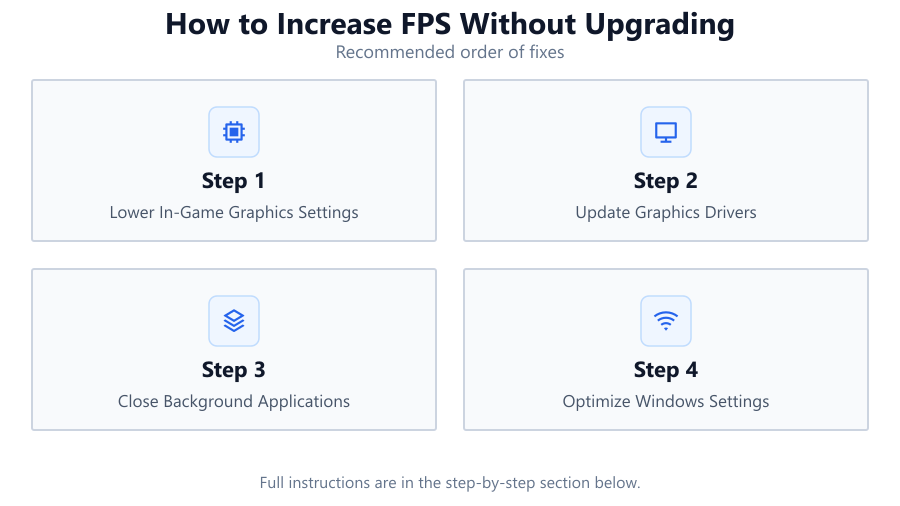
Lower In-Game Graphics Settings
Open your game's graphics settings and reduce demanding options like resolution, shadows, anti-aliasing, and texture quality. Lowering these settings can boost FPS by reducing the workload on your GPU and CPU.
Update Graphics Drivers
Visit the official website for your graphics card (NVIDIA, AMD, or Intel) and download the latest drivers. Updated drivers can fix bugs, improve efficiency, and unlock better performance in newer games.
Close Background Applications
Before gaming, close unnecessary apps like browsers, chat clients, and background updaters. Use Task Manager to ensure nothing is using significant CPU, RAM, or disk resources.
Optimize Windows Settings
Enable Game Mode in Windows, turn off visual effects, disable startup programs, and ensure your power plan is set to 'High Performance.' These changes prioritize gaming performance over background tasks.
Clean Up and Defragment Storage
Free up disk space by deleting temporary files and uninstalling unused programs. If using an HDD, run Windows Defragmenter. For SSDs, make sure TRIM is enabled. Faster storage cuts down on loading times and reduces stutter.
Adjust In-Game Resolution Scaling
Many modern games allow you to lower the render resolution while keeping UI elements sharp. This can give a big FPS boost with less visual impact than dropping your monitor's native resolution.
Comparison
| Optimization Method | Estimated FPS Gain | Difficulty |
|---|---|---|
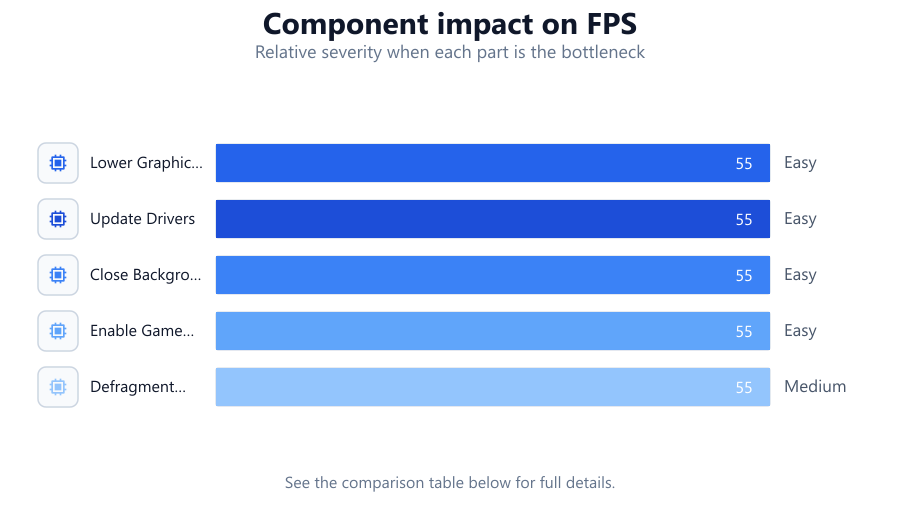
| Lower Graphics Settings | 10-40% | Easy |
| Update Drivers | 5-15% | Easy |
| Close Background Apps | 3-10% | Easy |
| Enable Game Mode | 2-7% | Easy |
| Defragment HDD / Clean SSD | 1-5% | Medium |
Common mistakes
Mistake
Setting all graphics options to low without prioritizing key impact settings
Fix: Focus on high-impact settings like shadows, anti-aliasing, and resolution before lowering everything. Some settings have minimal effect on FPS.
Mistake
Ignoring driver updates
Fix: Check for graphics and chipset driver updates monthly. Drivers often include important performance improvements and bug fixes.
Mistake
Forgetting to close background applications
Fix: Always close unnecessary apps before starting a game and check Task Manager for hidden processes.
Mistake
Not checking for thermal throttling
Fix: Monitor CPU and GPU temperatures. High temps can reduce performance. Clean dust from fans and ensure good airflow.
Troubleshooting
Sudden FPS drops during gameplay
Likely cause: Background process or scheduled task consuming resources
What to do: Use Task Manager to identify and close high-usage processes. Disable scheduled tasks that run during gaming sessions.
Game stutters or micro-freezes
Likely cause: Storage drive is nearly full or fragmented
What to do: Free up disk space and run defragmentation on HDDs. For SSDs, ensure TRIM is enabled.
Low FPS even after optimizations
Likely cause: Thermal throttling of CPU or GPU due to overheating
What to do: Clean your PC's cooling system. Reapply thermal paste if needed. Ensure your case fans are working properly.
FPS does not match expectations for hardware
Likely cause: Incorrect graphics settings or outdated drivers
What to do: Reset game settings to default, then reapply optimizations. Update all relevant drivers using manufacturer tools.
Recommendations
- Regularly update drivers and Windows for best compatibility and performance.
- Use the FPS Calculator to set realistic expectations for your system and find the most effective optimizations.
- Clean your PC's interior and fans every few months to prevent dust buildup and overheating.
- Benchmark before and after optimizations to measure real FPS gains.
- Consider lightweight overlays for monitoring system stats, but disable unnecessary ones during gameplay.
Frequently asked questions
How much can I realistically increase FPS without upgrading?
Most users can expect a 10 to 30 percent FPS increase with proper optimizations, depending on their starting configuration and games played.
Does lowering resolution always improve FPS?
Lowering resolution reduces GPU workload and almost always increases FPS, but it can make the game look less sharp. Resolution scaling can offer a good balance.
Are third-party optimization tools safe?
Most reputable tools are safe, but avoid software that promises huge gains or asks for payment upfront. Always research and back up your system before making changes.
How can I check if my CPU or GPU is the bottleneck?
Use monitoring tools like MSI Afterburner to check CPU and GPU usage. The FPS Calculator can also help identify which part of your system is limiting performance.