
Guide
DLSS vs FSR Guide
Curious about DLSS vs FSR? This guide explains how these upscaling technologies work, their key differences, and which one is right for your gaming PC.
Updated 2026-07-05
Understanding DLSS and FSR: What Are They?
DLSS (Deep Learning Super Sampling) and FSR (FidelityFX Super Resolution) are two leading upscaling technologies designed to boost gaming performance by rendering games at lower resolutions and upscaling them to higher ones. These techniques allow players to enjoy smoother frame rates and higher visual fidelity without upgrading hardware.
DLSS is developed by NVIDIA and leverages AI and dedicated hardware (Tensor Cores) in RTX GPUs. It reconstructs a high-resolution image from a lower-resolution render using machine learning. FSR, from AMD, is a spatial upscaler that works on a wide range of graphics cards, including NVIDIA and AMD models, by using advanced algorithms without requiring specialized hardware.
Both technologies have rapidly evolved, with DLSS 3.5 and FSR 3 being the latest iterations as of 2026. They now include frame generation and improved image quality, making them essential tools for maximizing performance in modern games.
While both promise higher frame rates, their implementation and compatibility can affect your experience. Understanding their technical differences is key to making the right choice for your system.
Technical Breakdown: How DLSS and FSR Work
At their core, both DLSS and FSR aim to improve gaming performance by rendering fewer pixels and then upscaling the result. However, their approaches differ significantly.
DLSS uses deep learning and is exclusive to NVIDIA RTX GPUs. It combines real-time AI inference, motion vectors, and game engine data to reconstruct cleaner images from low-res frames. This results in high image quality, especially at lower base resolutions, but requires compatible games and RTX hardware.
FSR, in contrast, is open-source and hardware-agnostic. FSR 2 and FSR 3 use temporal data and spatial upscaling to generate higher resolution images. FSR does not rely on AI hardware, making it accessible to a broader range of GPUs, including much older models.
Recent updates have narrowed the image quality gap. DLSS generally leads in sharpness and artifact reduction, especially with frame generation, but FSR’s wide support and ease of integration make it popular among developers. Your choice should factor in GPU compatibility, game support, and whether you prioritize visual quality or universal access.
Step-by-step
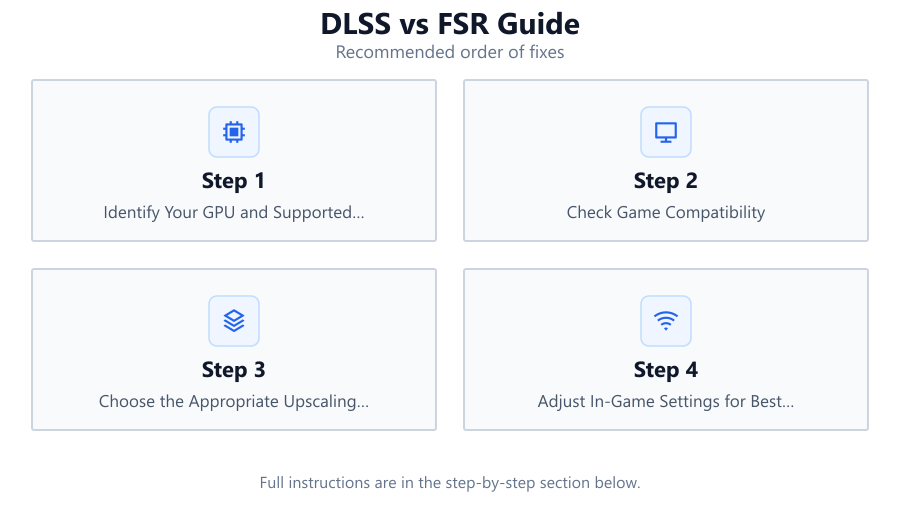
Identify Your GPU and Supported Features
Check if your graphics card supports DLSS, FSR, or both. NVIDIA RTX cards (20 series and newer) support DLSS, while most modern GPUs support FSR. Refer to your manufacturer's website or use the FPS Calculator to see which upscaling options are best for your hardware.
Check Game Compatibility
Not every game supports both DLSS and FSR. Visit the game's official site or community forums to confirm support. The FPS Calculator lists supported upscaling options for many popular titles, helping you plan ahead.
Choose the Appropriate Upscaling Mode
Within each technology, you can select different quality presets: Quality, Balanced, Performance, and sometimes Ultra Performance. Higher quality settings deliver better visuals but less performance gain. Base your choice on your target resolution and desired frame rate.
Adjust In-Game Settings for Best Results
Enable DLSS or FSR in the game's graphics settings. Tweak other options like anti-aliasing, sharpening, and ray tracing to balance image quality and performance. Test different configurations to find your ideal setup.
Benchmark and Fine-Tune with FPS Calculator
Use the FPS Calculator to estimate your expected frame rate with different upscaling settings before you launch the game. This helps you avoid in-game trial and error and ensures your system is optimized for the best experience.
Comparison
| Feature | DLSS (NVIDIA) | FSR (AMD) |
|---|---|---|
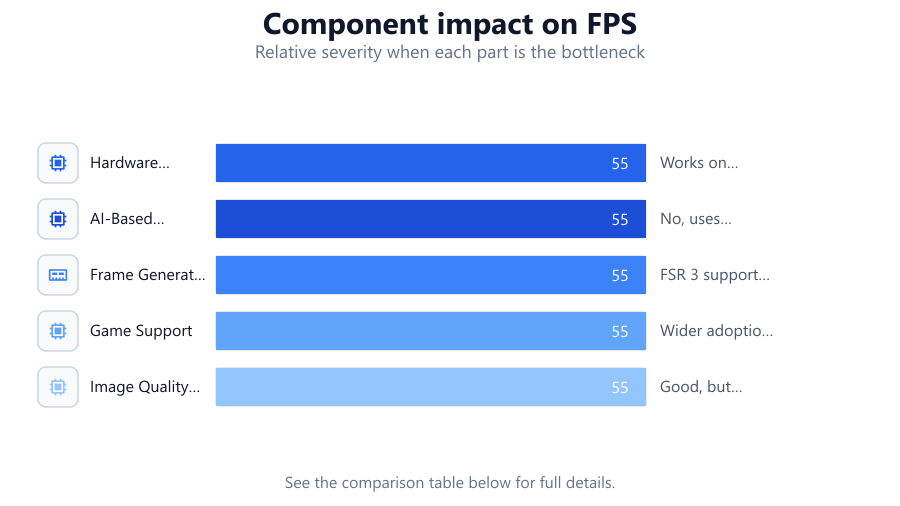
| Hardware Compatibility | NVIDIA RTX GPUs only | Works on most modern GPUs |
| AI-Based Upscaling | Yes, uses deep learning | No, uses spatial and temporal algorithms |
| Frame Generation | DLSS 3.5 supports frame generation | FSR 3 supports frame generation |
| Game Support | Growing list, but limited to supported titles | Wider adoption due to open-source |
| Image Quality (at low res) | Generally superior | Good, but sometimes softer |
| Ease of Integration | Requires NVIDIA SDK | Easier for developers, open-source |
| Performance Impact | Excellent, especially on newer RTX GPUs | Good, especially for older hardware |
Common mistakes
Mistake
Assuming FSR works best only on AMD GPUs
Fix: FSR is compatible with most modern graphics cards, including NVIDIA and Intel GPUs. Test both options if available.
Mistake
Using the highest performance mode for best visuals
Fix: Performance modes often reduce image quality. Use Quality or Balanced for better visuals if your frame rate is already high.
Mistake
Ignoring upscaling compatibility before buying a game
Fix: Check if your preferred upscaling technology is supported in the game before purchasing, especially if you rely on it for performance.
Mistake
Not updating GPU drivers
Fix: Always keep your GPU drivers up to date to ensure the latest upscaling features and optimizations are available.
Troubleshooting
Blurry or soft image after enabling upscaling
Likely cause: Using a low-resolution base setting or aggressive performance mode
What to do: Switch to a higher quality upscaling preset and adjust sharpening filters as needed.
Game crashes or fails to launch with DLSS or FSR enabled
Likely cause: Outdated GPU drivers or incompatible game version
What to do: Update your GPU drivers and verify the game's integrity. Check for game patches supporting the latest DLSS or FSR versions.
No DLSS or FSR option in the game menu
Likely cause: Your GPU or game version may not support these features
What to do: Confirm your GPU model and check the game’s official support list. Consider updating the game or your GPU if possible.
Artifacts or ghosting during fast motion
Likely cause: Temporal upscaling artifacts or incorrect settings
What to do: Test different upscaling presets, disable motion blur, and update to the latest game patch if available.
Recommendations
- For the best image quality and performance, use DLSS if you have an NVIDIA RTX GPU and the game supports it.
- If you have an older or non-NVIDIA GPU, FSR is the best choice for improved frame rates and broader compatibility.
- Always use the FPS Calculator to preview how various settings will affect your specific system before launching a game.
- Regularly update your GPU drivers and game versions to access the latest upscaling improvements and bug fixes.
- Experiment with different quality modes to find the right balance between visuals and performance for your favorite games.
Frequently asked questions
Which is better for image quality, DLSS or FSR?
DLSS generally offers superior image quality, especially at lower resolutions, due to its AI-driven upscaling. FSR quality is strong, especially with FSR 2 and 3, but may appear softer in some cases.
Can I use DLSS on an AMD graphics card?
No, DLSS requires NVIDIA RTX hardware. AMD and most other GPUs can use FSR, which is designed for wider compatibility.
Does FSR work on older graphics cards?
Yes, FSR is compatible with many older GPUs from both AMD and NVIDIA, making it a great option for boosting performance on legacy systems.
Is frame generation available in both DLSS and FSR?
Yes, both DLSS 3.5 and FSR 3 offer frame generation, but DLSS requires an RTX 40 series card, while FSR 3 works on a wider range of GPUs.
How can I tell which upscaling method is best for my system?
Use the FPS Calculator on SystemRequirements.net to compare expected frame rates with DLSS and FSR for your exact hardware and game.