
Guide
Common Problems This Test Finds
Wondering what’s holding back your web experience? Discover the common problems the Frame Rate Test can reveal and how to fix them for smoother visuals.
Updated 2026-07-05
What Issues Does the Frame Rate Test Reveal?
The Frame Rate Test is a browser-based tool designed to measure your system’s real-time FPS (frames per second) and frame pacing. Its primary job is to help you quickly identify any performance bottlenecks that might be causing stutter, lag, or visual inconsistencies when viewing animated web content. Whether you are a gamer, content creator, or everyday browser user, knowing what is limiting your system’s visual smoothness can make a big difference.
By providing live metrics such as average FPS, minimum and maximum FPS, 1 percent low, and 0.1 percent low values, the Frame Rate Test offers a detailed snapshot of how your system handles animation. The tool also displays frame-time charts and system information, giving you the context needed to pinpoint specific problems.
Many users are surprised to discover that performance issues are not always caused by outdated hardware. Sometimes, simple browser settings, background processes, or even display refresh rates can lead to less-than-smooth visuals. The Frame Rate Test helps uncover these hidden issues, making it easier to troubleshoot and optimize your setup.
Understanding the Common Problems This Test Finds
When you run the Frame Rate Test, you may encounter several key issues that degrade your visual experience. The most frequent problem is inconsistent frame pacing. This occurs when frames are delivered at uneven intervals, leading to visible stutter even if the average FPS is high. Closely related is the issue of low 1 percent low and 0.1 percent low FPS, which indicate occasional or frequent frame drops causing brief but noticeable slowdowns.
Other common problems this test finds include high input latency. This is the delay between your actions and their appearance on screen, which can be particularly frustrating in games or interactive applications. The tool’s frame-time graph is especially useful for diagnosing this, as irregular spikes often correlate with input lag.
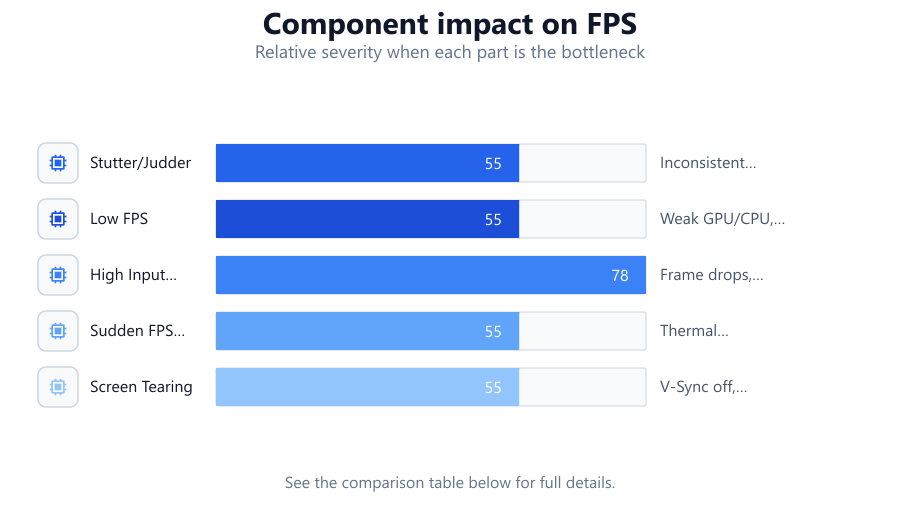
Additionally, the Frame Rate Test can reveal hardware limitations, such as a GPU or CPU that cannot keep up with demanding content. Sometimes, the bottleneck may be software related, such as browser extensions or outdated drivers. By carefully analyzing the results, users can distinguish between hardware and software causes of poor performance. This deep dive into frame data empowers users to take targeted action, whether that means tweaking settings or planning a hardware upgrade.
Step-by-step
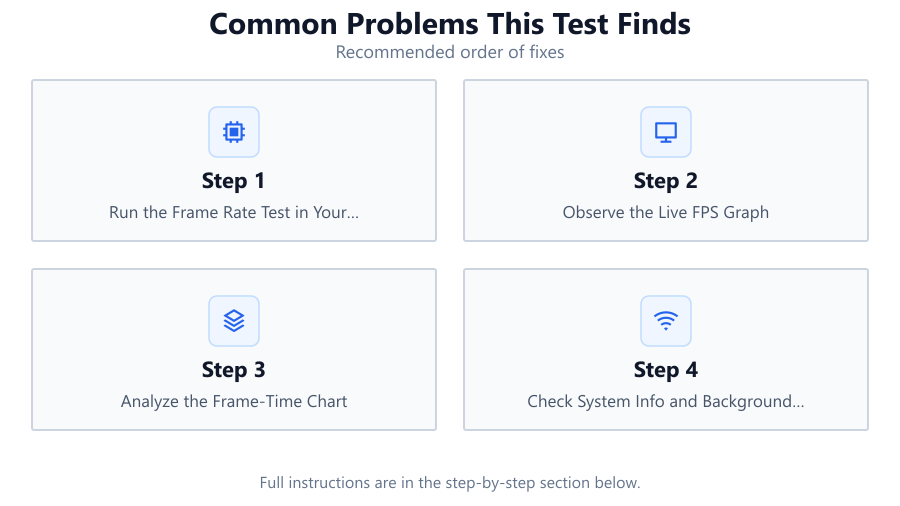
Run the Frame Rate Test in Your Browser
Open the Frame Rate Test tool in your preferred browser. Make sure all other tabs and applications are closed to get the most accurate baseline results.
Observe the Live FPS Graph
Watch the live FPS, min, max, average, 1 percent low, and 0.1 percent low numbers. Note any sudden drops or irregularities in the graph, as these often signal underlying issues.
Analyze the Frame-Time Chart
Pay attention to the frame-time chart. Consistent and flat lines are ideal. Spikes or dips indicate inconsistent frame delivery, which can cause stutter or judder.
Check System Info and Background Processes
Review the system info displayed in the tool. If your CPU or GPU is under heavy load, close unnecessary background applications and extensions, then rerun the test.
Compare Results After Adjustments
Make changes such as updating drivers, adjusting browser settings, or switching browsers. Run the Frame Rate Test again to see if the metrics improve, helping you isolate the root cause.
Comparison
| Problem | Typical Symptoms | Potential Causes |
|---|---|---|
| Stutter/Judder | Choppy animation, uneven motion | Inconsistent frame pacing, background apps |
| Low FPS | Sluggish visuals, laggy response | Weak GPU/CPU, browser limitations |
| High Input Latency | Noticeable delay after input | Frame drops, resource contention |
| Sudden FPS Drops | Short freezes or slowdowns | Thermal throttling, memory spikes |
| Screen Tearing | Split frames, misaligned visuals | V-Sync off, refresh rate mismatch |
Common mistakes
Mistake
Assuming high average FPS guarantees smooth visuals
Fix: Check 1 percent low and 0.1 percent low values for frame consistency.
Mistake
Ignoring background processes during testing
Fix: Close unnecessary apps and browser tabs before running the Frame Rate Test.
Mistake
Blaming hardware before checking software or browser settings
Fix: Update your browser, disable extensions, and adjust settings before considering hardware upgrades.
Troubleshooting
Consistent stutter despite high average FPS
Likely cause: Uneven frame pacing or background processes interfering
What to do: Check the frame-time chart for spikes. Close background apps and rerun the Frame Rate Test.
Low FPS in all browsers
Likely cause: Outdated GPU drivers or underpowered hardware
What to do: Update your GPU drivers and consider lowering display resolution or upgrading hardware.
Sudden FPS drops after a few minutes
Likely cause: Thermal throttling or memory leaks
What to do: Monitor temperatures, clean dust from your system, and check for memory-hogging apps.
Recommendations
- Always start troubleshooting with the Frame Rate Test to identify whether the problem is hardware or software related.
- Regularly update your GPU drivers, browser, and operating system for optimal performance.
- Close unnecessary background applications before running FPS-sensitive tasks or tests.
- Use the frame-time chart to spot less obvious issues like input lag or microstutter.
- If problems persist, consider hardware upgrades such as a better GPU or more RAM.
Frequently asked questions
What are the most common problems this test finds?
The most common problems are stutter, low FPS, high input latency, and sudden FPS drops. These issues are often caused by inconsistent frame pacing, background applications, or hardware limitations.
Why does my FPS look fine but animations still stutter?
High average FPS can mask poor frame consistency. Check the 1 percent and 0.1 percent low numbers, as well as the frame-time chart, for a complete picture.
Can browser extensions affect my FPS test results?
Yes, some browser extensions consume CPU or GPU resources, leading to inaccurate test results. Disable unnecessary extensions before testing.
How do I know if the issue is hardware or software?
Try running the Frame Rate Test in a different browser, with all extensions disabled. If performance improves, the issue is likely software related. If problems persist, hardware may be the cause.