
Guide
How to Test Correctly
Learn how to test correctly with the Frame Rate Test and get precise insights into your system’s real-time FPS and frame pacing for smooth visuals.
Updated 2026-07-05
Understanding the Importance of Testing Correctly
Accurate performance testing is crucial for identifying whether your browser, hardware, or software setup is responsible for less-than-smooth visuals. The Frame Rate Test tool empowers you to see real-time FPS, frame pacing, and system information directly in your browser, making it easier than ever to diagnose issues or optimize your setup.
Testing correctly means more than just pressing "start" and glancing at a number. You need to control variables, interpret the metrics properly, and avoid common mistakes that can lead to misleading results. By following best practices, you ensure that your data is reliable and actionable, saving you time and frustration in the long run.
Whether you are troubleshooting stutter in games, evaluating new hardware, or just curious about your system’s performance, this guide will walk you through the steps to get the most accurate results from the Frame Rate Test. We will also cover common pitfalls, provide troubleshooting tips, and help you understand what your numbers mean.
Key Metrics and How to Interpret Them
The Frame Rate Test provides a variety of metrics beyond simple FPS. Understanding these metrics is vital for meaningful results.
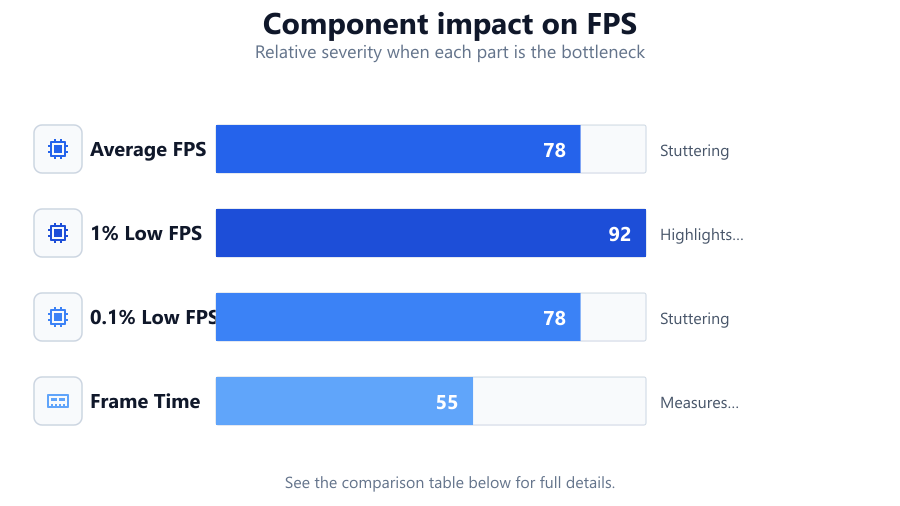
FPS (frames per second) is the most basic performance measure. However, average FPS alone does not tell the full story. The Frame Rate Test also shows min, max, 1% low, and 0.1% low FPS values. The 1% and 0.1% lows represent the worst-case scenarios for frame rates, highlighting stutters that a simple average can conceal.
Frame pacing is another critical factor, referring to the consistency in the time between each frame. Even if your FPS is high, uneven frame pacing can make visuals feel jerky. The Frame Rate Test’s live frame-time chart helps you see these inconsistencies.
System information is equally important. Differences in CPU, GPU, RAM, and display refresh rate can all impact results. The Frame Rate Test captures these details, making it easier to spot bottlenecks or incompatibilities. By combining these metrics, you gain a comprehensive picture of your system’s real-world performance, allowing for targeted upgrades or tweaks.
Step-by-step
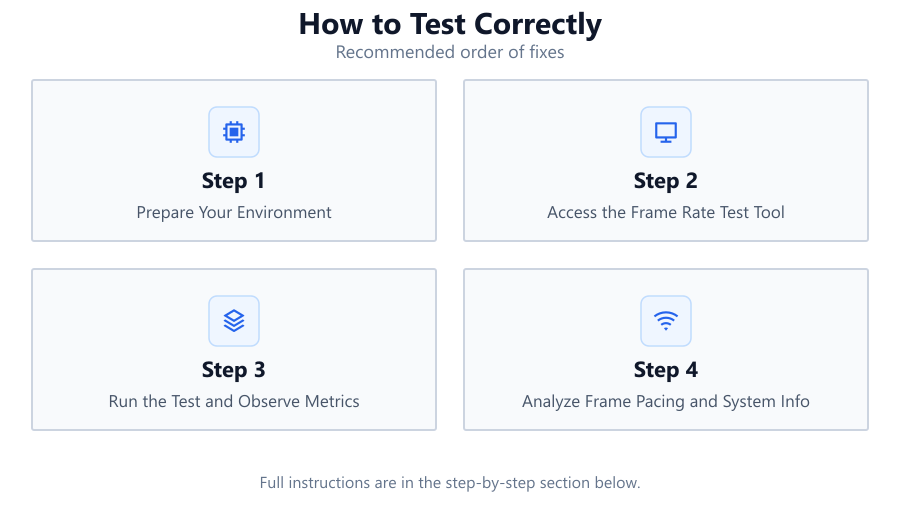
Prepare Your Environment
Close unnecessary background applications, browser tabs, and overlays. Ensure your system is at idle to avoid interference. Set your display to its native refresh rate. This creates a stable baseline for accurate readings.
Access the Frame Rate Test Tool
Navigate to the Frame Rate Test at SystemRequirements.net. Allow the tool to load fully and confirm that system details are detected correctly. Make sure your browser supports the required features for the test.
Run the Test and Observe Metrics
Start the test and let it run for at least 30 seconds to capture a representative sample. Watch the live FPS, frame-time graph, and 1%/0.1% low numbers. Avoid interacting with your system during the test to prevent skewed results.
Analyze Frame Pacing and System Info
Review the frame-time chart for spikes or irregularities, which indicate stutter. Compare system info against your hardware specs to ensure accurate detection. Take note of any anomalies.
Repeat and Compare Results
For reliability, run the test multiple times under similar conditions. If you make system changes, re-test to see the impact. Document your results for future comparisons or troubleshooting.
Comparison
| Metric | What It Shows | Why It Matters |
|---|---|---|
| Average FPS | Mean frames per second over the test duration | General smoothness but can hide stutters |
| 1% Low FPS | Average of the lowest 1 percent of frames | Highlights rare but severe dips in performance |
| 0.1% Low FPS | Average of the lowest 0.1 percent of frames | Shows the worst stutters, crucial for smooth feel |
| Frame Time | Time in milliseconds between frames | Measures consistency, not just speed |
Common mistakes
Mistake
Testing with background apps running
Fix: Close all non-essential software and browser tabs before starting the test.
Mistake
Relying only on average FPS
Fix: Check 1% and 0.1% lows and frame-time graphs for a complete performance picture.
Mistake
Running the test for too short a duration
Fix: Let the Frame Rate Test run for at least 30 seconds, preferably longer, to capture meaningful data.
Troubleshooting
FPS numbers seem unusually low
Likely cause: Background processes or browser limitations
What to do: Close other applications, update your browser, and rerun the Frame Rate Test.
System info not detected correctly
Likely cause: Unsupported browser or privacy settings
What to do: Try a different browser or adjust privacy/security settings to allow hardware detection.
Inconsistent results between runs
Likely cause: Variable background activity or browser throttling
What to do: Reboot your system, minimize activity, and ensure consistent conditions for each test.
Recommendations
- Always use the same browser and hardware setup for repeat tests.
- Document your results with screenshots or notes for future reference.
- Update your browser and graphics drivers for best compatibility.
- Use the Frame Rate Test as a baseline before and after hardware or software changes.
Frequently asked questions
How long should I run the Frame Rate Test for accurate results?
Run the test for at least 30 seconds, but longer runs (1-2 minutes) provide more representative samples, especially for spotting rare stutters.
Can I use the Frame Rate Test on mobile devices?
Yes, but mobile browsers and hardware may limit accuracy. For best results, test on a desktop or laptop with a modern browser.
What do 1% and 0.1% low FPS mean?
These metrics show the average frame rates in the lowest 1 percent and 0.1 percent of samples, revealing stutters that average FPS may hide.
Why does frame pacing matter if my average FPS is high?
Uneven frame pacing can cause visible stutter even when FPS is high. The frame-time chart in Frame Rate Test helps identify these issues.