
Guide
Complete Beginner's Guide
New to gaming or PC installs? This complete beginners guide explains how to estimate game download times and storage needs so you always know what to expect.
Updated 2026-07-05
Understanding Game Downloads and Storage
Every gamer has faced the frustration of waiting for a massive game to download or running out of space mid-install. With modern titles growing in size, knowing how long a download will take and how much storage you need is crucial. Whether you are new to PC gaming or just want to avoid surprises, understanding these basics can save time and prevent headaches.
When you buy or download a game online, you are really transferring a large file from the internet to your computer. The speed of this transfer depends on your internet connection, while the space needed depends on the game's file size. If your hard drive is almost full or your internet is slow, you might be in for a long wait or a failed install.
This is where the Game Download Time & Storage Calculator comes in handy. By entering your internet speed and the game's file size, you can instantly see how long the download will take and if you have enough disk space. This tool is perfect for beginners who want to plan ahead and ensure a smooth gaming experience.
How the Calculator Works and Why It Matters
The Game Download Time & Storage Calculator simplifies what used to be a confusing process. Instead of guessing or relying on rough estimates, you get precise numbers for both download duration and required storage. This helps you avoid failed installs, wasted time, and the frustration of deleting files at the last minute.
First, the calculator asks for your internet speed, which you can usually find in your ISP contract or by using a speed test service. Next, you enter the game's file size, which is listed on most store pages or game websites. The calculator does the math for you, showing exactly how long the download will take at your current speed. It also checks if your storage drive has enough free space for the installation.
Knowing these numbers lets you plan your downloads for when you are not using the internet heavily or ensures you clear enough space before starting. For beginners, this builds confidence and prevents common problems like interrupted downloads or storage errors. The Game Download Time & Storage Calculator is designed to be simple, accurate, and beginner-friendly, making it an essential tool for anyone downloading games on a PC.
Step-by-step
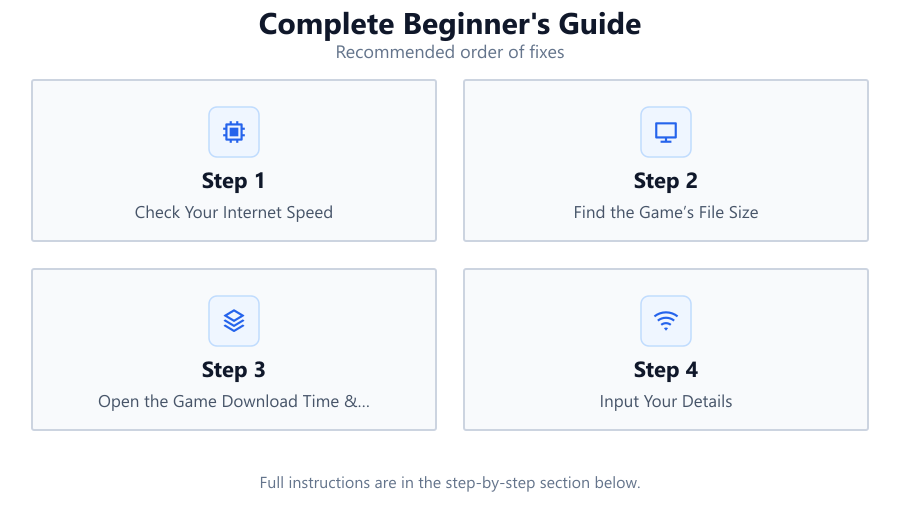
Check Your Internet Speed
Start by finding out your current internet speed. You can use free online speed test tools to measure your download rate in Mbps (megabits per second). This is the number you will enter in the calculator.
Find the Game’s File Size
Look for the game’s file size on the official store page or publisher website. This is usually listed in GB (gigabytes). Make sure you note the full size, including any updates or extra content.
Open the Game Download Time & Storage Calculator
Go to SystemRequirements.net and access the Game Download Time & Storage Calculator. This is where you will enter your speed and the game’s file size to get accurate results.
Input Your Details
Enter your internet speed and the game’s file size into the calculator fields. Double-check your entries to ensure accuracy. You can also enter your available storage space to verify if your drive can handle the install.
Review and Plan
The calculator will instantly show you the estimated download time and whether you have enough space. Use this information to plan your download for off-peak hours or clear space as needed before starting.
Download and Install
Once you are prepared, start the download. Monitor your progress and enjoy a smoother, stress-free installation process knowing you have planned ahead.
Comparison
| Internet Speed (Mbps) | Game Size (GB) | Estimated Download Time |
|---|---|---|
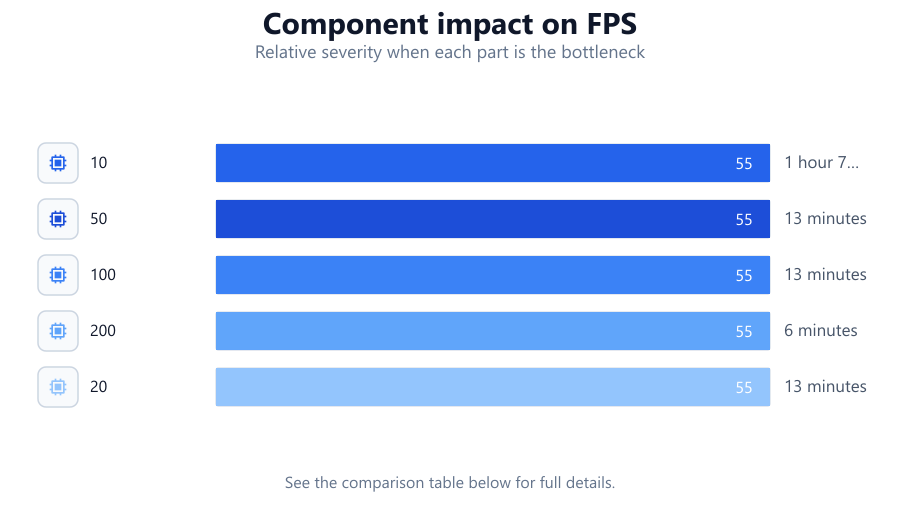
| 10 | 50 | 1 hour 7 minutes |
| 50 | 50 | 13 minutes |
| 100 | 100 | 13 minutes |
| 200 | 100 | 6 minutes |
| 20 | 20 | 13 minutes |
Common mistakes
Mistake
Confusing Mbps with MBps
Fix: Always use megabits per second (Mbps) for internet speed, not megabytes per second (MBps). The calculator uses Mbps.
Mistake
Not checking available storage before downloading
Fix: Use the calculator to check if your drive has enough free space before starting the download.
Mistake
Ignoring game updates and extra content
Fix: Include the size of any patches or downloadable content when entering the game’s file size.
Mistake
Using WiFi instead of wired connection for large downloads
Fix: For faster, more stable downloads, use a wired Ethernet connection whenever possible.
Troubleshooting
Download is much slower than estimated
Likely cause: Background apps or network congestion may be limiting your speed
What to do: Pause other downloads, stream less, or download during off-peak hours for better speeds.
Install fails due to insufficient disk space
Likely cause: Drive was almost full before download started
What to do: Clear unnecessary files and use the calculator to verify available space before retrying.
Game won’t launch after download
Likely cause: Corrupted download or incomplete install
What to do: Delete the game files and re-download using the Game Download Time & Storage Calculator to plan properly.
Recommendations
- Always check your internet speed before downloading large games.
- Include updates and DLC when calculating required storage.
- Plan downloads for times when your network is less busy.
- Use the Game Download Time & Storage Calculator to avoid surprises and failed installs.
- Consider upgrading your internet plan if you frequently download large files.
Frequently asked questions
How accurate is the Game Download Time & Storage Calculator?
The calculator gives highly accurate estimates based on your input. Real-world speeds may vary due to network congestion, but the tool is reliable for planning.
What if my download takes longer than expected?
Factors like WiFi interference, background apps, or peak internet usage hours can slow downloads. Try downloading during off-peak times and use a wired connection for best results.
Can I use the calculator for consoles or only for PC?
While designed for PC, the Game Download Time & Storage Calculator works for any device where you know the game’s file size and your download speed.
Do I need to account for updates or DLC?
Yes, always add the size of any updates or downloadable content to your total file size for accurate results.
Where can I find my available disk space?
On Windows, open File Explorer and check your drive’s properties. On Mac, use the About This Mac menu. Enter this value in the calculator to check if you have enough space.