
Guide
Optimization Guide
Unlock faster game downloads and smarter storage management. This optimization guide reveals proven strategies to maximize your download speed and make the most of your disk space.
Updated 2026-07-05
Overview: Why Optimization Matters for Game Downloads
With modern games reaching sizes over 100GB, optimizing both download speed and storage is crucial for every gamer. Waiting hours for a game to install or discovering you lack disk space can ruin your gaming plans. This optimization guide is designed to help you streamline the process from download to install.
By using the Game Download Time & Storage Calculator, you can instantly estimate how long a download will take based on your internet speed and verify if you have enough disk space. This proactive approach minimizes surprises and keeps your gaming sessions on track.
Optimization is not just about faster downloads. It also means ensuring your system is ready, your drives are managed efficiently, and your connection is as fast as possible. With the right strategies, you can enjoy new titles sooner and avoid common pitfalls.
Whether you are upgrading hardware, managing a crowded SSD, or simply want the fastest download experience possible, this guide covers everything you need to know to optimize your game installations.
Deep Dive: Key Strategies for Download and Storage Optimization
Start by measuring your current download speed and available storage. The Game Download Time & Storage Calculator is invaluable here, giving you accurate estimates and revealing bottlenecks before you start a large install.
Next, review your system’s storage layout. Games benefit from being installed on SSDs for faster load times. If your SSD is nearly full, consider moving non-essential files or games to another drive. Regularly cleaning up unused files and uninstalling games you no longer play can free up substantial space.
Optimize your download environment by connecting your PC directly to your router via Ethernet. This reduces latency and packet loss, resulting in more stable and often faster downloads. If Wi-Fi is your only option, position your device closer to the router and use the 5GHz band if available.
For advanced users, consider adjusting your network settings for better throughput. Disabling background downloads, updating network drivers, and using download managers can make a noticeable difference. Always keep your system software up to date, as OS and client updates frequently include performance improvements related to storage and networking.
Step-by-step
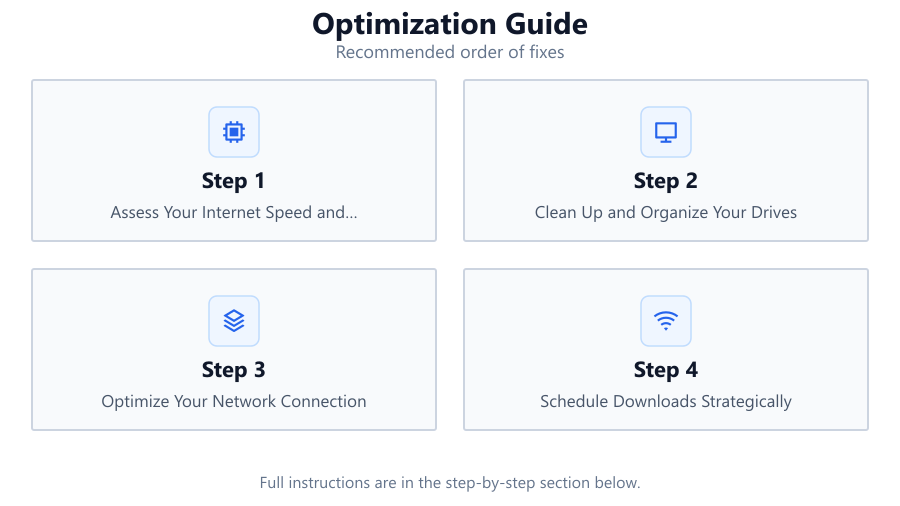
Assess Your Internet Speed and Storage
Before downloading a game, test your internet speed using a reliable online tool. Then, check your available storage space. The Game Download Time & Storage Calculator combines these two checks, providing accurate estimates for both download time and required disk space.
Clean Up and Organize Your Drives
Remove unnecessary files and uninstall games or applications you no longer use. Use disk cleanup utilities to clear temporary files and free up space. Keeping your SSD above 20 percent free capacity ensures optimal performance.
Optimize Your Network Connection
Connect your PC via Ethernet cable instead of Wi-Fi for a more stable connection. If you must use Wi-Fi, select the 5GHz band and minimize interference by positioning your device close to the router.
Schedule Downloads Strategically
Download games during off-peak hours, such as late at night or early morning, to avoid network congestion. Pause other high-bandwidth activities during downloads to allocate maximum bandwidth to your game.
Regularly Update System and Network Drivers
Outdated drivers can limit both network and storage performance. Check for updates to your motherboard, network adapter, and storage device drivers to ensure compatibility and speed.
Use the Game Download Time & Storage Calculator Before Every Install
Make it a habit to enter your estimated download speed and the game’s file size into the calculator. This prevents last-minute surprises and allows you to plan your installations efficiently.
Comparison
| Method | Download Speed Impact | Storage Benefit |
|---|---|---|
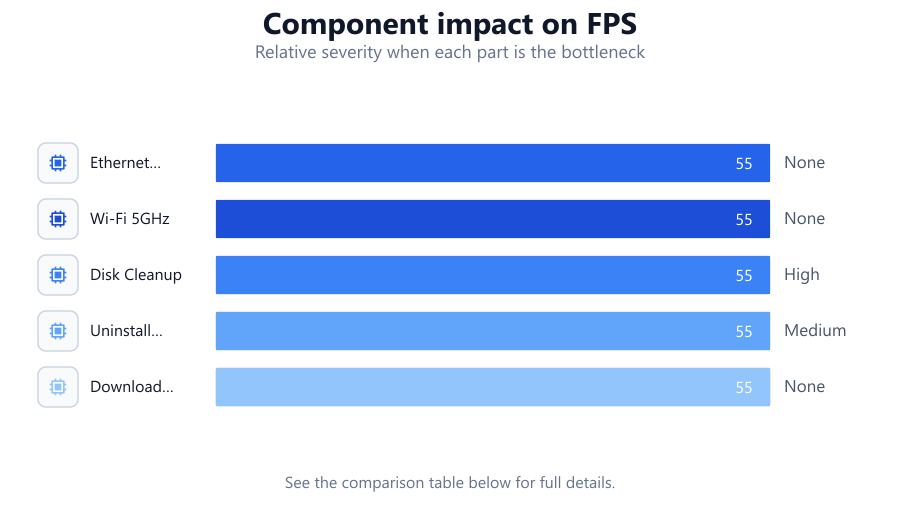
| Ethernet Connection | High | None |
| Wi-Fi 5GHz | Medium | None |
| Disk Cleanup | None | High |
| Uninstall Unused Games | None | Medium |
| Download Managers | Medium | None |
Common mistakes
Mistake
Starting a download without checking available disk space.
Fix: Always verify free space using file explorer or the Game Download Time & Storage Calculator before starting.
Mistake
Relying on Wi-Fi for large downloads without optimizing signal strength.
Fix: Switch to Ethernet or move closer to your router for improved download speeds.
Mistake
Ignoring background applications that use bandwidth.
Fix: Close unnecessary apps and pause streaming services while downloading games.
Mistake
Letting SSDs fill up completely.
Fix: Maintain at least 20 percent free capacity for optimal SSD performance.
Troubleshooting
Download speed is much slower than expected.
Likely cause: Wi-Fi interference or network congestion.
What to do: Use a wired connection or schedule downloads during off-peak hours.
Insufficient disk space error during installation.
Likely cause: Not enough free space on the target drive.
What to do: Delete unnecessary files, uninstall unused games, or move files to another drive.
Game files install slowly even after download completes.
Likely cause: Installing to a nearly full or fragmented HDD.
What to do: Install to an SSD with ample free space and regularly defragment HDDs.
PC becomes unresponsive during download.
Likely cause: Background applications consuming resources.
What to do: Close non-essential applications and monitor resource usage in Task Manager.
Recommendations
- Use the Game Download Time & Storage Calculator before every large download.
- Keep your system and network drivers up to date for optimal performance.
- Maintain your SSD with at least 20 percent free capacity.
- Prefer Ethernet connections for large downloads whenever possible.
- Regularly clean up your drives and uninstall games you no longer play.
Frequently asked questions
How does the Game Download Time & Storage Calculator work?
It estimates download time based on your internet speed and the game's file size, and checks if you have enough disk space for the install.
Why is my download speed slower than my internet plan's maximum?
Network congestion, Wi-Fi interference, and server limitations can all reduce actual download speeds compared to your ISP's advertised rate.
How much free space should I leave on my SSD?
For best performance and longevity, keep at least 20 percent of your SSD's capacity free at all times.
What should I do if I get a disk space error during installation?
Pause the installation, free up space by deleting or moving files, then resume the install. Always check space before starting large downloads.