
Guide
Common Buying Mistakes
Avoid the most common buying mistakes when choosing a new GPU. Learn how to sidestep costly errors and use the GPU Comparison Tool to make an informed decision.
Updated 2026-07-05
Why People Make Common Buying Mistakes with GPUs
Selecting the right GPU is more complicated than ever. With over a thousand NVIDIA and AMD graphics cards on the market, it is easy to get lost in specs, marketing hype, and outdated advice. Many buyers end up with a card that either underperforms, is overpriced, or does not fit their needs.
A key reason for these common buying mistakes is the ever-changing landscape of PC gaming and productivity software. New games and applications have different requirements every year, and what was a great deal last year may be a poor choice today. Add to this the confusion created by similar product names, misleading benchmarks, and the pressure of limited-time sales, and mistakes become almost inevitable.
Another major factor is not using the right comparison tools. Many still rely on word-of-mouth or outdated charts, missing out on real-world performance data. This is where the GPU Comparison Tool comes in, letting you instantly compare over 1000 GPUs side-by-side. By seeing actual gaming FPS, benchmark scores, and value-per-dollar, you can make smarter decisions and avoid expensive errors.
The Most Frequent GPU Buying Mistakes and How to Avoid Them
One of the top mistakes is buying based solely on raw specs like VRAM or clock speed. While these are important, they do not always translate directly to better performance. For example, an 8GB card from three years ago may underperform compared to a newer 6GB model due to architecture improvements.
Ignoring compatibility is another major pitfall. Some buyers forget to check if their PSU can handle the new GPU, or if the card fits in their case. Others overlook driver support and platform limitations, leading to headaches after purchase.
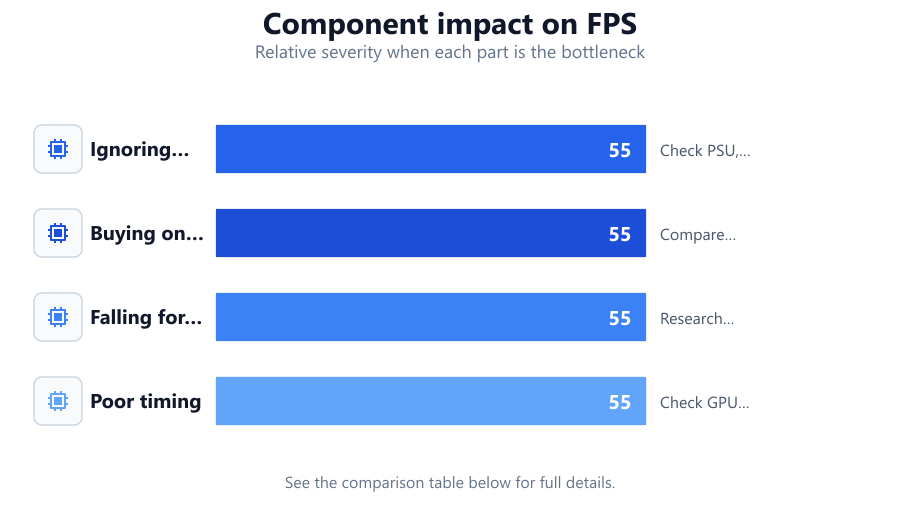
Timing your purchase poorly is also common. Buying right before a major new GPU launch can result in overpaying for hardware that drops in value a month later. Similarly, falling for flashy sales or hype around limited editions can lead to buying overpriced cards with little real-world benefit.
The GPU Comparison Tool helps you sidestep these mistakes by offering value-per-dollar analysis and up-to-date benchmark results. By comparing multiple models in real time, you can avoid overpaying and ensure the card you pick matches your needs and system.
Step-by-step
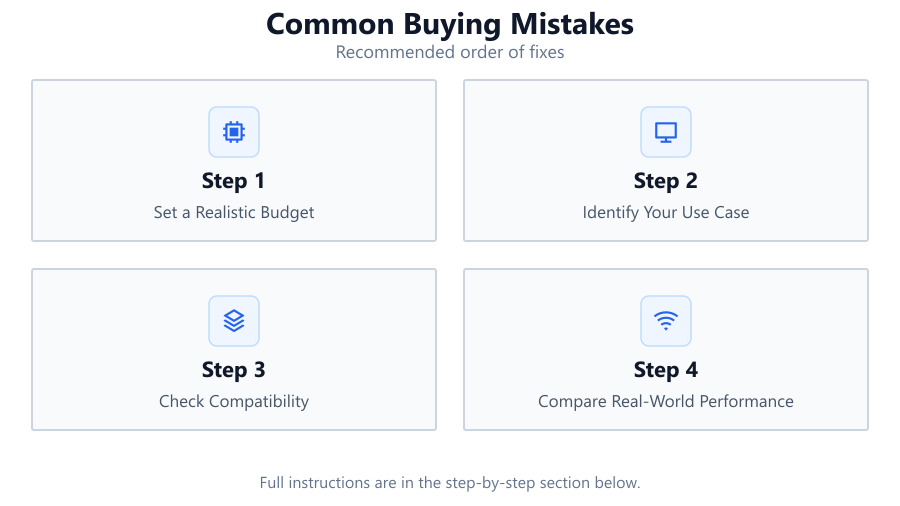
Set a Realistic Budget
Determine how much you can spend before shopping. Factor in potential PSU upgrades or cooling solutions. Do not stretch your budget for features you will not use.
Identify Your Use Case
Are you gaming at 1080p, streaming, or doing creative work? Different GPUs excel in different areas. Use the GPU Comparison Tool to filter by your primary workload.
Check Compatibility
Measure your case and check PSU wattage. Ensure your motherboard has the right PCIe slot and that your power supply has the required connectors.
Compare Real-World Performance
Use the GPU Comparison Tool to compare FPS and benchmarks across games and applications you actually use, not just synthetic scores.
Consider Future-Proofing
Look at the longevity of driver support, VRAM, and features like ray tracing. Do not overpay for cutting-edge features if you will not use them.
Comparison
| Mistake | What Happens | How to Avoid |
|---|---|---|
| Ignoring compatibility | GPU does not fit or work | Check PSU, case, and slot specs |
| Buying on specs alone | Lower real-world performance | Compare actual benchmarks |
| Falling for sales hype | Overpriced or outdated card | Research with comparison tools |
| Poor timing | Price drops after purchase | Check GPU launch cycles |
Common mistakes
Mistake
Purchasing based only on VRAM or clock speed
Fix: Use comprehensive benchmarks and the GPU Comparison Tool to assess real-world gaming and productivity performance.
Mistake
Not checking power and physical compatibility
Fix: Verify PSU wattage, case dimensions, and power connectors before buying.
Mistake
Buying during hype sales without research
Fix: Pause to compare the model using the GPU Comparison Tool and check if a new launch is imminent.
Troubleshooting
GPU does not fit in the case
Likely cause: Card length or width exceeds chassis limits
What to do: Measure case and check card dimensions before purchase
PC does not boot with new GPU
Likely cause: Insufficient PSU wattage or missing connectors
What to do: Check PSU specs and ensure all cables are connected
Games stutter or underperform
Likely cause: GPU bottleneck or lack of driver support
What to do: Update drivers, verify card suitability for your workload using the GPU Comparison Tool
Recommendations
- Always compare multiple GPUs side-by-side before buying.
- Use the GPU Comparison Tool to check performance in your favorite games.
- Set a firm budget and stick to it to avoid overspending.
- Check for upcoming GPU releases before making a purchase.
- Read trusted reviews and look for real-world benchmarks, not just specs.
Frequently asked questions
How do I know which GPU is best for my needs?
Use the GPU Comparison Tool to filter and compare models based on your specific workload, resolution, and budget. Real-world performance data is more important than just specs.
Is more VRAM always better?
Not always. VRAM helps with higher resolutions and large textures, but architecture and core performance matter just as much. Compare actual benchmarks before deciding.
Should I wait for new GPU releases before buying?
If a major launch is close, it is usually smart to wait as prices for current models may drop. Research upcoming releases and plan your purchase accordingly.
What is the most common compatibility issue with new GPUs?
Physical fit and power supply limitations are the biggest problems. Always check your case size and PSU wattage before purchasing a new graphics card.