
Guide
Optimization Guide
Get the most out of your graphics card with this comprehensive optimization guide. Learn proven techniques to improve gaming performance and compare GPUs side by side.
Updated 2026-07-05
Understanding GPU Optimization
Optimizing your PC for gaming or creative work starts with understanding your graphics card's strengths and limitations. A well-optimized system can deliver higher frame rates, smoother gameplay, and improved reliability, even on older hardware.
This optimization guide will walk you through the key steps to analyze, tune, and upgrade your GPU setup for peak performance. Leveraging the GPU Comparison Tool, you can evaluate your current graphics card and see how it stacks up against over 1000 NVIDIA and AMD models. This helps you make data-driven decisions about potential upgrades or tweaks.
Optimization is not just about raw power. It involves balancing graphical settings, driver updates, system cooling, and even in-game tweaks to achieve the best possible results for your specific needs. By following this guide, you will learn which optimizations offer the biggest gains and how to avoid common pitfalls that can sabotage your system.
Advanced Optimization Techniques
Once you understand the basics, it is time to dive deeper into advanced strategies. Start by benchmarking your system using tools integrated into the GPU Comparison Tool. These benchmarks reveal real-world FPS results and pinpoint bottlenecks that may be holding you back.
Next, address graphics drivers. Outdated or improperly configured drivers are a top cause of poor performance and instability. Always download drivers directly from the GPU manufacturer, and consider using clean installation options to avoid conflicts.
Thermal management is another critical aspect. High temperatures can throttle your GPU and reduce longevity. Ensure your case has proper airflow, clean fans regularly, and consider aftermarket cooling solutions if needed. Monitoring software can help you track GPU temps and usage in real time.
Finally, explore in-game and system-level settings. Lowering unnecessary visual effects, enabling hardware-accelerated graphics, and fine-tuning resolution scaling can all deliver substantial FPS increases without sacrificing too much visual quality. Use the GPU Comparison Tool to see how similar GPUs perform in your favorite games, guiding your optimization choices.
Step-by-step
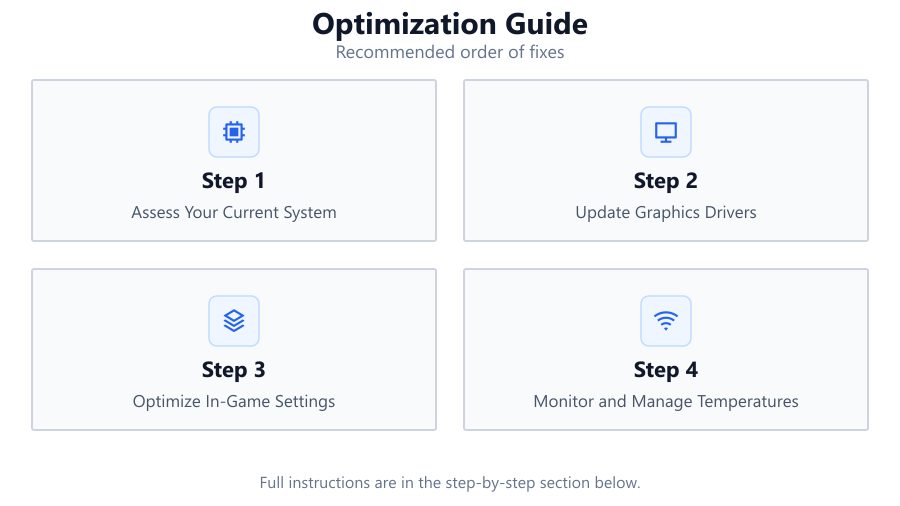
Assess Your Current System
Begin by identifying your GPU model and current performance levels. Use the GPU Comparison Tool to check how your card compares to others in terms of FPS, benchmarks, and value.
Update Graphics Drivers
Always use the latest drivers from NVIDIA or AMD. Updated drivers often include optimizations for new games and bug fixes that can resolve performance issues.
Optimize In-Game Settings
Adjust resolution, texture quality, and post-processing effects. Prioritize settings that offer the best performance-to-visual tradeoff for your hardware.
Monitor and Manage Temperatures
Install monitoring software to track GPU temperatures. Clean dust from your case, improve airflow, and consider aftermarket cooling if temperatures are high.
Benchmark and Compare Results
After making changes, benchmark your system in real games. Use the GPU Comparison Tool to see if your performance aligns with similar setups.
Comparison
| GPU Model | Avg FPS (1080p) | Value Score |
|---|---|---|
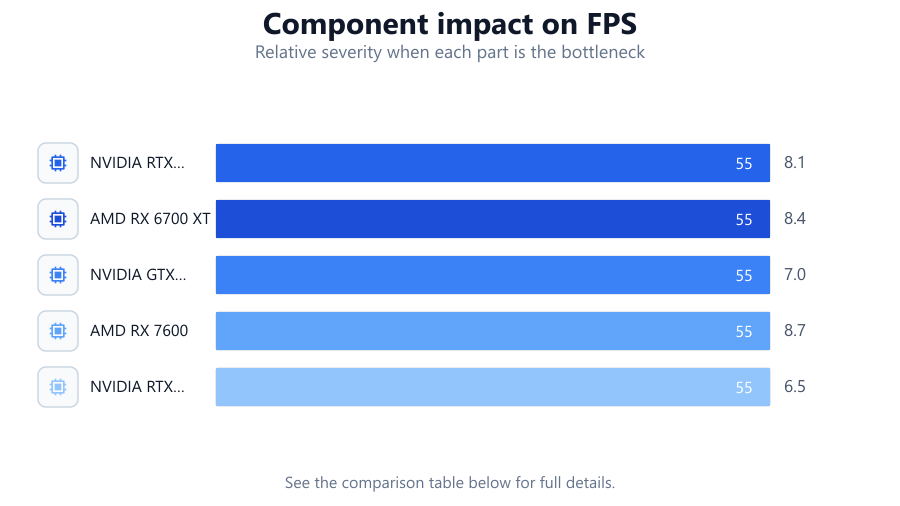
| NVIDIA RTX 3060 | 85 | 8.1 |
| AMD RX 6700 XT | 92 | 8.4 |
| NVIDIA GTX 1660 Super | 60 | 7.0 |
| AMD RX 7600 | 98 | 8.7 |
| NVIDIA RTX 4090 | 190 | 6.5 |
Common mistakes
Mistake
Ignoring graphics driver updates
Fix: Check for new drivers monthly and install them directly from the official NVIDIA or AMD website.
Mistake
Running high-end games at ultra settings on entry-level GPUs
Fix: Use medium or low settings for smoother gameplay and higher frame rates.
Mistake
Overlooking GPU temperature management
Fix: Monitor temps with software and clean dust from your PC regularly to maintain proper cooling.
Mistake
Comparing GPUs based only on VRAM
Fix: Use the GPU Comparison Tool to evaluate real-world performance, not just memory size.
Troubleshooting
Sudden FPS drops during gameplay
Likely cause: Thermal throttling or background processes using GPU resources
What to do: Monitor GPU temps, close unnecessary programs, and improve case airflow.
Games crashing or displaying artifacts
Likely cause: Corrupted or outdated graphics drivers
What to do: Perform a clean installation of the latest drivers from your GPU manufacturer.
Lower performance than similar systems
Likely cause: Incorrect in-game settings or power-saving features enabled
What to do: Reset game settings to default, disable power-saving modes, and compare your setup with the GPU Comparison Tool.
Recommendations
- Regularly update your graphics drivers for optimal performance.
- Benchmark your system after every major change to measure improvements.
- Use the GPU Comparison Tool to inform upgrade decisions and optimize for your target games.
- Prioritize cooling and airflow to prevent thermal throttling and extend GPU lifespan.
- Adjust in-game graphics settings based on real-world benchmarks, not just manufacturer recommendations.
Frequently asked questions
How often should I update my GPU drivers?
Update your GPU drivers at least once a month or when a new game you play is released. Always download drivers directly from NVIDIA or AMD.
Does overclocking my GPU always improve performance?
Overclocking can boost performance but may cause instability or overheating. Monitor temperatures closely and test stability after each change.
What is the best way to compare GPUs for my needs?
Use the GPU Comparison Tool to see real FPS results, benchmark scores, and value ratings for over 1000 NVIDIA and AMD GPUs.
Can I optimize my system without upgrading hardware?
Yes, driver updates, in-game setting tweaks, and temperature management can all improve performance without new hardware.