
Guide
How to Choose the Right Hardware
Choosing the right hardware can make or break your PC experience. Learn how to balance performance, compatibility, and value, using tools like our GPU Comparison Tool.
Updated 2026-07-05
Why Choosing the Right Hardware Matters
Building or upgrading a PC is a significant investment, and the components you choose will directly impact performance, longevity, and your overall satisfaction. Whether you are gaming, working, or editing videos, picking the right CPU, GPU, RAM, and storage is essential. Mistakes here can lead to bottlenecks, wasted money, or even system instability.
Modern hardware comes in a dizzying array of options. Each part has its own set of specifications, compatibility factors, and performance benchmarks. Understanding these details is key to making an informed choice rather than relying on marketing claims or outdated advice.
Using resources like the GPU Comparison Tool at SystemRequirements.net allows you to compare over 1000 NVIDIA and AMD graphics cards side by side. This makes it much easier to see real-world gaming FPS, benchmark scores, and value-per-dollar so you can avoid buyer’s remorse and get the best hardware for your needs.
Key Factors When Choosing PC Hardware
Choosing hardware is about more than just picking the latest or most expensive parts. You need to consider compatibility, performance needs, future-proofing, and your budget. Here are the most critical factors to evaluate:
Performance Requirements: Define your use case first. Gamers need strong GPUs and CPUs, while creators might need more RAM and faster storage. Office users can often focus on efficiency and reliability.
Compatibility: Components must work together. The CPU must fit the motherboard socket, RAM needs to match both the motherboard and CPU, and the GPU should physically and electrically fit in your case and power supply.
Value for Money: The best hardware is not always the most expensive. Use tools like the GPU Comparison Tool to see which components deliver strong performance per dollar spent.
Upgrade Path: Consider future upgrades. Choose a motherboard with extra slots, a power supply with headroom, and a case that fits larger GPUs or more storage if you plan to expand.
Reliability: Stick to reputable brands and read reviews. Poor-quality hardware can cause system crashes or even hardware failure.
By carefully weighing these factors and using comparison tools, you can build a system that fits your needs now and allows for smooth upgrades later.
Step-by-step
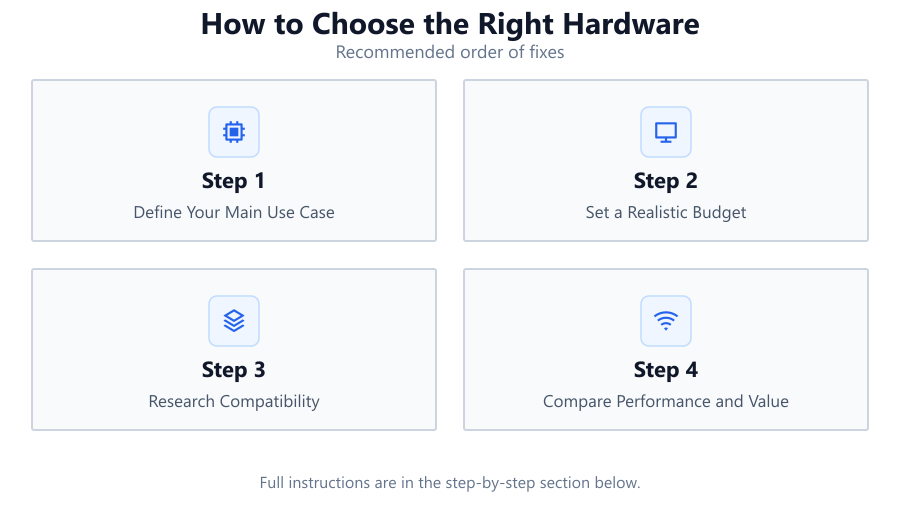
Define Your Main Use Case
Start by deciding what you will do most with your PC. Gaming, content creation, streaming, or general productivity each have different hardware priorities. Write down your top three uses and research their hardware demands.
Set a Realistic Budget
Determine how much you can spend overall. Allocate more of your budget to the parts that matter most for your use case, such as the GPU for gaming or the CPU and RAM for editing.
Research Compatibility
Match your CPU to the correct motherboard socket and chipset. Ensure your RAM type and speed are supported. Check your case and power supply are sufficient for your chosen GPU using the GPU Comparison Tool for physical sizes and power requirements.
Compare Performance and Value
Use the GPU Comparison Tool and similar resources for CPUs and RAM to compare real-world benchmarks. Look at FPS, synthetic scores, and value-per-dollar so you do not overpay for minimal performance gains.
Check Reviews and Reliability
Read user reviews, professional benchmarks, and reliability ratings before buying. Prefer reputable brands with good warranty support and proven track records.
Plan for Upgrades
Think about your future needs. Get a motherboard with extra RAM slots, a power supply with spare wattage, and a case that supports larger GPUs or more drives to extend the life of your build.
Comparison
| Component | Key Considerations | Recommended Resource |
|---|---|---|
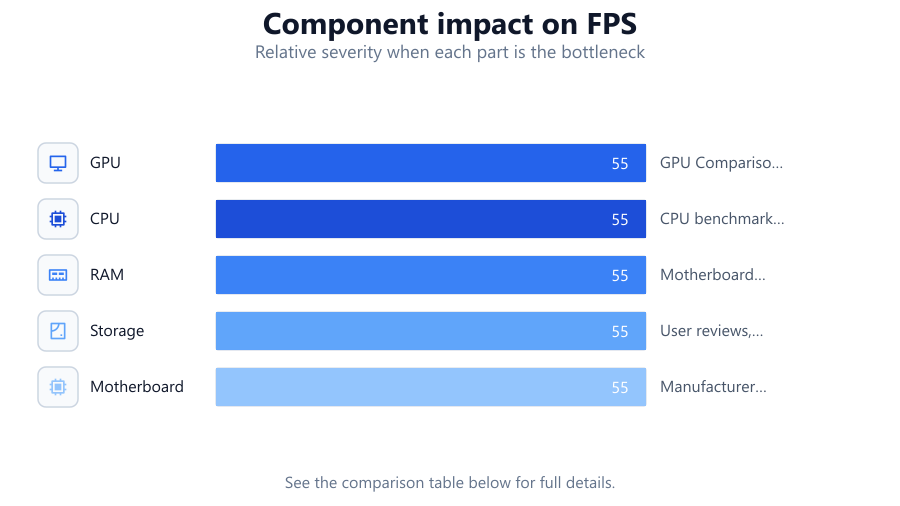
| GPU | Performance per dollar, VRAM size, power needs | GPU Comparison Tool |
| CPU | Core count, generation, socket type | CPU benchmark databases |
| RAM | Capacity, speed, compatibility | Motherboard QVL list |
| Storage | SSD vs HDD, speed, capacity | User reviews, benchmarks |
| Motherboard | Form factor, chipset, features | Manufacturer spec sheet |
Common mistakes
Mistake
Ignoring component compatibility
Fix: Always check socket types, RAM support, and GPU size against your motherboard and case.
Mistake
Overpaying for marginal performance gains
Fix: Compare real-world benchmarks and value-per-dollar using the GPU Comparison Tool and similar resources.
Mistake
Skimping on power supply quality
Fix: Buy a reputable PSU with sufficient wattage and good efficiency ratings to avoid stability issues.
Mistake
Buying outdated hardware due to lower prices
Fix: Check release dates and generational improvements before purchase; sometimes newer models offer much better value.
Troubleshooting
PC does not boot after new hardware install
Likely cause: Incompatible or improperly connected components
What to do: Recheck all power and data connections, verify compatibility, and consult your motherboard manual.
Games run poorly despite a new GPU
Likely cause: CPU bottleneck or outdated drivers
What to do: Update your drivers, check CPU utilization, and consider upgrading your processor if it is limiting performance.
System crashes under load
Likely cause: Insufficient or poor-quality power supply
What to do: Ensure your PSU meets or exceeds the recommended wattage for your components and replace it if necessary.
No display output after hardware upgrade
Likely cause: GPU not seated properly or insufficient power
What to do: Reseat your GPU, confirm all power connectors are attached, and verify your monitor is connected to the right output.
Recommendations
- Always research your hardware choices using up-to-date comparison tools.
- Do not neglect compatibility between CPU, motherboard, RAM, and GPU.
- Allocate your budget based on your most demanding use case.
- Future-proof by choosing components that allow for upgrades.
- Use the GPU Comparison Tool to find the best graphics card for your budget and needs.
Frequently asked questions
How do I know which hardware is compatible with my PC?
Check your motherboard's specifications for supported CPUs, RAM types, and GPU size limits. Use manufacturer spec sheets and compatibility checkers.
Is it better to spend more on CPU or GPU?
For gaming, the GPU is usually more important. For content creation or multitasking, a strong CPU and plenty of RAM are critical. Balance based on your main tasks.
How do I compare GPUs for gaming performance?
Use the GPU Comparison Tool to see side-by-side FPS data, benchmark scores, and value-per-dollar for over 1000 NVIDIA and AMD GPUs.
What is the best way to avoid bottlenecks in my PC build?
Ensure your CPU, GPU, and RAM are balanced and compatible. Avoid pairing a high-end GPU with a very old CPU, or vice versa.