
Guide
Optimization Guide
Unlock the full potential of your system’s memory bandwidth with this comprehensive optimization guide. Learn practical steps and expert strategies to maximize RAM speed using the Memory Bandwidth Calculator.
Updated 2026-07-05
Understanding Memory Bandwidth and Why Optimization Matters
Memory bandwidth is the rate at which data can be read from or written to your system’s RAM. High bandwidth is crucial for demanding workloads such as gaming, video editing, and 3D rendering. With the rapid advances in DDR4 and DDR5 technology, modern PCs have access to unprecedented speeds, but these gains are only fully realized when your memory subsystem is properly optimized.
Using a tool like the Memory Bandwidth Calculator, you can estimate your system’s theoretical maximum data transfer rates. This allows you to spot bottlenecks, compare hardware, or plan upgrades more effectively. However, theoretical numbers are just the starting point. Real-world performance depends on configuration, BIOS settings, and how well your RAM matches your CPU and motherboard.
A well-optimized memory setup ensures applications run smoothly, frame rates stay high, and multitasking is seamless. This optimization guide will walk you through actionable steps to assess, tune, and maximize your system’s memory bandwidth.
Practical Steps for Optimizing Memory Bandwidth
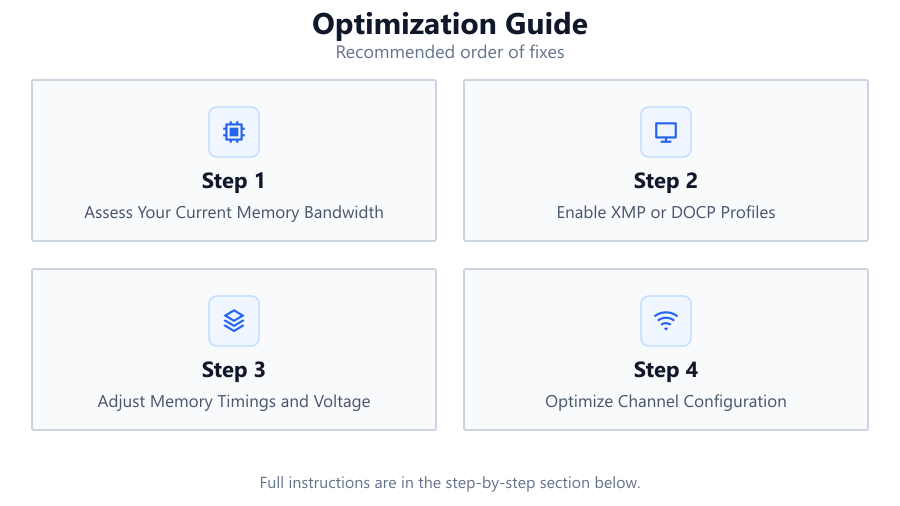
First, gather your current memory specifications: module speed (MHz), channel configuration (single, dual, or quad), and bus width (bits). Use the Memory Bandwidth Calculator to establish your baseline. This is your reference point for any changes.
Next, check your motherboard manual and CPU documentation. Many systems automatically set RAM to conservative speeds for compatibility. Enter your BIOS or UEFI and look for XMP (Extreme Memory Profile) or DOCP (Direct Overclock Profile) settings. Enabling XMP applies the manufacturer’s rated speed and timings, often unlocking significant bandwidth improvements without manual tweaking.
If you want to push further, consider manually adjusting memory timings and voltages. Lowering CAS latency and tightening sub-timings can yield measurable gains, but always test stability using memory testing tools. For advanced users, optimizing memory interleaving, gear modes, or command rates can also impact bandwidth, especially on DDR5 platforms.
Finally, always re-calculate your bandwidth using the Memory Bandwidth Calculator after each change. Compare results and monitor system stability. This cycle of measure, tweak, and test is key to effective optimization.
Step-by-step
Assess Your Current Memory Bandwidth
Identify your RAM’s speed, channel count, and bus width. Input these values into the Memory Bandwidth Calculator to determine your baseline performance. This helps you understand your starting point before making any changes.
Enable XMP or DOCP Profiles
Most modern RAM supports XMP or DOCP. Enter your BIOS or UEFI firmware and enable these profiles to automatically set optimal speeds and timings. This step alone can unlock significant bandwidth improvements.
Adjust Memory Timings and Voltage
For advanced users, manually tune memory timings such as CAS latency, tRCD, tRP, and tRAS. Increase voltage slightly if necessary for stability, but always stay within safe limits recommended by your motherboard and RAM manufacturer.
Optimize Channel Configuration
Install RAM modules in matched pairs for dual-channel (or quads for quad-channel). Refer to your motherboard manual for the correct slots. Balanced channel configuration can double or quadruple bandwidth compared to single-channel setups.
Test Stability and Re-Measure Bandwidth
After each change, run memory stress tests to ensure system stability. Use the Memory Bandwidth Calculator again to see how your adjustments have affected real and theoretical bandwidth. Repeat as necessary to reach your target.
Comparison
| Configuration | Theoretical Bandwidth (GB/s) | Real-World Gain (%) |
|---|---|---|
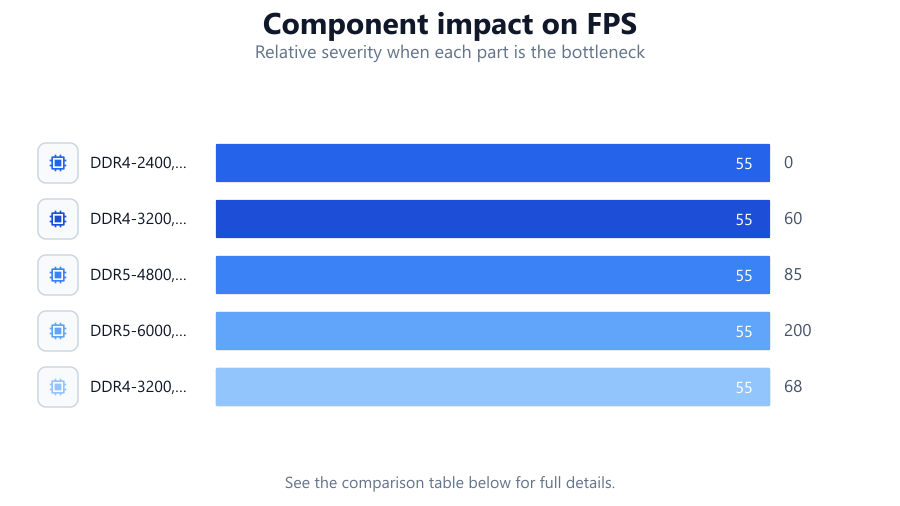
| DDR4-2400, Single Channel | 19.2 | 0 |
| DDR4-3200, Dual Channel | 51.2 | 60 |
| DDR5-4800, Dual Channel | 76.8 | 85 |
| DDR5-6000, Quad Channel | 192 | 200 |
| DDR4-3200, Dual Channel (Tuned Timings) | 54.4 | 68 |
Common mistakes
Mistake
Leaving RAM at default JEDEC speeds without enabling XMP or DOCP
Fix: Enter BIOS and activate XMP or DOCP to use your RAM’s full rated speed and timings.
Mistake
Mismatched or improperly installed RAM modules
Fix: Always install RAM in matched pairs and in the correct motherboard slots for dual or quad channel operation.
Mistake
Over-tightening timings or overvolting RAM without adequate testing
Fix: Make small adjustments and test stability thoroughly with memory diagnostics before making further changes.
Troubleshooting
System crashes or fails to boot after memory changes
Likely cause: Unstable memory timings or voltages
What to do: Reset BIOS settings to default or use safe XMP/DOCP profiles. Gradually reapply changes while testing stability.
No improvement in bandwidth after enabling XMP
Likely cause: Modules installed in incorrect slots, limiting channel configuration
What to do: Check motherboard manual and move modules to correct slots for dual or quad channel operation.
Lower than expected bandwidth in benchmarks
Likely cause: Background processes consuming memory bandwidth or outdated chipset drivers
What to do: Close unnecessary applications and update all drivers before benchmarking again.
Recommendations
- Always use the Memory Bandwidth Calculator to measure the impact of your changes.
- Enable XMP or DOCP profiles before attempting manual tuning.
- Pair identical RAM modules for optimal channel configuration.
- Update motherboard BIOS to the latest version to ensure compatibility with newer RAM kits.
- Monitor system temperatures and stability after making any memory-related adjustments.
Frequently asked questions
Why is memory bandwidth important for PC performance?
Memory bandwidth determines how quickly data can move between your CPU and RAM. Higher bandwidth improves performance in tasks like gaming, content creation, and multitasking.
How do I use the Memory Bandwidth Calculator effectively?
Input your RAM’s speed, bus width, and channel count into the Memory Bandwidth Calculator. Compare your theoretical maximum to real-world benchmarks to identify areas for optimization.
Can I mix different speeds or sizes of RAM modules?
Mixing RAM is possible, but the system will default to the slowest speed and most relaxed timings, which can limit bandwidth. For best results, use matching modules.
What are safe voltages for memory overclocking?
Most DDR4 modules are safe up to 1.35V and DDR5 up to 1.4V, but always check your RAM and motherboard specifications before increasing voltage.