
Guide
Complete Beginner's Guide
Learn how to align and calibrate your monitor or projector perfectly with this complete beginners guide. Discover how Monitor Center Finder makes setup easy and accurate.
Updated 2026-07-05
What is Display Alignment and Why Does It Matter?
Display alignment is the process of making sure your monitor or projector is positioned and calibrated so that images and content are shown accurately on the screen. Proper alignment ensures that your display's center lines up with your seating position, the image is not skewed or stretched, and that visual guides such as grids and rulers are used for precision. This is essential for everything from home entertainment setups to professional workstations, gaming rigs, and home theater systems.
If your monitor or projector is not properly aligned, you may notice uneven borders, off-center images, or even eye strain from sitting at an awkward angle. A well-aligned display looks professional, feels comfortable, and enhances your overall viewing or working experience. Beginners often underestimate the impact of precise alignment, but once you experience it, the difference is clear.
Monitor Center Finder is a free tool designed to help anyone, regardless of skill level, achieve perfect alignment. It overlays a fullscreen center crosshair, optional rule-of-thirds grid, edge rulers, and pixel grids. These visual guides make it simple to adjust your display hardware or projector until everything is precisely where it should be.
How the Monitor Center Finder Tool Works
Monitor Center Finder takes the guesswork out of display calibration. Once you launch the tool, you will see a bold crosshair marking the exact center of your screen. This helps you align your monitor or projector with your desk, wall, or projector screen. Activate the rule-of-thirds grid to help with photographic or video compositions, or use the edge rulers to check for equal spacing and straightness along all borders. The pixel grid feature is especially helpful for pixel-perfect adjustments, which is crucial for graphic designers and video editors.
Using these guides, you can easily move your monitor, adjust its height, or tweak your projector's keystone settings until everything lines up. The tool works on any size screen, from small monitors to large projection setups. Beginners will find the visual aids simple to understand, while advanced users can appreciate the precision offered by pixel-level guides. With Monitor Center Finder, you no longer need to rely on your eyes alone. This tool shows you exactly what needs to be adjusted for a perfect setup.
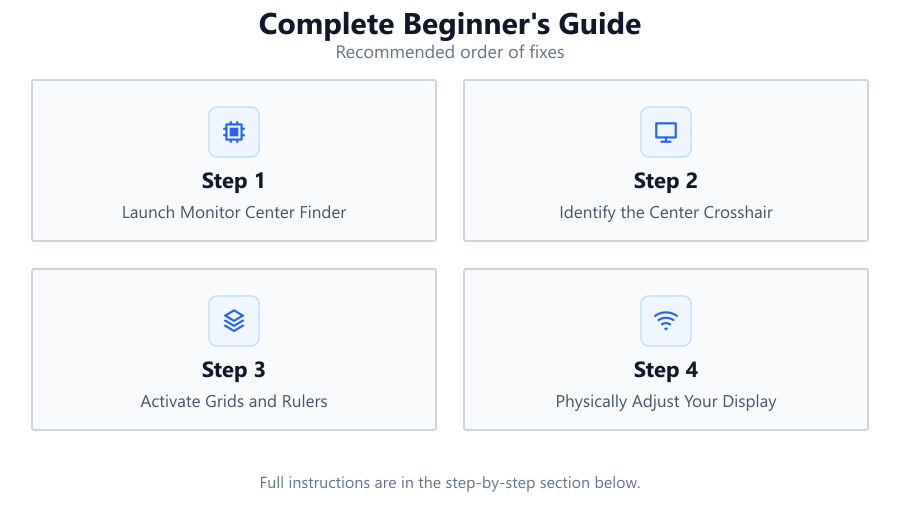
Step-by-step
Launch Monitor Center Finder
Open the Monitor Center Finder tool on your display device. Make sure it is running in fullscreen mode for the most accurate results.
Identify the Center Crosshair
Look for the bold crosshair that marks the exact center of your screen. Use this as a reference point to align your monitor or projector with your seating position or room layout.
Activate Grids and Rulers
Turn on the rule-of-thirds grid, edge rulers, or pixel grid as needed. These overlays help you check for straightness, symmetry, and precise positioning.
Physically Adjust Your Display
Move your monitor, adjust its height and tilt, or shift your projector until the visual guides line up perfectly with your desk, wall, or screen edges.
Double-Check and Fine-Tune
Review all alignment guides. Make final tweaks using the pixel grid for extreme accuracy. Confirm that your setup feels comfortable and visually balanced.
Comparison
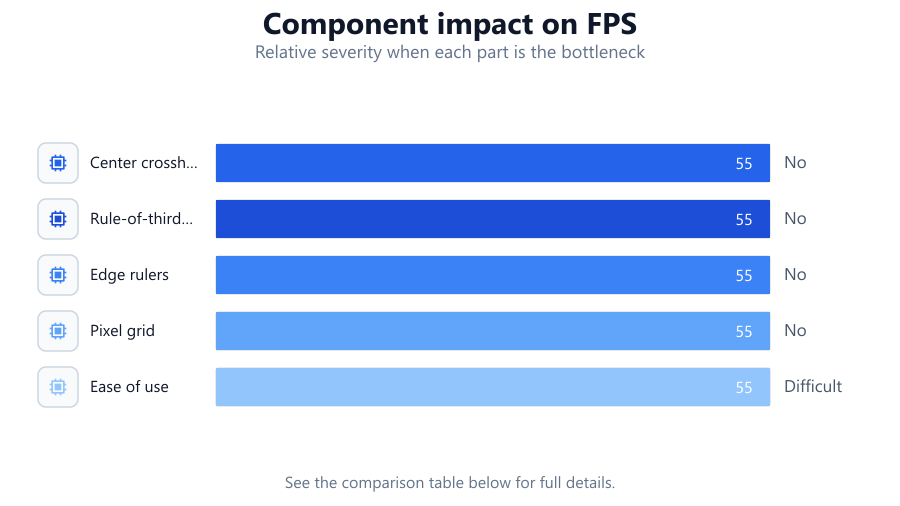
| Feature | Monitor Center Finder | Manual Alignment | Other Tools |
|---|---|---|---|
| Center crosshair overlay | Yes | No | Sometimes |
| Rule-of-thirds grid | Yes | No | Rarely |
| Edge rulers | Yes | No | Sometimes |
| Pixel grid | Yes | No | Rarely |
| Ease of use | Very easy | Difficult | Varies |
| Works on projectors | Yes | Yes | Varies |
| Requires technical knowledge | No | Yes | Sometimes |
Common mistakes
Mistake
Relying only on your eyes for alignment
Fix: Always use visual guides like those in Monitor Center Finder for accurate results.
Mistake
Ignoring the importance of screen center
Fix: Align your display center with your seating position using the tool's crosshair.
Mistake
Not using grids or rulers for symmetry
Fix: Activate the rule-of-thirds grid and edge rulers to ensure balanced setup.
Mistake
Skipping final checks after adjustments
Fix: Double-check all guides and make incremental adjustments for the best outcome.
Troubleshooting
Crosshair does not appear centered
Likely cause: Display scaling or browser zoom may be affecting the tool
What to do: Set your browser zoom to 100 percent and disable any display scaling.
Grid lines look stretched or uneven
Likely cause: Display resolution or aspect ratio mismatch
What to do: Ensure your display is set to its native resolution before using the tool.
Alignment looks correct on the tool but not in reality
Likely cause: Physical screen position or device placement is off
What to do: Physically adjust your monitor or projector until the visual guides and real-world edges are aligned.
Recommendations
- Use Monitor Center Finder every time you move or adjust your display setup.
- Combine the tool's grids and rulers for maximum alignment accuracy.
- Set your display to its native resolution before starting the alignment process.
- Take your time with fine-tuning for the most comfortable and visually pleasing results.
Frequently asked questions
What is Monitor Center Finder?
Monitor Center Finder is a free online tool that overlays alignment guides on your screen to help you center, calibrate, and position your monitor or projector accurately.
Do I need special hardware to use Monitor Center Finder?
No special hardware is needed. The tool works in any modern web browser on any monitor or projector.
Can I use this tool for projector alignment?
Yes, Monitor Center Finder is ideal for aligning both monitors and projectors. The visual guides help you correct keystone and placement issues.
Is the tool suitable for beginners?
Absolutely. This complete beginners guide and the tool's simple interface make it easy for anyone to achieve professional alignment.