
Guide
Troubleshooting Guide
Struggling with monitor or projector alignment? This troubleshooting guide will help you diagnose and solve the most common calibration and display setup problems using the Monitor Center Finder tool.
Updated 2026-07-05
Understanding Display Alignment Issues
Proper monitor and projector alignment is essential for accurate image reproduction, comfortable viewing, and professional presentation. Many users encounter frustrating issues such as misaligned screens, uneven bezels, or imprecise calibration, especially when setting up multi-monitor workstations or home theater projectors. These problems often lead to eye strain, decreased productivity, and a poor visual experience.
Monitor Center Finder is a specialized tool designed to make alignment easy. It overlays a fullscreen center crosshair, rule-of-thirds grid, edge rulers, and pixel grids right on your display. These visual guides enable you to calibrate and align your monitors or projectors with precision, removing guesswork from the process.
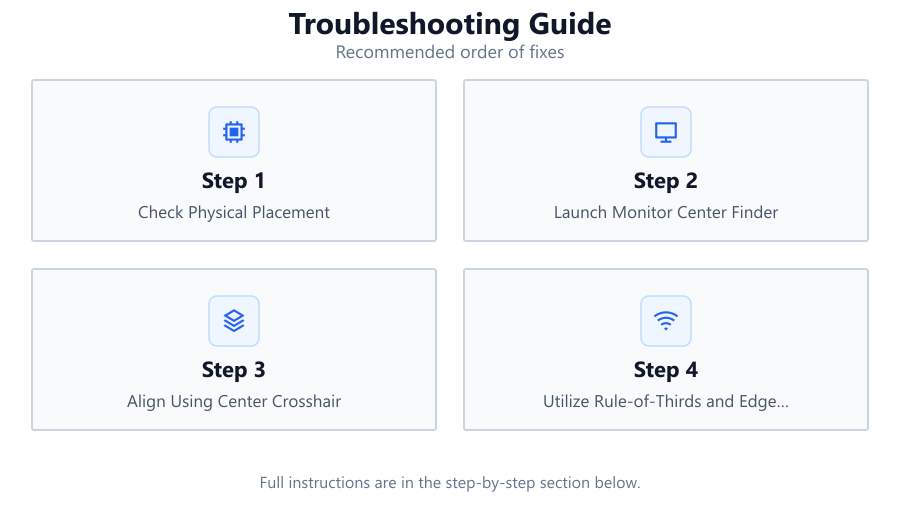
This troubleshooting guide will walk you through common alignment and calibration problems, explain their causes, and provide step-by-step solutions. Whether you are a casual user or a professional installer, following these procedures will help you achieve a flawless display setup.
Detailed Solutions for Calibration and Alignment Problems
Alignment issues can result from hardware placement, incorrect tool usage, or even subtle display settings. The Monitor Center Finder tool is designed to address these factors, but understanding the root cause is critical for successful troubleshooting.
Start by assessing your physical setup. Ensure that the monitors or projector are placed on level surfaces and that mounting brackets or stands are secure. Even a slight tilt can disrupt alignment, making calibration guides appear off-center. Next, use the Monitor Center Finder’s fullscreen crosshair and rulers to identify exact deviations.
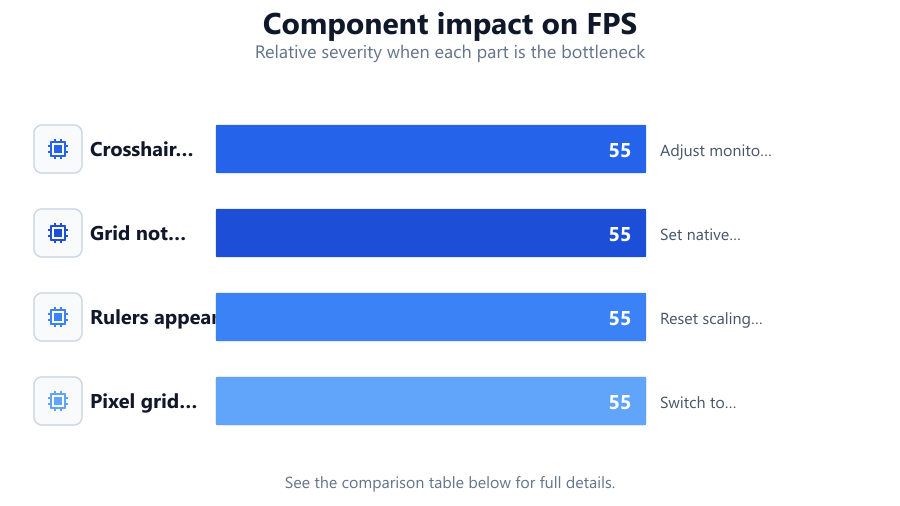
If you notice persistent problems, such as the crosshair not appearing centered or grid lines not matching up across multiple screens, consider checking your display settings in the operating system. Sometimes, resolution mismatches or improper display scaling can cause visual guides to render incorrectly. This guide provides actionable steps to resolve such issues and optimize your workflow.
Step-by-step
Check Physical Placement
Verify that your monitor or projector is on a stable, level surface. Adjust stands or mounts if necessary to prevent tilting or wobbling.
Launch Monitor Center Finder
Open the Monitor Center Finder tool and select the desired overlay (crosshair, grid, rulers). Ensure the tool is displayed in fullscreen mode for maximum accuracy.
Align Using Center Crosshair
Use the fullscreen center crosshair overlay to line up your display. Adjust the physical position of your monitor or projector until the crosshair sits perfectly at the center.
Utilize Rule-of-Thirds and Edge Rulers
Activate the rule-of-thirds grid and edge rulers to fine-tune vertical and horizontal alignment. This helps with multi-monitor setups and ensures consistent spacing between displays.
Calibrate Display Settings
Check your operating system’s display settings for correct resolution, scaling, and orientation. Make adjustments as needed so that all visual guides from Monitor Center Finder appear sharp and properly positioned.
Comparison
| Symptom | Potential Cause | Recommended Action |
|---|---|---|
| Crosshair misaligned | Monitor not level | Adjust monitor stand or surface |
| Grid not fitting screen | Incorrect resolution | Set native display resolution |
| Rulers appear stretched | Display scaling issue | Reset scaling to 100 percent |
| Pixel grid blurry | Non-native resolution | Switch to native resolution |
Common mistakes
Mistake
Ignoring physical monitor tilt or uneven surfaces
Fix: Always ensure your monitor or projector is on a level base before starting digital calibration.
Mistake
Not using fullscreen mode in Monitor Center Finder
Fix: Make sure the tool is maximized to avoid misalignment due to windowed overlays.
Mistake
Overlooking operating system display settings
Fix: Double-check resolution, scaling, and orientation so calibration guides are rendered correctly.
Troubleshooting
Crosshair appears off-center
Likely cause: Monitor is physically misaligned or not level
What to do: Reposition the monitor and use the crosshair in Monitor Center Finder until it lines up perfectly.
Grid lines do not match up across multiple monitors
Likely cause: Displays have different resolutions or scaling settings
What to do: Set all monitors to the same native resolution and scaling in your display settings.
Ruler or grid overlays are blurry
Likely cause: Non-native resolution or display scaling issue
What to do: Adjust to the monitor’s native resolution and set scaling to 100 percent for sharp guides.
Recommendations
- Always start troubleshooting with physical setup before adjusting software settings.
- Use Monitor Center Finder’s fullscreen mode for the most accurate alignment results.
- Regularly check for firmware or driver updates that could affect display output.
- For multi-monitor setups, match resolution and scaling across all displays for seamless calibration.
- Take breaks during calibration to reduce eye strain and maintain accuracy.
Frequently asked questions
Why does the crosshair in Monitor Center Finder look off-center on my monitor?
This usually indicates that your monitor is not physically centered or is tilted. Adjust your monitor’s position and use the crosshair overlay to verify alignment.
Can Monitor Center Finder help with projector alignment?
Yes, the tool is useful for both monitors and projectors. Use the fullscreen overlays to position the projected image accurately on your screen or wall.
What display settings should I use for best results?
Set your monitor or projector to its native resolution and 100 percent scaling. This ensures that all guides from Monitor Center Finder appear sharp and correctly placed.
How can I align multiple monitors easily?
Enable the grid and ruler overlays in Monitor Center Finder on each screen, match resolutions and scaling, and physically adjust the monitors until the guides line up across all displays.