
Guide
Optimization Guide
Get the most accurate display alignment with this optimization guide. Learn how to calibrate your monitor or projector using precise tools and expert techniques.
Updated 2026-07-05
Understanding Monitor and Projector Optimization
Optimizing your monitor or projector setup is crucial for achieving accurate visuals, comfortable viewing, and professional-grade results. Many users overlook calibration, leading to misaligned images, color inaccuracy, and reduced productivity. Whether you use your display for gaming, design, presentations, or everyday work, proper optimization ensures you get the best performance from your hardware.
The Monitor Center Finder tool is designed to simplify this process. It provides visual overlays like a fullscreen center crosshair, rule-of-thirds grid, edge rulers, and pixel grids. These guides help you position your display precisely, align multiple monitors, and ensure projection accuracy. Instead of relying on guesswork or makeshift guides, Monitor Center Finder gives you professional tools at your fingertips.
By following this optimization guide, you will learn step-by-step methods to calibrate your display, common mistakes to avoid, and troubleshooting tips for persistent issues. Proper optimization not only enhances image quality but also reduces eye strain and improves workflow efficiency.
Step-by-Step Optimization Techniques
Begin your optimization by ensuring your monitor or projector is positioned at a comfortable height and angle. Ambient lighting should not cause glare or reflections on the screen. Next, launch the Monitor Center Finder tool to activate the visual overlays. Start with the center crosshair: align the physical center of your monitor or projector screen with the crosshair to ensure perfect centering.
Use the rule-of-thirds grid to check for balanced content placement, especially useful for designers or presenters. The edge rulers help you verify that your screen edges are not cropped or misaligned. If you notice any discrepancies, adjust your display's position or settings. For pixel-perfect calibration, enable the pixel grid overlay. This is essential for tasks requiring high precision, such as photo editing or CAD work.
Repeat the process for each monitor if you have a multi-display setup. Monitor Center Finder supports fullscreen overlays, making it easy to calibrate multiple screens consistently. Save your settings and document your optimal configuration for future reference. Regular optimization, especially after moving your setup or changing hardware, ensures ongoing accuracy and comfort.
Step-by-step
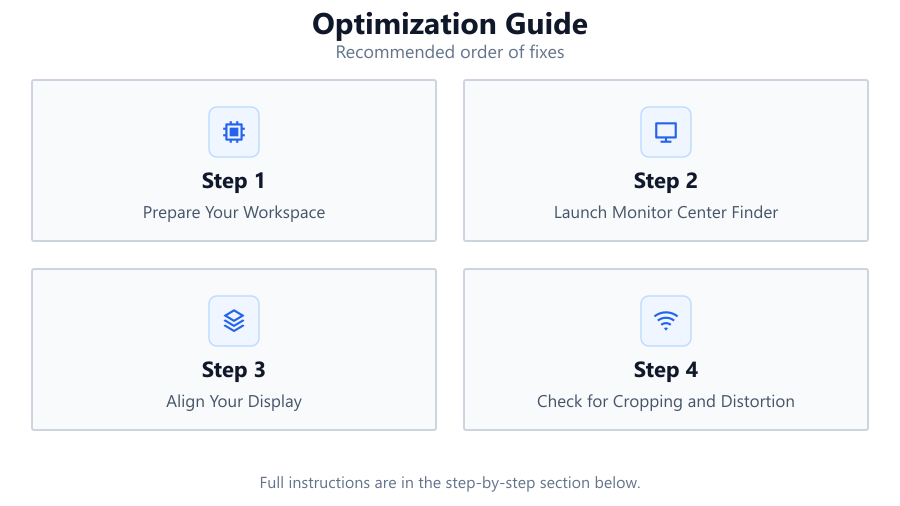
Prepare Your Workspace
Clear your desk area and ensure your monitor or projector is on a stable surface. Adjust ambient lighting to minimize glare.
Launch Monitor Center Finder
Open the Monitor Center Finder tool. Select the overlays you need, such as center crosshair, rule-of-thirds grid, or edge rulers.
Align Your Display
Use the center crosshair to align the physical center of your monitor or projector with the tool’s overlay. Adjust the device position as needed.
Check for Cropping and Distortion
Activate the edge rulers and pixel grid. Verify that all screen edges are visible and that pixels are not distorted or cropped out.
Fine-Tune and Save Settings
Make final adjustments for comfort and accuracy. Document your optimal settings for future recalibration. Repeat for each connected display.
Comparison
| Feature | Without Optimization | With Monitor Center Finder |
|---|---|---|
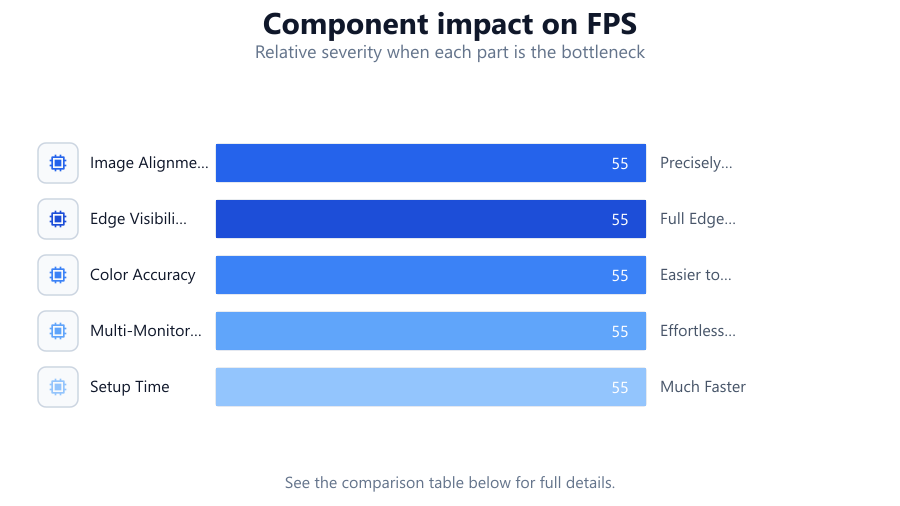
| Image Alignment | Often Misaligned | Precisely Centered |
| Edge Visibility | Edges May Be Cropped | Full Edge Visibility |
| Color Accuracy | Inconsistent | Easier to Maintain |
| Multi-Monitor Setup | Difficult to Align | Effortless and Consistent |
| Setup Time | Time-Consuming | Much Faster |
Common mistakes
Mistake
Skipping monitor alignment before use
Fix: Always use a tool like Monitor Center Finder at setup to ensure perfect centering and alignment.
Mistake
Ignoring edge cropping issues
Fix: Check edge rulers in Monitor Center Finder to confirm all content is visible and not cut off.
Mistake
Relying only on default display settings
Fix: Manually calibrate using overlays and grids for optimal results, rather than trusting factory presets.
Mistake
Not recalibrating after moving equipment
Fix: Re-run the full optimization guide each time you change your setup or move your monitor or projector.
Troubleshooting
Center crosshair does not match screen center
Likely cause: Monitor or projector is physically misaligned or not centered on the desk
What to do: Reposition your device so the center matches the crosshair in Monitor Center Finder.
Edges of the screen are missing or cut off
Likely cause: Incorrect screen scaling or resolution settings
What to do: Adjust your device's display settings and verify using the edge rulers overlay.
Pixel grid appears blurry
Likely cause: Display is set to a non-native resolution or improper focus on projector
What to do: Set your display to its native resolution, and refocus projector lenses as needed.
Rule-of-thirds grid does not align with content
Likely cause: Screen is rotated or not level
What to do: Level your monitor or adjust rotation settings to match grid overlays.
Recommendations
- Use Monitor Center Finder at every setup or after any change to your display arrangement.
- Perform full calibration with crosshair and grid overlays for the highest accuracy.
- Document your optimal settings to speed up future recalibrations.
- Consider calibrating color and brightness after physical alignment for best visual results.
- Repeat optimization regularly, especially in multi-monitor or presentation environments.
Frequently asked questions
Why is monitor alignment important?
Proper alignment ensures visuals are displayed as intended, reduces eye strain, and improves productivity for work, gaming, or presentations.
How often should I use Monitor Center Finder?
Use it whenever you set up a new display, move your monitor or projector, or notice alignment issues.
Can I use Monitor Center Finder for multi-monitor setups?
Yes, the tool supports fullscreen overlays on each display, making it easy to calibrate multiple monitors.
What if the overlays do not match my screen size?
Check your browser zoom settings and ensure your display resolution matches the tool's output for accurate overlays.