
Guide
Complete Beginner's Guide
Feeling lost on what to upgrade in your PC? This complete beginners guide explains every step and shows how the PC Upgrade Advisor can help you make the right choice.
Updated 2026-07-05
What Is a PC Upgrade and Why Does It Matter?
A PC upgrade means replacing or adding hardware components to improve your computer's speed, reliability, or capabilities. For beginners, knowing where to start is often overwhelming. You might wonder whether you should buy a new graphics card, add more RAM, or upgrade your storage. Each part affects your system in different ways, and the best choice depends on what you want to achieve.
The PC Upgrade Advisor is a free tool designed to take the guesswork out of upgrades. It analyzes your current CPU, GPU, RAM, and storage, then suggests the single upgrade that will deliver the biggest performance boost for your specific system and gaming resolution. This approach saves you time, money, and stress by focusing on real-world results instead of guessing or following outdated advice.
Upgrading your PC can make games run smoother, reduce load times, and even extend the life of your computer. Whether you are a gamer, student, or just want a faster experience, the right upgrade can have a huge impact. This complete beginners guide walks you through the basics, offers step-by-step advice, and shows how to get the most from the PC Upgrade Advisor.
How to Decide What to Upgrade First
Before buying any hardware, it is important to identify the weakest link in your system. Start by asking: What do I want my PC to do better? Is your gaming experience laggy, or are programs slow to open? The answer points to the part that needs attention first.
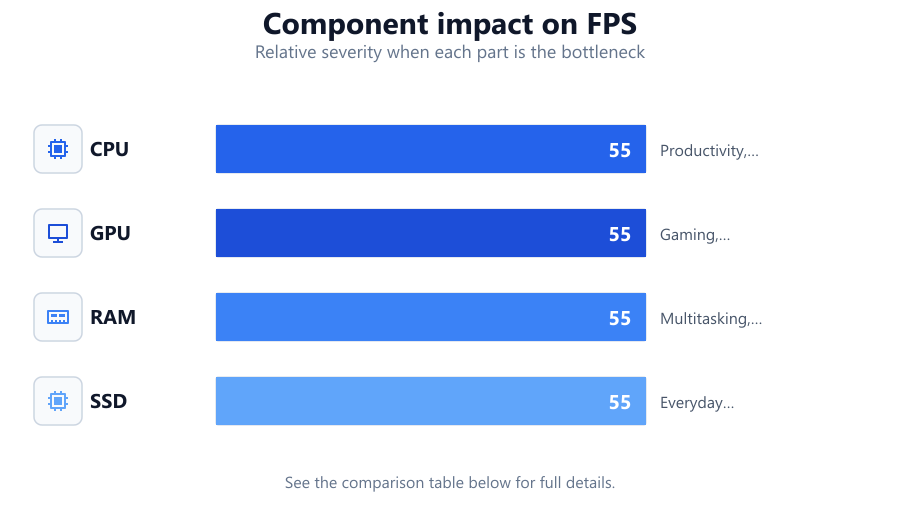
The four main components to consider are the CPU (processor), GPU (graphics card), RAM (memory), and storage (SSD or HDD). The CPU handles overall system speed and multitasking, while the GPU drives graphics performance in games and creative applications. RAM affects how many tasks you can run at once, and storage impacts load times and file access.
Many beginners make the mistake of upgrading the wrong part or spending more than necessary. The PC Upgrade Advisor helps by analyzing your actual hardware and matching it with real-world performance data. It tells you which single upgrade will make the biggest difference for your needs, saving you from costly or unnecessary purchases.
Sometimes, a simple upgrade like adding more RAM or switching to an SSD can transform your PC, while other times a new GPU is the only way to hit higher frame rates in games. This section explores how to balance your budget, avoid common pitfalls, and use tools like the PC Upgrade Advisor for smart upgrade decisions.
Step-by-step
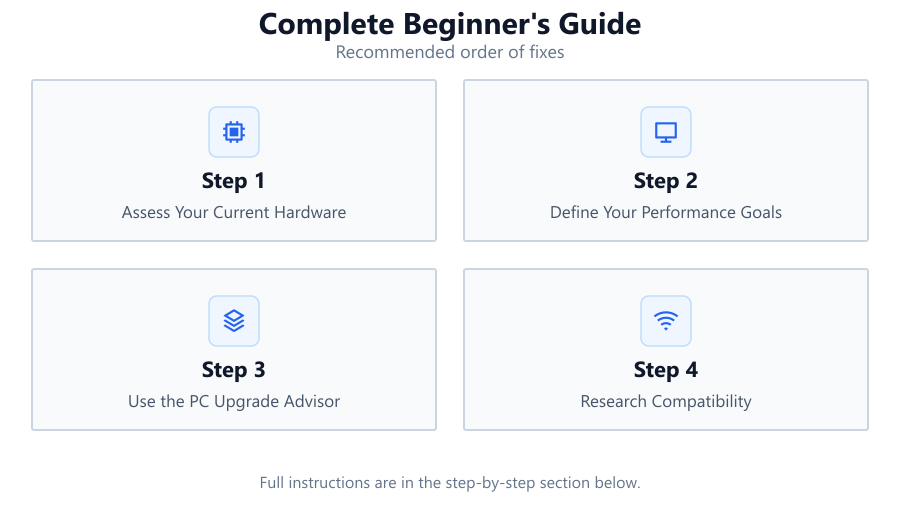
Assess Your Current Hardware
Start by checking your current system specs. You can use built-in tools like Windows Task Manager or third-party apps such as CPU-Z and GPU-Z. Record your CPU model, GPU, amount of RAM, and storage type and size.
Define Your Performance Goals
Decide what you want to improve: smoother gaming, faster boot times, better multitasking, or all of the above. This helps you prioritize which component to upgrade first.
Use the PC Upgrade Advisor
Visit the PC Upgrade Advisor tool. Input your hardware details and let it analyze your system. The tool will recommend the single most impactful upgrade based on your goals and current setup.
Research Compatibility
Before purchasing, check that your chosen upgrade is compatible with your motherboard, power supply, and case. Look for manufacturer support lists or use compatibility checkers online.
Install and Test Your Upgrade
Once your new part arrives, follow installation guides or videos for your specific hardware. After installing, test your PC’s performance with benchmarks or your favorite applications to confirm the improvement.
Comparison
| Component | Upgrade Impact | Best For |
|---|---|---|
| CPU | Improves overall speed and multitasking | Productivity, streaming, gaming with high AI/physics |
| GPU | Boosts graphics and frame rates | Gaming, video editing, 3D work |
| RAM | Allows more apps at once, reduces stutter | Multitasking, modern games, creative work |
| SSD | Faster load and boot times | Everyday use, gaming, large file transfers |
Common mistakes
Mistake
Upgrading the wrong component first
Fix: Use the PC Upgrade Advisor to identify your system’s weakest link before buying new hardware.
Mistake
Ignoring compatibility with existing parts
Fix: Double-check motherboard, power supply, and case compatibility before purchasing any upgrade.
Mistake
Overspending on high-end parts that bottleneck
Fix: Balance your upgrade so all components complement each other. Avoid pairing a top GPU with a very old CPU.
Troubleshooting
PC does not boot after upgrade
Likely cause: Component not seated properly or incompatible hardware
What to do: Re-seat the upgrade, check connections, and confirm compatibility with your motherboard and PSU.
Games still lag after new GPU
Likely cause: CPU or RAM is now the bottleneck
What to do: Check system utilization and consider upgrading the next weakest component.
No noticeable speed increase after SSD installation
Likely cause: Operating system still installed on old drive
What to do: Install or clone your OS to the new SSD and set it as the boot drive in BIOS.
Recommendations
- Always start by identifying your main performance bottleneck before upgrading.
- Use the PC Upgrade Advisor to get tailored upgrade recommendations based on your exact hardware.
- Upgrade one component at a time and verify improvements before moving on.
- Keep your operating system and drivers up to date for best compatibility and performance.
- If in doubt, seek advice from forums or trusted sources before making a purchase.
Frequently asked questions
What is the easiest upgrade for a beginner?
Installing more RAM or swapping to an SSD are usually the easiest upgrades that offer noticeable speed improvements with minimal risk.
Will upgrading just one part really make a difference?
Yes. Upgrading the component that is holding your system back can provide a significant performance boost, especially if it is your storage or GPU.
How do I know if my upgrade is compatible?
Check your motherboard’s support list, measure your case space, and ensure your power supply can handle the new part’s requirements.
Do I need to reinstall Windows after upgrading?
Usually no, unless you change your motherboard or boot drive. For SSD upgrades, cloning tools can move your OS to the new drive without reinstalling.