
FREE PC UPGRADE ADVISOR

PC Upgrade Advisor What Should You Upgrade First?

Struggling to decide what to upgrade in your PC for the best performance boost? The PC Upgrade Advisor analyzes your CPU, GPU, RAM, and storage to pinpoint the single upgrade that will deliver the biggest impact for your setup and gaming resolution. Get actionable, hardware-specific recommendations based on real-world performance data.

Your System Specs

How It Works

We check foundational issues first (RAM and storage), then compare your CPU Mark to GPU Mark ratio against optimal balance targets for your resolution. The component furthest from balance gets the highest upgrade priority.

Upgrade Recommendation

Enter your specs, then calculate

What Does This Calculator Do?

The PC Upgrade Advisor is a powerful tool designed to help you identify which component of your PC - CPU, GPU, RAM, or storage - should be upgraded first for maximum performance improvement. Instead of relying on generalized advice or guesswork, this calculator dives into your actual hardware specs, considers your preferred gaming resolution, and uses industry-standard benchmarks to make precise recommendations.

Whether you’re looking to boost FPS in demanding games, improve workstation productivity, or simply breathe new life into an aging system, the PC Upgrade Advisor provides clear, data-driven guidance. It’s ideal for anyone who wants to optimize their PC upgrade budget and avoid unnecessary or ineffective component purchases.

upgrade priority flowchart

How to Use This Calculator

Using the PC Upgrade Advisor is straightforward and requires only a few details about your system:

  1. Enter your CPU model (e.g., Ryzen 5 5600X, Core i5-12400)
  2. Enter your GPU model (e.g., RTX 3070, RX 6700 XT)
  3. Specify your installed RAM (in GB)
  4. Indicate whether you have an SSD (checkbox)
  5. Choose your primary gaming or work resolution (1080p, 1440p, or 4K)

Once you’ve entered these details, the calculator instantly analyzes your hardware and resolution, applies benchmark-based formulas, and returns a prioritized upgrade recommendation. The results clearly explain which component is limiting your system and why, with practical upgrade suggestions for your use case.

How Are the Results Calculated?

The PC Upgrade Advisor uses a structured, evidence-based approach to determine the most impactful upgrade for your system. Here’s how it works:

Step 1: RAM Check If your system has less than 16GB RAM, the calculator recommends upgrading RAM first. Many modern games and applications now require 16GB for optimal performance. If RAM is 16GB or higher, the tool moves to the next step.

Step 2: SSD Check If you do not have an SSD, the calculator prioritizes upgrading to an SSD. Solid State Drives drastically reduce load times and improve overall responsiveness compared to HDDs.

Step 3: CPU/GPU Ratio Analysis If you have at least 16GB RAM and an SSD, the tool compares your CPU and GPU performance using PassMark scores:

  • CPU: PassMark CPU Mark
  • GPU: PassMark G3D Mark

The calculator computes the ratio:

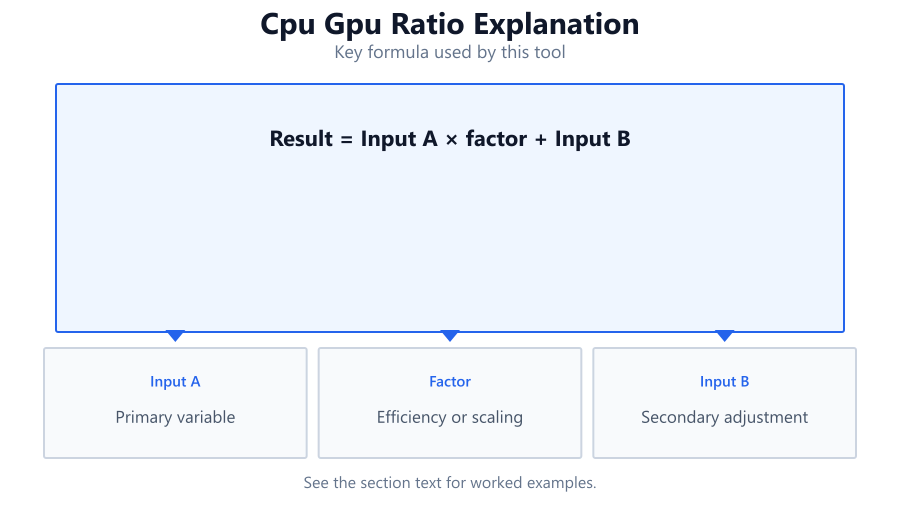
cpuMark / gpuMark = X

It then compares X to an optimal ratio for your chosen resolution:

  • 1080p optimal ratio: 1.8
  • 1440p optimal ratio: 1.3
  • 4K optimal ratio: 0.9
  • If your ratio is below the optimal value, your CPU is the likely bottleneck.
  • If your ratio is above the optimal value, your GPU is the limiting factor.

The advisor recommends upgrading the component that is furthest from the optimal ratio.

Example: At 1440p, if your cpuMark/gpuMark = 0.8 (below 1.3), your CPU is holding you back. If it's 1.7 (above 1.3), your GPU is the weak link.

cpu gpu ratio explanation

Assumptions and Limitations:

  • PassMark scores are used for cross-hardware comparison but real-world performance can vary by game or workload.
  • Does not consider PSU, motherboard compatibility, or case airflow.
  • RAM recommendation assumes modern multitasking and gaming needs.

Understanding Your Results

Your results from the PC Upgrade Advisor will prioritize upgrades in a clear order, along with reasoning and relevant hardware examples. Here’s how to interpret each recommendation:

RAM Upgrade: If you have less than 16GB, upgrading to at least 16GB is recommended. Many newer titles and modern productivity tasks can easily exceed 8GB, causing stuttering or slowdowns.

SSD Upgrade: If you’re still on a mechanical hard drive, switching to an SSD will make the most dramatic improvement in system responsiveness, boot times, and game loading - even on older CPUs.

CPU Upgrade: If your cpuMark/gpuMark ratio is below the optimal value for your resolution, your CPU is bottlenecking your GPU. For example, pairing a Ryzen 5 1400 with an RTX 3080 at 1080p will not allow the GPU to reach its potential.

GPU Upgrade: If your ratio is above the target, your GPU is limiting your FPS. For instance, a Core i7-12700K paired with a GTX 1050 Ti at 1440p will be GPU-limited in almost every game.

The recommendation will also include suggestions on what class of hardware to consider based on your usage and the current market.

upgrade impact bar chart

Examples

Entry-Level Gaming PC

CPU
Intel Core i3-10100 (cpuMark: 8856)
GPU
GTX 1650 (gpuMark: 7708)
RAM
8GB
SSD
No
Resolution
1080p
Result
RAM is less than 16GB, so upgrade RAM first. If already upgraded, next step is SSD, then GPU/CPU ratio (1.15 < 1.8), so CPU is the next target.
Midrange System, GPU-Limited

CPU
Ryzen 7 5800X (cpuMark: 28456)
GPU
RTX 2060 (gpuMark: 11298)
RAM
16GB
SSD
Yes
Resolution
1440p
Ratio
28456 / 11298 = 2.52 (above 1.3)
Recommendation
GPU upgrade is highest priority.

Balanced High-End System

CPU
Ryzen 7 7800X3D (cpuMark: 49531)
GPU
RTX 4070 (gpuMark: 21972)
RAM
32GB
SSD
Yes
Resolution
1440p
Ratio
49531 / 21972 = 2.25 (above 1.3)
Recommendation
GPU is the weakest link; consider RTX 4080 or above for higher FPS at 1440p.

Storage Bottleneck

SSD is missing, so upgrade storage first for system responsiveness.

CPU
Core i5-12400F (cpuMark: 19938)
GPU
RX 6600 (gpuMark: 8963)
RAM
16GB
SSD
No
Resolution
1080p

CPU Bottleneck at 4K

CPU
Ryzen 5 2600 (cpuMark: 13682)
GPU
RTX 4070 Ti (gpuMark: 27656)
RAM
32GB
SSD
Yes
Resolution
4K
Ratio
13682 / 27656 = 0.495 (below 0.9)
Recommendation
CPU is bottlenecking; upgrade to a modern 8-core CPU for smoother 4K gaming.

Already Optimized System

System is well-balanced for 4K; only consider upgrades for specific workloads or higher frame rates.

CPU
Core i5-13600K (cpuMark: 40205)
GPU
RTX 4080 (gpuMark: 30741)
RAM
32GB
SSD
Yes
Resolution
4K
Ratio
40205 / 30741 = 1.31 (slightly above 0.9)

Common Use Cases

Gaming Upgrades: Most users want to maximize FPS or smoothness in games. The calculator is tuned for gaming workloads and can help identify which single upgrade - GPU, CPU, RAM, or SSD - will net the largest boost for your favorite resolution.

Workstation and Productivity: While the tool is primarily tuned for gaming, the logic also applies to creative workloads (video editing, 3D rendering), where RAM and SSDs are often the first bottlenecks. For heavy multitasking or content creation, 32GB+ RAM and high-end CPUs become critical.

Budget-Constrained Builders: If you’re working with limited funds, the PC Upgrade Advisor helps you avoid wasting money on upgrades that won’t make a noticeable difference. For example, upgrading a GPU when you only have 8GB RAM or no SSD is rarely cost-effective.

Upgrading Old PCs: If your system is more than 5 years old, often a modest SSD and RAM upgrade can transform usability without needing a full rebuild.

PCs for Esports: For high-FPS, low-latency games at 1080p (like CS:GO, Valorant), the right CPU and RAM configuration matters more than raw GPU power.

Tips for Better Results

Always check your motherboard and PSU compatibility before upgrading CPUs or GPUs - some older platforms may not support newer hardware.

For RAM upgrades, match speed and timings when possible, and make sure your motherboard supports the total capacity you plan to install.

When upgrading to an SSD, consider NVMe drives if your motherboard supports them for the best speeds. Otherwise, even a SATA SSD is a huge leap over HDDs.

For gaming at higher resolutions (1440p/4K), prioritize GPU upgrades, but don’t neglect the CPU - some titles remain heavily CPU-limited even at 4K.

Keep your system drivers and BIOS updated to ensure compatibility and maximum performance.

Before upgrading, clean your system of dust and check thermals. Overheating can cause performance drops that may mimic hardware bottlenecks.

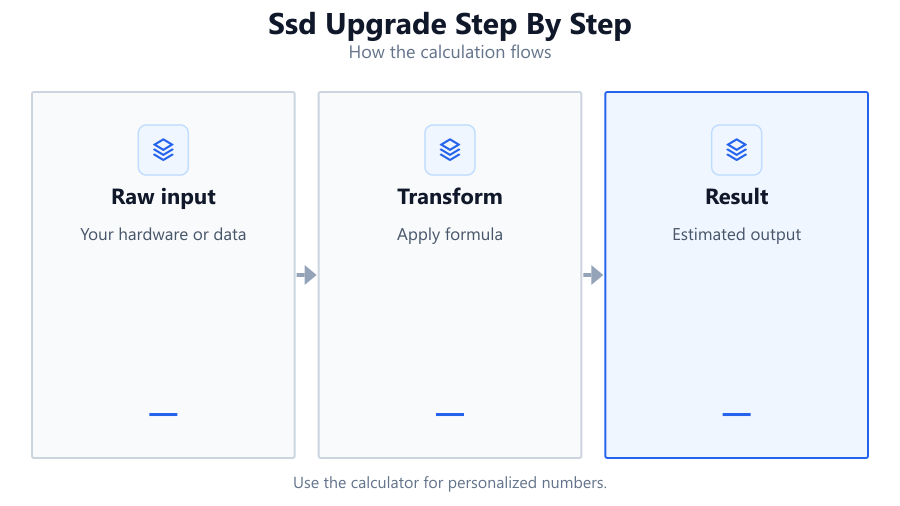
ssd upgrade step by step

Conclusion

The PC Upgrade Advisor takes the guesswork out of PC upgrades, providing clear, actionable recommendations based on actual hardware benchmarks and your unique system setup. Whether you’re a gamer, content creator, or casual user, this tool helps you target your budget where it counts - ensuring every upgrade delivers a noticeable improvement.

By focusing on RAM and storage first, then balancing CPU and GPU using real-world ratios, you can avoid common upgrade mistakes and achieve the best performance for your dollar. Always remember to check compatibility and consider your specific workload needs before purchasing new hardware.

Use the Advisor alongside other tools on SystemRequirements.net to plan your next upgrade with confidence.

Frequently Asked Questions

How does the PC Upgrade Advisor determine which component to upgrade first?

The PC Upgrade Advisor uses a set of logical steps based on real-world benchmarks. It first checks if your system has at least 16GB of RAM - if not, RAM is the top priority. Next, it looks for an SSD, as this upgrade significantly improves system responsiveness. If these basics are met, the tool analyzes the performance ratio between your CPU and GPU using PassMark scores, comparing them to optimal ratios for your chosen resolution. The component furthest from the optimal ratio is prioritized for upgrade.

Why is 16GB of RAM considered the minimum for modern gaming?

Many modern games and applications now use more than 8GB of RAM, especially when multitasking or running background processes. 16GB ensures smooth performance in demanding titles, reduces stuttering, and allows the system to handle updates, browsers, and other tasks while gaming. While some older or less intensive games can run on 8GB, 16GB is the recommended baseline for a smooth experience in 2024 and beyond.

What do the CPU and GPU PassMark scores represent?

PassMark CPU Mark and GPU G3D Mark are synthetic benchmark scores that provide a standardized way to compare the relative performance of different CPUs and GPUs. They aggregate results from a range of real-world and synthetic workloads, allowing cross-generation and cross-vendor comparisons. While not perfect, these scores offer a reliable baseline for upgrade recommendations and bottleneck analysis.

Does the calculator consider my power supply or motherboard compatibility?

No, the PC Upgrade Advisor focuses purely on performance metrics - CPU, GPU, RAM, and storage. It does not check PSU wattage, motherboard socket, or BIOS compatibility. Always verify that your chosen upgrade is compatible with your existing hardware before purchasing. Use our PSU Calculator and check your motherboard’s specifications for further guidance.

How accurate are the upgrade recommendations for specific games?

The recommendations are based on general hardware performance and typical gaming workloads, not on individual game optimization. Some games may be more CPU- or GPU-bound than others, and factors like engine efficiency or driver support can shift bottlenecks. For best results, use this tool as a starting point and cross-reference with game-specific benchmarks or our FPS Calculator.

What if my CPU and GPU are both below average-what should I upgrade?

The Advisor will identify which component is further from the optimal ratio for your resolution. However, if both are outdated (e.g., older than 6-7 years), it’s likely that a balanced platform upgrade (CPU, motherboard, RAM, and GPU) will be most cost-effective in the long run. Upgrading only one may not yield significant gains if the other is still a major bottleneck.

Is upgrading from an HDD to an SSD really that impactful?

Yes. Switching from a mechanical hard drive to an SSD delivers a dramatic improvement in boot times, application loading, and general system responsiveness. Even if your CPU and GPU are several years old, adding an SSD can make your PC feel significantly faster and more responsive in daily use and gaming.

Does the PC Upgrade Advisor work for laptops as well as desktops?

Yes, the tool can be used for both desktops and laptops, as long as you know your CPU and GPU model, RAM amount, and storage type. However, not all laptops allow upgrades to CPU, GPU, or even RAM/SSD, so check your device’s service manual or manufacturer’s website for upgradeability before planning changes.

What is the optimal CPU/GPU ratio for each gaming resolution?

For 1080p gaming, the optimal cpuMark/gpuMark ratio is about 1.8. For 1440p, it’s 1.3, and for 4K, around 0.9. These ratios reflect the shifting balance of CPU and GPU workloads as resolution increases - at higher resolutions, the GPU becomes more important, while at lower resolutions, the CPU has a larger impact.

Can I use this tool to plan future upgrades for upcoming games?

Yes. The PC Upgrade Advisor bases its recommendations on general hardware performance trends, so it’s well-suited for planning ahead. However, for major game releases with unique requirements, always check official system requirements and game-specific benchmarks for the most accurate planning.

Why does the calculator prioritize RAM and SSD over CPU/GPU?

RAM and SSD upgrades often deliver the most noticeable improvement for the lowest cost, especially in older systems. Low RAM can cause stuttering and crashes, while an HDD slows down everything. Once these essentials are addressed, CPU and GPU upgrades offer further performance scaling.

How do I find my PassMark CPU and GPU scores?

You can look up PassMark CPU Mark and G3D Mark scores on the official PassMark website or by searching your processor or graphics card model along with "PassMark score". The calculator may auto-detect scores for common models, but for rare CPUs/GPUs, manual lookup is recommended for accuracy.

Will upgrading my GPU always increase my FPS?

Only if your current setup is GPU-limited. If your CPU cannot feed frames fast enough (CPU bottleneck), or if you have insufficient RAM or a slow HDD, upgrading the GPU may not deliver the expected performance improvement. The PC Upgrade Advisor helps you avoid such mismatches.

Can this calculator help with workstation or productivity PCs?

Yes, while it’s optimized for gaming, the same logic applies to productivity workloads. RAM and SSDs are often the biggest bottlenecks for video editing, 3D rendering, and multitasking. For specialized workloads, consider using the FPS Calculator and VRAM Calculator as well.

Does the PC Upgrade Advisor account for VRAM requirements?

No, this tool focuses on overall GPU performance, not VRAM capacity. For games and applications with high VRAM demands (4K textures, ray tracing), use the VRAM Calculator for a more detailed analysis of your GPU’s suitability.

Is there any point where upgrading isn’t worth it?

If your platform (motherboard/CPU socket/RAM type) is very outdated, incremental upgrades may not deliver good value. In these cases, saving for a new platform may be wiser. The Advisor’s recommendations are most valuable for users with upgradable, semi-modern systems.

What are the limitations of this calculator?

The tool does not account for power supply, motherboard, or case compatibility. It uses PassMark scores as a proxy for real-world performance, but actual results may vary by game, driver, and system configuration. Always cross-check with manufacturer specs and game benchmarks before making major purchases.

How often should I use the PC Upgrade Advisor?

Use the Advisor whenever you’re considering an upgrade - especially after a major game release, operating system update, or if you notice performance issues. It’s also useful for annual system reviews to ensure your PC is keeping up with modern software demands.

Benchmark data from PassMark and publisher specs. Calculators run locally in your browser — we never upload your hardware info.