1. Percentage Gain Method
If you know (or input) the percent performance improvement of your new hardware over your old one, the formula is: New FPS = Current FPS × (1 + (Gain % ÷ 100))

FREE FPS GAIN CALCULATOR
Curious how much extra FPS you’ll get from a hardware upgrade? The FPS Gain Calculator helps you project expected frame rate increases after swapping your GPU or CPU. Instantly estimate the performance difference between your current and future system - so you can plan smart, not guess.
Enter FPS and gain, then calculate
The FPS Gain Calculator provides a quick and practical way to estimate how many extra frames per second (FPS) you’ll see after upgrading your graphics card, processor, or both. It’s designed for PC gamers and enthusiasts who want a data-driven forecast of performance gains before committing to new hardware.
Instead of guessing or sifting through endless benchmark charts, you can compare your current FPS against expected gains from new components. The tool can use either a percentage gain (if you know it) or benchmark ratios based on popular CPU and GPU combinations.
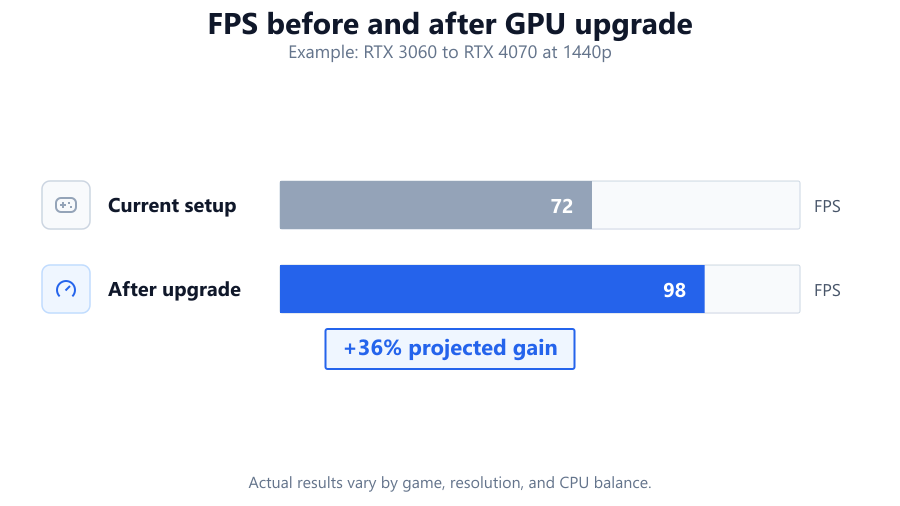
This helps you answer critical questions: Will a new GPU actually uncap your frame rate? Is your CPU the real bottleneck? How much smoother will your games run after an upgrade?
Using the FPS Gain Calculator is straightforward:
This tool works best when you know your current FPS and have a target hardware upgrade in mind. It’s also flexible for hypothetical or research-driven comparisons.
The FPS Gain Calculator uses two primary methods to estimate your new FPS:
If you know (or input) the percent performance improvement of your new hardware over your old one, the formula is: New FPS = Current FPS × (1 + (Gain % ÷ 100))
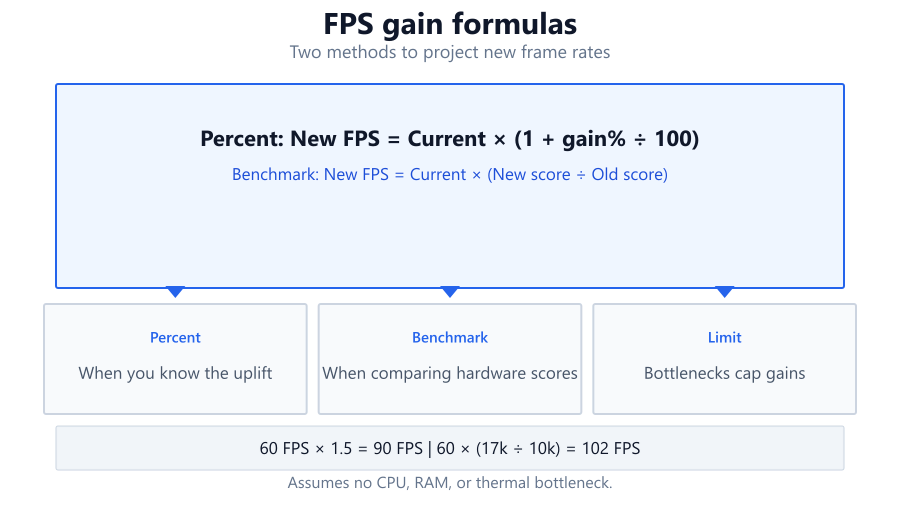
New FPS = 60 × (1 + 0.5) = 90 FPS
If you select hardware models, the calculator references standardized benchmark scores (such as 3DMark, PassMark, or game-specific benchmarks). The FPS gain is derived from the ratio: New FPS = Current FPS × (New Hardware Mark ÷ Old Hardware Mark) Example: Your RTX 3060 scores 10,000 in a synthetic test. Upgrading to a RTX 4070 (score: 17,000), your FPS increase is: New FPS = Current FPS × (17,000 ÷ 10,000) = Current FPS × 1.7 Limitations:
The calculator’s results show your expected FPS after upgrading. This number is a projection based on known benchmark scaling and typical gaming workloads.
Key things to keep in mind:
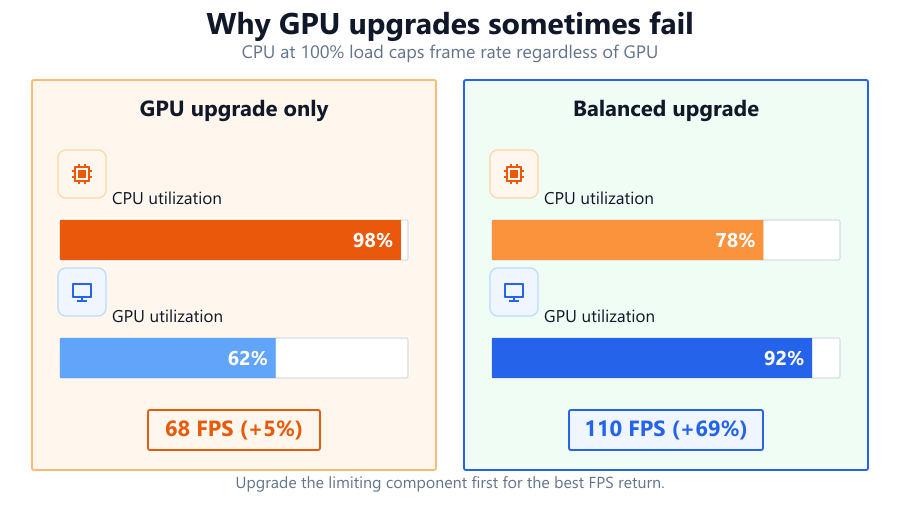
If your projected FPS is only modestly higher, you may want to consider whether a more substantial upgrade - or a different upgrade entirely - would be a better investment.
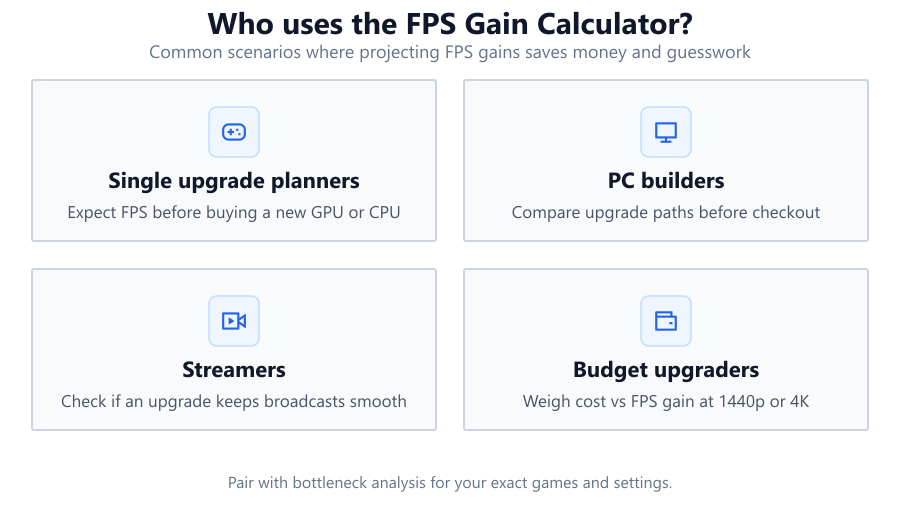
The FPS Gain Calculator is valuable for a wide range of scenarios:
This tool is especially useful when paired with real-world FPS measurements and detailed bottleneck analysis.
The FPS Gain Calculator streamlines performance planning for PC gamers and builders. By projecting frame rate improvements from real hardware upgrades, it takes the guesswork out of upgrade decisions. Whether you’re chasing high refresh rates or just trying to smooth out your favorite game, this tool helps you invest where it counts.
Remember, use your own in-game FPS, match your upgrade path to your actual gaming workload, and always double-check for potential system bottlenecks. No calculator can replace hands-on testing, but with accurate data and realistic expectations, you’ll get the most from your next PC upgrade.
The calculator provides a best-effort estimate using benchmark data and scaling formulas. While it's based on real hardware comparisons and game performance metrics, actual FPS gains may differ due to factors like specific game optimization, driver updates, background processes, or thermal throttling. For most users, results are accurate within ±10 - 20%, especially when you match your game and settings closely. For precise planning, always supplement your results with multiple game-specific benchmarks.
The FPS Gain Calculator assumes the upgraded component is the dominant performance factor for your chosen scenario. If your CPU is already bottlenecking your GPU (or vice versa), a new GPU may not yield the expected FPS increase. For best results, use our Bottleneck Calculator first, or check your system’s utilization in-game to see if a component is maxed out. Combining both tools gives a more complete upgrade forecast.
Yes, you can use the FPS Gain Calculator for laptops, provided you know your current FPS and the performance difference between your current and target hardware. Laptop CPUs and GPUs often perform differently from desktop versions due to thermal and power constraints, so always use mobile-specific benchmark data for the most accurate results. Expect slightly lower gains than desktop hardware, especially in thin-and-light models.
You can measure your current FPS using built-in game overlays (such as Steam’s FPS counter), third-party tools like MSI Afterburner, Fraps, or GeForce Experience, or by referencing published benchmarks for your hardware. For the most accurate projection, use your actual measured FPS in the specific game, settings, and resolution you care about.
Input both your current and target CPU/GPU in the calculator. It will use the slower component (the bottleneck) to determine your effective FPS gain. If both upgrades are similar in performance improvement, the calculator will show the largest realistic FPS increase. However, if one component remains significantly weaker, it may still limit your FPS.
The calculator provides an average FPS gain estimate across popular titles and typical gaming workloads. Some games scale better with upgrades than others. For example, esports titles often benefit more from CPU upgrades, while AAA games can be more GPU-bound. Always reference game-specific benchmarks for the most accurate projection, especially if you play niche or heavily modded games.
Higher resolutions (such as 1440p or 4K) are typically more GPU-bound, so GPU upgrades yield greater FPS gains. At lower resolutions (1080p or lower), CPU limitations become more prominent, and GPU upgrades may show diminishing returns. Always input your FPS based on your actual gaming resolution for realistic results.
Yes. If you’re unsure of the exact gain percentage, select your current and future hardware from the dropdown menus. The calculator references benchmark databases to automatically estimate the relative performance difference and calculates your projected FPS based on those values.
Yes, overclocking can improve FPS beyond stock hardware benchmarks. If you are currently overclocked (or plan to overclock your new hardware), you may see slightly higher FPS gains than the calculator predicts. For the best estimate, use FPS numbers from your current overclocked system and, if available, overclocked benchmarks for your target hardware.
Upgrading to a more powerful GPU or CPU can increase your system’s power demands. Always check your PSU’s wattage and quality before upgrading. For a precise estimate, try our PSU Calculator at to ensure your system remains stable and safe after the upgrade.
If your observed FPS doesn’t match the calculator’s projection, it could be due to a system bottleneck, outdated drivers, insufficient cooling, or background software consuming resources. Sometimes, game settings or engine limitations cap FPS regardless of hardware. Check system utilization, update drivers, and ensure your cooling and power supply are sufficient.
This calculator is tailored for gaming FPS, not for professional workloads like 3D rendering, video editing, or compute-heavy applications. Performance scaling in these scenarios can differ significantly from gaming. For workstation applications, refer to application-specific benchmarks and scaling charts for more accurate projections.
Yes, both driver updates and game patches can significantly impact performance. Major driver releases can boost (or sometimes reduce) FPS for specific games or hardware. Likewise, game patches may optimize (or break) hardware compatibility. The calculator uses average data, so always check for the latest updates and re-measure FPS after major changes.
You can estimate performance for upcoming hardware using published leaks, preview benchmarks, or expected performance percentages. However, results will be speculative until official benchmarks are available. Once real-world performance data is published, update your inputs for more accurate projections.
If your game or display is locked to a maximum FPS (such as 60 FPS for a 60 Hz monitor), upgrading hardware won’t increase your effective frame rate beyond that cap. Disable any in-game or driver-imposed FPS limits to see the full benefit of your upgrade, or consider a higher refresh rate display if your goal is to go beyond 60 FPS.
RAM and storage upgrades can help performance in certain scenarios - such as when a game is memory-starved or loading large world assets - but generally have less impact on average FPS compared to CPU or GPU upgrades. If your system is already using fast SSD storage and has adequate RAM for your games, further upgrades will yield diminishing FPS gains.
The calculator is designed for PC hardware. Console architectures and optimizations are quite different, and direct FPS gain projections are not reliable. For PC-to-console performance comparisons, use published cross-platform benchmarks specific to the game and resolution you’re interested in.
Insufficient VRAM can lead to stuttering or lower FPS, especially at higher resolutions or with high texture settings. When upgrading your GPU, ensure the new card has enough VRAM for your gaming needs. If VRAM is the limiting factor, FPS gains may be less than expected until that bottleneck is resolved. Use our VRAM Calculator for a more detailed analysis.
Free tools to analyze, compare, and optimize your PC gaming performance
Estimate gaming performance gains from a GPU upgrade
Use Tool →Compare processors and estimate upgrade value
Use Tool →Estimate your gaming frame rate based on your hardware
Use Tool →Find if your CPU or GPU is limiting performance
Use Tool →Check if your PC meets the requirements for these popular games
Benchmark data from PassMark and publisher specs. Calculators run locally in your browser — we never upload your hardware info.