
Guide
Best Graphics Settings for More FPS
Unlock more FPS instantly by adjusting your graphics settings. Learn expert tweaks to boost performance and use the FPS Gain Calculator to measure your improvements.
Updated 2026-07-05
Why Graphics Settings Matter for FPS
Gaming performance depends heavily on how your system handles graphical workloads. Adjusting your graphics settings is often the fastest, cheapest way to gain more FPS (frames per second) without new hardware. Lowering the right settings can give you a competitive edge by making gameplay smoother and more responsive.
Each setting affects your system differently. Some impact visuals more than performance, while others can drastically increase your frame rate with minimal quality loss. Knowing which settings to tweak is essential to finding the perfect balance for your hardware and playstyle. The FPS Gain Calculator can help you estimate how much extra FPS you might get with both hardware upgrades and setting adjustments.
Understanding which graphics options consume the most resources allows you to prioritize changes. This guide breaks down each major setting, explains their impact, and provides actionable steps to maximize your FPS without sacrificing too much visual quality. Whether you have a budget PC or a high-end rig, these tips will help you get the most out of your system.
Major Graphics Settings: What to Change for More FPS
To boost FPS, focus on settings with the biggest performance impact. Start by lowering or disabling the most demanding features first. Here are the primary graphics settings to adjust:
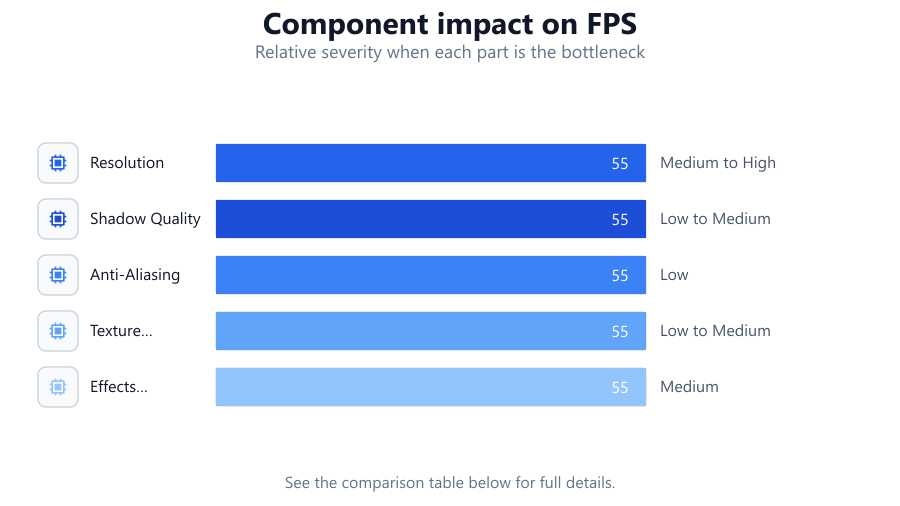
- Resolution: Lowering your in-game resolution reduces the number of pixels your GPU must render, resulting in a significant FPS boost. Consider dropping from 1440p to 1080p or from 1080p to 900p for a noticeable improvement.
- Texture Quality: High-resolution textures use more VRAM and GPU power. Lowering texture quality can help on systems with limited graphics memory, though too low may reduce image sharpness.
- Shadows: Shadow quality is often a major FPS drain. Reducing shadow resolution or turning off dynamic shadows can dramatically increase frame rates.
- Anti-Aliasing: This smooths jagged edges but is resource intensive. Try switching from demanding methods like MSAA to lighter ones like FXAA, or disable it for maximum FPS.
- Effects Quality: Settings like reflections, volumetric lighting, ambient occlusion, and depth of field make games look better but can crush performance. Lower these first if you need more frames.
- Draw Distance and LOD: Reducing how far objects are rendered, or lowering the level of detail at distance, can save both CPU and GPU resources.
- V-Sync and Frame Rate Caps: Disabling V-Sync removes input lag and uncaps your frame rate, but may introduce screen tearing. Use frame rate caps to match your monitor's refresh rate for smoother gameplay.
Remember to use the FPS Gain Calculator to estimate how much FPS each setting change may offer on your specific system. This allows for smart, data-driven tweaks.
Step-by-step
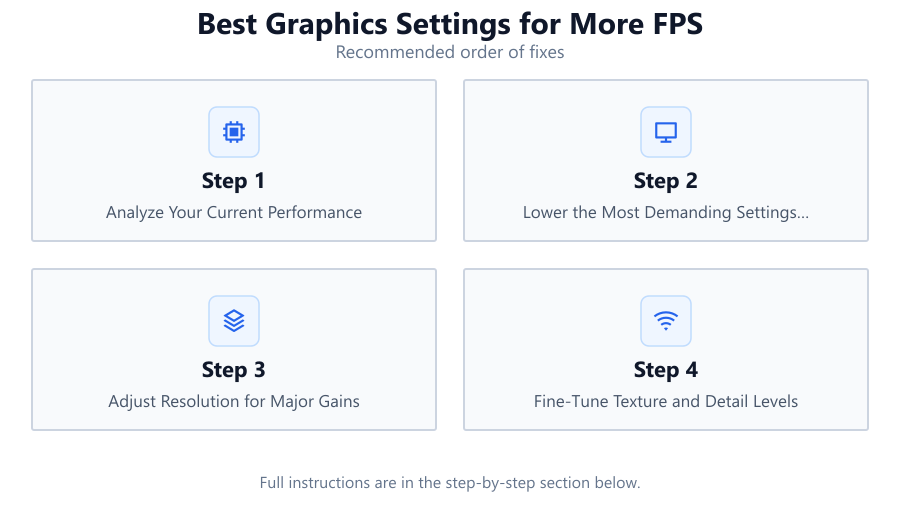
Analyze Your Current Performance
Before changing settings, benchmark your current FPS in your favorite game. Use in-game overlays or tools like MSI Afterburner to monitor frame rates. This sets a baseline so you can measure improvements.
Lower the Most Demanding Settings First
Reduce or disable shadows, anti-aliasing, and effects quality, as these typically have the greatest impact on FPS. Test each change individually to see which offers the best performance-to-visual tradeoff.
Adjust Resolution for Major Gains
Dropping your native resolution provides a large FPS boost. If you need smoother gameplay and can accept a softer image, try a lower resolution or enable resolution scaling.
Fine-Tune Texture and Detail Levels
Lower texture quality only if you are VRAM limited. Tweak draw distance and level of detail settings for additional performance, especially in open-world games.
Use the FPS Gain Calculator
After each adjustment, use the FPS Gain Calculator to estimate your new potential frame rate. This helps you plan further tweaks or hardware upgrades for the best results.
Cap Frame Rate or Enable Adaptive Sync
If your FPS exceeds your monitor's refresh rate, consider using a frame rate cap or enabling G-Sync/FreeSync to eliminate tearing and stutter.
Comparison
| Setting | Performance Impact | Visual Quality Loss |
|---|---|---|
| Resolution | Very High | Medium to High |
| Shadow Quality | High | Low to Medium |
| Anti-Aliasing | Medium to High | Low |
| Texture Quality | Medium | Low to Medium |
| Effects Quality | Medium | Medium |
| Draw Distance | Low to Medium | Low |
Common mistakes
Mistake
Lowering all settings to minimum without testing individually.
Fix: Adjust one setting at a time and benchmark after each change to maintain the best visual quality possible.
Mistake
Ignoring VRAM and system RAM limits.
Fix: Monitor memory usage and avoid setting textures or effects too high for your hardware.
Mistake
Forgetting to update GPU drivers.
Fix: Always install the latest graphics drivers before optimizing settings for maximum compatibility and performance.
Mistake
Using V-Sync when FPS drops below refresh rate.
Fix: Disable V-Sync or use adaptive sync technologies to prevent input lag and stuttering.
Troubleshooting
Game stutters or freezes after lowering settings.
Likely cause: CPU or storage bottleneck, or insufficient RAM.
What to do: Close background apps, check for updates, and ensure your system meets minimum requirements.
Visuals look blurry after reducing resolution.
Likely cause: Running below monitor's native resolution.
What to do: Try resolution scaling or sharpening filters to improve image quality.
No noticeable FPS gain after lowering settings.
Likely cause: Hardware bottleneck, possibly CPU-bound scenario.
What to do: Lower CPU-intensive settings, close background processes, or consider a hardware upgrade. Use the FPS Gain Calculator to project upgrade benefits.
Screen tearing after disabling V-Sync.
Likely cause: Frame rate exceeding monitor's refresh rate.
What to do: Enable G-Sync/FreeSync or set a frame rate cap at or below your monitor's refresh rate.
Recommendations
- Benchmark before and after each change to measure real FPS gains.
- Focus on lowering settings that have the biggest impact with the least visual downside, like shadows and effects.
- Keep your GPU drivers updated for the latest performance improvements.
- Use the FPS Gain Calculator to predict frame rate increases from both setting tweaks and hardware upgrades.
- Balance visuals and performance based on your preferred gaming experience.
Frequently asked questions
What settings should I lower first for more FPS?
Start with shadows, anti-aliasing, and effects quality. These often provide the biggest FPS boost with minimal impact on visuals.
Is lowering resolution the best way to get more FPS?
Lowering resolution gives a large FPS increase but can make the game look blurrier. It is best used if other tweaks are not enough.
How do I know if my system is CPU or GPU limited?
Monitor CPU and GPU usage while gaming. If GPU is at 99 percent and CPU is low, you are GPU limited. If CPU is maxed and GPU is underused, you are CPU limited.
Can the FPS Gain Calculator help with in-game settings?
Yes, the FPS Gain Calculator can estimate how much extra FPS you might get from both hardware upgrades and graphics setting adjustments.
Will updating drivers increase FPS?
Often, yes. New drivers can optimize performance for recent games and fix bugs that slow down your system.