
Guide
Why Is My FPS So Low?
Low FPS can ruin your gaming experience, but most causes are fixable. Learn why your frame rate drops and how to boost it for smoother gameplay.
Updated 2026-07-05
Understanding Low FPS: What It Means and Why It Happens
FPS, or frames per second, measures how smoothly your game runs. High FPS means fluid motion and responsive controls, while low FPS causes stutter, lag, and a choppy experience. If you are wondering why your FPS is so low, it usually points to a hardware or software bottleneck.
Common symptoms include hitching, input delay, or seeing your FPS counter dip below your monitor’s refresh rate. Many factors can drag your FPS down, from outdated drivers to thermal throttling, background apps, or simply hardware that is not up to the task.
Modern games are demanding, but even older titles can struggle if your system is misconfigured. The good news is that most FPS issues can be diagnosed and fixed with a step-by-step approach. By understanding the root causes, you can avoid guesswork and target the real problem.
Top Reasons for Low FPS and How to Fix Them
Hardware limitations are the most obvious reason for low FPS. If your GPU or CPU is outdated, it may not meet the demands of newer games. However, even high-end PCs can suffer from low FPS if there are hidden issues.
Thermal throttling is a common culprit. If your CPU or GPU overheats, it will automatically slow down to prevent damage, slashing your FPS. Dust buildup, failing fans, or poor case airflow can all contribute.
Background applications can also hog resources. Apps running in the background, like web browsers, updaters, or even RGB software, consume CPU, RAM, and sometimes even GPU resources, leaving less power for your games.
Driver issues are another frequent cause. Outdated or corrupted GPU drivers can prevent your hardware from working efficiently. Similarly, Windows updates or missing game patches can introduce performance problems.
Finally, game settings play a big role. Maxing out graphics options on a system that cannot handle them will always result in low FPS. Smart tweaking can often double your frame rate without new hardware. For a more precise estimate of the boost you will get from a hardware upgrade, use the FPS Gain Calculator to project expected frame rates before you invest.
Step-by-step
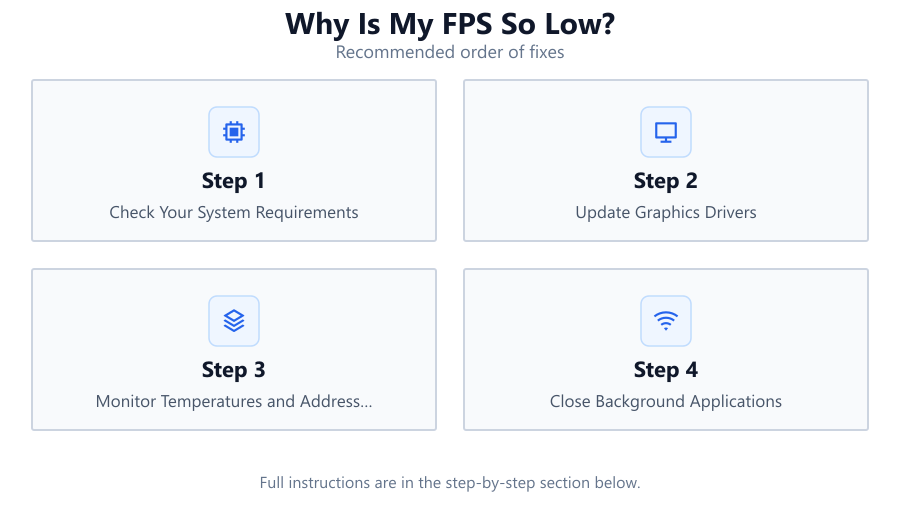
Check Your System Requirements
Compare your hardware against the game's minimum and recommended specs. If your GPU or CPU falls short, low FPS is inevitable. Use online tools or the FPS Gain Calculator to see how an upgrade might help.
Update Graphics Drivers
Install the latest drivers from your GPU manufacturer. Outdated drivers cause compatibility problems, performance drops, and even crashes. Always perform a clean install for best results.
Monitor Temperatures and Address Overheating
Use tools like HWMonitor or MSI Afterburner to check CPU and GPU temps. Clean dust filters and fans. Reapply thermal paste if needed. Proper cooling stops thermal throttling and restores lost FPS.
Close Background Applications
Shut down unnecessary apps before gaming. Task Manager can reveal hidden resource hogs. Disabling overlays and updaters frees up RAM and CPU cycles for your game.
Optimize In-Game Settings
Lower demanding graphics options like shadows, textures, and anti-aliasing. Use built-in presets or guides for your game. Small tweaks can significantly boost FPS without major visual loss.
Scan for Malware and Software Conflicts
Viruses and unwanted programs can consume resources and cause stutters. Run a full system scan and remove suspicious software. Disable startup apps that are not needed.
Comparison
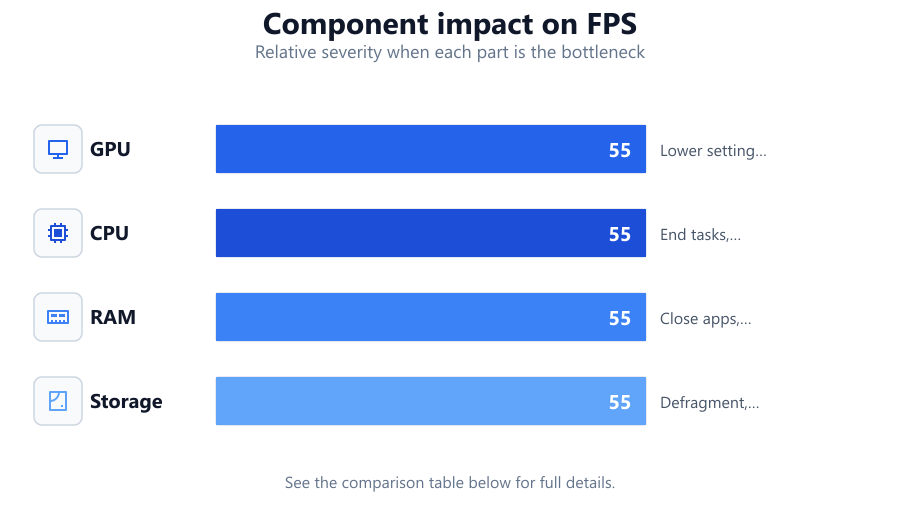
| Component | Typical FPS Drop Cause | Quick Fix |
|---|---|---|
| GPU | High settings, outdated drivers, overheating | Lower settings, update drivers, improve cooling |
| CPU | Background processes, thermal throttling | End tasks, clean and cool CPU |
| RAM | Low capacity, high usage | Close apps, upgrade RAM |
| Storage | Slow HDD, fragmentation | Defragment, upgrade to SSD |
Common mistakes
Mistake
Ignoring driver updates
Fix: Always keep your GPU and chipset drivers current for optimal compatibility and performance.
Mistake
Overlooking background apps
Fix: Close unnecessary programs before gaming to free up system resources.
Mistake
Cranking all settings to ultra
Fix: Balance visuals and performance by tweaking settings based on your hardware’s capabilities.
Mistake
Neglecting regular system maintenance
Fix: Clean dust from your PC, update software, and run malware scans regularly.
Troubleshooting
Sudden FPS drops during gameplay
Likely cause: Background process spike or thermal throttling
What to do: Monitor system resources and temperatures. Close background apps and clean your PC's cooling components.
Consistently low FPS in all games
Likely cause: Outdated or underpowered hardware
What to do: Compare your specs to game requirements. Use FPS Gain Calculator to plan a targeted upgrade.
Random stuttering or hitching
Likely cause: Disk access delays or insufficient RAM
What to do: Close unused applications, defragment your HDD, or upgrade to an SSD.
FPS much lower than expected after a hardware upgrade
Likely cause: Old drivers or conflicting software
What to do: Perform a clean driver install and remove unnecessary background programs.
Recommendations
- Regularly update your GPU, chipset, and game drivers.
- Monitor system temps and clean your PC every few months.
- Use the FPS Gain Calculator to estimate potential FPS before upgrading hardware.
- Tweak in-game settings for your hardware, prioritizing performance over ultra visuals.
- Upgrade to an SSD for faster game loads and less stutter.
Frequently asked questions
What is a good FPS for gaming?
Most gamers aim for at least 60 FPS for smooth gameplay. Competitive players often target 120 FPS or higher for maximum responsiveness.
Can RAM affect FPS?
Yes, insufficient or slow RAM can bottleneck your system, leading to lower FPS or stuttering, especially in modern games.
Why did my FPS drop after a Windows update?
Windows updates can sometimes cause driver conflicts or background processes to increase. Updating your GPU drivers and disabling unnecessary startup apps can help.
How do I know if I need a new GPU or CPU?
If your hardware is below game requirements or struggles even on low settings, it is time to upgrade. Use the FPS Gain Calculator to project the performance boost from potential upgrades.