
Guide
DLSS vs FSR Guide
Wondering if DLSS or FSR delivers better performance and visuals for your games? Our in-depth guide compares both technologies so you can choose the right upscaling solution for your PC.
Updated 2026-07-05
What Are DLSS and FSR?
DLSS (Deep Learning Super Sampling) and FSR (FidelityFX Super Resolution) are upscaling technologies designed to boost frame rates by rendering games at a lower resolution, then upscaling the image to your target display resolution. This approach can deliver higher FPS with minimal loss in image quality, especially at higher resolutions like 1440p or 4K.
NVIDIA developed DLSS for GeForce RTX GPUs, leveraging dedicated AI hardware called Tensor Cores to reconstruct high-quality images. AMD’s FSR, in contrast, is designed to work on a broader range of GPUs, including older AMD and NVIDIA cards. FSR does not require specialized AI hardware, making it more accessible to gamers with a variety of setups.
Both technologies aim to solve the same problem: delivering smoother gameplay without sacrificing visual fidelity. However, their approaches and hardware requirements differ, which can influence your upgrade decisions and performance outcomes.
DLSS vs FSR: How They Work and What Sets Them Apart
DLSS uses deep learning and AI-powered image reconstruction. It requires an RTX GPU and game support, but when enabled, it can significantly improve frame rates by rendering at a lower resolution and using neural networks to upscale the image. DLSS 3 adds Frame Generation, which can insert entirely new frames, boosting FPS even further for supported games.
FSR is an open-source spatial upscaling technology. FSR 1.0 works by analyzing frames individually, while FSR 2.0 and later versions use more advanced temporal data to improve image stability and quality. FSR is compatible with a wide range of hardware, including AMD, NVIDIA, and even some Intel GPUs. Unlike DLSS, FSR does not rely on AI or proprietary hardware, so it can be used on almost any modern graphics card.
When comparing DLSS and FSR, image quality and performance can vary based on the game, settings, and GPU. DLSS often provides sharper images, especially at lower render resolutions, due to its AI-based approach. FSR offers broader compatibility and is easier to implement for developers, making it available in more games, but it may not match DLSS in image reconstruction quality in all scenarios.
Understanding these differences is crucial when planning a GPU upgrade. The FPS Gain Calculator can help you estimate the real-world performance improvements you can expect when switching between GPUs that support different upscaling technologies.
Step-by-step
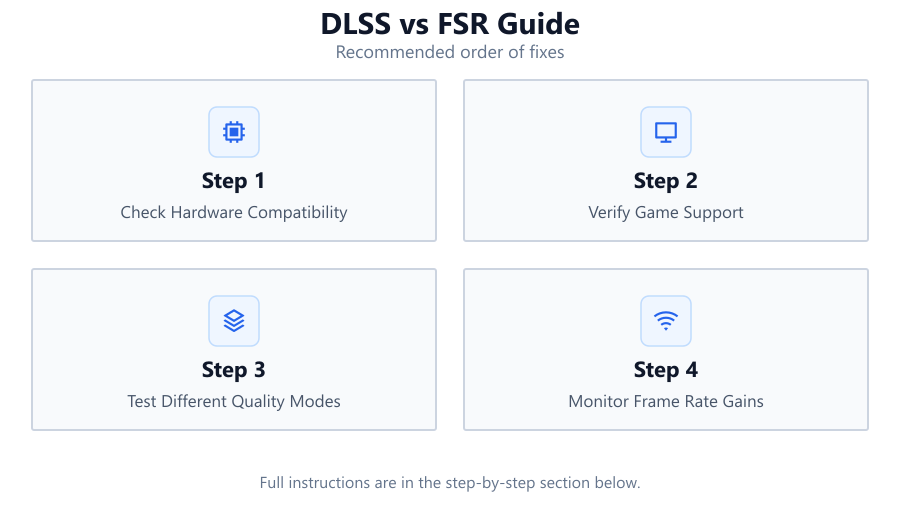
Check Hardware Compatibility
Before choosing between DLSS and FSR, confirm what your GPU supports. DLSS requires an NVIDIA RTX GPU, while FSR works on most modern AMD, NVIDIA, and some Intel GPUs.
Verify Game Support
Not every game supports both technologies. Check the game’s settings or official website to see if DLSS or FSR is available for your favorite titles.
Test Different Quality Modes
Both DLSS and FSR offer multiple quality presets (Quality, Balanced, Performance, Ultra Performance). Experiment with these to find the best balance between visuals and frame rates for your system.
Monitor Frame Rate Gains
Use in-game FPS counters or third-party tools to measure performance. For deeper analysis, input your GPU upgrade scenarios into the FPS Gain Calculator to project potential frame rate increases.
Optimize In-Game Settings
Combine DLSS or FSR with other graphics settings adjustments. Lowering settings like shadows or reflections can further improve FPS, especially when paired with upscaling.
Comparison
| Feature | DLSS | FSR |
|---|---|---|
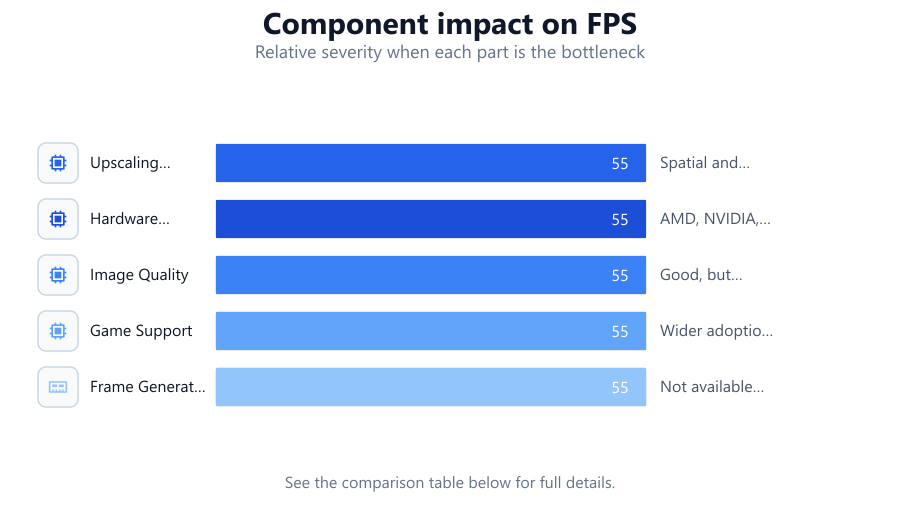
| Upscaling Method | AI-powered deep learning | Spatial and temporal upscaling |
| Hardware Support | NVIDIA RTX GPUs only | AMD, NVIDIA, Intel GPUs |
| Image Quality | Sharper at lower resolutions | Good, but may show artifacts at low res |
| Game Support | Hundreds of supported titles | Wider adoption, more universal |
| Frame Generation | Available (DLSS 3) | Not available (as of FSR 3.0) |
| Open Source | No | Yes |
| Performance Impact | High FPS gains, especially at 4K | Solid gains, varies by hardware |
| Ease of Implementation | Requires NVIDIA SDK | Easy for developers, open API |
Common mistakes
Mistake
Assuming all GPUs support DLSS
Fix: Verify your GPU model. Only NVIDIA RTX cards support DLSS. Use FSR if you have a non-RTX card.
Mistake
Ignoring game compatibility
Fix: Check if your game actually supports DLSS or FSR. Not every title offers both options.
Mistake
Expecting identical image quality from both technologies
Fix: Understand that DLSS and FSR have different strengths. Test both, if available, to see which looks and performs better on your system.
Mistake
Not updating drivers or game versions
Fix: Keep your GPU drivers and games up to date to access the latest DLSS or FSR improvements and bug fixes.
Troubleshooting
DLSS or FSR option is missing in-game
Likely cause: Game or GPU does not support the technology, or outdated drivers
What to do: Check official game support lists. Update your GPU drivers and ensure your hardware meets the requirements.
Blurry or artifact-ridden image quality
Likely cause: Using aggressive performance mode or low render resolution
What to do: Switch to a higher quality preset or increase the render resolution for a sharper image.
No noticeable FPS improvement after enabling upscaling
Likely cause: CPU bottleneck or other system limitations
What to do: Check your CPU usage. Use the FPS Gain Calculator to identify potential bottlenecks and plan your next upgrade.
Recommendations
- If you own an NVIDIA RTX GPU, try DLSS first for the best balance of performance and image quality.
- For gamers with older or non-RTX GPUs, use FSR to achieve higher frame rates in supported games.
- Always test different quality modes and compare visuals versus performance before settling on a setting.
- Plan hardware upgrades with tools like the FPS Gain Calculator to maximize your FPS gains and avoid wasted budget.
- Update drivers and games regularly to access the latest improvements in both DLSS and FSR technologies.
Frequently asked questions
Which is better for image quality: DLSS or FSR?
DLSS generally offers sharper images, especially at low render resolutions, due to its AI reconstruction. FSR has improved over time but may show more artifacts in some scenarios.
Can I use FSR on an NVIDIA GPU?
Yes, FSR is compatible with most modern NVIDIA GPUs, including non-RTX models. DLSS, however, requires an NVIDIA RTX card.
Does enabling DLSS or FSR always increase FPS?
Usually, but the actual FPS gain depends on your system’s bottlenecks. If your CPU is limiting performance, upscaling may not help. Use the FPS Gain Calculator to estimate your expected gains.
Do I need to upgrade my GPU to use these features?
DLSS requires an NVIDIA RTX GPU, but FSR works on a wide range of cards. If your GPU is very old, consider upgrading and use the FPS Gain Calculator to project your performance improvements.