
Guide
How to Increase FPS Without Upgrading
Learn how to increase FPS without upgrading your hardware. Optimize your current PC for smoother gameplay and better performance with these actionable steps.
Updated 2026-07-05
Understanding FPS and Why It Matters
FPS, or frames per second, is a critical metric that determines how smoothly your games and applications run. A higher FPS means more fluid motion, quicker inputs, and an overall better experience, especially in fast-paced titles. Many gamers believe that getting more FPS means buying a new GPU or CPU, but this is not always necessary.
Before considering a hardware upgrade, there are several proven methods to optimize your existing PC setup and squeeze out every bit of performance. By understanding the main factors affecting FPS, you can address bottlenecks and improve frame rates at little to no cost.
This guide presents step-by-step strategies to maximize FPS on your current system. Whether you are struggling with lag or looking to optimize for competitive play, these tips will help you get the most out of your hardware.
Key Strategies to Boost FPS Without New Hardware
The most effective way to increase FPS without upgrading is to target both software and system optimizations. Start by adjusting in-game settings: lowering resolution, turning down shadows, and disabling features like anti-aliasing can yield immediate improvements. Next, optimize your operating system and drivers. Keeping GPU drivers up to date, managing background processes, and setting your PC to high-performance mode can all help.
Another powerful tactic is to use third-party tools to monitor and control system resources. Utilities like MSI Afterburner allow for fan curve tuning and real-time monitoring, ensuring your GPU and CPU are not thermally throttled. Cleaning up disk space and defragmenting hard drives (if you are not using SSDs) can also reduce stutter and load times.
Finally, consider advanced tweaks such as adjusting power settings in your BIOS, enabling Game Mode in Windows, and disabling unnecessary startup programs. Each optimization may only provide a small boost, but together they can make a significant difference in your FPS.
Step-by-step
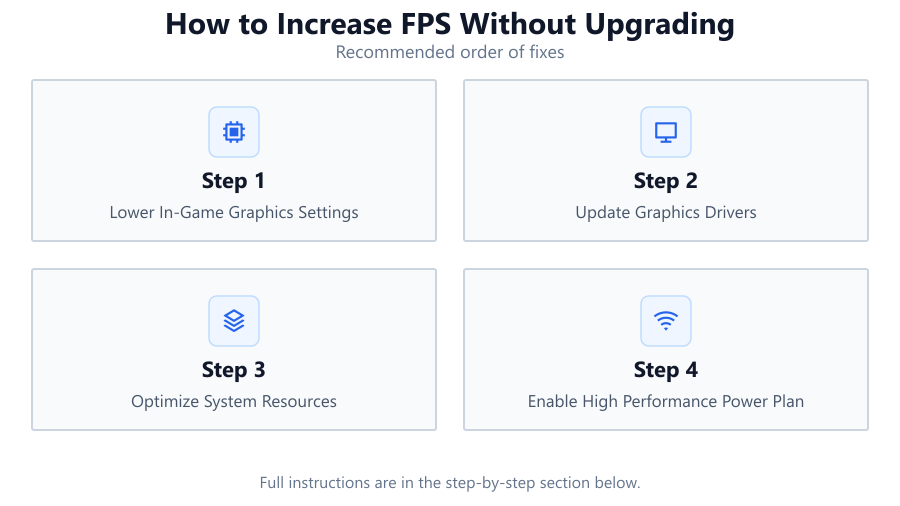
Lower In-Game Graphics Settings
Reduce resolution, lower texture quality, and disable resource-intensive effects like shadows, reflections, and anti-aliasing. These changes directly reduce GPU workload and can significantly boost FPS.
Update Graphics Drivers
Ensure your GPU drivers are up to date. New drivers often include optimizations for recent games and can resolve performance issues or bugs that affect FPS.
Optimize System Resources
Close unnecessary background applications and processes. Use Task Manager to identify and terminate programs that consume CPU or memory while gaming.
Enable High Performance Power Plan
Switch your PC’s power plan to 'High Performance' in Windows settings. This prevents your CPU and GPU from downclocking to save power, maintaining peak performance during gameplay.
Clean and Maintain Your System
Dust buildup can cause overheating, leading to thermal throttling. Regularly clean your PC’s fans and heatsinks. Also, ensure your case has adequate airflow.
Adjust Virtual Memory Settings
Increase the size of your virtual memory (page file) in Windows to help prevent stuttering and improve stability, especially if you have limited RAM.
Comparison
| Optimization | Average FPS Gain | Effort Required |
|---|---|---|
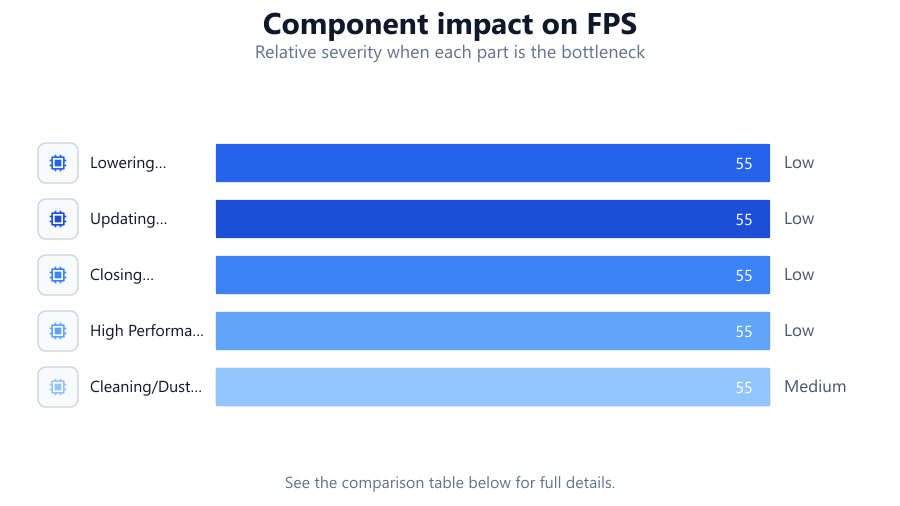
| Lowering Graphics Settings | 10-50% | Low |
| Updating Drivers | 3-10% | Low |
| Closing Background Apps | 2-8% | Low |
| High Performance Power Plan | 2-5% | Low |
| Cleaning/Dusting Hardware | 1-3% | Medium |
Common mistakes
Mistake
Maxing out all in-game settings
Fix: Balance visual quality and performance by lowering demanding settings like shadows and effects.
Mistake
Ignoring driver updates
Fix: Regularly check for and install the latest GPU drivers from the manufacturer’s website.
Mistake
Running too many background programs
Fix: Close unnecessary applications and consider disabling startup programs to free up resources.
Mistake
Neglecting system maintenance
Fix: Clean your PC components and ensure proper cooling to prevent thermal throttling.
Troubleshooting
Sudden FPS drops during gameplay
Likely cause: Background processes consuming resources or thermal throttling
What to do: Close unnecessary applications and monitor temperatures. Clean your PC if overheating persists.
Game stutters or lags despite low settings
Likely cause: Insufficient RAM or virtual memory
What to do: Increase virtual memory allocation and close memory-intensive apps.
FPS does not improve after optimizations
Likely cause: Outdated or corrupted drivers
What to do: Reinstall or update your GPU drivers and restart your PC.
Recommendations
- Regularly monitor your FPS and system temperatures to catch issues early.
- Use tools like MSI Afterburner to track GPU and CPU usage in real time.
- Defragment your hard drive if you are not using an SSD for smoother game loading.
- Consider using the FPS Gain Calculator to understand how much a hardware upgrade could impact your FPS before making a purchase.
- Experiment with different in-game settings to find the best balance between visuals and performance.
Frequently asked questions
What is the quickest way to increase FPS without upgrading?
Lowering in-game graphics settings such as resolution, shadows, and anti-aliasing provides the fastest FPS boost.
Can updating drivers really improve FPS?
Yes. New GPU drivers often include optimizations and bug fixes that can enhance performance and stability.
Does cleaning my PC help performance?
Dust buildup can lead to overheating and thermal throttling, which reduces FPS. Regular cleaning helps maintain consistent performance.
How can I estimate the FPS gain from a potential hardware upgrade?
Use the FPS Gain Calculator to project the performance difference between your current and future components before making any purchases.
Is Game Mode in Windows worth enabling?
Yes. Enabling Game Mode prioritizes game processes and can help achieve more stable FPS, especially on multi-tasking systems.