
Guide
Optimization Guide
Want to get the most out of your current PC? This optimization guide shows you how to identify weak points and choose upgrades that deliver the biggest performance boost.
Updated 2026-07-05
What Is PC Optimization and Why Does It Matter?
PC optimization is the process of improving your computer’s performance by addressing hardware bottlenecks, tweaking configurations, and making targeted upgrades. Whether you use your PC for gaming, content creation, streaming, or everyday tasks, a properly optimized system runs faster, smoother, and more reliably.
Many users mistakenly believe that buying a brand new computer is the only way to achieve better performance. In reality, most PCs can achieve significant improvements with strategic upgrades or simple optimizations. The key is knowing which component will make the biggest difference for your unique setup.
The PC Upgrade Advisor is designed to help you pinpoint exactly where your system falls short. By analyzing your CPU, GPU, RAM, and storage, it recommends the single most impactful upgrade for your system and gaming resolution.
Optimization is not just about hardware. Software tweaks, driver updates, and system maintenance also play a vital role. However, the most dramatic gains come from addressing true hardware bottlenecks. This guide will walk you through the essential steps to optimize your PC and get the most out of every dollar spent.
How to Identify and Eliminate Performance Bottlenecks
Every PC has a weakest link, and that component holds back your overall performance. Common bottlenecks include the CPU, GPU, RAM, or storage drive. The first step in any optimization guide is diagnosis: which part is slowing you down?
Use monitoring software such as MSI Afterburner, HWiNFO, or Task Manager to track resource usage during your most demanding tasks. Look for components that consistently hit 90-100 percent usage. For example, if your GPU maxes out in games but your CPU stays at 60 percent, your graphics card is the likely bottleneck.
The PC Upgrade Advisor streamlines this process by analyzing your hardware and workload, then suggesting the upgrade that will provide the most noticeable improvement. It factors in your resolution, target frame rate, and usage patterns to ensure recommendations are relevant.
After identifying the limiting component, compare your system to recommended specs for your favorite games or applications. Sometimes, even a small RAM or SSD upgrade can eliminate stutter and reduce load times. Always balance your upgrades: a powerful GPU paired with an outdated CPU or slow storage will never perform at its best.
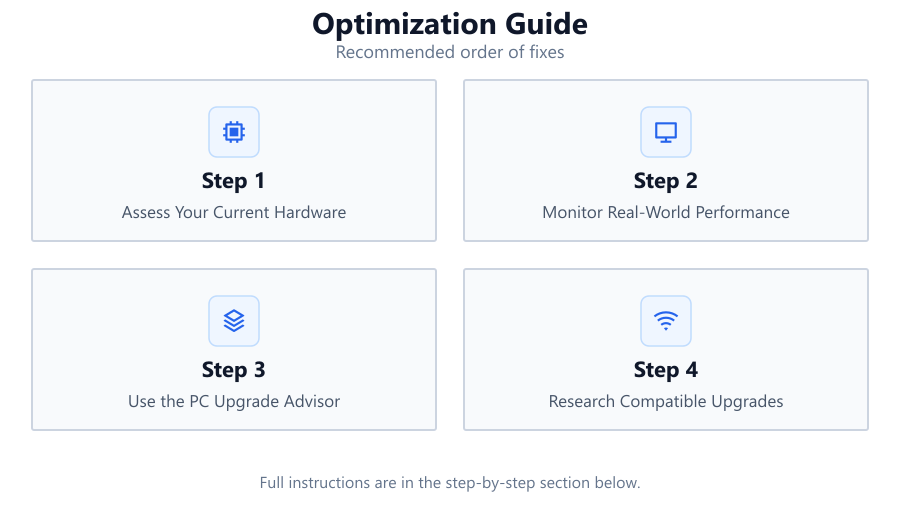
Step-by-step
Assess Your Current Hardware
List your CPU, GPU, RAM, and storage specifications. Use system information tools or check your PC’s documentation. Knowing your baseline is essential for effective optimization.
Monitor Real-World Performance
Run your most demanding games or applications while monitoring hardware usage. Identify which component regularly hits its limits. Watch for high temperatures or throttling as well.
Use the PC Upgrade Advisor
Enter your hardware details into the PC Upgrade Advisor. Let the tool analyze your setup and recommend the single upgrade that will offer the greatest performance boost for your needs.
Research Compatible Upgrades
Once you know which component to upgrade, check your motherboard and power supply for compatibility. Consult manufacturer websites or user manuals to avoid costly mistakes.
Install and Test Upgrades
Carefully install the new component following static safety precautions. After installation, run benchmarks and real-world tests to verify improvements. Update drivers as needed.
Tweak Software and Settings
After hardware upgrades, optimize your operating system, update drivers, and adjust in-game or application settings for best performance. Regular maintenance keeps your system running smoothly.
Comparison
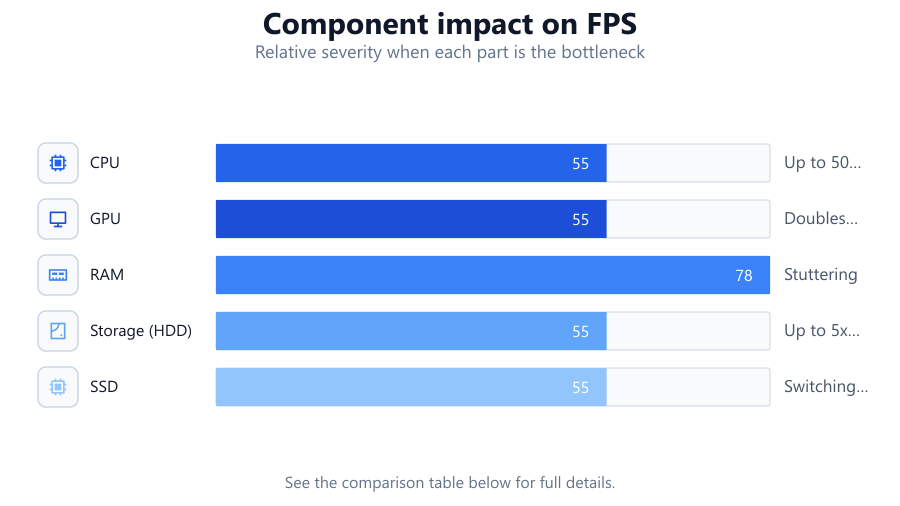
| Component | Symptoms of Bottleneck | Sample Upgrade Impact |
|---|---|---|
| CPU | Stuttering in CPU-heavy games, low frame rates in simulations | Up to 50 percent higher FPS in strategy titles |
| GPU | Low FPS in modern games, high GPU usage | Doubles frame rate in demanding AAA games |
| RAM | Slow program switching, frequent loading pauses | Reduces stuttering, faster multitasking |
| Storage (HDD) | Long load times, slow boot | Up to 5x faster load and boot times |
| SSD | Older SATA SSDs may cause moderate delays | Switching to NVMe SSD speeds up transfers and loads |
Common mistakes
Mistake
Upgrading the wrong component based on guesswork
Fix: Always use monitoring tools and the PC Upgrade Advisor to identify the true bottleneck before buying new hardware.
Mistake
Ignoring power supply or case limitations
Fix: Check PSU wattage and physical space before purchasing larger GPUs or more powerful CPUs.
Mistake
Mixing incompatible RAM or storage
Fix: Confirm motherboard support for RAM speed, type, and storage interfaces. Consult manuals and compatibility charts.
Mistake
Skipping driver and BIOS updates after upgrades
Fix: Always update drivers and BIOS to ensure your new hardware functions correctly and efficiently.
Troubleshooting
System does not boot after upgrade
Likely cause: Component not seated properly or incompatible with motherboard
What to do: Re-seat hardware, double-check compatibility, and consult motherboard manual for installation tips.
New GPU underperforms
Likely cause: Old drivers or power supply not sufficient
What to do: Install latest GPU drivers and ensure PSU meets wattage requirements.
Frequent crashes or freezes after RAM upgrade
Likely cause: Incompatible or faulty RAM modules
What to do: Test RAM with diagnostic tools, remove and re-insert modules, or try different slots.
System still feels slow after SSD installation
Likely cause: Operating system not cloned or installed correctly on SSD
What to do: Reinstall or migrate OS properly and set SSD as primary boot drive in BIOS.
Recommendations
- Always start optimization with a clear assessment of your current hardware and performance.
- Use the PC Upgrade Advisor to identify the most effective upgrade for your needs.
- Balance your system: pairing a high-end GPU with an outdated CPU or insufficient RAM limits gains.
- After hardware upgrades, optimize software settings, update drivers, and perform regular system maintenance.
- Research compatibility before purchase to avoid returns or damage.
Frequently asked questions
How do I know which component to upgrade first?
Monitor your system during demanding tasks. The component consistently at 100 percent usage is often the bottleneck. The PC Upgrade Advisor can automate this analysis for you.
Will upgrading RAM improve my gaming performance?
If your system is currently RAM limited, upgrading can reduce stutter and improve frame rates. However, if your games are not using all available RAM, a GPU or CPU upgrade will have a bigger impact.
Is an SSD upgrade worth it for older systems?
Yes. Moving from an HDD to an SSD dramatically improves boot and load times, making even older PCs feel much faster.
Can software tweaks replace hardware upgrades?
Software tweaks help, but major performance gains come from eliminating hardware bottlenecks. Use both approaches for best results.
How often should I revisit my PC optimization?
Check your system’s performance every 6-12 months or after major software/game releases. Hardware demands change over time.