
Guide
How to Choose the Right Hardware
Choosing the right hardware can make or break your computing experience. This guide shows you how to identify your needs, compare options, and select the best components for your setup.
Updated 2026-07-05
Understanding Your Hardware Needs
Before you start shopping, it is crucial to assess what you want your computer to do. Are you building a gaming PC, a workstation for creative tasks, or a reliable machine for everyday use? Your intended applications directly impact the type of hardware you should choose. For example, gaming rigs demand powerful graphics cards and fast processors, while office machines prioritize efficiency and reliability over raw speed.
Budget also plays a significant role. You need to find a balance between performance and cost, making sure you do not overspend on features you will never use. Consider the longevity of your investment, will your hardware keep up with software updates and new technologies over the next few years?
Compatibility is another key factor. Ensure that your chosen components work together seamlessly. Check motherboard specifications for CPU and RAM support, and pay attention to physical sizes, such as graphics card length and case dimensions.
Comparing Component Options and Tools
Once you know your requirements, begin evaluating components. Start with the CPU and GPU, as these drive overall performance. Research benchmarks for your target applications, and compare different models within your price range. Storage is another area where choices matter: SSDs offer fast load times, but not all SSDs are created equal. When selecting an SSD, consult endurance ratings such as TBW (terabytes written) to estimate how long the drive will last. The SSD Lifespan Calculator can help you quickly determine expected SSD lifetime based on your daily workload and the drive's TBW rating.
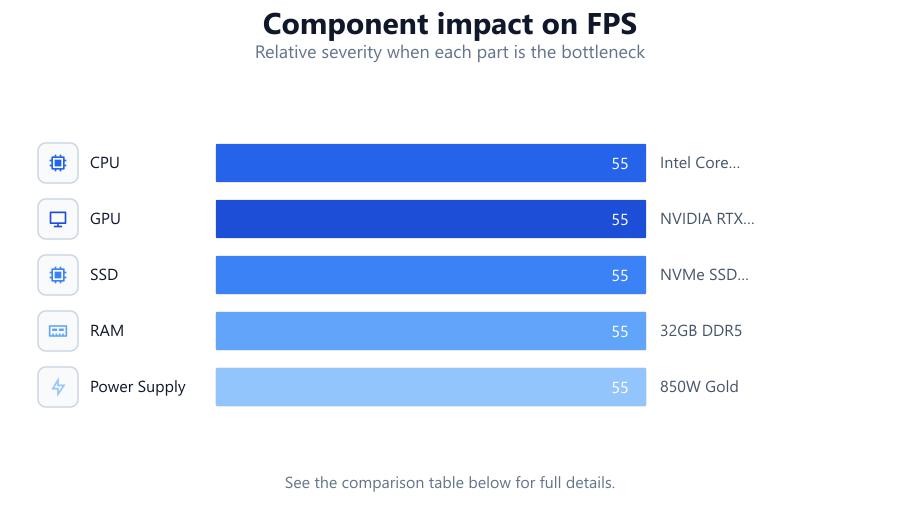
Do not overlook RAM capacity or speed, as insufficient memory can bottleneck your system. For upgradability, choose motherboards with extra RAM slots and support for newer standards. Power supply units should deliver enough wattage for your system, with some headroom for future additions. Finally, check cooling requirements and ensure your case accommodates all chosen components. Take advantage of online tools and calculators to simulate builds before purchasing. The SSD Lifespan Calculator is especially useful for evaluating different storage options and predicting real-world durability.
Step-by-step
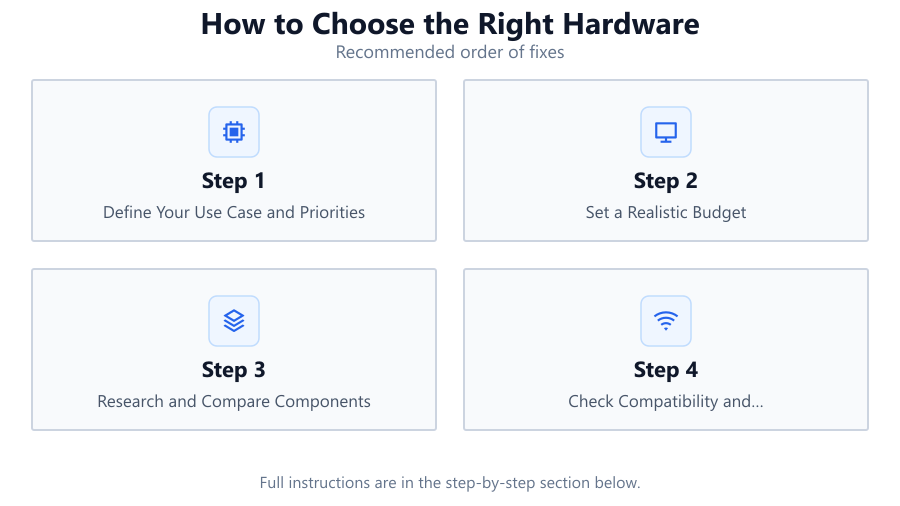
Define Your Use Case and Priorities
Write down what you need your computer to do. List the software and games you plan to run, and prioritize features like performance, portability, or quiet operation.
Set a Realistic Budget
Determine how much you can spend. Allocate your budget to the most important components, usually CPU, GPU, and SSD, and leave room for quality power and cooling.
Research and Compare Components
Use reputable sites for reviews and benchmarks. Compare processors, graphics cards, and SSDs that fit your needs. Consider future-proofing by selecting components that exceed minimum requirements.
Check Compatibility and Upgradability
Ensure all parts will fit and function together. Verify socket types, RAM standards, and case dimensions. Choose a motherboard that supports future component upgrades.
Calculate SSD Lifespan and Other Endurance Factors
For storage, check SSD TBW ratings and use the SSD Lifespan Calculator to estimate how long your drive will last under your typical workload. Factor in warranty terms and support.
Comparison
| Component | Entry-Level | High-End |
|---|---|---|
| CPU | Intel Core i3 / AMD Ryzen 3 | Intel Core i9 / AMD Ryzen 9 |
| GPU | NVIDIA GTX 1650 / AMD RX 6500 | NVIDIA RTX 4090 / AMD RX 7900 XTX |
| SSD | SATA SSD 500GB (150 TBW) | NVMe SSD 2TB (1200 TBW) |
| RAM | 8GB DDR4 | 32GB DDR5 |
| Power Supply | 450W Bronze | 850W Gold |
| Motherboard | B560 / B550 | Z790 / X670E |
Common mistakes
Mistake
Ignoring compatibility between components
Fix: Always check motherboard, CPU socket, RAM type, and GPU size before purchasing.
Mistake
Underestimating power and cooling needs
Fix: Calculate total system wattage and choose a PSU with extra capacity. Ensure adequate airflow and cooling solutions.
Mistake
Overlooking SSD endurance and lifespan
Fix: Use the SSD Lifespan Calculator to estimate SSD durability, and select drives with sufficient TBW ratings for your workload.
Troubleshooting
System does not boot after assembly
Likely cause: Loose cables or incompatible components
What to do: Double-check all power and data connections. Verify all parts are compatible and properly seated.
Frequent crashes or freezing
Likely cause: Insufficient RAM or overheating
What to do: Monitor system temperatures. Upgrade RAM or improve cooling as needed.
Slow storage performance
Likely cause: Using an older or low-end SSD
What to do: Upgrade to a faster NVMe SSD and use the SSD Lifespan Calculator to select a drive with adequate endurance.
Recommendations
- Prioritize quality components for the parts you use most, such as CPU, GPU, and SSD.
- Use online calculators and compatibility checkers before purchasing.
- Consider future needs and upgradability when choosing a motherboard and case.
- Use the SSD Lifespan Calculator to ensure your storage will last as long as you need.
Frequently asked questions
How do I know which hardware is compatible?
Check manufacturer specifications for socket types, RAM standards, and physical dimensions. Online compatibility tools can help you verify your build.
How important is SSD endurance for daily use?
SSD endurance matters if you write large amounts of data daily. Use the SSD Lifespan Calculator to estimate drive lifespan for your workload.
Should I spend more on CPU or GPU?
It depends on your use case. Gamers often benefit more from a better GPU, while content creators may need a stronger CPU.
How much RAM do I really need?
For basic tasks, 8GB is enough. 16GB is ideal for gaming and multitasking, while 32GB or more suits heavy creative or professional workloads.