
Guide
Optimization Guide
Unlock the full potential of your SSD with this comprehensive optimization guide. Learn actionable strategies and use the SSD Lifespan Calculator to predict and extend your drive's lifetime.
Updated 2026-07-05
Understanding SSD Optimization and Lifespan
Solid State Drives (SSDs) have transformed PC performance, but their longevity depends heavily on how you use and maintain them. Unlike traditional hard drives, SSDs rely on flash memory, which wears out with each write cycle. This makes optimization a crucial practice for anyone looking to extend the life of their SSD.
An effective optimization guide focuses on minimizing unnecessary writes, ensuring firmware is updated, and making the most of operating system features designed for SSDs. Implementing these steps can lead to significant improvements in both speed and lifespan.
The SSD Lifespan Calculator is an essential tool that helps you estimate how long your SSD will last based on your daily write workload and the drive’s TBW (Terabytes Written) rating. By understanding your usage patterns, you can tailor optimization strategies specifically to your needs. With the right approach, most consumer SSDs can last well beyond their warranty period, providing reliable storage for years.
Advanced SSD Optimization Strategies
Optimizing your SSD goes beyond simple tweaks. It involves a holistic approach that balances performance, data safety, and drive longevity. Start by ensuring your SSD firmware is always up to date. Manufacturers regularly release updates that can improve performance and fix bugs affecting drive health.
Leverage your operating system’s SSD features. For example, Windows includes TRIM support, which helps the SSD manage unused data blocks, reducing unnecessary wear. Make sure this feature is enabled by default and verify it after major OS updates.
Avoid filling your SSD to maximum capacity. Keeping at least 10-20 percent of free space allows the SSD’s internal controller to efficiently manage data, reducing write amplification and wear. Additionally, disable scheduled defragmentation for SSDs, as it provides no benefit and accelerates wear.
Finally, use tools like the SSD Lifespan Calculator regularly. By tracking your write workloads and drive health, you can spot potential issues early and adapt your usage habits to maximize both performance and lifespan.
Step-by-step
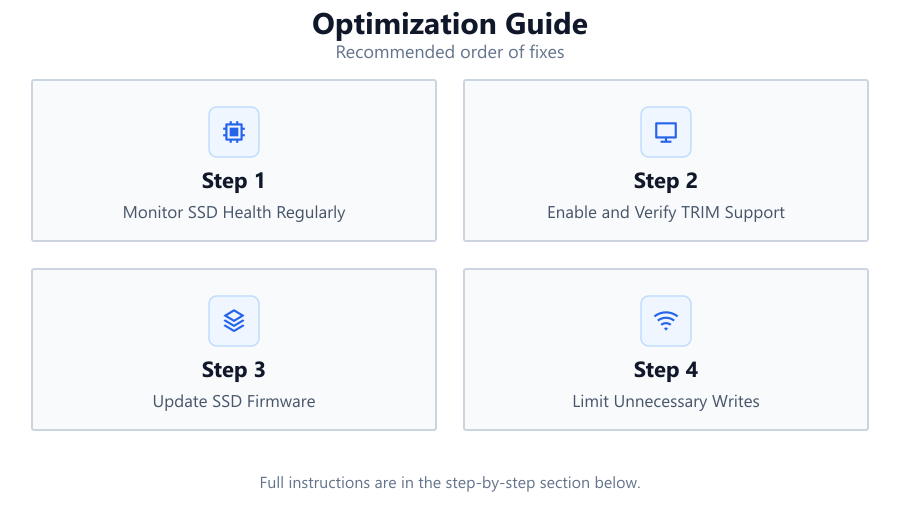
Monitor SSD Health Regularly
Use monitoring tools to check the drive’s SMART attributes, TBW usage, and overall health. This proactive step ensures you catch potential problems before they affect performance or data integrity.
Enable and Verify TRIM Support
Confirm TRIM is enabled in your operating system. TRIM allows the SSD to manage unused data blocks efficiently, preventing unnecessary write amplification and improving lifespan.
Update SSD Firmware
Regularly check for and install firmware updates from your SSD manufacturer. Firmware updates can fix bugs, enhance performance, and extend the drive’s life.
Limit Unnecessary Writes
Move temporary files, browser caches, and paging files to secondary drives if possible. This reduces daily write volume and helps preserve your SSD’s flash memory.
Maintain Adequate Free Space
Never fill your SSD completely. Aim to keep at least 10-20 percent of the drive free to enable efficient data management and wear leveling by the SSD controller.
Comparison
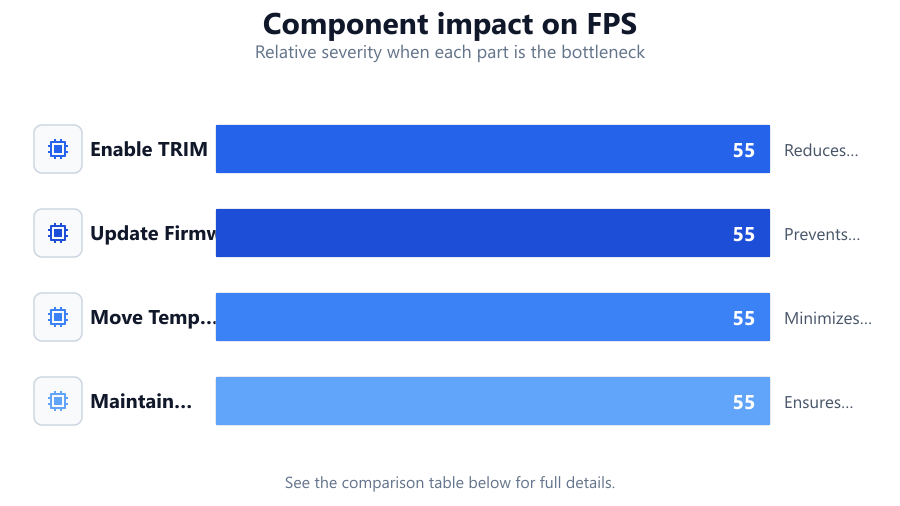
| Optimization Task | Performance Benefit | Lifespan Impact |
|---|---|---|
| Enable TRIM | Maintains speed over time | Reduces unnecessary writes |
| Update Firmware | Fixes bugs, improves speed | Prevents premature failure |
| Move Temp Files | Reduces slowdowns | Minimizes write wear |
| Maintain Free Space | Consistent performance | Ensures effective wear leveling |
Common mistakes
Mistake
Defragmenting the SSD
Fix: Disable scheduled defragmentation in your OS, as it is unnecessary and accelerates SSD wear.
Mistake
Filling the SSD to capacity
Fix: Keep at least 10-20 percent free space to optimize performance and lifespan.
Mistake
Ignoring firmware updates
Fix: Check your SSD manufacturer’s website regularly for firmware updates and apply them promptly.
Troubleshooting
Slower than normal read/write speeds
Likely cause: TRIM may be disabled or the drive is nearly full.
What to do: Enable TRIM support and free up disk space to restore optimal performance.
Frequent system crashes or data corruption
Likely cause: Drive firmware may be outdated or failing.
What to do: Update SSD firmware and run diagnostic tools to check for hardware faults.
SMART warnings or high TBW numbers
Likely cause: Excessive daily writes or improper configuration.
What to do: Use the SSD Lifespan Calculator to assess expected lifespan and adjust your write workload accordingly.
Recommendations
- Regularly monitor your SSD’s health and write usage.
- Leverage the SSD Lifespan Calculator to predict and maximize drive longevity.
- Enable all relevant SSD-specific OS features like TRIM.
- Stay current with firmware updates from your SSD manufacturer.
- Adopt data management habits that minimize unnecessary writes.
Frequently asked questions
How can I estimate my SSD's lifespan accurately?
Use the SSD Lifespan Calculator by entering your drive’s TBW rating and your average daily write workload. This provides a realistic estimate of remaining useful life.
Is SSD optimization necessary for modern drives?
Yes. While modern SSDs are more robust, optimization extends their lifespan and maintains peak performance, especially under heavy workloads.
What is TRIM and why is it important?
TRIM is a command that informs the SSD which data blocks are no longer in use, allowing the drive to manage data more efficiently and avoid unnecessary writes.
How often should I check for SSD firmware updates?
Check for updates every few months or whenever you experience performance issues. Firmware updates can resolve critical bugs and improve drive health.