
Guide
Optimization Guide
Achieve the best streaming performance with our comprehensive optimization guide. Learn how to balance hardware and software for flawless live game broadcasting.
Updated 2026-07-05
Understanding Streaming PC Optimization
Optimizing a streaming PC means tuning your hardware and software to deliver the best possible stream quality without lag, frame drops, or audio sync issues. Modern streaming, especially at higher resolutions and frame rates, puts a heavy load on your CPU, GPU, RAM, and network. Knowing exactly what your system needs is critical for stable broadcasts.
The Streaming PC Calculator helps demystify these requirements by analyzing your chosen resolution (720p, 1080p, 1440p, or 4K), target frame rate, and bitrate. It recommends the right combination of hardware for your goals, making optimization measurable and actionable.
Too many streamers overlook the importance of balanced upgrades, resulting in wasted money or persistent performance problems. This optimization guide will walk you through the best practices and explain how to use the Streaming PC Calculator for precise recommendations that fit your streaming ambitions.
Key Factors Affecting Streaming Performance
Every component in your streaming PC affects your output quality. The CPU handles video encoding, overlays, and game logic. A powerful GPU is essential for gaming at high settings while streaming. RAM must be sufficient for multitasking, and your internet speed determines the maximum bitrate you can use without buffering.
Bottlenecks often occur when one component lags behind the rest. For example, a strong GPU paired with a weak CPU can cause stuttering during live encoding. Similarly, insufficient RAM leads to dropped frames and slow scene switching in your streaming software.
A systematic approach to optimization involves evaluating each component, testing with different settings, and measuring real-world results. This guide covers all aspects, from hardware upgrades to advanced software tweaks, ensuring you get the most from your investment.
Step-by-step
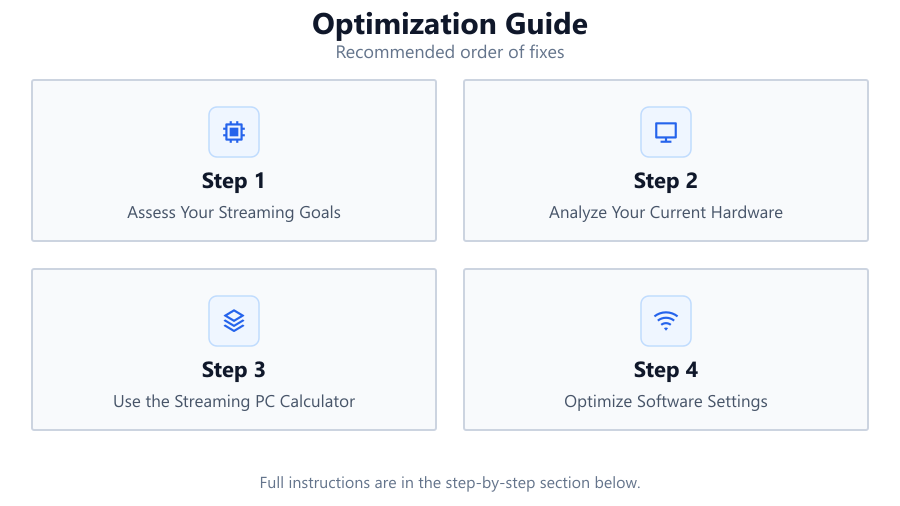
Assess Your Streaming Goals
Decide on your target resolution and frame rate. Are you aiming for 720p at 30 fps, 1080p at 60 fps, or even 4K streaming? Your hardware needs will vary significantly based on these goals.
Analyze Your Current Hardware
List your CPU, GPU, RAM, and check your internet speed. Use built-in tools like Task Manager or third-party utilities to monitor performance during a test stream.
Use the Streaming PC Calculator
Visit the Streaming PC Calculator. Enter your desired resolution, frame rate, and internet upload speed. The tool will instantly recommend hardware specs tailored to your streaming goals.
Optimize Software Settings
Adjust your streaming software (such as OBS Studio or XSplit) to use the best encoder (x264, NVENC, or AMD VCE). Tweak key settings like bitrate, keyframe interval, and preset to balance quality and performance.
Test, Benchmark, and Iterate
Perform real-world test streams. Monitor CPU, GPU, and RAM usage, along with stream stability. Make incremental adjustments and retest to find the optimal configuration for your setup.
Comparison
| Resolution & FPS | Minimum CPU & GPU | Recommended Upload Speed (Mbps) |
|---|---|---|
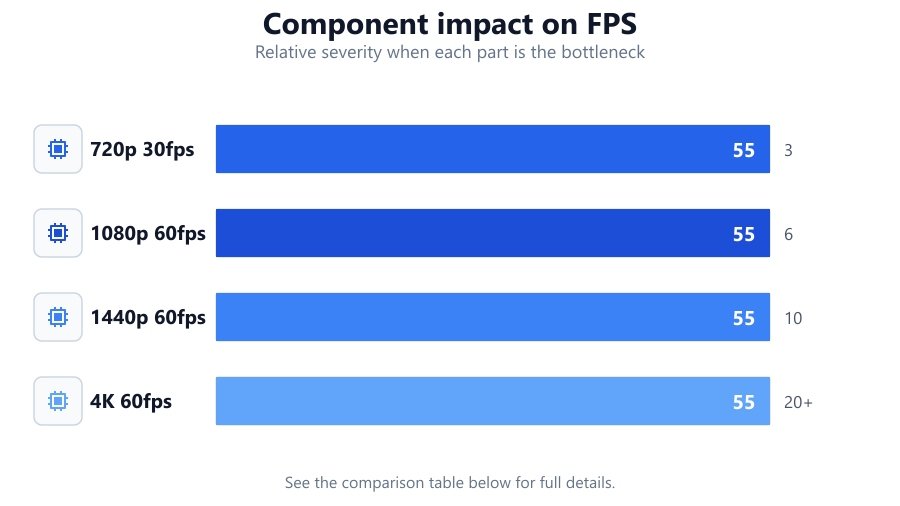
| 720p 30fps | Intel i3 / GTX 1050 | 3 |
| 1080p 60fps | Intel i5 / RTX 2060 | 6 |
| 1440p 60fps | Intel i7 / RTX 3060 | 10 |
| 4K 60fps | Intel i9 / RTX 4080 | 20+ |
Common mistakes
Mistake
Focusing only on the GPU and ignoring CPU performance.
Fix: Balance your upgrades. Streaming relies heavily on the CPU for encoding, so ensure your processor matches your GPU's capabilities.
Mistake
Using insufficient upload speed for high-quality streams.
Fix: Test your actual internet upload speed and match your stream bitrate accordingly. Avoid streaming at bitrates your connection cannot sustain.
Mistake
Running too many background programs while streaming.
Fix: Close unnecessary applications before going live. This frees up RAM and CPU resources for your streaming software and games.
Mistake
Ignoring RAM requirements for multitasking.
Fix: Upgrade to at least 16GB of RAM for smooth streaming and gaming. 32GB is recommended for heavy multitasking or high-resolution streaming.
Troubleshooting
Dropped frames or stuttering during streams.
Likely cause: Insufficient CPU or GPU performance, or overloaded RAM.
What to do: Lower your stream resolution or frame rate, close background apps, or upgrade hardware as recommended by the Streaming PC Calculator.
Audio-video sync issues.
Likely cause: High CPU usage or incorrect streaming software settings.
What to do: Use hardware encoding (NVENC or VCE), lower CPU preset, and ensure your audio sample rate matches across all devices.
Stream disconnects or frequent buffering.
Likely cause: Low or unstable internet upload speed.
What to do: Test your connection, lower your stream bitrate, or switch to a wired Ethernet connection for stability.
Recommendations
- Use the Streaming PC Calculator to identify and eliminate bottlenecks before upgrading any component.
- Prioritize a balanced system: pair your CPU and GPU appropriately for your stream quality targets.
- Regularly test your internet upload speed to ensure it matches your streaming ambitions.
- Keep your streaming software and drivers up to date for maximum compatibility and performance.
- Consider hardware encoders for better streaming efficiency, especially on modern GPUs.
Frequently asked questions
How do I know if my PC is good enough for streaming?
Run a test stream and monitor your CPU, GPU, and RAM usage. If usage is near 100% or your stream has stutters, use the Streaming PC Calculator for personalized upgrade advice.
Is CPU or GPU more important for streaming?
Both matter, but the CPU is critical for software encoding. If you use hardware encoders like NVENC, the GPU takes more load. Aim for a balanced system.
How much internet speed do I need for 1080p 60fps streaming?
You need at least 6 Mbps of stable upload speed for 1080p 60fps. Higher bitrates improve quality, but your connection must handle them without drops.
Can I stream and game on the same PC?
Yes, but your system must be powerful enough. For demanding games and high-quality streams, use the Streaming PC Calculator to check if your specs are sufficient.