
FREE MOUSE TEST
Mouse Accuracy Test: Aim Precision Trainer
Need to check if your mouse movements are sharp or if your clicks land where they should? The Mouse Accuracy Test gives you real feedback on cursor precision, path following, and steady hand control, all in your web browser. Results show your accuracy, hits, misses, and movement deviation so you can see exactly where your aim stands.
What Does This Tool Do?
The Mouse Accuracy Test is a browser-based tool designed to measure and train your mouse skills. It lets you test your cursor precision, path accuracy, click precision, and steady hand control. The tool presents randomized targets on a simulated mouse pad surface and tracks your performance as you aim, click, trace, or follow shapes. Multiple difficulty levels let you challenge yourself with smaller or more complex targets. The system logs your accuracy, number of hits and misses, and deviation from target paths, giving you a clear picture of how steady and precise your hand and mouse are. While it’s not a substitute for lab-grade equipment, it’s ideal for real-world checks using your own setup. This is especially useful for gamers, designers, or anyone who wants to optimize their pointing device and hand control.
How to Use This Tool
Start by visiting the tool in your browser. Choose a mode: precision click, trace, steady, or shape follow. Select your difficulty: easy, medium, or hard. Each mode tests a different aspect of mouse control. For example, precision click focuses on landing your cursor and clicking small targets, while trace mode asks you to follow a path as closely as possible. Click ‘Start’ to begin. As targets appear on the simulated mouse pad, move your cursor and click or trace as required. The platform measures your performance in real time. After completing a round, your stats appear: accuracy percentage, number of hits and misses, and deviation from the ideal path. You can repeat tests, switch difficulty, or change modes to challenge yourself further. To get the most accurate results, use the same mouse, mouse pad, and settings you use daily. Make sure your browser window is maximized and avoid running other applications that could affect input lag.
Understanding Your Results
Results are broken down by mode. In precision click, accuracy reflects how often you hit the target with your click. Hits and misses show your score, while deviation measures how far your cursor strayed from the target center. In trace and shape follow modes, accuracy is based on how closely your path tracked the intended line or shape, with deviation showing any drift or wobbles. Steady mode reports both your ability to keep the cursor still and your click timing. These metrics are approximate, as browser-based tests depend on your browser’s refresh rate and input polling, which are less precise than dedicated desktop apps or hardware analyzers. Use the results to spot trends: consistent misses might point to a hardware or ergonomic issue, while high deviation could mean your DPI setting or mouse acceleration needs adjusting. Compare scores across different mice or settings to see what works best for you.
Common Problems This Helps Diagnose
The Mouse Accuracy Test can help uncover several common issues. If your cursor overshoots or undershoots targets, your mouse DPI may be too high or too low. High deviation in trace or shape follow modes can indicate unwanted mouse acceleration or a jittery sensor. Frequent misses may suggest hardware faults such as worn mouse switches or a dirty sensor lens. Inconsistent results across the pad could point to tracking problems caused by surface irregularities or a poor-quality mouse pad. The test can also reveal issues with unsteady hand movement, which might be improved by adjusting your grip, posture, or desk setup. If you notice that results vary widely between different USB ports or after changing mouse drivers, the test can help confirm the impact of those variables. While browser limits mean results aren’t lab-accurate, trends are still highly useful for practical troubleshooting.
Examples and Scenarios
Scenario 1: Gamer Upgrading Mouse
You’re a competitive FPS player using a Logitech G Pro mouse. After switching to a Corsair mouse, you notice your aim feels off. Running the Mouse Accuracy Test in precision click mode at hard difficulty, you compare accuracy and deviation. The Corsair mouse shows higher deviation and lower hit rate, confirming the difference isn’t just perception.
Scenario 2: Diagnosing Mouse Jitter
You use an older generic mouse on a glossy desk surface. In trace mode, your deviation score is high and the line wobbles. Swapping to a textured mouse pad and retesting shows a major improvement, proving the old surface was the problem.
Scenario 3: Testing Different DPI Settings
A graphic designer using a Logitech MX Master wants to find the DPI that offers both precision and comfort. By running steady mode at each DPI setting and recording accuracy and deviation, the designer finds that 1200 DPI gives the best balance.
Scenario 4: Checking for OS or Driver Issues
A user notices inconsistent cursor movement after a Windows 11 update. They test before and after updating the mouse driver using the shape follow mode. Results improve after the update, confirming the software was the culprit.
Scenario 5: Evaluating Ergonomic Changes
You switch from a claw grip to a palm grip on your Razer DeathAdder. By comparing accuracy and deviation across several test runs, you find your new grip reduces misses and improves steadiness.
Scenario 6: Monitor and Refresh Rate Impact
You upgrade from a standard Dell 60Hz monitor to a 144Hz ASUS gaming panel. After the swap, you see a modest improvement in hit rate, especially in hard mode, showing how refresh rate can influence perceived cursor smoothness.
Tips for Accurate Testing
- Always use the same mouse, pad, and surface you rely on daily. Small changes can have a big impact.
- Close other browser tabs and background apps to minimize input lag and stuttering. Browser performance directly affects result accuracy.
- Maximize your browser window and avoid resizing during testing. Window size and scaling can subtly affect cursor behavior in some operating systems.
- Disable mouse acceleration in your OS settings for more consistent results. Windows, macOS, and Linux all handle pointer acceleration differently.
- Test at different DPI settings to find your personal sweet spot. Higher DPI isn’t always better for accuracy.
- Keep your mouse sensor lens and pad clean. Dust or debris can cause jumps or tracking loss.
- Repeat tests at different times of day to account for hand fatigue or daily fluctuations in performance.
- Use a wired mouse if you suspect wireless lag or interference. Even top wireless models can have rare signal drops.
- If you use multiple monitors, ensure the test runs on your primary display to avoid cursor scaling issues.
Browser vs Desktop Software
Browser-based mouse tests like this one are convenient and require no installation. They’re great for quick checks and comparisons between different hardware or settings. However, browser limitations mean input polling and refresh rates are approximate, not lab-grade. The test relies on browser events like mousemove, which are capped by the browser and your operating system. Results may be affected by browser choice, background apps, and even GPU acceleration settings.
Dedicated desktop software, such as MouseTester or Enotus Mouse Test, offers higher precision by accessing lower-level hardware data and higher polling rates. These tools can measure latency, jitter, and micro-movements with more accuracy, but typically require installation and sometimes admin rights. Use browser tests for everyday tuning or troubleshooting, but switch to desktop tools if you need detailed diagnostics or are benchmarking pro-grade gear.
Real-world accuracy depends on your entire setup: mouse, pad, monitor, and OS. For most users, browser tests are more than adequate for spotting major issues or optimizing hand control.
Summary
The Mouse Accuracy Test is a fast, effective way to check your mouse skills and hardware performance right in your browser. It covers cursor precision, path following, click accuracy, and steady hand control with multiple modes and difficulty levels. Results include accuracy, hits, misses, and deviation, helping you spot trends or problems. While not as precise as dedicated desktop software, it’s ideal for everyday troubleshooting, tuning, and comparing different mice, pads, or settings. Use it to diagnose hardware or ergonomic issues, optimize your gaming or work setup, and track performance improvements over time. For most users, this tool delivers practical, actionable insights without the need for extra software or equipment.
Frequently Asked Questions
How accurate is the Mouse Accuracy Test compared to desktop software?
Browser-based tests like this one use your browser’s input polling and refresh rate, so results are approximate. They’re great for spotting trends or major issues, but not for lab-grade precision. Dedicated desktop software, such as MouseTester or Enotus Mouse Test, accesses lower-level hardware data and can provide more detailed analysis. For most users, browser results are more than adequate for tuning settings and diagnosing obvious problems. If you need highly precise latency or jitter measurements, use desktop tools.
Does the tool work with any mouse or only gaming mice?
The Mouse Accuracy Test works with any mouse, whether it’s a basic office model, a wireless travel mouse, or a high-end gaming mouse like the Logitech G Pro or Razer DeathAdder. However, your results will reflect the quality of your hardware. Gaming mice with high-quality sensors and fast polling rates tend to perform better, while low-cost or worn-out mice may show more misses or higher deviation.
Can this tool diagnose mouse double-click issues?
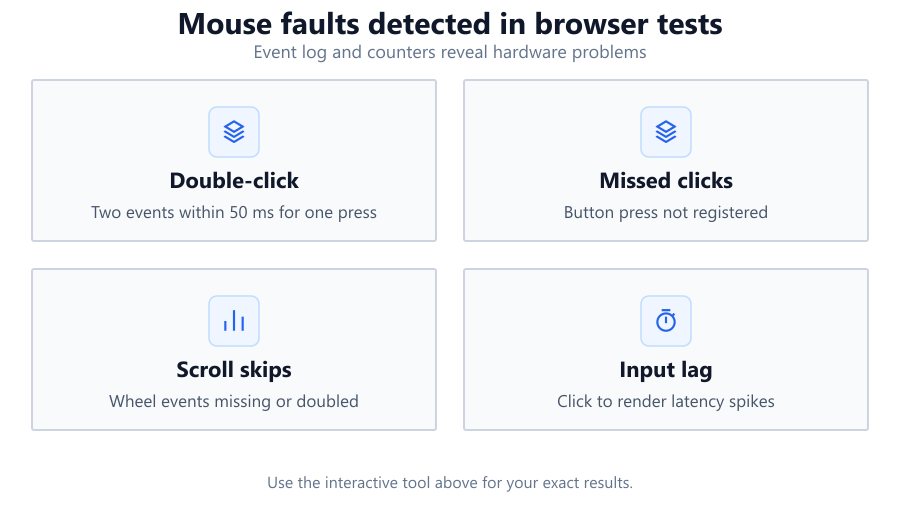
While the Mouse Accuracy Test tracks hits and misses, it’s not specifically designed to catch double-click faults. However, if your mouse is registering unintended double-clicks during precision click tests, you’ll likely see a higher miss rate or inconsistent scores. For more targeted double-click diagnostics, use specialized tools or the built-in OS mouse tests.
How do DPI settings affect my test results?
DPI (dots per inch) controls how far your cursor moves relative to physical mouse movement. A higher DPI can make your cursor move faster, but it may reduce precision if it’s too high for your hand control. During the Mouse Accuracy Test, try several DPI settings to find the one that gives you the best balance of speed and accuracy. Many users find that moderate DPI (800: 1600) works well for both gaming and productivity.
What should I do if my results are inconsistent?
Inconsistent results can be caused by several factors: hand fatigue, inconsistent grip, background processes slowing your PC, or hardware issues. Make sure your surface is clean, your mouse sensor is unobstructed, and your browser is running smoothly. Close unnecessary tabs and apps. Try repeating tests at different times and compare. If results remain erratic, try a different mouse or test on another computer to isolate the issue.
Does this tool measure mouse input lag?
The Mouse Accuracy Test does not directly measure input lag in milliseconds. Input lag is influenced by your mouse, USB port, operating system, and monitor. While unusually poor results may suggest lag, precise measurement requires specialized desktop tools or hardware analyzers. For most users, a noticeable drop in accuracy or increased deviation could point to lag, but the tool can’t quantify it directly.
Should I disable mouse acceleration for accurate testing?
Disabling mouse acceleration is recommended for consistent and repeatable results. Mouse acceleration means your cursor moves faster with quick movements, which can hurt precision in gaming or design. On Windows, turn off 'Enhance pointer precision' in Mouse Settings. macOS and Linux handle acceleration differently, but similar options exist. This ensures your test scores reflect your true hand movement, not software scaling.
Why are my test scores better on one monitor than another?
Monitor refresh rate and response time can affect perceived cursor smoothness and accuracy. A 60Hz Dell monitor may feel less responsive than a 144Hz ASUS gaming display. Also, if your OS applies scaling or you run the test on a secondary display, cursor tracking may feel different. For best results, run the test on your primary monitor at its native refresh rate and resolution.
Can I use this tool to compare different mouse pads?
Yes, the Mouse Accuracy Test is useful for comparing how different mouse pads affect cursor control and accuracy. Test each pad under identical conditions and compare your accuracy, hits, and deviation. A good mouse pad can reduce jitter and improve tracking, especially on hard surfaces or with high-DPI mice. Brands like SteelSeries QcK or Corsair MM300 are popular for their consistent performance.
Does it matter if I use a wired or wireless mouse?
Most modern wireless mice, such as the Logitech G Pro X Superlight, have minimal latency and will perform nearly as well as wired mice in this test. However, wireless interference, low battery, or poor signal can cause occasional lag or tracking loss. If you notice unexplained misses or jumps during testing, try switching to a wired connection or moving the receiver closer to the mouse.
How does browser choice affect results?
Different browsers handle input events and rendering with slight variations. Chrome, Firefox, and Edge may process mouse input at different refresh rates or with different latency. For the most consistent results, use the latest version of a mainstream browser, keep it updated, and avoid extensions that might interfere with input events. If you see inconsistencies, try running the test in another browser.
Is this tool safe to use? Does it require any downloads?
The Mouse Accuracy Test is fully browser-based and requires no downloads or installations. It runs in your web browser and does not access or store personal data. You can use it as often as you like with no risk to your system. Always access the tool from the official site to ensure security.
Can this help improve my aim in games?
Yes, regularly using the Mouse Accuracy Test can help improve your hand-eye coordination, cursor control, and click timing. Practicing with smaller targets or harder modes can build muscle memory that translates to better in-game aim. However, in-game factors like sensitivity, acceleration, and network lag also affect performance. Use the test alongside in-game practice for best results.
What is deviation in the results, and why does it matter?
Deviation measures how far your cursor path or clicks stray from the ideal center or line. High deviation indicates less steady control, which can hurt accuracy in gaming or design work. Consistently low deviation means your hand movements are stable and precise. If your deviation is high, check your grip, mouse settings, and surface for possible improvements.
Will changing my grip style affect my results?
Yes, grip style, palm, claw, or fingertip, can significantly impact your control, comfort, and accuracy. Some users find a claw grip offers better flick shots, while a palm grip may improve steadiness. Use the Mouse Accuracy Test to experiment with different grips and see which gives you the best accuracy and lowest deviation. Personal preference and hand size play a role, so test thoroughly.
Can I use this tool to compare performance before and after hardware upgrades?
Absolutely. The Mouse Accuracy Test is ideal for benchmarking your mouse, pad, or even monitor upgrades. Run tests before and after changing hardware, keeping settings the same. Compare accuracy, hits, misses, and deviation to objectively see the impact of your upgrades. This can help justify new purchases or identify unexpected issues with new gear.
Related Tools
Free tools to analyze, compare, and optimize your PC gaming performance
Mouse Speed Test
Measure mouse speed, acceleration, IPS and movement performance in real time with interactive charts.
Use Tool →Sensitivity Converter
Convert mouse sensitivity between Valorant, CS2, Apex Legends, Fortnite and over 100 games while preserving aim.
Use Tool →Mouse DPI Calculator
Convert mouse DPI while maintaining identical eDPI and 360° sensitivity across your favorite games.
Use Tool →Reaction Time Test
Test your reaction time with our free online reaction speed test. Track response time, improve reflexes and compare your
Use Tool →Popular Game System Requirements
Check if your PC meets the requirements for these popular games
Benchmark data from PassMark and publisher specs. Calculators run locally in your browser — we never upload your hardware info.