
FREE SENSITIVITY TOOL
Gaming Sensitivity Converter: CS2, Valorant & More
Switching games but want your aim to feel identical? This tool converts mouse sensitivity between games like Valorant, CS2, Apex Legends, and Fortnite, preserving your familiar aim. Enter your sensitivity and DPI, and get precise values for over 100 titles while keeping your cm/360 or eDPI consistent.
What Does This Tool Do?
The Gaming Sensitivity Converter helps you maintain consistent aim across different games by translating your mouse sensitivity settings. If you play Valorant but want to try CS2 or Apex Legends, it ensures your mouse movement covers the same distance for a 360-degree turn in each title. The tool uses preset yaw values for over 20 popular games, so you do not have to research each game’s sensitivity formula. It handles the math, taking into account your DPI, sensitivity, and either cm/360 or eDPI. This saves time and prevents guesswork when switching between games with different sensitivity systems.
How to Use This Tool
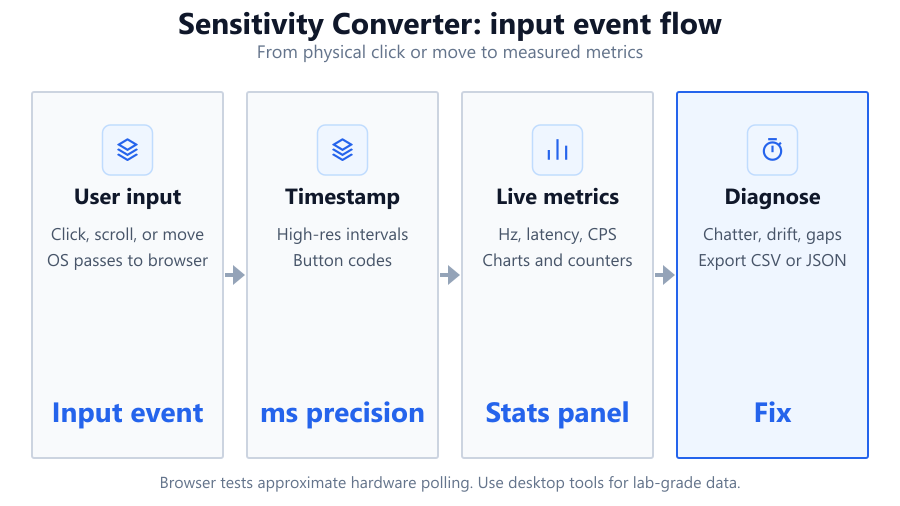
Start by selecting your current game and the game you want to convert to. Enter your mouse DPI and current sensitivity value. Choose whether you want to preserve cm/360 (physical movement for a full turn) or eDPI (effective DPI). The tool automatically applies the correct yaw multiplier for each game based on its preset. You can also set the desired decimal precision to match the in-game slider accurately. For games that use different sensitivity for scoped or ADS views, the tool outputs those values as well. Popular game pair shortcuts help you switch quickly between common choices like Valorant and CS2. Once you enter your values, the tool displays the converted sensitivity for your target game, including secondary values if available.
Understanding Your Results
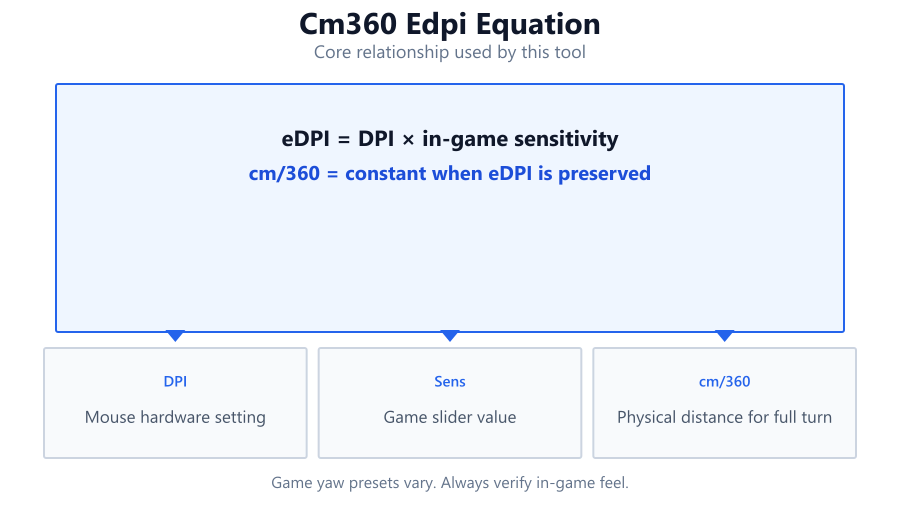
The converter outputs sensitivity values tailored to your target game, ensuring that your physical mouse movement feels the same. If you choose to preserve cm/360, your hand will always travel the same distance for a 360-degree turn, regardless of the game. eDPI lets you compare across games that handle sensitivity differently by multiplying DPI and sensitivity. For titles with distinct scoped or ADS sensitivity, you get those outputs too. Results are rounded based on your chosen decimal precision, matching most in-game sliders. Keep in mind, browser-based calculations use official game yaw multipliers, but the true in-game feel can be affected by OS settings, mouse drivers, and monitor refresh rate. The tool provides a strong starting point, but fine-tuning in-game may still be necessary.
Common Problems This Helps Diagnose
Switching between games often leads to inconsistent aim, lost muscle memory, and frustrating adjustment periods. Many players struggle because each title uses its own sensitivity scale, making direct value transfers inaccurate. The converter addresses mismatched cm/360, improper eDPI, and overlooked differences in scoped or ADS sensitivity. It helps diagnose issues when your crosshair feels sluggish or oversensitive after changing games. The tool is also useful if you forget your old settings or want to match a pro player's setup from a different game. With over 20 yaw presets, it eliminates the risk of using the wrong multiplier or misreading community guides. If your aim feels off after a hardware change, like switching from a Logitech G Pro to a Razer DeathAdder or adjusting DPI on a Corsair K70 mouse, the tool helps recalibrate quickly.
Examples and Scenarios
Scenario 1: Valorant to CS2
A player uses 800 DPI and 0.5 sensitivity in Valorant, preferring 30 cm/360. They want CS2 to feel identical. The tool calculates the exact CS2 sensitivity to match that 30 cm/360, using CS2's yaw preset.
Scenario 2: Apex Legends to Fortnite with eDPI
A streamer has 1000 DPI and 2.4 sensitivity in Apex Legends (2400 eDPI). They want their Fortnite aim to match. The tool converts their eDPI into the correct Fortnite sensitivity, considering the game's unique scale.
Scenario 3: Scoped Sensitivity in Rainbow Six Siege
A Rainbow Six player wants their ADS sensitivity to feel like their hipfire aim in Overwatch. The tool outputs the corresponding ADS/scoped sensitivity for Rainbow Six based on Overwatch's feel and the player's DPI.
Scenario 4: Mouse Upgrade from Logitech G203 to G Pro X Superlight
After upgrading to a Logitech G Pro X Superlight and adjusting DPI from 400 to 1600, a player wants to preserve the same cm/360 in Valorant. The tool recalculates their new sensitivity, so their physical hand movement remains unchanged.
Scenario 5: Cross-platform Consistency (PC to Xbox with Keyboard and Mouse)
A Fortnite player switches from a Dell S2721DGF monitor on PC to Xbox, using the same Corsair K70 keyboard and Razer Basilisk mouse. They use the converter to ensure their aim feels identical, accounting for DPI and in-game slider differences.
Scenario 6: Recording Pro Settings Across Multiple Games
An esports analyst wants to match a pro's CS2 settings in Valorant, Apex Legends, and Overwatch for coaching. The tool generates all relevant values for each game, saving time and ensuring accuracy.
Tips for Accurate Testing
Always check your Windows mouse settings. Enhanced Pointer Precision should be disabled for raw input games like CS2, Valorant, or Apex Legends. Match your in-game DPI and sensitivity values to what you enter in the tool. Use a consistent mousepad, such as a SteelSeries QcK or Logitech G640, to avoid unexpected friction changes. If your mouse has adjustable polling rates, like the Razer DeathAdder V3 Pro, set it to 1000 Hz for smoother tracking. When using the tool, double-check your decimal precision setting, some games only accept sensitivity up to two decimal places. For best results, test your new settings in a practice range or aim trainer before jumping into competitive matches. Remember, browser-based calculations are highly accurate for sensitivity conversion, but true in-game feel can be affected by OS scaling, monitor refresh rate (e.g., 240 Hz on a Dell Alienware AW2521H), and mouse firmware. For advanced calibration or troubleshooting sensor issues, consider dedicated desktop tools.
Browser vs Desktop Software
Browser-based sensitivity converters are fast, convenient, and secure, you do not install anything. They use official game yaw multipliers and well-established formulas, matching what community spreadsheets and pro guides use. However, browser tools cannot measure real-world sensor latency, polling rate drift, or hardware-level angle snapping. Results may be slightly affected by browser input handling, especially if you try to measure mouse movement distance directly in the browser. For converting sensitivity numbers, accuracy is strong, but for hardware troubleshooting or ultra-precise calibration, desktop tools like Raw Accel or MouseTester provide more granular data. Use the browser tool for standard conversions, but if you notice aim inconsistencies after major hardware changes (like switching from a BenQ Zowie EC2 mouse to a Logitech G Pro X Superlight or changing Windows scaling), desktop software may help diagnose deeper issues.
Summary
The Gaming Sensitivity Converter lets you bring your preferred aim feel to any game, saving time and preventing frustration. With over 20 game yaw presets, cm/360 and eDPI preservation, and support for scoped or ADS sensitivity, the tool covers almost every scenario. It delivers fast, accurate conversions using trusted formulas and works entirely in your browser. While browser limitations mean it cannot measure hardware latency or polling directly, for most gamers, this tool provides everything needed for sensitivity consistency. Whether you are changing games, upgrading your mouse, or tracking pro player settings, you can rely on the converter to keep your aim sharp.
Frequently Asked Questions
How do I convert Valorant sensitivity to CS2?
To convert Valorant sensitivity to CS2, enter your Valorant sensitivity and DPI into the converter, select Valorant as the source and CS2 as the target. The tool uses the correct yaw values for both games and outputs the CS2 sensitivity that matches your physical mouse movement. This ensures your cm/360 stays the same, so your aim feels identical between the two games. You do not need to manually multiply or look up conversion ratios, the tool handles all calculations and decimal rounding.
What is cm/360 and why does it matter?
cm/360 measures how far your mouse needs to move, in centimeters, to turn your in-game character 360 degrees. It is the best way to ensure your aim feels the same across different games, regardless of each game’s sensitivity scale. Preserving cm/360 helps maintain muscle memory, making it easier to switch between games like Apex Legends, Valorant, and CS2 without relearning your aim. The converter calculates and preserves this value automatically.
What is eDPI and when should I use it?
eDPI stands for effective DPI and is calculated by multiplying your mouse DPI by your in-game sensitivity. It provides a universal comparison for sensitivity across games, helpful when games use very different scales. Use eDPI if you want to compare setups with friends or pro players, or if you change your DPI frequently. The converter lets you preserve eDPI or cm/360, depending on your preference.
Does this tool work for controller sensitivity?
No, the converter is designed specifically for mouse sensitivity. Controller sensitivity systems use different mechanics and are not directly comparable to mouse settings. This tool focuses on translating sensitivity and DPI values for mouse users switching between PC games, or from PC to console with keyboard and mouse support. For controller conversions, look for dedicated tools or in-game guides.
Can I use this tool on Mac or Linux?
Yes, the converter is browser-based and works on any operating system with a modern web browser. Whether you are on Windows with a Corsair K70 keyboard, Mac with a Logitech G Pro mouse, or Linux with a Razer DeathAdder, the tool’s calculations remain accurate. Just ensure your browser is up to date for the best experience.
Why do some games have a separate ADS or scoped sensitivity?
Some games, like Rainbow Six Siege and Apex Legends, let you set different sensitivity values for hipfire, ADS (aim down sights), and scoped views. This allows finer control when aiming with optics or zoomed-in weapons. The converter outputs these secondary values when available, matching your main aim feel even when using scopes or aiming down sights.
How precise are the sensitivity conversions?
The tool uses official yaw multipliers and matches in-game decimal precision, so conversions are highly accurate for most players. However, browser-based calculations cannot account for hardware quirks, OS-level scaling, or subtle input lag. For the vast majority of users, results are nearly perfect, but if you require ultra-fine calibration, consider testing in-game or using desktop software for additional tuning.
What if my game is not listed in the presets?
If your game is not in the preset list, you can often use a custom yaw multiplier if you know the value. Some community forums or spreadsheets publish these numbers. Enter your custom value in the tool if available, or request your game to be added in future updates. For less common titles, manual research may be needed, but the tool covers over 100 major games.
Why does my aim still feel different after converting?
Even with perfect sensitivity conversion, factors like mousepad texture, Windows scaling, monitor refresh rate, and in-game FOV can affect how your aim feels. Make sure enhanced pointer precision is off, your DPI matches what you entered, and your hardware is set up consistently. Sometimes subtle game mechanics or input handling differences impact aim feel, requiring minor in-game adjustments.
Do I need to install anything for this converter?
No installation is required. The converter runs directly in your browser, so you can use it on any device without downloading software. This makes it fast, secure, and easy to update. All calculations are handled locally, ensuring your settings and data are not sent to external servers.
Should I use Windows mouse acceleration?
For most competitive FPS games, you should disable Windows mouse acceleration (Enhanced Pointer Precision) to maintain raw, predictable aim. Games like CS2, Valorant, and Apex Legends are designed for raw input. If acceleration is enabled, your in-game movement will not match the calculated cm/360 or eDPI, leading to inconsistent results.
How do I match a pro player's settings across games?
Find the pro's DPI and sensitivity for their primary game. Enter these values into the converter, select the target game, and choose to preserve cm/360. The tool outputs the exact sensitivity to match the pro's aim feel in your chosen game. This is useful for coaching, analysis, or simply adopting your favorite player's style.
Does monitor refresh rate affect sensitivity?
Monitor refresh rate (e.g., 60 Hz vs 240 Hz) does not change your sensitivity conversion directly, but higher refresh rates provide smoother tracking and less input latency. This can make your mouse movement feel more responsive. Use a high refresh rate monitor like the Dell Alienware AW2521H for best results, but always match your in-game sensitivity and DPI to the converter’s output.
Can I use this tool for both hipfire and zoom sensitivity?
Yes, if your target game supports separate values for hipfire and scoped or ADS (aim down sights) sensitivity, the converter outputs both. Enter your base sensitivity and DPI, and the tool calculates all relevant values, simplifying the process of matching your aim across different gameplay situations.
Will changing my mouse or mousepad affect my aim after conversion?
Changing hardware like your mouse (from a Logitech G203 to a G Pro X Superlight) or mousepad (from HyperX Fury S to SteelSeries QcK) can subtly affect your aim due to differences in shape, weight, and friction. However, as long as your DPI and sensitivity match the converter’s output, your cm/360 remains the same. It is still recommended to do a few test runs in-game after hardware changes to fine-tune your comfort.
Are browser-based converters as accurate as desktop tools?
For sensitivity number conversion, browser-based tools are nearly as accurate as desktop software. They use the same yaw multipliers and formulas. However, they cannot test sensor latency, polling rate, or advanced hardware diagnostics. If you need to troubleshoot hardware issues or require ultra-precise calibration beyond sensitivity conversion, desktop tools like MouseTester or Raw Accel may offer more granular control.
Related Tools
Free tools to analyze, compare, and optimize your PC gaming performance
Mouse DPI Calculator
Convert mouse DPI while maintaining identical eDPI and 360° sensitivity across your favorite games.
Use Tool →Mouse DPI Analyzer
Measure your mouse DPI by comparing physical movement with cursor distance. Verify your real DPI settings online.
Use Tool →Mouse Accuracy Test
Test cursor precision, path accuracy, click precision and steady hand control across multiple difficulty levels.
Use Tool →FPS Calculator
Estimate your gaming frame rate based on your hardware
Use Tool →Popular Game System Requirements
Check if your PC meets the requirements for these popular games
Benchmark data from PassMark and publisher specs. Calculators run locally in your browser — we never upload your hardware info.