
FREE MOUSE CALCULATOR
Mouse DPI Calculator: Convert Sensitivity & eDPI
Switching DPI or gaming mice can throw off your aim. This tool helps you convert your mouse DPI and in-game sensitivity to keep your eDPI and 360-degree turn distance identical, even across different games. Instantly see how your setup compares with side-by-side results and cm/360 reference.
What Does This Tool Do?
The Mouse DPI Calculator is designed for gamers who want to keep their aim and muscle memory consistent while switching between mice, DPI settings, or games. Whether you are moving from a Logitech G Pro X Superlight to a Razer Viper or changing your DPI from 800 to 1600, this tool lets you convert your in-game sensitivity so your actual eDPI (effective DPI) and 360-degree turn distance remain the same. This ensures that your physical hand movement on the mousemat always results in the same on-screen movement, regardless of hardware or game changes.
You can select from game presets like CS2, Valorant, Apex Legends, and many more. The calculator outputs the exact in-game sensitivity you need for your new DPI, displays your eDPI, and shows your cm/360 (how far you have to move your mouse to turn around in-game). You can also compare two setups side by side, making it easier to see how a new mouse or DPI setting will impact your aim.
How to Use This Tool
Start by entering your current mouse DPI and the in-game sensitivity you use. You can either select a preset for popular games, like CS2, Valorant, Apex Legends, Overwatch, Rainbow Six Siege, or Call of Duty, or enter a custom sensitivity value. Next, enter your target DPI. This might be the DPI of your new mouse or a setting you are considering switching to.
The tool will automatically calculate the new in-game sensitivity needed to maintain the same eDPI and 360-degree turn distance. If you want to compare two setups (for example, your old Logitech G Pro with 800 DPI and your new Razer DeathAdder V3 Pro with 1600 DPI), enter both sets of values to see the results side by side. The calculator also displays the cm/360 value, which tells you how far you need to move your mouse to perform a full 360-degree turn in the game. This is a key metric for building muscle memory.
No downloads are required. Everything happens in your browser. Please note: the accuracy of cm/360 is based on game-specific formulas and assumes standard Windows and mouse settings, so results may vary if you have custom OS-level acceleration or unusual display scaling.
Understanding Your Results
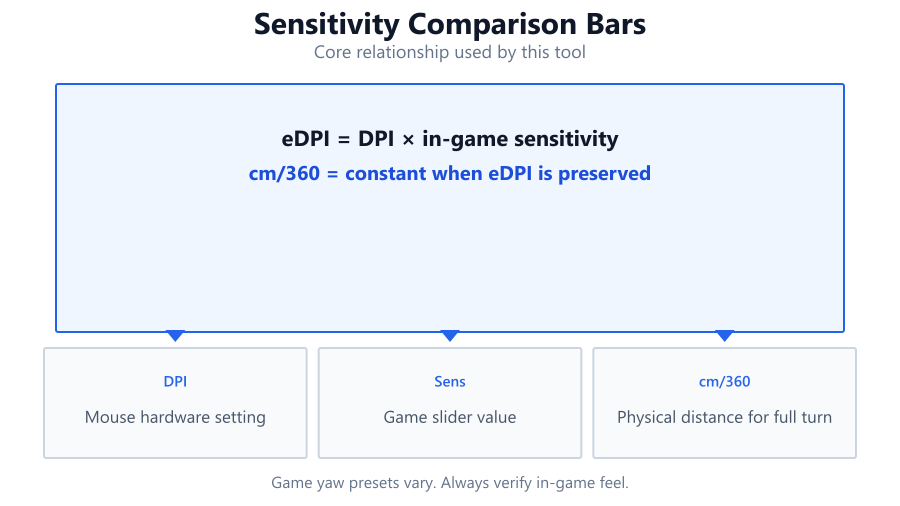
The calculator provides several key outputs: your new in-game sensitivity, eDPI, and the cm/360 value. eDPI is simply your DPI multiplied by your in-game sensitivity. This metric is useful because it represents your true sensitivity, independent of hardware or software. The cm/360 value tells you how much you need to move your mouse to turn all the way around in the game. This is vital for FPS players who rely on consistent flicks and tracking across different setups.
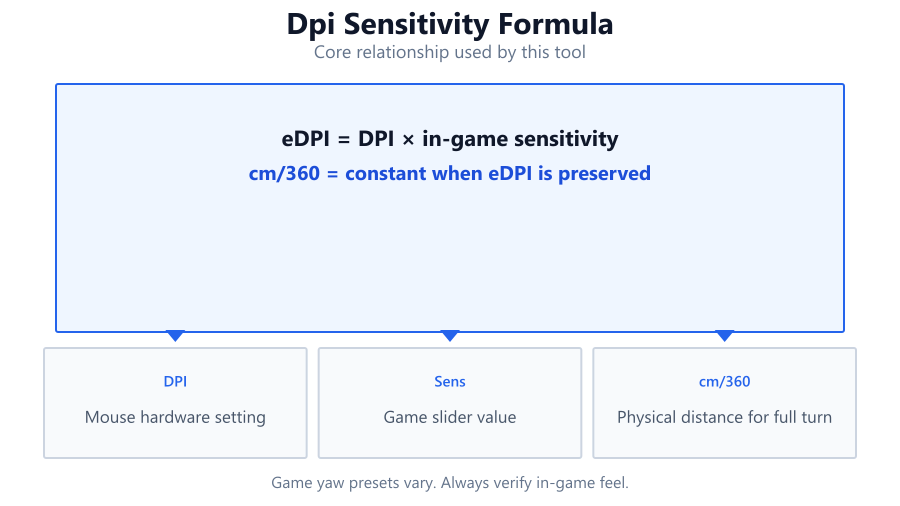
Game sensitivity scales can be different. For example, CS2 and Valorant use different formulas. The tool applies the correct formula for each preset, so your results will be as accurate as possible. If you compare two setups, you will instantly see if your aim will feel the same or if you need to adjust. This is especially useful when switching from a mouse like the Logitech G203 to a Razer Basilisk or when upgrading your monitor from 1080p to 1440p, which can sometimes impact perceived sensitivity.
Common Problems This Helps Diagnose
Gamers often run into issues when switching mice, DPI settings, or games. The most common problem is a loss of muscle memory: your hand movement no longer matches your on-screen movement, causing missed shots or awkward turns. This can happen if you upgrade from a Logitech G Pro X Superlight at 800 DPI to a Zowie EC2 at 1600 DPI, or if you change your sensitivity in-game while keeping your old DPI.
Another issue is inconsistent sensitivity across games. For example, your Valorant sensitivity might feel perfect, but when you switch to Apex Legends, your aim is off. This is usually because each game has its own sensitivity scaling. The DPI Calculator helps you convert settings accurately so you do not have to relearn your aim every time you play a different game or use a different mouse. It also highlights mismatches in eDPI and 360-turn distance, which are the most common culprits for broken muscle memory.
Examples and Scenarios
Scenario 1: Upgrading DPI
You play CS2 with a Logitech G Pro X Superlight at 800 DPI and 1.2 sensitivity. You upgrade to a Razer Viper V2 Pro and want to use 1600 DPI. Enter your old DPI and sensitivity, then your new DPI. The calculator tells you to set your new sensitivity to 0.6 to keep the same eDPI and cm/360. Your muscle memory remains intact.
Scenario 2: Switching Games
You play Valorant at 400 DPI and 0.5 sensitivity. You want to try Apex Legends with the same physical sensitivity. Select the Valorant preset, enter your settings, then select the Apex Legends preset. The tool calculates the matching Apex sensitivity, so your aim feels identical in both games.
Scenario 3: Comparing Two Setups
You are torn between two setups: your Corsair Sabre RGB Pro at 1200 DPI with 0.8 sensitivity, and your new Logitech G203 at 800 DPI. Enter both configurations to see their eDPI and cm/360 side by side. You notice that the cm/360 is longer on the Logitech, so you adjust the sensitivity until both match.
Scenario 4: Monitor Upgrade Impact
You upgrade from a Dell 24-inch 1080p to a Dell 27-inch 1440p monitor. Your mouse and DPI stay the same, but your aim feels off. The calculator helps you verify if your sensitivity has changed due to scaling or in-game FOV settings. By recalculating, you can adjust your sensitivity to compensate for the new display.
Scenario 5: Diagnosing Acceleration Issues
You use a SteelSeries Rival 3 at 1000 DPI and suspect OS mouse acceleration is affecting your aim. The calculator assumes acceleration is off, so if your real-world cm/360 does not match the calculator's value, you may need to disable Windows mouse acceleration or check your drivers.
Scenario 6: Finding Ideal eDPI for Training
You want to train your aim with Aim Lab or KovaaK's. By using the calculator, you can set the exact eDPI and cm/360 you use in your main game, making your training sessions directly applicable to your matches.
Tips for Accurate Testing
For the most reliable results, use a high-quality mouse with a flawless sensor, such as the Logitech G Pro X Superlight, Razer DeathAdder V3 Pro, or Glorious Model O. Always disable OS-level mouse acceleration (Enhance Pointer Precision in Windows) to ensure that your cm/360 matches what the calculator predicts. Make sure your game's sensitivity settings are not affected by external software like Logitech G HUB, Razer Synapse, or SteelSeries Engine, which can sometimes override in-game settings.
Test your actual cm/360 with a ruler or tape measure on your mousepad. Mark the starting point, do a 360-degree turn in-game, and measure the distance. If there is a significant difference from the calculator's output, double-check your DPI, in-game sensitivity, and OS settings. Remember that browser-based calculators use game formulas and do not measure physical movement directly. For lab-grade precision, consider using dedicated hardware or software tools, but for most users, this calculator is accurate enough for building muscle memory and troubleshooting aim issues.
Browser vs Desktop Software
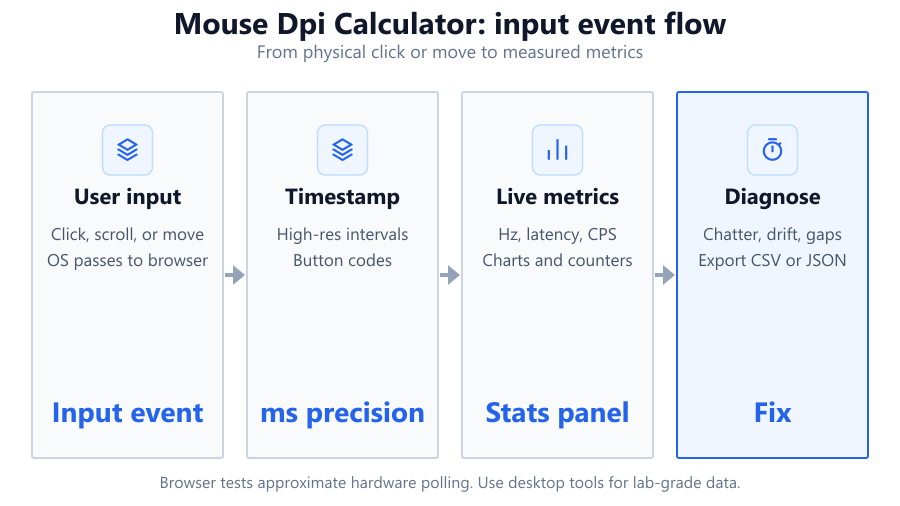
Browser-based DPI calculators are fast, convenient, and require no installation. They use the same formulas as desktop tools, but cannot directly read your mouse's raw input or detect hardware-level settings. This means the calculator assumes your DPI and in-game sensitivity are accurate and that you are not using any OS-level scaling or acceleration.
Desktop software, like MouseTester or raw input analyzers, can measure polling rates or actual mouse movement, but often require admin rights and are more complex to use. For most gamers, the browser tool is enough to get consistent eDPI and cm/360 across games and mice. If you suspect hardware issues or want to test polling rate or sensor accuracy, use dedicated software. Always double-check your settings in the mouse's own software, such as Logitech G HUB, Razer Synapse, or Corsair iCUE, to avoid hidden overrides.
Summary
The Mouse DPI Calculator is an essential tool for anyone serious about FPS games or consistent performance across titles and hardware. It lets you convert DPI and in-game sensitivity while keeping your eDPI and cm/360 the same, preserving your muscle memory. With support for game presets, side-by-side comparisons, and transparent handling of browser limitations, it is ideal for both casual and competitive players.
Always verify your real-world results with manual measurement and keep OS-level settings in check. For most users, this tool provides all the accuracy needed to keep your aim sharp, even when switching mice, DPI settings, or games. If you need deeper analysis, combine it with desktop software and your mouse's configuration tools for the best experience.
Frequently Asked Questions
How do I convert my mouse DPI without losing my aim in CS2?
To convert your DPI in CS2 while keeping your aim consistent, use the Mouse DPI Calculator. Enter your current DPI and in-game sensitivity, then your new target DPI. The tool will calculate the new sensitivity needed to keep your eDPI and cm/360 the same, so your physical mouse movement translates to the same on-screen movement. This approach eliminates the need to guess or manually adjust settings after switching to a new mouse or DPI.
What is eDPI and why does it matter for gaming?
eDPI stands for 'effective DPI' and is calculated by multiplying your mouse's DPI by your in-game sensitivity. It provides a standardized way to compare sensitivity across different setups and games. eDPI is important because it directly affects how far your crosshair moves on screen relative to your hand movement. Keeping your eDPI consistent ensures that your muscle memory remains reliable, which is critical for accuracy and fast reaction times in shooters like Valorant, CS2, and Apex Legends.
How does cm/360 help with mouse sensitivity settings?
cm/360 represents the physical distance your mouse must travel on your mousepad to complete a full 360-degree turn in the game. This is a practical measure for building muscle memory, as it translates your in-game sensitivity to a real-world metric. Many pro gamers use cm/360 to fine-tune their settings across games and mice, ensuring their flicks and tracking remain consistent. The Mouse DPI Calculator provides this value so you can match your setups precisely.
How accurate are browser-based DPI calculators compared to desktop software?
Browser-based DPI calculators are accurate for calculating sensitivity conversions and eDPI, as they use the same formulas as desktop tools. However, they cannot directly measure your mouse's raw input or detect hardware-specific quirks. They assume your DPI and in-game sensitivity are set correctly and that OS acceleration is off. For most users, this level of accuracy is sufficient, but for advanced testing like polling rate or sensor accuracy, dedicated desktop software is recommended.
Can I use this tool for console gaming or only PC?
The Mouse DPI Calculator is designed for PC gaming, where you can set both DPI and in-game sensitivity independently. Console games typically do not allow for custom DPI settings, as controllers work differently. However, if you use a mouse and keyboard adapter for consoles, you can use this tool to calculate optimal sensitivity settings, but results may vary due to additional layers of input translation and possible latency.
Why do my cm/360 values not match the calculator exactly?
Several factors can cause discrepancies between calculated and real-world cm/360 values. The most common are OS-level mouse acceleration (such as Windows 'Enhance Pointer Precision'), incorrect DPI settings in your mouse software, or hidden in-game sensitivity multipliers. Always disable mouse acceleration, verify your DPI with your mouse's configuration tool, and ensure you are using the correct sensitivity formula for your game. Slight differences can also come from browser measurement limitations.
What are game sensitivity presets and how do they work?
Game sensitivity presets are built-in formulas for popular games like CS2, Valorant, Apex Legends, Overwatch, and Rainbow Six Siege. Each game handles sensitivity scaling differently, so the calculator uses these presets to ensure your converted sensitivity matches the in-game feel you are used to. This eliminates calculation mistakes and lets you switch games or hardware without breaking your muscle memory.
How do I use the compare feature to decide between two mouse setups?
The compare feature lets you enter two different DPI and sensitivity combinations, such as your old Logitech G203 at 800 DPI and your new Razer DeathAdder V3 Pro at 1600 DPI. The tool displays both eDPI and cm/360 side by side, so you can instantly see if your setups match or if you need to tweak your in-game sensitivity to achieve the same feel. This is useful when testing new mice or finding your ideal setting.
Does monitor resolution or refresh rate affect sensitivity?
Monitor resolution generally does not affect mouse sensitivity directly, as in-game movement is tied to your DPI and sensitivity settings. However, increasing resolution (for example, moving from 1080p to 1440p) can change your perception of speed and FOV in some games, possibly making your sensitivity feel slower or faster. Refresh rate has no direct impact on sensitivity but can make aiming feel smoother due to more frequent visual updates.
How can I ensure my mouse DPI is set correctly?
Always use your mouse's official software, like Logitech G HUB, Razer Synapse, or Corsair iCUE, to set and verify your DPI. Avoid changing DPI using Windows settings or third-party tools. Some mice have hardware DPI switches, make sure you are on the correct profile. If your mouse has a DPI display or indicator, double-check it matches your intended setting before using the calculator.
Is there an ideal eDPI or cm/360 for FPS games?
There is no universally 'ideal' eDPI or cm/360, as this depends on personal preference, playstyle, and desk space. Most pro FPS players use a cm/360 between 25 and 50 cm, which allows for precise aiming without excessive arm movement. Experiment with different settings using the calculator and test them in-game to find what feels best for you. Consistency is more important than copying a specific number.
Can I use this tool to match my aim trainer settings to my main game?
Yes, you can use the Mouse DPI Calculator to match your aim trainer (such as Aim Lab or KovaaK's) settings to your main game. Enter your DPI and in-game sensitivity for your main game, then select the aim trainer preset and enter its DPI. The calculator will output the correct sensitivity to use in the trainer, ensuring your practice translates directly to real matches.
What should I do if my in-game aim still feels off after using the calculator?
If your aim feels off after matching your settings, double-check all variables: DPI in your mouse software, in-game sensitivity, OS mouse acceleration, and any third-party overlays. Sometimes games apply hidden multipliers based on FOV or aspect ratio. Test your cm/360 physically with a ruler on your mousepad and compare it to the calculator. If there is still a mismatch, reset your settings and try again, or consult your mouse manufacturer's support.
Can this calculator help if I have a high polling rate mouse?
Polling rate (measured in Hz) determines how often your mouse reports its position to your PC, not sensitivity. While a higher polling rate like 1000 Hz or 8000 Hz can make aiming feel smoother, it does not affect the sensitivity calculations in this tool. Use the calculator to match eDPI and cm/360, and adjust polling rate separately in your mouse's software if you want smoother tracking.
How do I measure my actual cm/360 in-game?
To measure your real cm/360, use a ruler or tape measure and mark a starting point on your mousepad. In-game, aim at a fixed spot, then move your mouse in a straight line until you complete a full 360-degree turn. Mark where your mouse stops, then measure the distance between the two points. Compare this value to the calculator's output. If they match, your settings are correct. If not, check for DPI, sensitivity, or OS-level mismatches.
Does this tool work with all mouse brands and models?
Yes, the calculator works with any mouse that allows DPI adjustment, including Logitech G Pro X Superlight, Razer DeathAdder, SteelSeries Rival, Glorious Model O, and Corsair Sabre. As long as you can set your DPI accurately using the mouse's software or hardware buttons, the calculator will help you match your sensitivity across setups. Always verify your DPI in the official software for the best results.
Related Tools
Free tools to analyze, compare, and optimize your PC gaming performance
Sensitivity Converter
Convert mouse sensitivity between Valorant, CS2, Apex Legends, Fortnite and over 100 games while preserving aim.
Use Tool →Mouse DPI Analyzer
Measure your mouse DPI by comparing physical movement with cursor distance. Verify your real DPI settings online.
Use Tool →Mouse Accuracy Test
Test cursor precision, path accuracy, click precision and steady hand control across multiple difficulty levels.
Use Tool →Mouse Speed Test
Measure mouse speed, acceleration, IPS and movement performance in real time with interactive charts.
Use Tool →Popular Game System Requirements
Check if your PC meets the requirements for these popular games
Benchmark data from PassMark and publisher specs. Calculators run locally in your browser — we never upload your hardware info.