
Guide
How to Choose the Right Hardware
Choosing the right hardware ensures your PC matches your needs for gaming, streaming, or work. Find out what to look for and how to avoid costly mistakes.
Updated 2026-07-05
Understanding Your Hardware Needs
Selecting the right hardware for your computer is about matching your device to your real-world needs. Whether you are building a new PC or upgrading an old one, understanding what you actually need is the first step to making a smart investment. Many users overspend or underspend because they do not analyze their daily activities and performance requirements.
Start by listing your primary uses: gaming, streaming, creative work, or office tasks. Each of these scenarios puts different demands on your system. For example, high-end gaming requires powerful graphics and fast storage, while remote work may prioritize stability and multitasking capabilities.
Another important factor is your internet speed. If you regularly stream 4K video, participate in video calls, or download large games, your network hardware and internet connection can be a bottleneck. Use the Internet Speed Calculator to estimate the minimum Mbps required for your household. This ensures your hardware can keep up with your online activities without lag or interruptions.
Budget is also a key consideration. Set a realistic budget based on your needs and stick to it. There are often diminishing returns on the most expensive parts. Balance your spending between CPU, GPU, RAM, storage, and network hardware to get the best value.
Component-by-Component Breakdown
Now that you know your needs, let us examine how to choose each critical component:
CPU: The central processing unit determines how quickly your system can perform complex tasks. For gaming and streaming, a modern quad-core or six-core CPU is usually sufficient. For creative work like video editing, consider higher core counts. Avoid outdated or entry-level processors if you want longevity.
GPU: The graphics processing unit is the key for gaming, creative software, and any tasks involving 3D rendering. Make sure your GPU matches the games or applications you plan to use. Check the minimum and recommended requirements of your favorite titles, then aim slightly higher for future-proofing.
Memory (RAM): Insufficient RAM leads to slowdowns and crashes. For most uses, 16GB is the standard. Heavy multitaskers or content creators may benefit from 32GB or more. Always check your motherboard’s RAM compatibility before buying.
Storage: SSDs dramatically improve boot and load times compared to traditional hard drives. For gaming and creative work, choose at least a 500GB SSD. Pairing an SSD with a larger HDD is a cost-effective way to expand storage without sacrificing speed.
Network Hardware: Your motherboard may have built-in Wi-Fi or Ethernet, but not all are created equal. If you require stable video calls or fast downloads, invest in quality network adapters. Remember, your hardware is only as good as your internet speed. The Internet Speed Calculator can help you decide if your current connection is adequate for your hardware setup.
Peripherals: Do not overlook monitors, keyboards, and mice. A poor monitor can bottleneck even the best graphics card. Choose peripherals that match your workflow and offer comfort for long sessions.
Step-by-step
Define Your Primary Use Cases
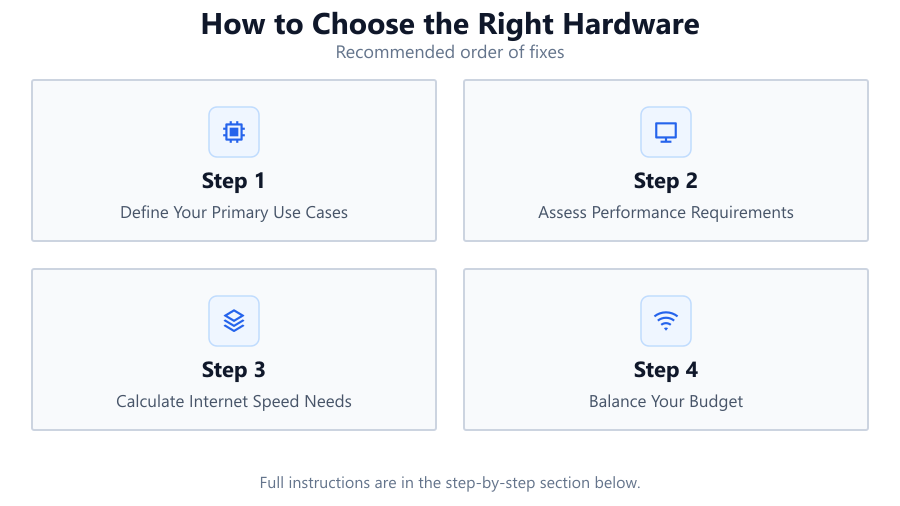
Write down the main activities you use your PC for, such as gaming, streaming, creative work, or office productivity. This will guide all future hardware choices and prevent over- or under-spending.
Assess Performance Requirements
Research the minimum and recommended hardware specifications for your favorite games, work software, or streaming services. Factor in both current and near-future needs to avoid rapid obsolescence.
Calculate Internet Speed Needs
Use the Internet Speed Calculator to determine the minimum Mbps required for your household’s online activities. This ensures your network hardware and connection will not bottleneck your experience.
Balance Your Budget
Set a realistic budget. Allocate funds across CPU, GPU, RAM, storage, and network hardware, prioritizing the parts that most impact your primary activities.
Check Compatibility and Upgrade Paths
Ensure all components work together. Verify motherboard support for CPU, RAM, and expansion cards. Consider future upgrades, such as adding more RAM or a faster GPU, when selecting your initial build.
Comparison
| Component | Entry-Level Use | High-End Use |
|---|---|---|
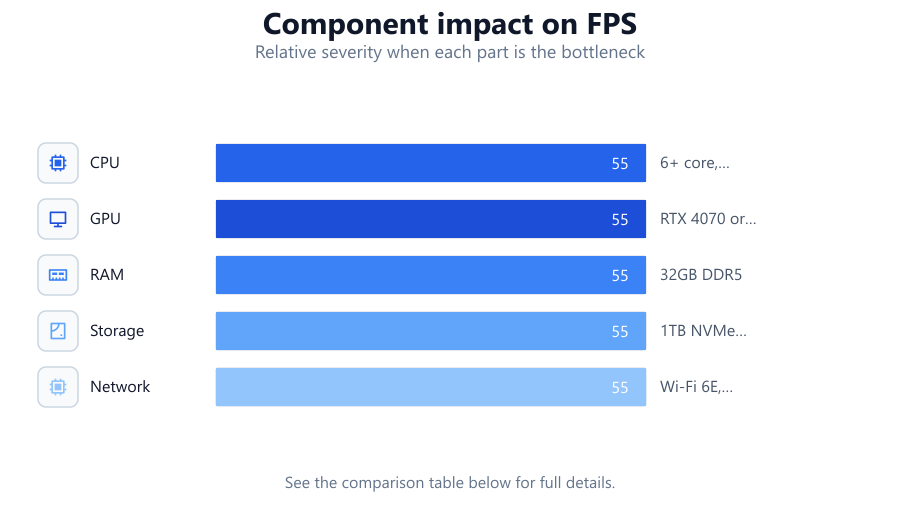
| CPU | Dual-core, 3.0GHz | 6+ core, 4.0GHz+ |
| GPU | Integrated or GTX 1650 | RTX 4070 or better |
| RAM | 8GB DDR4 | 32GB DDR5 |
| Storage | 256GB SSD | 1TB NVMe SSD + 2TB HDD |
| Network | Wi-Fi 5, 100Mbps | Wi-Fi 6E, 1Gbps Ethernet |
Common mistakes
Mistake
Overspending on a single component
Fix: Distribute your budget across CPU, GPU, RAM, storage, and network hardware for balanced performance.
Mistake
Ignoring internet speed bottlenecks
Fix: Use the Internet Speed Calculator to ensure your connection matches your hardware’s potential.
Mistake
Buying incompatible components
Fix: Double-check motherboard compatibility with CPU, RAM, and storage before purchasing.
Mistake
Neglecting future-proofing
Fix: Select hardware with upgrade paths, such as extra RAM slots or supporting next-gen CPUs.
Troubleshooting
Slow game downloads or laggy streaming
Likely cause: Insufficient internet speed or outdated network adapter
What to do: Upgrade your network hardware and use the Internet Speed Calculator to verify your connection.
System crashes during heavy multitasking
Likely cause: Not enough RAM or overtaxed CPU
What to do: Upgrade RAM and check CPU usage in Task Manager to identify bottlenecks.
Games stutter or have low frame rates
Likely cause: Weak GPU or outdated drivers
What to do: Upgrade your graphics card and always use the latest drivers from the manufacturer.
Recommendations
- Always research both the minimum and recommended specifications for your software and games.
- Balance your budget across all components instead of focusing on a single part.
- Use the Internet Speed Calculator to ensure your internet connection supports your desired activities.
- Plan for future upgrades by choosing a motherboard with extra slots and support for next-gen components.
Frequently asked questions
What is the most important component for gaming?
The graphics card (GPU) is typically the most critical for gaming, as it handles rendering and frame rates. However, a balanced CPU and enough RAM are also essential.
How much RAM do I really need?
For most users, 16GB is sufficient. Heavy multitaskers or content creators may benefit from 32GB or more, but 8GB is often limiting for modern applications.
Does internet speed affect gaming performance?
Yes, especially for online games and streaming. Use the Internet Speed Calculator to determine the right Mbps for your setup and avoid lag or disconnects.
Can I upgrade my PC later if I start with entry-level hardware?
Yes, as long as you choose a motherboard with upgrade paths, such as extra RAM slots and support for newer CPUs or GPUs.