
FREE TYPING TEST
Typing Speed Test: WPM & Accuracy Checker
Need a quick way to measure your typing speed and accuracy? This browser-based tool tracks your words per minute, accuracy, and error patterns in real time with multiple test modes and durations. Get instant feedback, spot mistakes, and compare your results over time, no downloads required.
What Does This Tool Do?
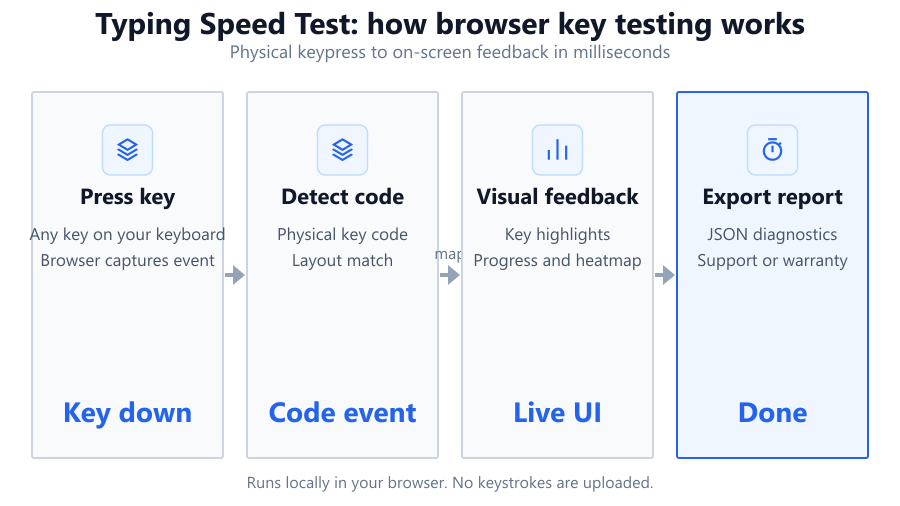
The Typing Speed Test is a performance checker built for anyone who wants to evaluate or improve their typing skills. Whether you are training for a certification, preparing for a data entry job, or just curious about your WPM, this tool provides a precise snapshot of your current ability. It offers multiple modes: standard quotes, code snippets for programmers, and a custom text mode for practicing with your own material. Each run is timed with selectable durations of 15, 30, 60, or 120 seconds, letting you test for brief bursts or longer stretches. During the test, it tracks live WPM, raw WPM, and accuracy, while highlighting errors directly in the passage for instant feedback. After the test, you get a detailed summary with a WPM history chart and a keyboard visualization that shows which keys you used most. This makes it easy to diagnose weak spots and monitor your improvement over time.
How to Use This Tool
Start by choosing your preferred test mode: Quote for standard English passages, Code for programming syntax, or Custom if you want to paste your own text. Next, select a duration, 15, 30, 60, or 120 seconds. Make sure you are using a reliable keyboard, like a Logitech G Pro or Corsair K70, for consistent results. Once the test starts, type the displayed passage as quickly and accurately as you can. The tool instantly calculates your live WPM, raw WPM, and accuracy, with mistakes highlighted in the passage to help you self-correct. If you misspell a word or press a wrong key, the error will show up in real time. When the timer ends, review your results and examine the WPM history chart to see your performance fluctuations. Use the keyboard visualization to spot any patterns in your typing, such as frequently missed keys. You can retake the test as many times as you like to track your progress or try different modes for more targeted practice.
Understanding Your Results
Once your test finishes, the tool displays three key metrics: live WPM, raw WPM, and accuracy. Live WPM is your real-time words per minute, factoring in mistakes and corrections as you type. Raw WPM simply counts total keystrokes divided by time, without penalizing for errors. Accuracy is shown as a percentage, reflecting how many characters or words you typed correctly out of the total. The WPM history chart breaks down your performance second by second, making it easy to spot moments when you sped up or slowed down. Error highlighting in the passage helps you see exactly where you made mistakes, so you know which words or symbols to practice. The keyboard visualization shows which keys you pressed most often, helping you identify problem areas like missed modifiers or sticky keys. These features allow you to go beyond a simple WPM number and understand the details behind your typing habits.
Common Problems This Helps Diagnose
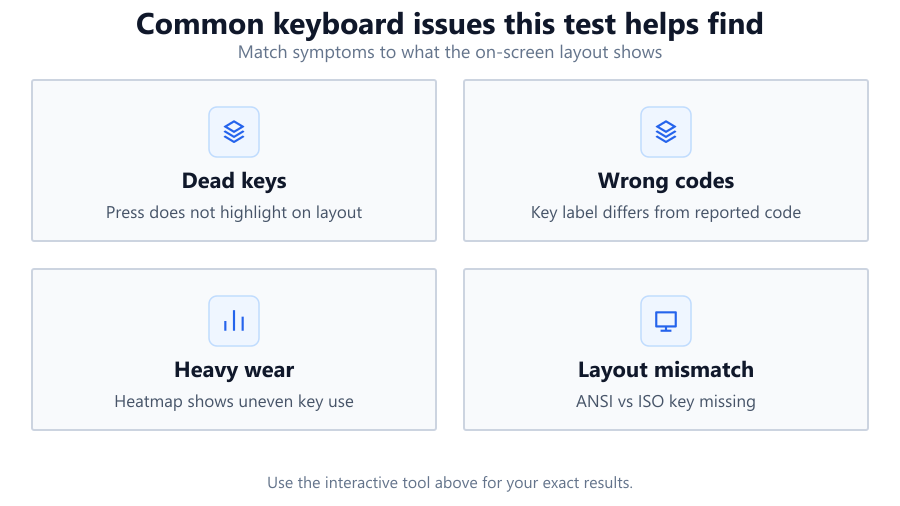
This tool is useful for diagnosing a range of typing-related problems. If your WPM fluctuates wildly or your accuracy is low, you may be struggling with hand positioning or unfamiliar key layouts. The keyboard visualization can reveal if certain keys, like Shift or Alt, are being missed, which could point to hardware issues or finger fatigue. For programmers, the Code mode highlights weaknesses in symbol-heavy typing, such as brackets or semicolons. If you consistently mistype the same words or symbols, it could indicate a need for more targeted practice or a malfunctioning key on your device. The error highlighting and real-time feedback help you spot these patterns immediately. For competitive typists or those training for speed-based certifications, tracking your WPM history over multiple sessions can reveal trends, are you improving, plateauing, or declining? Finally, if your results vary significantly between browsers or computers, it may uncover differences in hardware response times or browser input handling.
Examples and Scenarios
Scenario 1: Office Worker Testing Keyboard Upgrades
Sarah uses a standard Dell membrane keyboard at work and a mechanical Corsair K70 at home. She takes a 60-second typing test on both. With the Dell, her WPM is 64 with 95% accuracy. On the Corsair, she jumps to 79 WPM with 98% accuracy. The keyboard visualization shows fewer missed key presses on the mechanical board, helping her make a case for a hardware upgrade at the office.
Scenario 2: Programmer Practicing Syntax
Alex is a developer prepping for coding interviews. He uses the Code mode for 30 seconds, typing Python and JavaScript snippets. His WPM is 51, but accuracy drops to 89% due to missed parentheses and colons. The error highlighting points out exactly where the mistakes occur, so he spends the next week drilling those symbols. His follow-up test shows a 10% accuracy improvement.
Scenario 3: Diagnosing Inconsistent Performance
Maria notices her WPM varies between 70 and 90 on different days. Using the WPM history chart, she spots a pattern: on days she uses her wireless Logitech G Pro, her WPM is lower, especially when the battery is low. Switching to a wired keyboard stabilizes her results. She also discovers her accuracy dips when using her laptop's built-in keyboard versus an external one.
Scenario 4: Custom Text for Data Entry Training
John is preparing for a job that requires fast data entry using industry-specific terminology. He pastes sample text into the Custom mode and sets the timer for 120 seconds. His baseline WPM is 55 with 96% accuracy. Over multiple sessions, he tracks improvements and uses the error highlighting to target challenging terms. After a week, his WPM increases to 63 and accuracy to 99%.
Scenario 5: Accessibility Check on Different Monitors
Lena wants to test if her new 27-inch Dell monitor affects her typing compared to her older 21-inch screen. She runs tests on both with the same keyboard. The results are nearly identical, but she notices less eye strain on the larger monitor and can maintain higher accuracy for longer durations, as shown in the WPM history chart.
Scenario 6: Spotting Hardware Issues
Tom keeps missing the letter 'E' in his tests, according to the keyboard visualization. Upon inspection, he finds his keycap is loose and sometimes fails to register. After replacing the keycap on his Razer BlackWidow, his accuracy climbs back to normal levels.
Tips for Accurate Testing
For best results, use a reliable, full-size keyboard rather than a laptop or compact wireless model. Mechanical keyboards like the Corsair K70 or Razer Huntsman offer more consistent key actuation, while membrane boards may introduce variation. Close unnecessary browser tabs and background apps to minimize input lag. Make sure your keyboard drivers are up-to-date, especially if using advanced features or remapping keys. If you are testing on a laptop, plug in an external keyboard for a fair comparison. Test at different times of day to see how fatigue affects your results, and always use the same browser and OS settings for consistency. Note that browser-based tests may have slight timing inaccuracies due to how browsers handle input and timers, especially at high WPM, but results are accurate enough for personal benchmarking. Use the error highlighting to focus your practice on weak areas, and review the WPM history chart to spot trends. If your results seem off, test on another device or browser to rule out hardware or software quirks.
Browser vs Desktop Software
Browser-based typing tests like this one are convenient, require no installation, and work on almost any device with a modern web browser. They are ideal for quick checks, regular practice, and sharing results with friends or colleagues. The tool uses browser events to track keystrokes and timing, which is accurate for most users but may be affected by background processes, OS settings, or browser performance. For competitive typists, speedrun attempts, or professional certification, dedicated desktop software such as TypingMaster or KeyBlaze may offer more precise timing and advanced analytics, as they can access system-level timing and input. Some desktop tools also support custom layouts and offline use. However, for 99% of users, browser-based tests provide a fast, accurate, and accessible way to measure and improve typing skills. If you notice anomalies, such as lag, missed keystrokes, or inconsistent timing, try switching browsers (Chrome, Firefox, Edge) or check your hardware before relying on the results for official benchmarks.
Summary
The Typing Speed Test is a practical, browser-based tool for measuring your words per minute, accuracy, and typing consistency in real time. With multiple modes, durations, and detailed feedback through error highlighting and WPM history, it helps you diagnose problems, track improvement, and optimize your typing setup. While browser-based testing is not lab-grade, it is more than accurate enough for personal use, job preparation, and skill development. Pair it with a quality keyboard and consistent testing conditions for the best insights. Whether you are a student, professional, or enthusiast, this tool gives you the actionable data you need to type faster and more accurately.
Frequently Asked Questions
How do I accurately measure my typing speed in WPM online?
To measure your typing speed in WPM online, use a browser-based tool with real-time tracking, like this one. Choose a test mode and duration, then type the passage as accurately and quickly as possible. The tool calculates your words per minute based on five-character words, including spaces and punctuation. For best results, use the same keyboard and browser each time, and test in a distraction-free environment. Note that browser-based tools may have minor timing inaccuracies, but are reliable enough for most users.
What is the difference between WPM and raw WPM?
WPM (words per minute) is your adjusted speed, factoring in mistakes and corrections as you type. Raw WPM measures your total keystrokes divided by time, without penalizing for errors. Raw WPM is typically higher, but does not reflect your actual usable speed if you are making frequent mistakes. Use WPM to evaluate your real-world typing efficiency, and raw WPM to track your fastest possible output.
Can this typing speed test help diagnose keyboard hardware issues?
Yes, the tool's keyboard visualization and error highlighting can help spot hardware problems. If you consistently miss specific keys or see unusual error patterns, it may indicate stuck, sticky, or malfunctioning keys. Testing on another keyboard or device can confirm if the problem is hardware-related. For example, if you miss the 'E' key across multiple tests, check for physical issues or switch to a different keyboard like a Logitech G Pro or Corsair K70 to compare results.
How accurate are browser-based typing tests compared to desktop software?
Browser-based typing tests are generally accurate for most users, but not as precise as dedicated desktop software. Browser timing relies on JavaScript events, which can be influenced by system load, background apps, or browser performance. For casual use and skill tracking, browser tests are sufficient. For competitive or certification-level testing, specialized desktop programs like TypingMaster provide more precise timing and analytics.
Does monitor size or refresh rate affect typing test results?
Monitor size rarely affects typing speed, but refresh rate and input lag can have a small impact, especially on low-end hardware. High refresh rate monitors like the Dell S2721DGF may feel more responsive, but most users will not notice a significant difference in WPM. If you experience lag or delayed feedback, try updating your graphics drivers, using a wired keyboard, or testing on a different monitor.
What are the best keyboards for fast and accurate typing?
Mechanical keyboards like the Corsair K70, Logitech G Pro, or Razer Huntsman are popular for their tactile feedback and consistent actuation. For office environments, the Keychron K6 and Microsoft Surface Keyboard offer a quieter experience. Ultimately, the best keyboard is one that matches your typing style and feels comfortable for long sessions. Test different models if possible to find your ideal fit.
How can I improve my typing accuracy using this tool?
Start by reviewing your error highlights after each test to identify common mistakes. Practice focusing on accuracy first, then gradually increase your speed. Use the WPM history chart to monitor consistency, and try different test modes to target weak areas, such as code or punctuation. Set aside regular practice sessions and use the same keyboard for consistency. Over time, your accuracy and speed will both improve.
Is it better to use custom text, quote, or code mode for practice?
It depends on your goals. Quote mode is best for general typing practice, using standard English passages. Code mode is ideal for programmers who want to improve their speed and accuracy with syntax-heavy text. Custom mode lets you paste industry-specific terms or foreign languages, perfect for job training or exam prep. Mix modes to cover all your bases and keep practice sessions varied.
Why does my WPM drop during longer tests?
WPM often drops during longer tests due to fatigue, loss of focus, or buildup of small mistakes. The WPM history chart can show you exactly when your performance drops off. Try taking breaks, adjusting your hand position, or practicing shorter intervals to build stamina. Over time, your endurance and consistency will improve, allowing you to maintain higher WPM for longer periods.
How does the tool calculate accuracy?
Accuracy is calculated as the percentage of correct characters or words typed compared to the total required in the passage. Mistyped or missing characters reduce your accuracy score. The tool highlights errors in real time, so you can see exactly where you went wrong. Aim for 98-100% accuracy before focusing on increasing speed, as high accuracy is key to real-world productivity.
Can I use this tool on a tablet or smartphone?
Yes, the tool works on mobile devices with a modern browser, but results may vary due to smaller keyboards and touch input. Typing on a physical keyboard is generally faster and more accurate than using an on-screen keyboard. For best results, connect a Bluetooth or USB keyboard if your device supports it. Use the tool primarily on a desktop or laptop for the most consistent experience.
What is a good WPM for most jobs or school tasks?
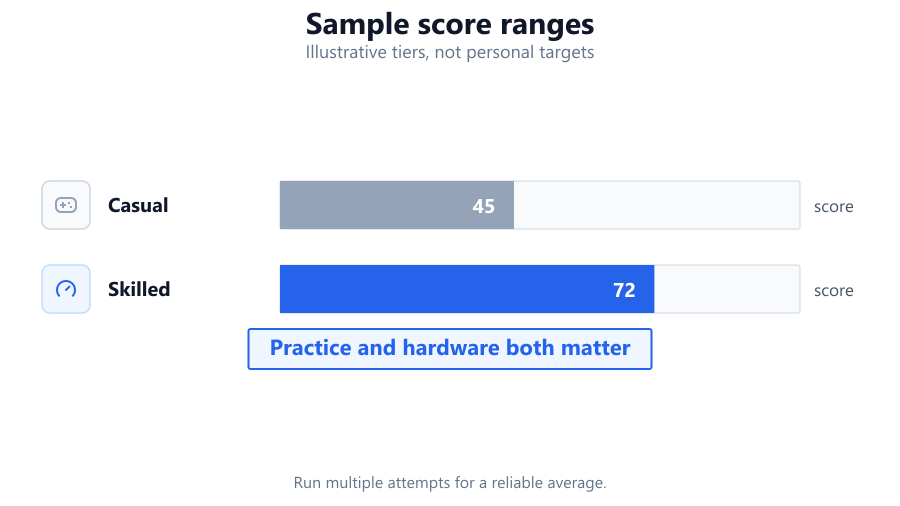
A WPM of 40-50 is considered average for most office or academic work. Data entry jobs may require 60 WPM or higher. Professional typists or competitive users often score 80 WPM or more with 98% accuracy. Focus on accuracy first, then build up speed with regular practice. Many employers prioritize error-free typing over raw speed, especially for sensitive data entry.
Why does my WPM change between different browsers?
Different browsers handle keyboard input and timing events slightly differently. Factors like JavaScript engine speed, input buffering, and system resource usage can cause small variations in WPM results. If you notice significant discrepancies, try testing on Chrome, Firefox, and Edge to see which is most consistent on your hardware. Always use the same browser for tracking long-term progress.
Are there any browser settings that can affect my typing results?
Yes, browser extensions, ad blockers, or security plugins can sometimes intercept or delay keystrokes. High CPU or RAM usage from other tabs may also cause lag. For the most accurate results, close unnecessary tabs, disable heavy extensions, and ensure your browser is up to date. Try running the test in a private or incognito window for a clean session.
How often should I retest my typing speed?
Retest your typing speed once a week to track gradual improvement. Daily tests can help build muscle memory, but avoid over-testing to prevent fatigue or false plateaus. Use the same keyboard, browser, and environment for each test. Record your scores and review error patterns to stay motivated and focused on progress.
Does this tool store or share any of my typing data?
No, this browser tool does not store or share your passages or results unless you manually export or share them. Your typing data is processed locally in your browser for privacy. Always check the tool's privacy policy if you have concerns about data usage. For sensitive practice, use custom text mode with non-confidential material.
Related Tools
Free tools to analyze, compare, and optimize your PC gaming performance
Keyboard Tester
Test every key on your keyboard and verify key responsiveness directly in your browser. Live layout, heatmap, and progre
Use Tool →Keyboard Clicker
Count keyboard presses, measure key clicks per second and track typing speed with live statistics.
Use Tool →APM Test
Measure your actions per minute, accuracy and speed using interactive target-based challenges.
Use Tool →Reaction Time Test
Test your reaction time with our free online reaction speed test. Track response time, improve reflexes and compare your
Use Tool →Popular Game System Requirements
Check if your PC meets the requirements for these popular games
Benchmark data from PassMark and publisher specs. Calculators run locally in your browser — we never upload your hardware info.